Sign in
Overview
The Login page is the entry to Spot Orbit Admin Web. Open the application directly, or follow a link to a protected page. When you do not have an active session, the application opens Login first and remembers the protected page you requested. You need an existing account; this screen does not create accounts or recover passwords.
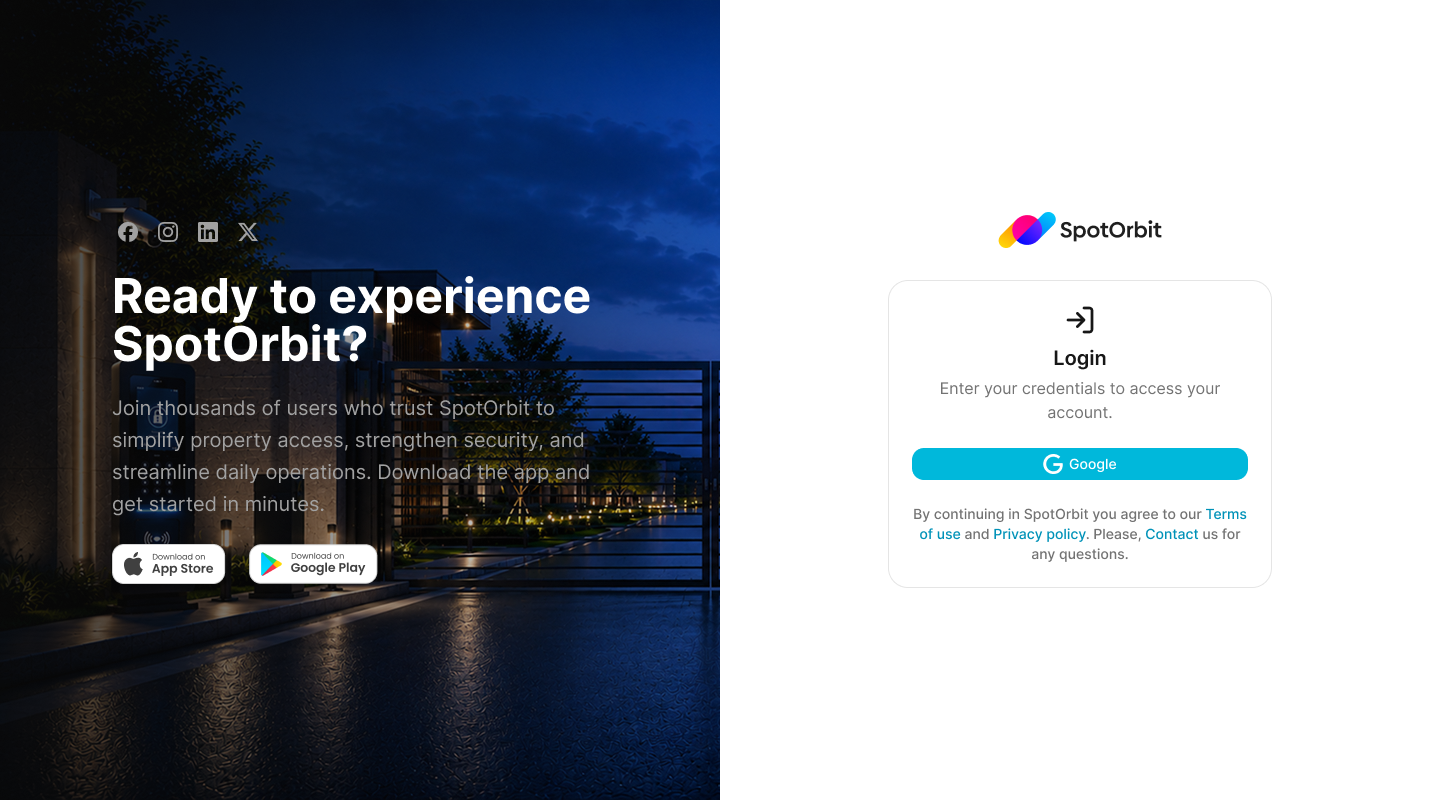
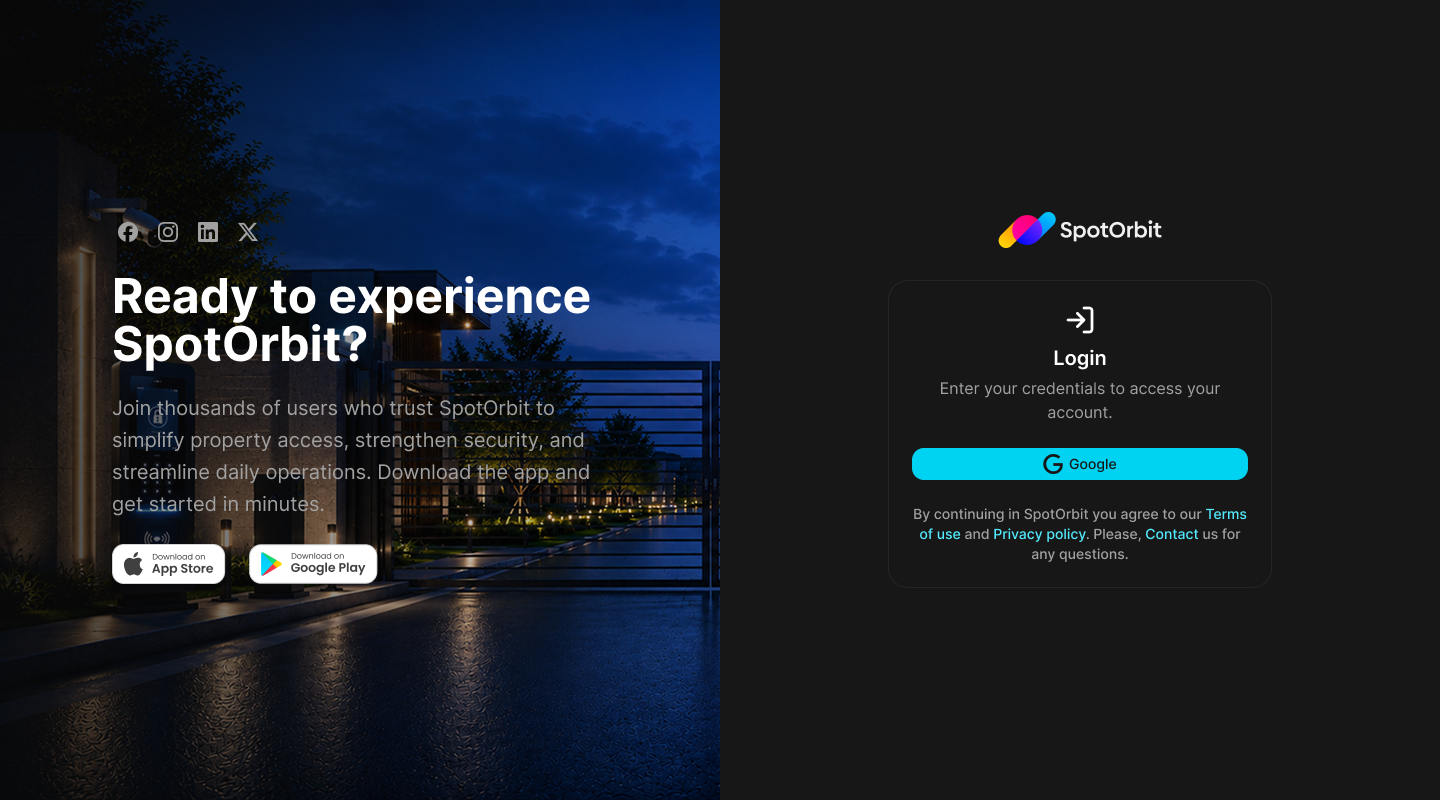
On a wide screen, the left panel introduces Spot Orbit and shows social icons and mobile-store badges. The sign-in card appears on the right beneath the Spot Orbit logo. On a narrower screen, the card occupies the available width and the promotional panel is hidden. The social icons and store badges are separate from Admin Web sign-in. Use the controls inside the Login card to access your account.
The card offers Google and Email & password. Google starts the Google account flow. Email & password opens a dialog with required Email and Password fields and a Login button. The password visibility control lets you check your entry. The links below the access controls open the Terms of use, Privacy policy, and contact page in another tab.
Sign in with email and password
Enter your email
Select Email & password to open the dialog, then enter the address associated with your existing Spot Orbit account in Email.
Enter your password
Select Password and type the password for the same account. Characters are hidden by default. Use the visibility control beside the field if you need to check what you entered.
Submit the form
Select Login and wait for the attempt to finish. If Select role appears, choose an available Admin or Manager workspace and select Admin access or Manager access, matching your choice. Spot Orbit then opens the protected page you requested, or Dashboard after a direct visit.
Sign in with Google
Start the Google flow
Select Google in the Login card. This starts a separate sign-in flow; you do not need to fill Email and Password first.
Choose the correct account
Choose the Google account associated with your Spot Orbit access and complete the prompts shown by Google. If several accounts are available, check the selected address before continuing.
Return to Admin Web
After Google returns you to Admin Web, complete Select role if prompted. The application then continues to the requested page or Dashboard. If Google returns you to a different deployment, use the approved entry address for your environment; do not copy session credentials between URLs.
Understand where you arrive
When your verified account has both launch roles, Select role offers Admin and Manager. Admin requires platform administrator access; a site's Admin membership alone does not grant that workspace. A single available role continues automatically. Role selection never assigns new permissions.
Choose a card and select Admin access or Manager access. A protected destination is retained after sign-in; a direct visit continues to Dashboard. Could not load roles offers Retry after a request or session-verification failure; wait for the current account’s roles to load before choosing access. A failed lookup does not erase a previously selected workspace.
To change workspace later, open the user menu and select Role. This item appears only when your account has both roles. Choose the other card and its access button. Back keeps the previous role and returns to the page you came from when a previous choice exists. During a role-loading failure, Back can return to an existing workspace. On the first selection, Back stays disabled until the account is verified; once verified without a prior workspace, Back signs out and returns to Login. A failed sign-out displays an error.
Manager lists only non-archived sites with an Owner, Admin, or Manager membership whose local, global, and effective access are all Granted. Platform administrator access alone does not add sites to the Manager workspace. The administrator menu includes Dashboard, Sites, Teams, Managers, and Customers.
Resolve a sign-in problem
- If the form will not submit, complete both required fields and check that Email contains an email address.
- If the email or password is rejected, check that they belong to the same existing account. When an Invalid request notice appears, read its explanation before trying again.
- If you started the Google flow, check which account you selected. Return to Login and choose the account connected to Spot Orbit if needed.
- If Google cannot complete sign-in or returns you to another deployment, open the approved Admin Web address and use Email & password if your existing account already has a Spot Orbit password. This signs in directly on that site. Use the password assigned to your Spot Orbit account. If your account only uses Google, ask the person who manages your access for help.
- If the controls are processing, wait for the current attempt to finish before selecting Login or Google again.
- If you see Configuration missing, contact the person responsible for Admin Web. Missing sign-in configuration disables the form; changing your password will not fix it.
- If you need a new account or have forgotten your password, contact the person who manages your Spot Orbit access. This page provides neither action.
Frequently asked questions (FAQ)
No. Login accepts an existing account. Ask the person who manages your Spot Orbit access for help with either request.
No. Google starts a separate flow. Use the two fields only for email-and-password sign-in.
A protected link remains your destination after sign-in and any required role selection. A direct visit continues to Dashboard.
No. The sidebar depends on your assigned role, capabilities, and site access. Ask your administrator if an expected option is missing.
Admin Web lacks a required connection setting. Contact the person responsible for the service; trying another password will not configure it.
Related content
- Getting started — Learn how the workspace and role-specific navigation are organized.
- Dashboard — Understand the summary on the main page.
- Sign out — End your session when you finish.