Teams
Overview
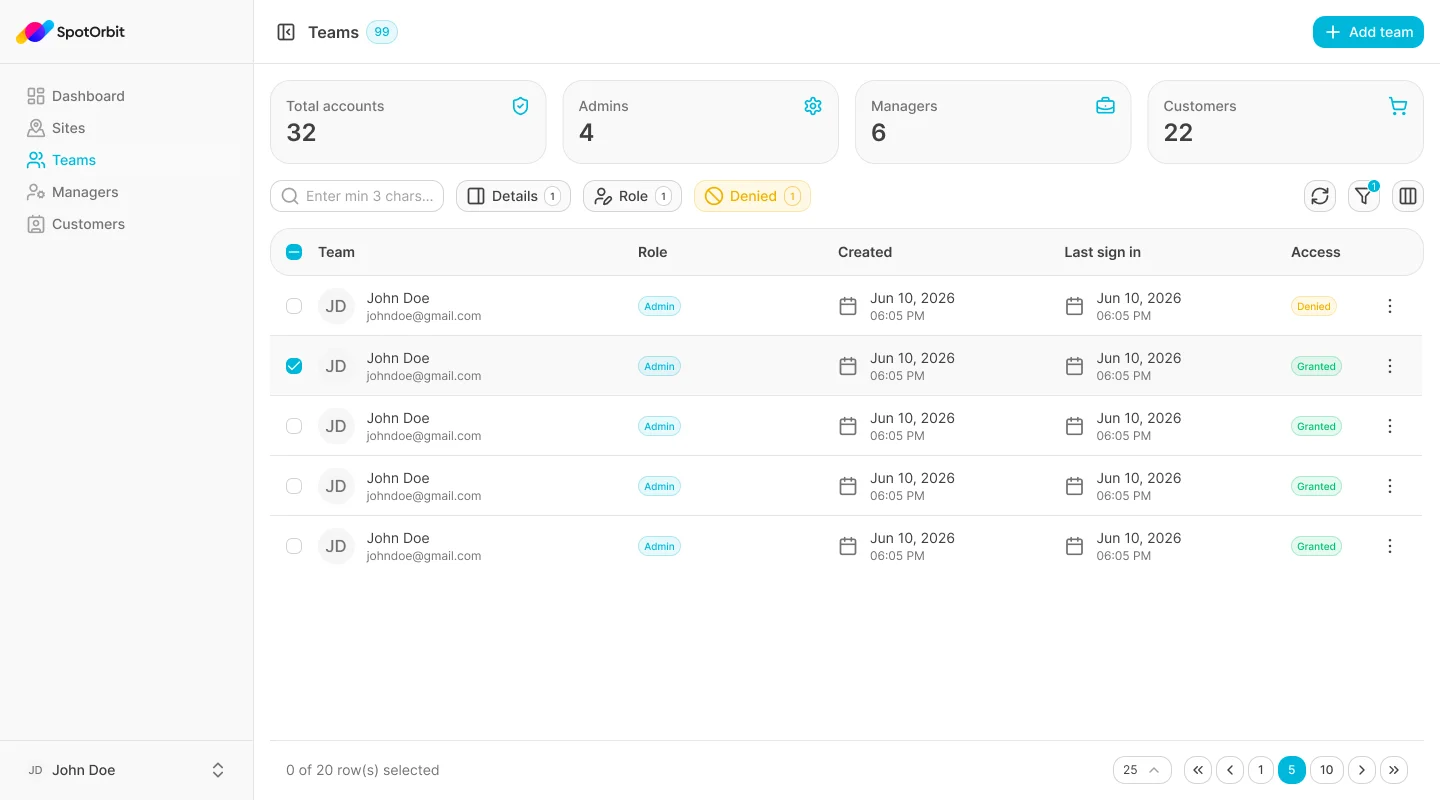
Teams lists Admin site memberships and Platform administrator access. It does not list Owner, Manager, Operator, or Viewer memberships by themselves. A person can have one row per Admin site membership. A platform administrator without an Admin site membership has a Platform-only row instead. Role badges reflect these actual assignments: Admin, Platform, or both.
Details opens the drawer. Role edits account roles and managed sites. Denied/Granted changes the permission appropriate to the row: local team permission for a site membership, global account access for a Platform-only row. Add team opens invitations. Teams has no More or direct Revoke membership action in its row menu or selection toolbar.
Understand the scope and summary cards
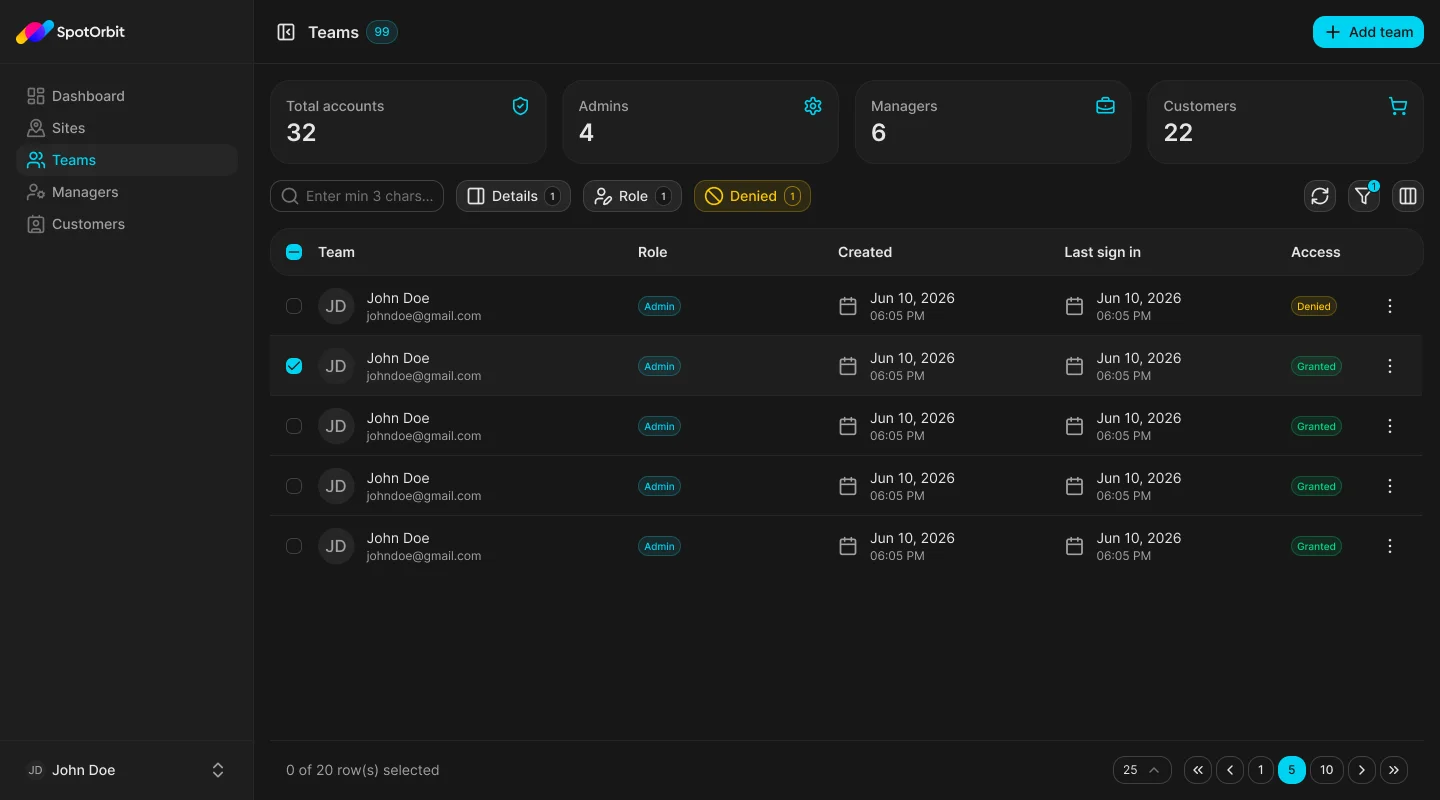
Administrator Teams has no site selector or Site column. For a membership row, open Details to check Site, Local team permission, effective access, and Access history. Its Access badge is Denied if local or global policy denies access. A Platform-only row shows global access across all sites and has no local membership history.
Total accounts counts each distinct loaded account once before search and filters. Admins, Managers, and Customers use assigned account roles when available; one account can contribute to several role cards. Without complete assignments, the cards use the recorded primary role. These account totals differ from the directory’s membership badges and matching-row title; one person can have several membership rows.
Find and filter a member
Search the loaded memberships
Enter at least three characters to match identity, account or site role, site name, or site code. Clearing search restores the unsearched list.
Set Date or Status filters
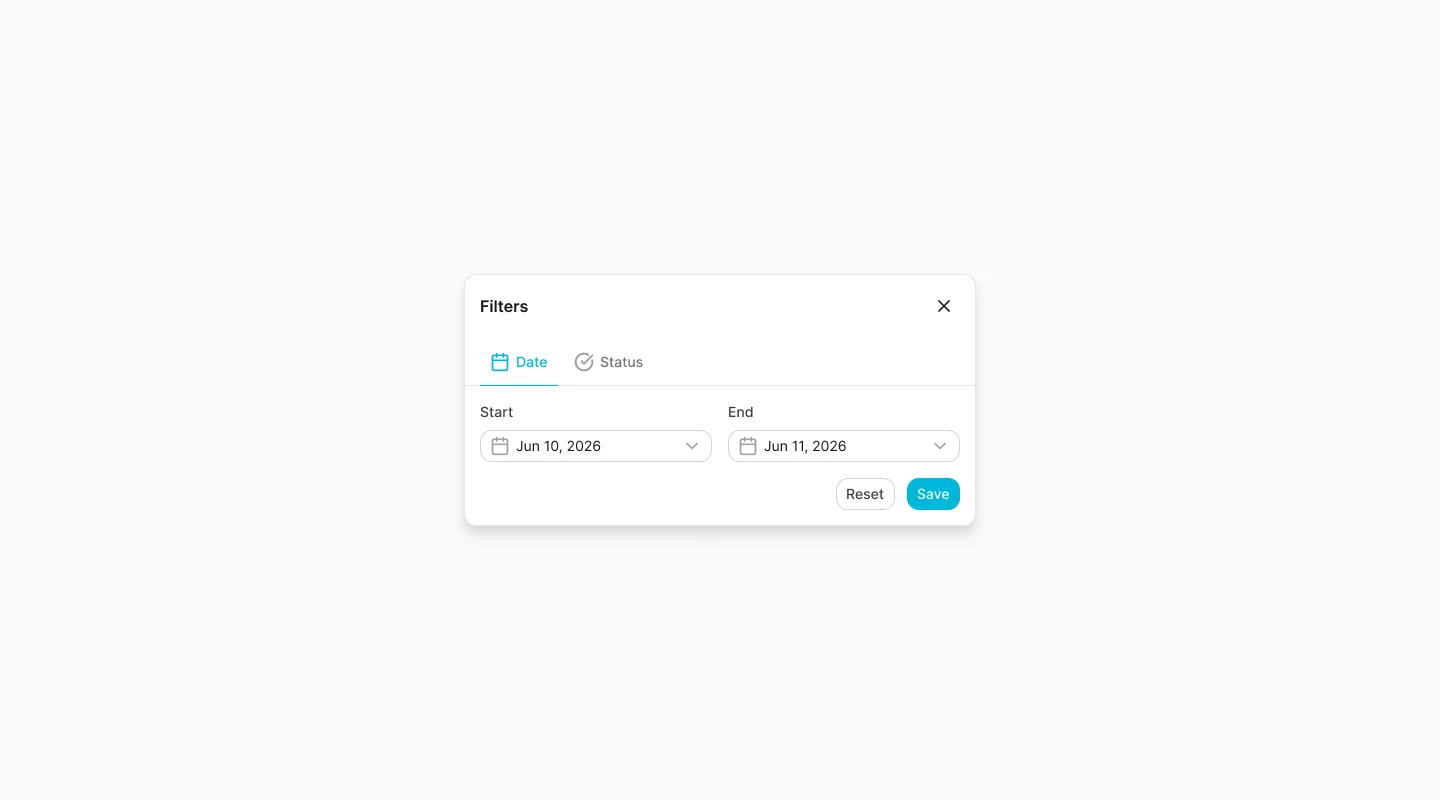
Open Filters. Date evaluates account creation, not membership creation or last sign-in, with a start date, end date, or both. Status offers All, Granted, and Denied for effective team access at each membership's site. Save applies the draft; Reset clears it.
Adjust the table
Use column controls to hide, show, or reorder manageable columns. Pagination starts at 25, with 10, 25, 50, and 100 available. Search or filter changes return to the first page and clear selected rows.
Choose the correct action
- Details: inspect identity, actual Role badges, access, dates, and related sites. Membership rows also show Site, Local team permission, a global-denial notice when applicable, and expandable Access history.
- Role: edit independent Admin/Manager assignments while retaining required Customer. With Manager selected, use Add site → Search, enter at least three characters and apply Search, choose sites, then Select and Save. Reset restores the loaded draft. Owner/Admin site memberships are preserved; see account role rules.
- Denied/Granted: use Denied for Granted permission or Granted for Denied permission. Membership rows follow local permission even if global denial keeps effective access Denied. Platform-only rows change global access.
Details and Role require exactly one selected row. A group access action appears only when all selected permissions are known and equal and all rows share the same scope: all memberships or all Platform-only rows. All Granted offers Denied; all Denied offers Granted. Mixed permissions or mixed local/global rows have no group access action. Protected targets disable the action, including self-denial.
Check the selected people and each membership's Site before opening a confirmation. The local confirmation has generic team text and does not repeat the target list. Success updates access; partial failure retains only failed targets for explicit retry. Teams has no export. See Member access for the full procedure.
Loading, empty, and error states
Refresh requests the list again. No teams found means no included directory rows match the current scope, search, and filters. A failed list offers Retry. Missing dates remain unavailable. Add team is disabled without an active site context or while sites are loading.
Could not load team access offers Retry access; unavailable permission is not proof of granted access. Details has its own access retry and Retry access history. Denial can be rejected if it would leave the site without an active manager. Access changes preserve successful updates after a partial failure and retain failed memberships for retry; see Member access for recovery guidance.
Frequently asked questions (FAQ)
A separate row represents each Admin site membership. A platform administrator with no Admin membership has one Platform-only row. Summary cards still count accounts once.
Check the row. It changes local team permission for a site membership, but global account access for a Platform-only row. These scopes cannot be combined in one group action.
Permissions must all be known and equal, and rows must all be local memberships or all Platform-only. Mixed selections have no group access action.
They are absent from this directory. Use Details and the appropriate Role editor. Older Teams or Manager full-detail links return to their directory; customer full pages remain available.
Related content
- Invitations — Invite a person and manage pending or expired links.
- Member access — Change local team permission, inspect history, or remove a membership.
- Managers and Customers — Review global account roles and access.
- Getting started — Review administrator navigation and scope.