Getting started
Overview
Spot Orbit Admin Web brings site operations and account tools into one workspace. Sign in with an existing account and complete Select role if prompted. The application continues to your requested page or Dashboard. The sidebar opens the tools for your selected workspace. On main pages, the user menu provides Profile, Theme, Appearance, and Logout; some detail pages replace it with record links and Back.
Navigation depends on your selected launch role, assigned access, and site. The administrator menu has Dashboard, Sites, Teams, Managers, and Customers. The manager operations menu includes Site, Spots, Reservations, Payments, Devices, Videos, Events, Teams, and Customers when site management is available. Dashboard and operational pages now share the same manager menu, including Dashboard, Site, and Spots. Choosing a workspace never grants permissions that the account does not already have.
For an administrator, Dashboard combines operational information from non-archived sites. In the Manager workspace it uses the selected site. Cards summarize devices and video; lower sections show devices, access attempts, commands, and video activity. Empty and error messages distinguish missing sites or records from unavailable information; an error offers Retry.
Role in the user menu reopens Select role when the account has both Admin and Manager access. Choose the workspace and its access button; Back keeps the previous choice. This changes the workspace without assigning permissions. Use Back first if a detail page has replaced the user menu.
Enter the workspace
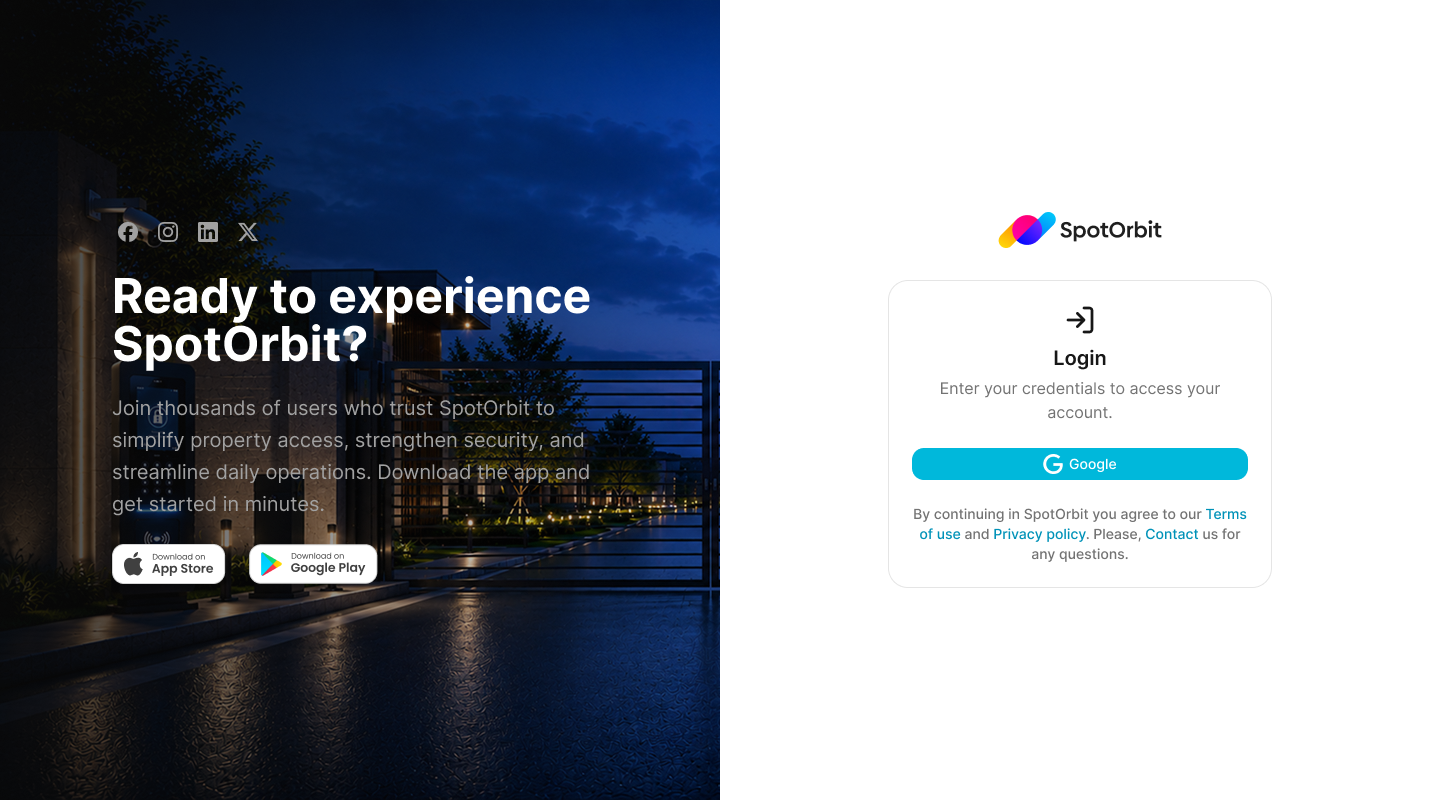
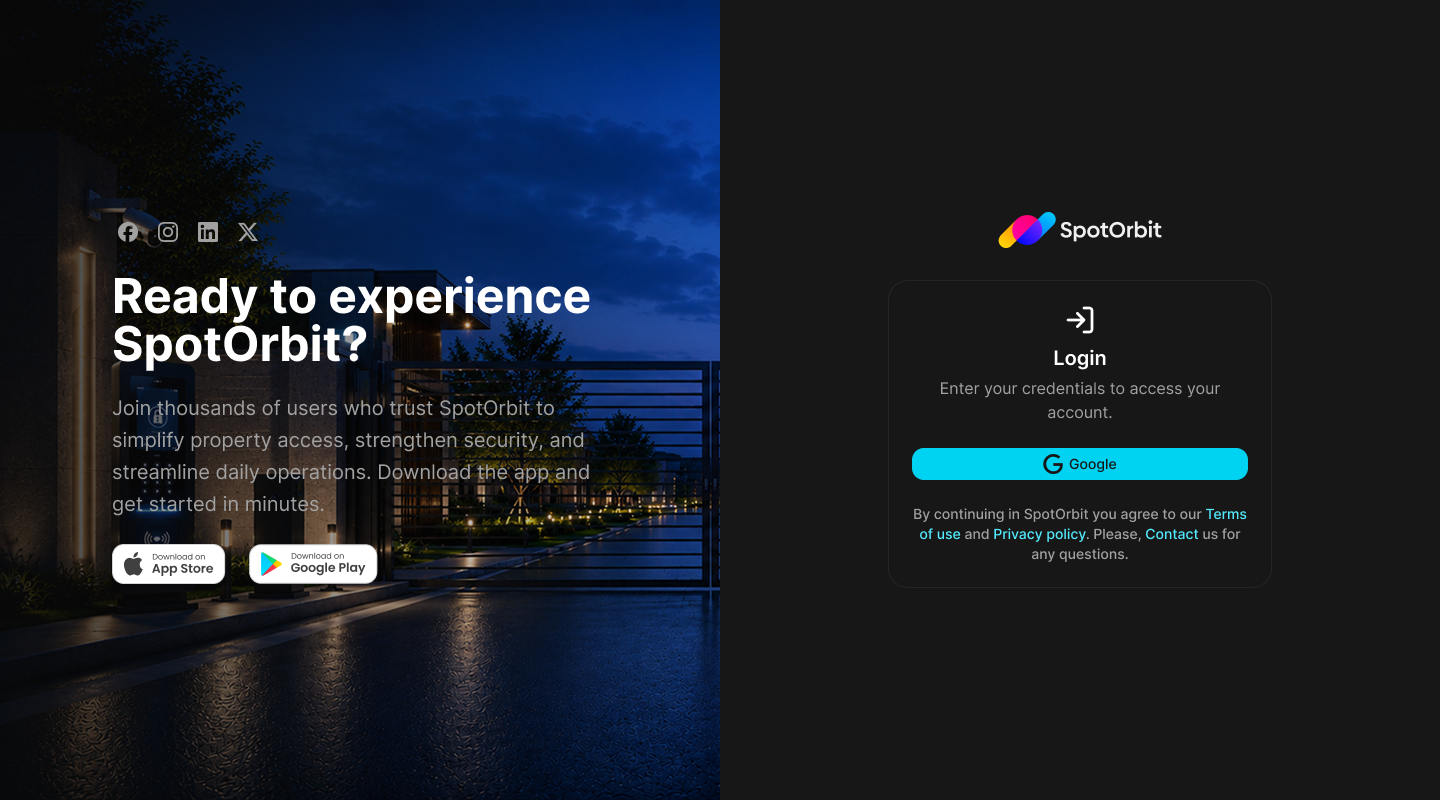
Open Login
Open Admin Web. If you followed a protected page link without a session, the application first sends you to Login and remembers your destination.
Sign in with your existing account
Select Google, or select Email & password to open the credentials dialog and submit Login. Complete Select role when offered, choosing only an available workspace. Login does not create accounts or reset passwords.
Check the page you reached
After sign-in and any required role choice, check the page title and its scope. Dashboard is platform-wide for administrators and site-specific for managers. A protected link can open another page. Wait for loading to finish before interpreting totals.
Find the tools for your account
Manager. Use Site for Site info and its Zones tab, or Spots for the selected site's spots across zones. Reservations, Payments, Devices, Videos, Events, Teams, and Customers open their respective areas. The site selector identifies the operational site. Continue with Manager workspace.
Administrator. Use Dashboard, Sites, Teams, Managers, and Customers. Dashboard summarizes non-archived sites; Sites opens a specific site. Within a site, Site contains Site info and Zones tabs, alongside Reservations, Payments, Devices, and Videos. Managers lists accounts with actual Owner or Manager site assignments; Customers uses the list of accounts assigned Customer, including accounts with other roles. Teams lists site Admin memberships and Platform access. Continue with Administrator workspace.
The main sections cover manager and administrator workflows. Additional web views explains the retained direct-link pages, including customer web reservations and checkout. Mobile App remains a separate guide.
Check the site and page scope
For a manager, use the selector near the top of the sidebar to choose an accessible site, then check its name before starting work. With no sites, it shows No sites available. Administrators enter site-specific pages through Sites; their Dashboard aggregates non-archived sites instead of following that selector.
Detail screens can replace the main menu with Back and record links. An account has Account info and Activity. A site has Site, with Site info and Zones tabs, plus its operational pages. Use Back to return to the broader list.
Read the Dashboard before acting
First identify whether Dashboard covers the administrator portfolio or a manager site. Compare Total devices, Online, and Offline, then read Video and its available update time. The lower sections show recent devices, access outcomes, command statuses, and camera events. Empty messages differ from loading placeholders.
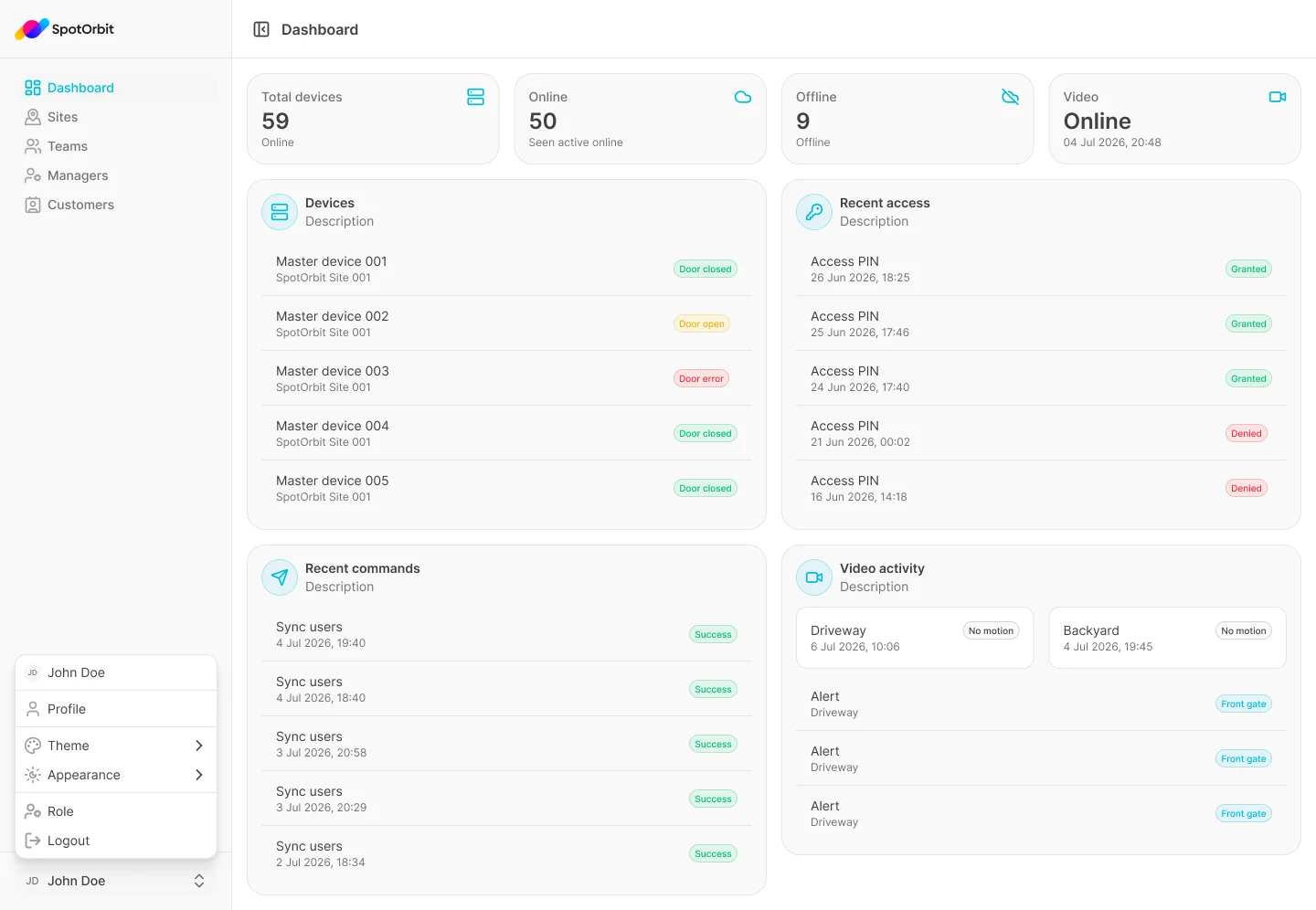
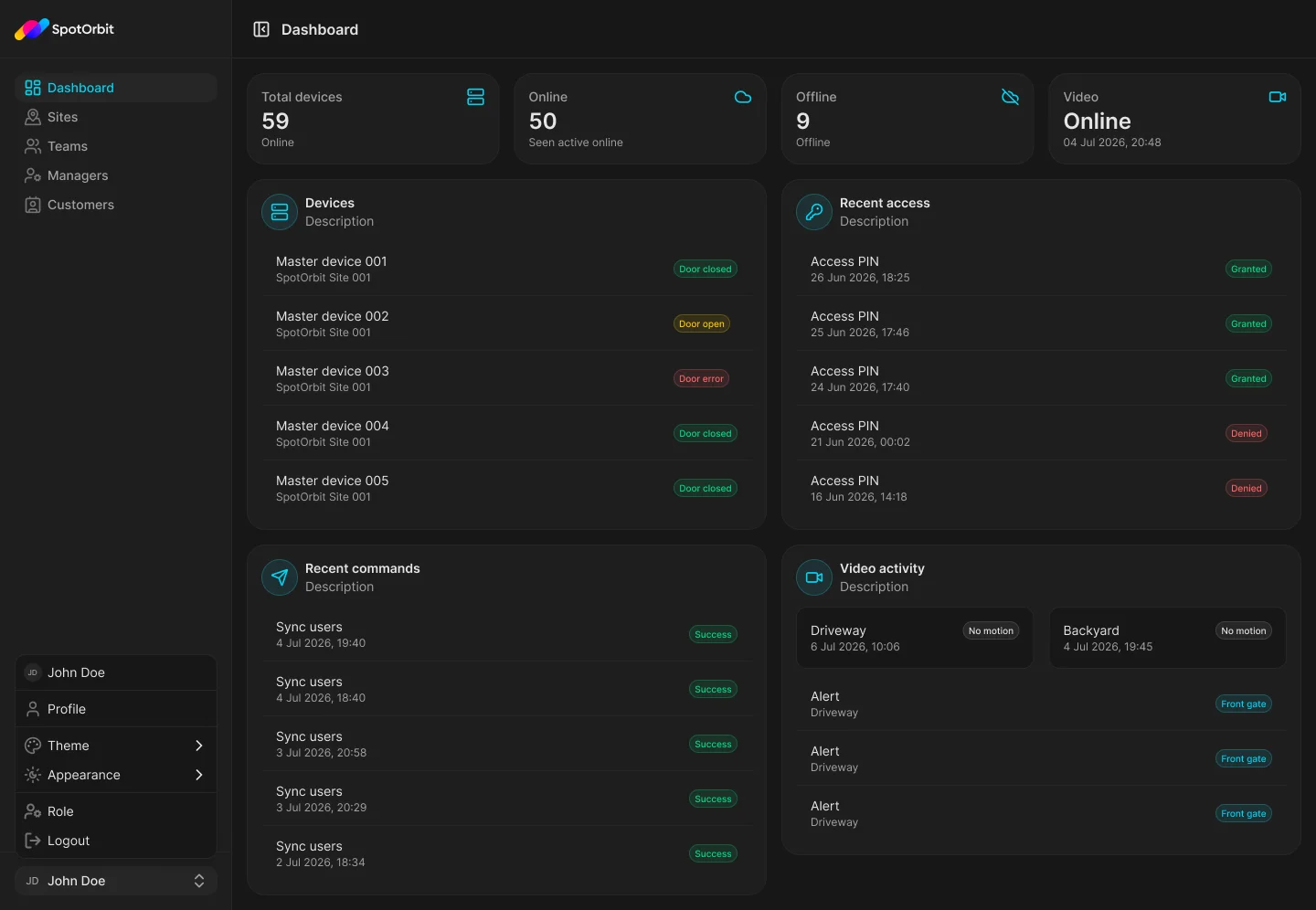
If Dashboard cannot load, use Retry. Read whether its scope has no sites, no active sites, or no recent records. Managers can check the selected site; administrators can inspect site availability in Sites.
Finish your session
On a main page, open the user menu at the bottom of the sidebar when you need to review your Profile or select Appearance → Light or Dark. If a detail page has replaced that menu, use Back first. To end the session, select Logout, read the confirmation dialog, and select Logout. Spot Orbit then returns to Login. Confirming Logout matters especially on a shared computer.
Frequently asked questions (FAQ)
The application builds the sidebar from your account's role, capabilities, and site access. Ask an administrator to check your access if an expected page is missing.
A non-administrator uses the site selector near the top of the sidebar. Check the site name in the header after changing it. The selector lists only sites available to the account.
It may have no active site or no recent items. Read the displayed empty-state message. A loading placeholder means the first request is still running; an error state offers Retry.
If your account has both launch roles, Select role offers Admin and Manager at sign-in. Choosing one changes the workspace, not assigned permissions. Contact an authorized administrator to change your access.
Some detail screens show Back and links specific to the selected record or site. Use Back to return to the broader page.
Related content
- Sign in — Follow both available ways to start a session and resolve common access problems.
- Manager workspace — Work within the selected site's operational pages.
- Administrator workspace — Find sites, teams, and accounts across the platform.
- Sign out — Close your session safely.
- Additional web views — Understand direct-link Users, Devices, Marketplace, and checkout pages.