Dashboard
Dashboard provides a read-only operational summary of non-archived sites in the administrator workspace.
Overview
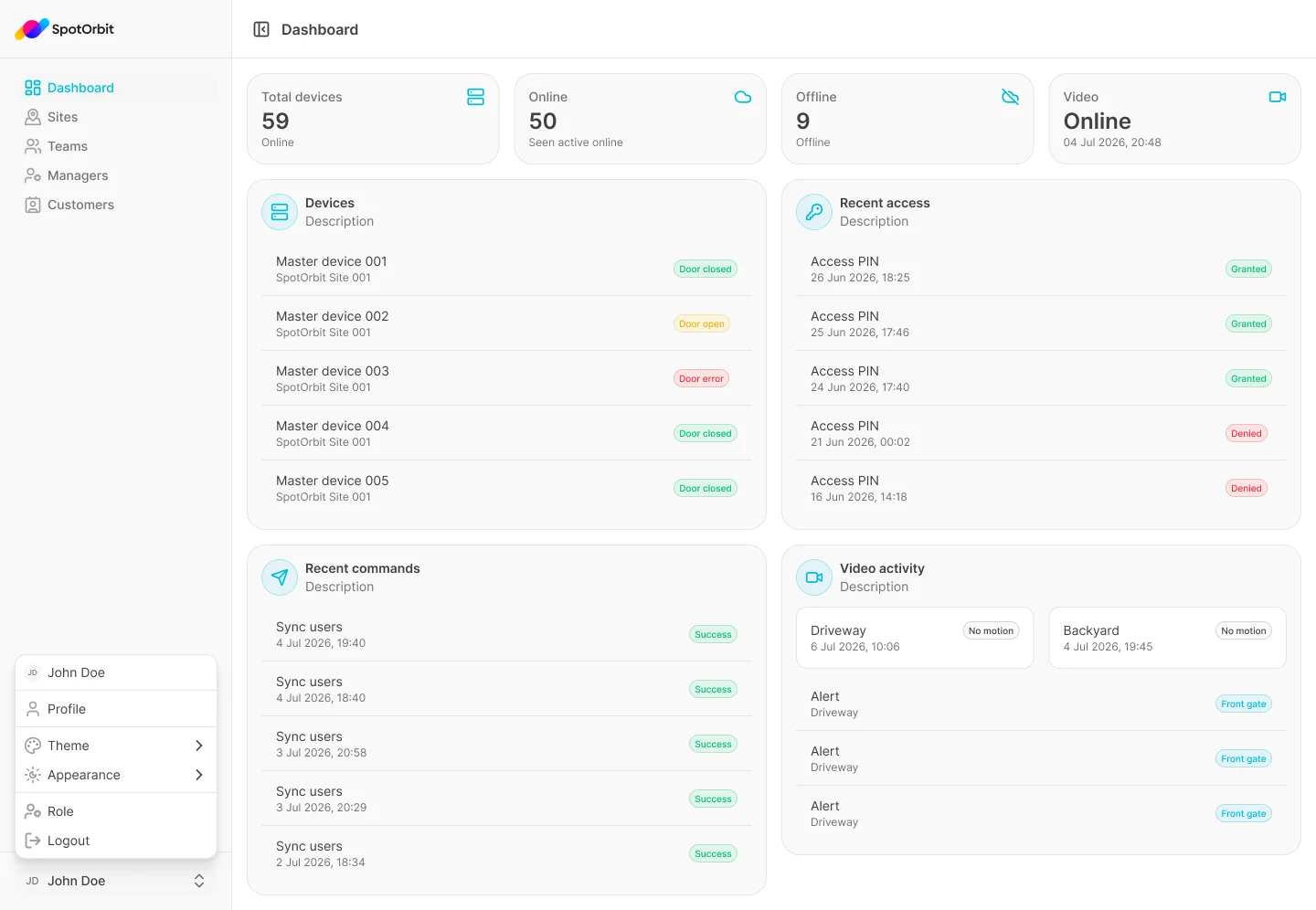
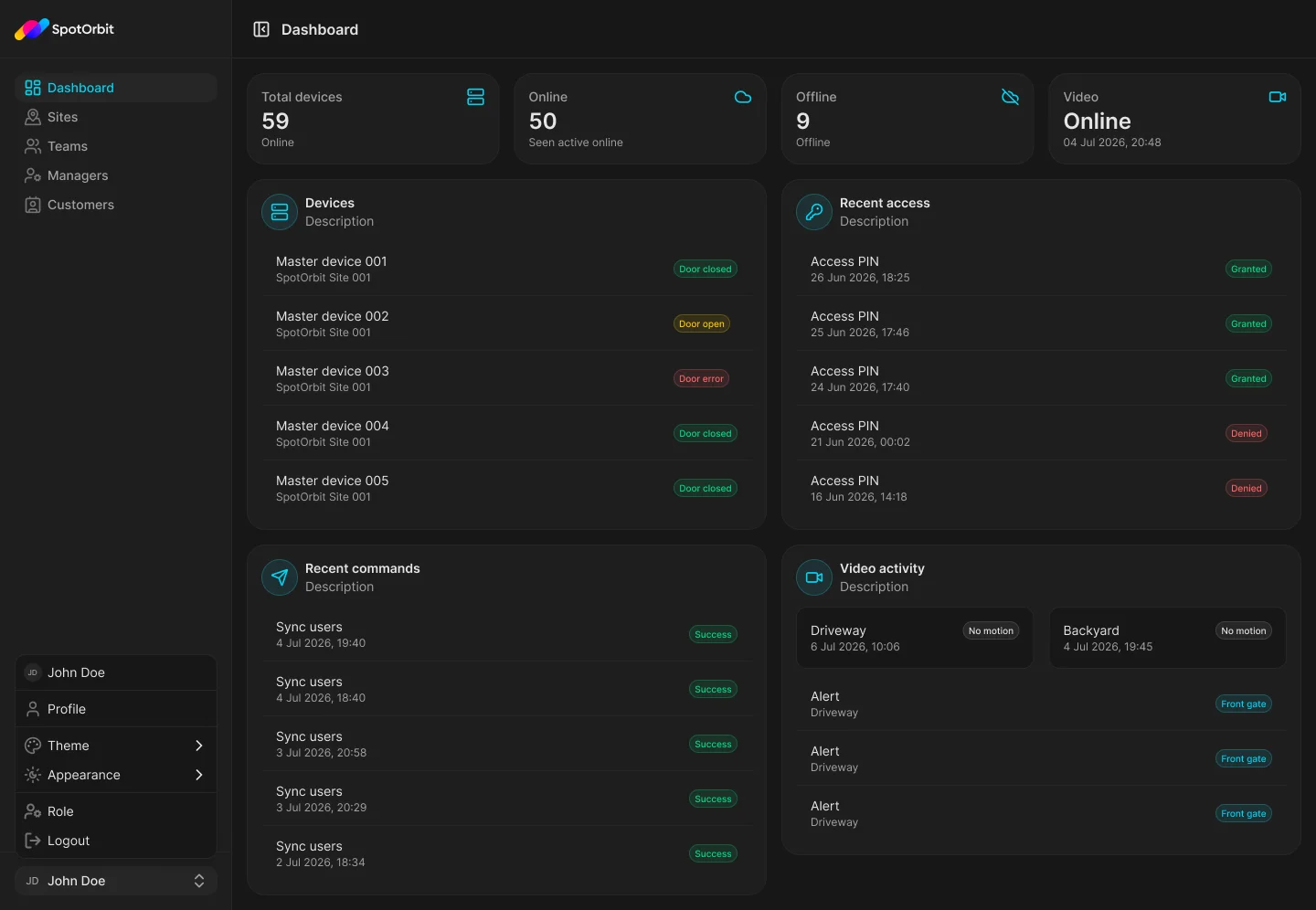
The header says Dashboard. Four cards summarize device and video availability across non-archived sites. Sections below show devices, recent access, recent commands, and video activity. Dashboard has no search, filters, exports, or management actions. In the Manager workspace, Dashboard instead uses the selected site.
Review the overview
Confirm the scope
In the administrator workspace, the summary includes non-archived sites. Read the empty-state message if no sites or no active sites are available.
Check the status cards
Compare the total, online, and offline device counts, then review the current video availability and its latest update time.
Review recent activity
Scan the device, access, command, and video sections for statuses or events that may require attention.
Open the appropriate feature
Use Sites to open the relevant site's detailed lists, filters, or management actions. The Dashboard itself is a summary.
Status cards
The four cards at the top summarize:
- Total devices: devices in the combined site overviews.
- Online: the sum reported online by those overviews.
- Offline: the sum reported offline.
- Video: the most recently updated available video status from the included sites, rather than a combined availability percentage.
Use these totals to assess the included portfolio. Open the relevant site for a complete site-specific investigation.
Devices
The Devices section shows up to five devices with their available name, site context, and a Door state badge.
Use this section to notice a door state that may need attention. Check the Online and Offline cards for connection totals. For individual connection details or actions, open Sites, choose the site, and then open its Devices page.
Recent access
The Recent access section shows up to five recent attempts combined across sites, ordered by time. Each entry includes its available result, date, and status.
Recent commands
The Recent commands section shows up to five commands combined across sites, ordered by creation time, with their current statuses.
Video activity
The Video activity section shows up to two camera cards and three recent video events. Event presentation separates the camera and zone when available; a missing zone is shown as unknown.
- Camera cards show the camera name, Motion detected or No motion, and last update time.
- Recent video events show their title, location, and a zone badge. Read that badge as the event's zone, rather than its resolution status.
Loading, empty, and error states
- Loading placeholders appear while the first site overview is being retrieved.
- Each section displays its own empty message when it has no records yet.
- If no site is available, the page distinguishes between an account with no site access and an account with no active sites.
- If the overview cannot be loaded, select Retry to request it again.
Frequently asked questions (FAQ)
Your account may not have access to a site, or the available sites may not be active. Read the empty-state message for the condition that applies.
No. The current Dashboard is a summary without search or filter controls. Open the site through Sites for detailed lists and filters.
Select Retry in the error message. If the problem continues, report the affected site and the message shown on the page.
No. The Dashboard displays device status but does not expose device management actions. Open the site's Devices page through Sites.
Related content
- Getting started — Learn how the Admin workspace is organized.
- Sign in — Access the Dashboard with an existing account.
- Sites — Continue to the available site-management content.
- Sign out — End the current session after reviewing site status.