Reservations
Overview
Open Reservations from the Manager menu after choosing a site in the sidebar selector. The menu is available for a site you can manage. Without a selected site, the page shows No site selected and asks you to select one before managing reservations. The number beside the title counts matching records.
Four cards summarize the entire site across all periods: Total spots, Active reservations, Needs attention, and Manager net, with gross below it. Needs attention counts reservations with overdue payment, required payment, or a payment conflict requiring a refund; it is not a count of all failed payments. The labels Site-wide · All periods and Independent of table filters explain why card totals need not match filtered rows. Refresh reloads both the list and these cards.
The table identifies each reservation by spot and zone, period and billing mode, start and end, amount with fee, and status. Daily, Monthly, and Annual describe pricing periods; One-time, Auto-renew, Cancels at period end, and Auto-renew off describe billing or renewal. Reservation status, payment status, and access validity are different information. Access not started or Access ended adds timing context; an Active badge alone does not prove that access is currently valid. Dates and times use the browser's local time zone. For subscriptions, End shows the current paid period's end when available.
Search applies from three characters after trimming leading and trailing spaces. Filters contains Period, Date, and Status tabs; its badge counts active filter groups. The column control changes visible columns. Checkboxes select rows, but the selected-row Details and cancellation actions require exactly one selection; there is no bulk cancellation. The row menu also offers Details and eligible cancellation actions. Choose 10, 25, 50, or 100 rows per page; 25 is the default. Use available page controls after loading finishes. Changing the site, search, filters, or page size returns to the first page. An empty result shows No reservations found.
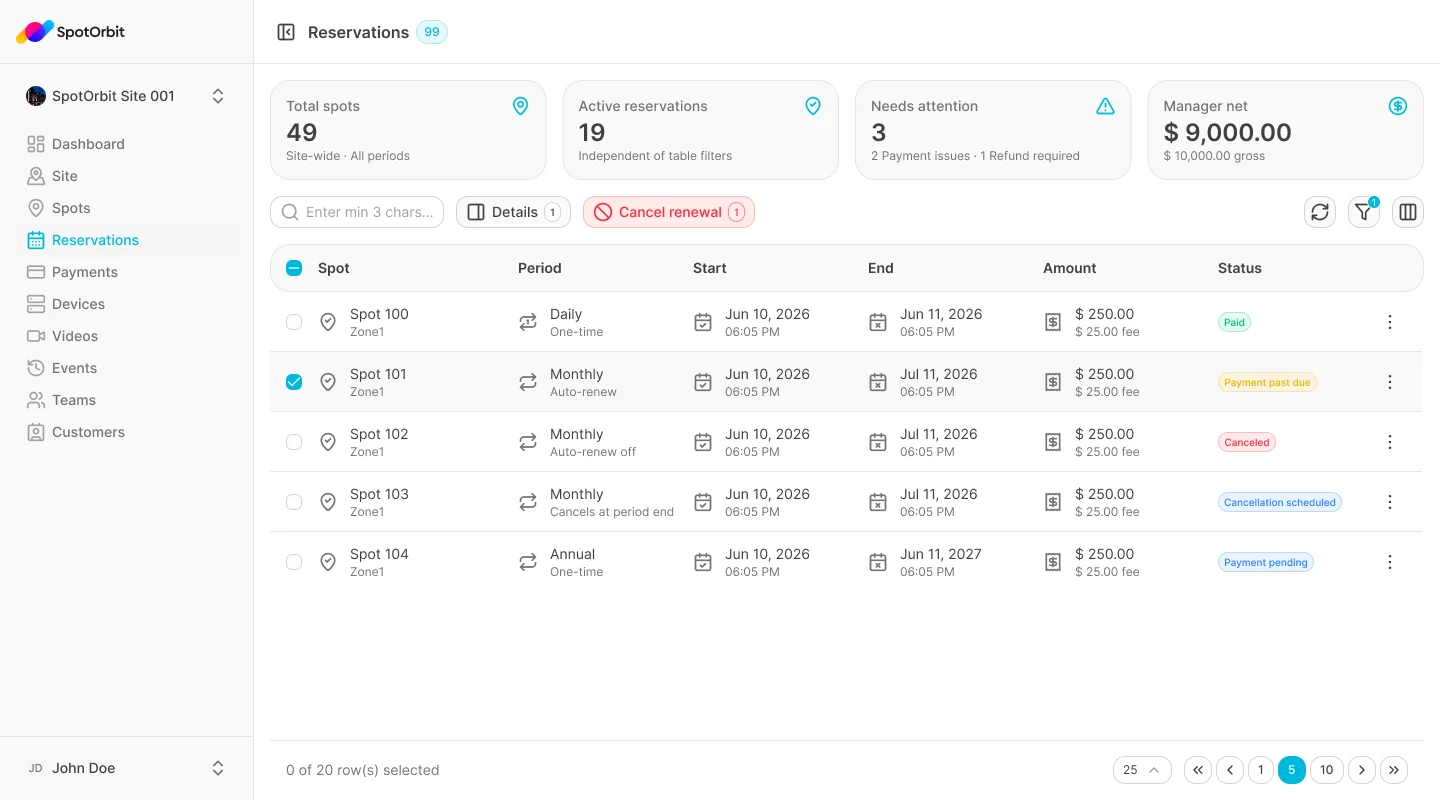
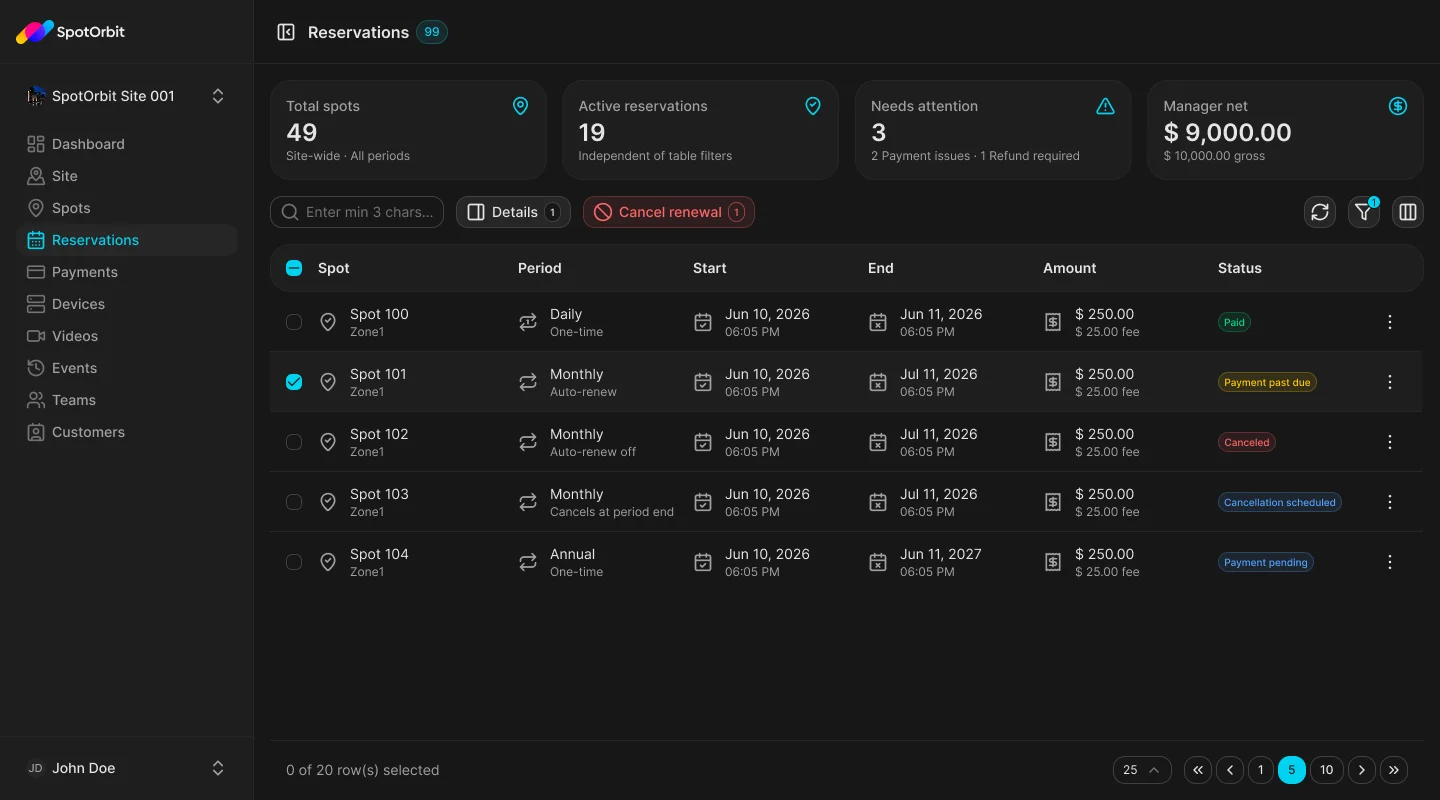
Work with reservations
Narrow the list
Confirm the site in the selector. Enter at least three search characters, or open Filters. In Period, choose Daily, Monthly, or Annual for the pricing period; Monthly does not mean a particular calendar month or necessarily automatic renewal. All removes only the period restriction.
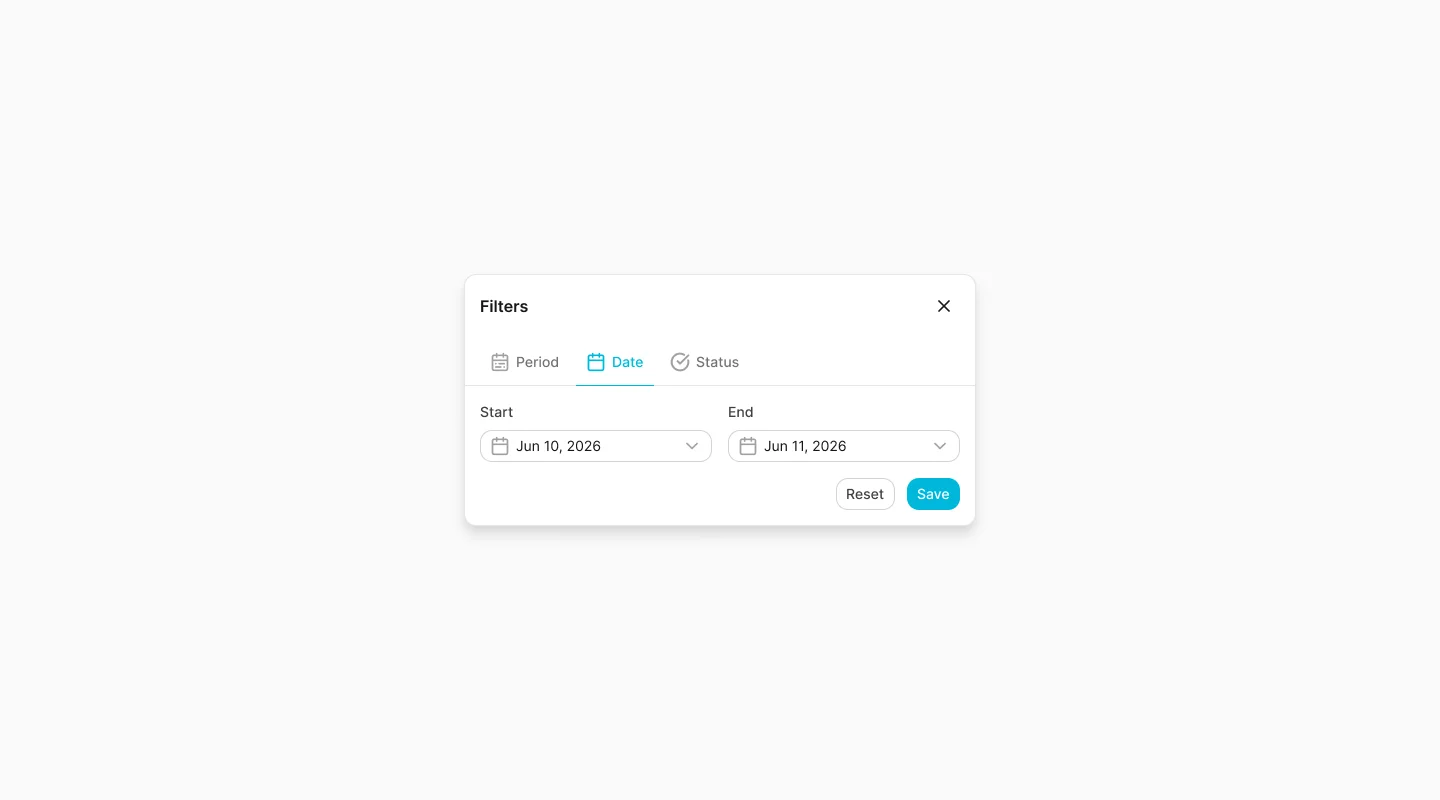
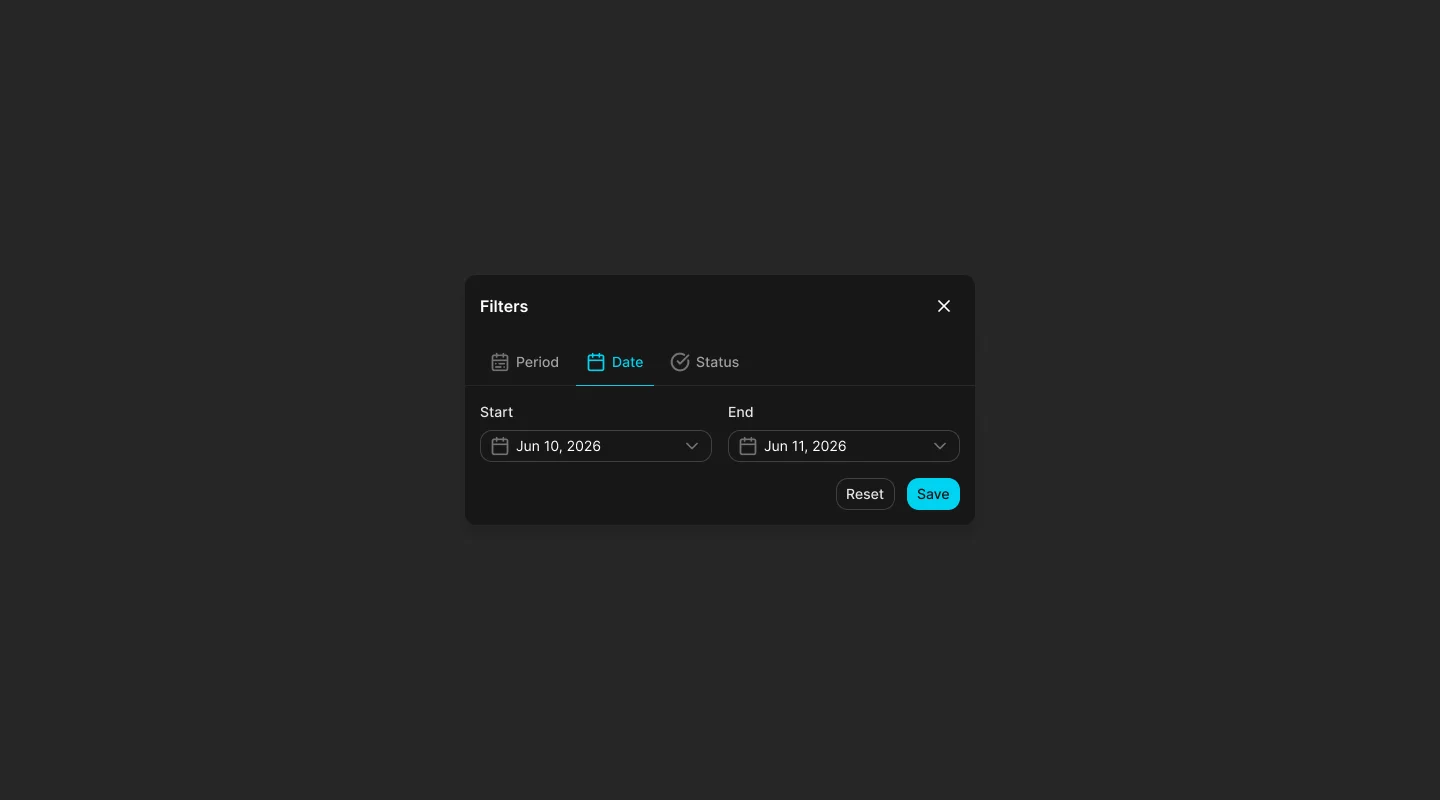
Switch tabs to set a date range or reservation status without losing your draft choices. The Date field opens a range calendar; selected days use the browser's local time zone, from the start of the first day through the end of the last. Save applies all three groups, closes the dialog, and returns to page one. Closing without Save leaves applied filters unchanged. Reset clears all three groups and closes the dialog; clear the search separately. Neither filtering nor resetting changes a reservation.
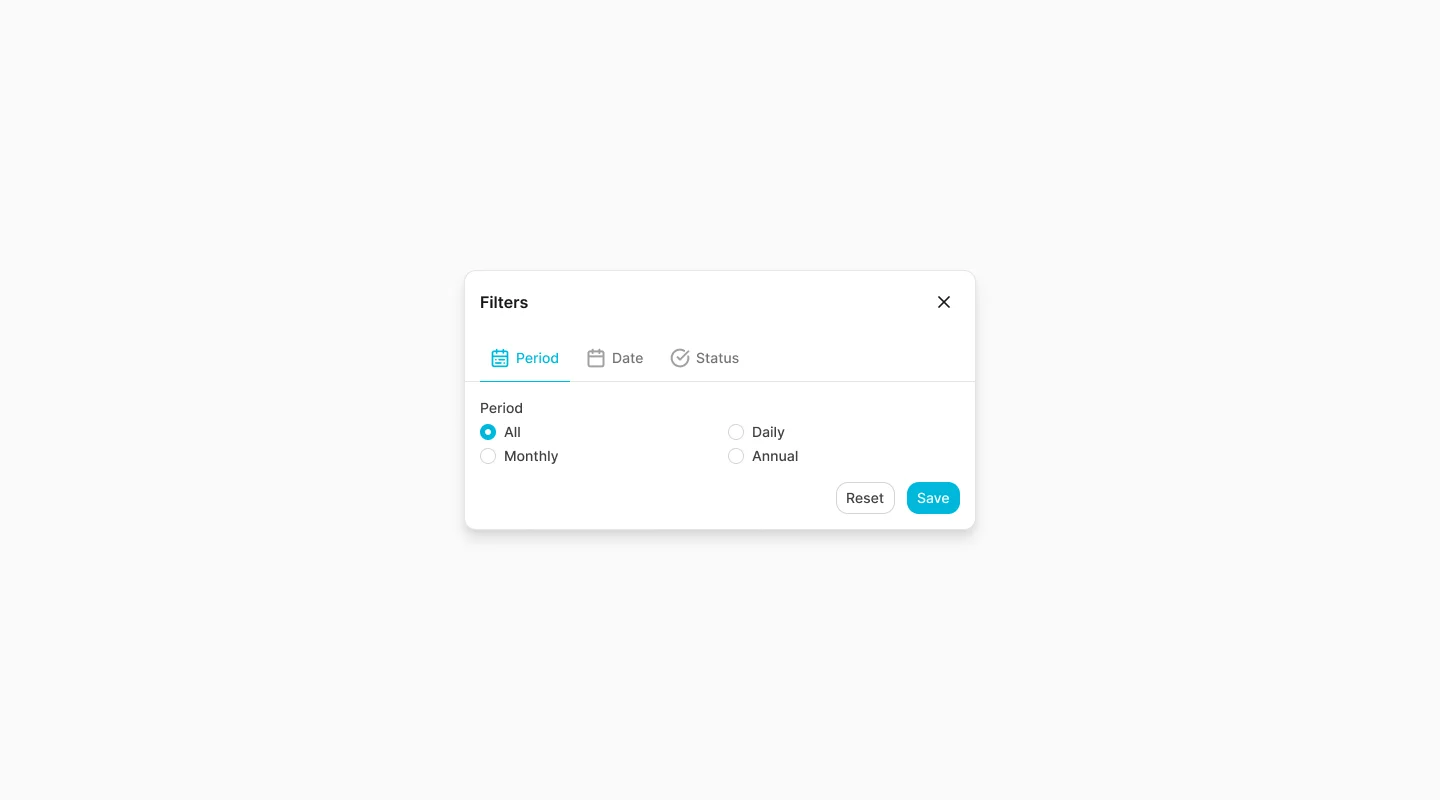
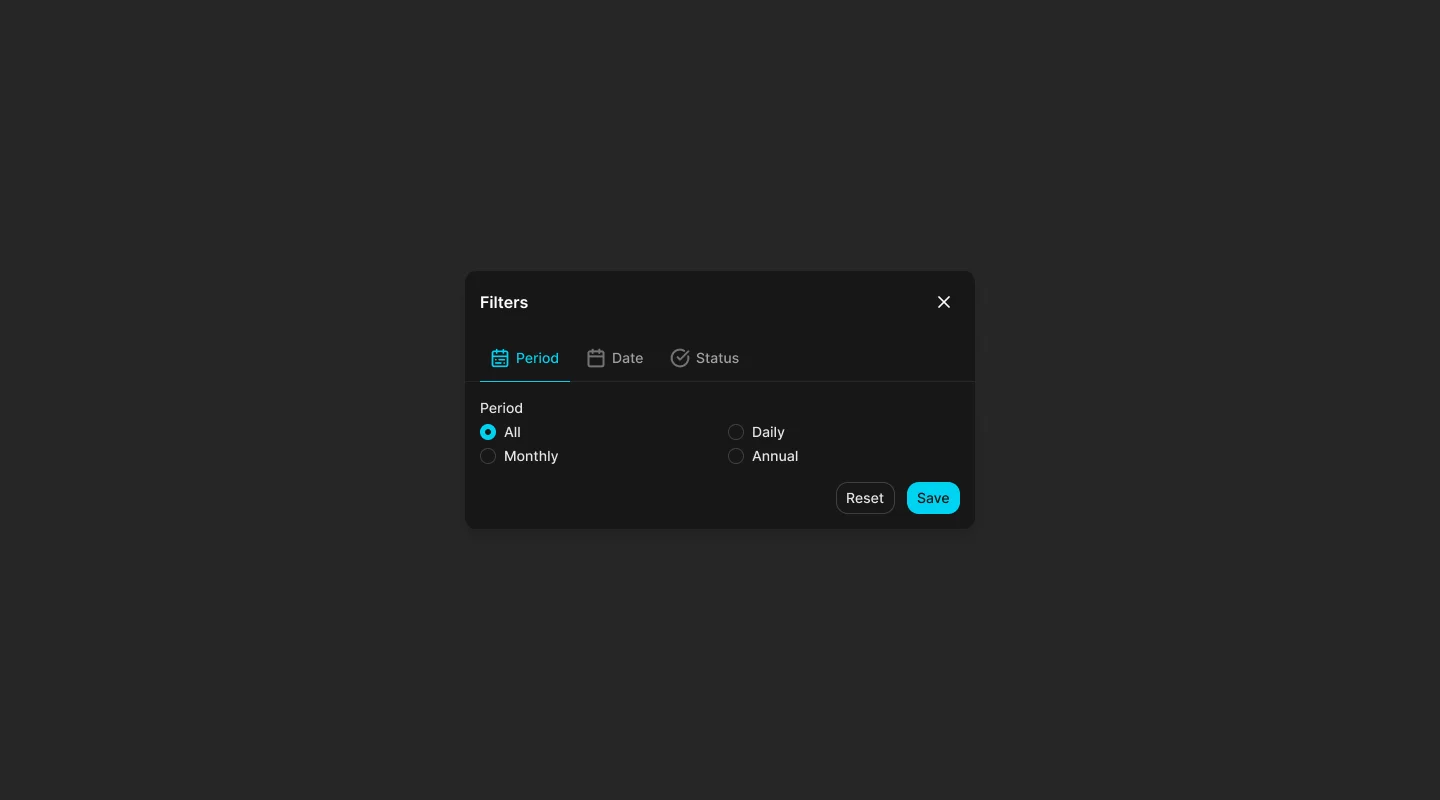
Choose a date range
Select the Date tab, then the read-only Date field to open the range calendar. Choose the first and last days across the two displayed months. The range uses the browser's local time zone, from midnight on the first day through the end of the last day. It is independent of the Daily, Monthly, or Annual pricing period.
Choose a reservation status
Select Status, then Active, Paid, Payment pending, Cancellation scheduled, Payment past due, Payment required, Refund required, Canceled, or Completed. Choose All to remove only the status restriction. These are reservation states, not payment filters or access-validity decisions. In particular, Refund required identifies a reservation with a payment conflict requiring attention; choosing it does not request a refund.
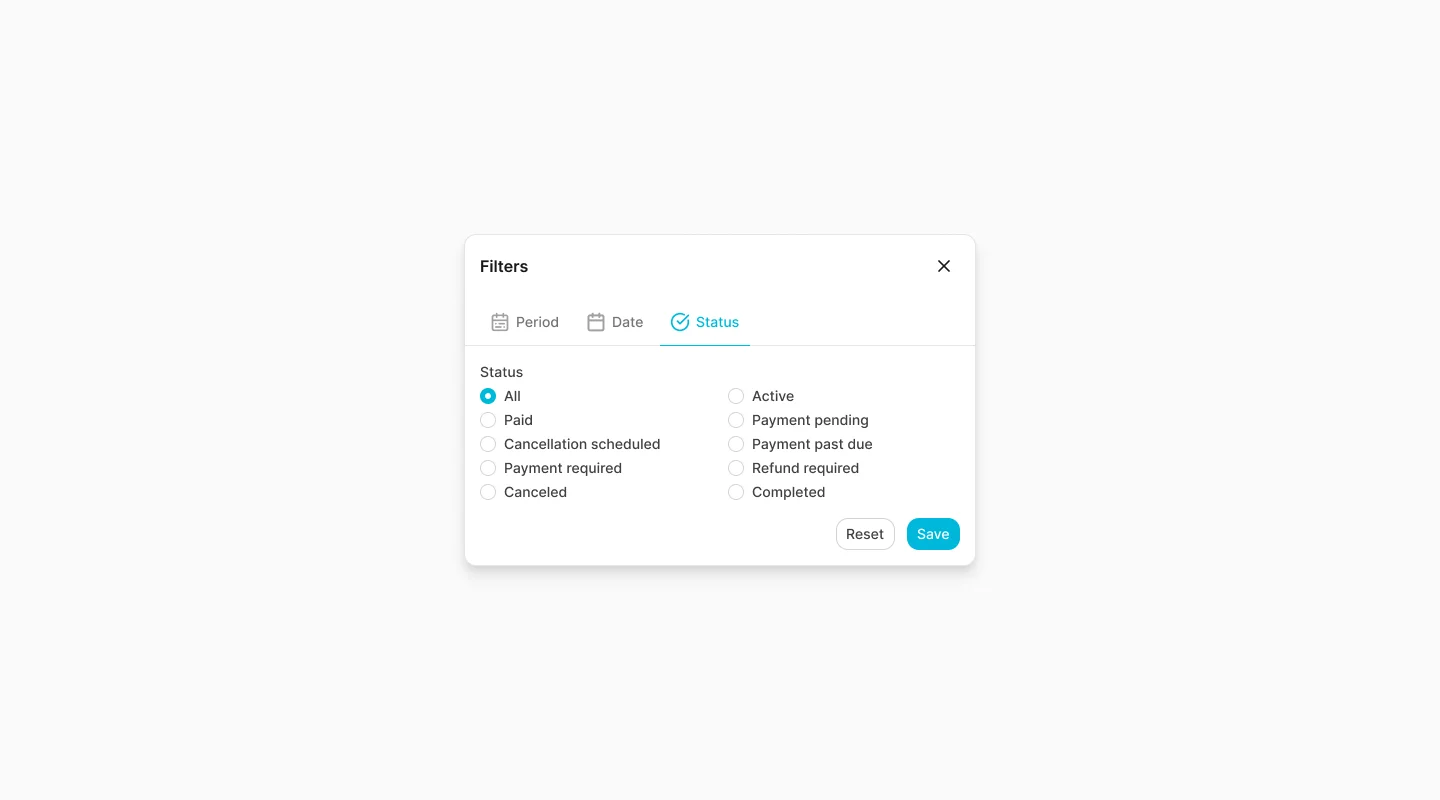
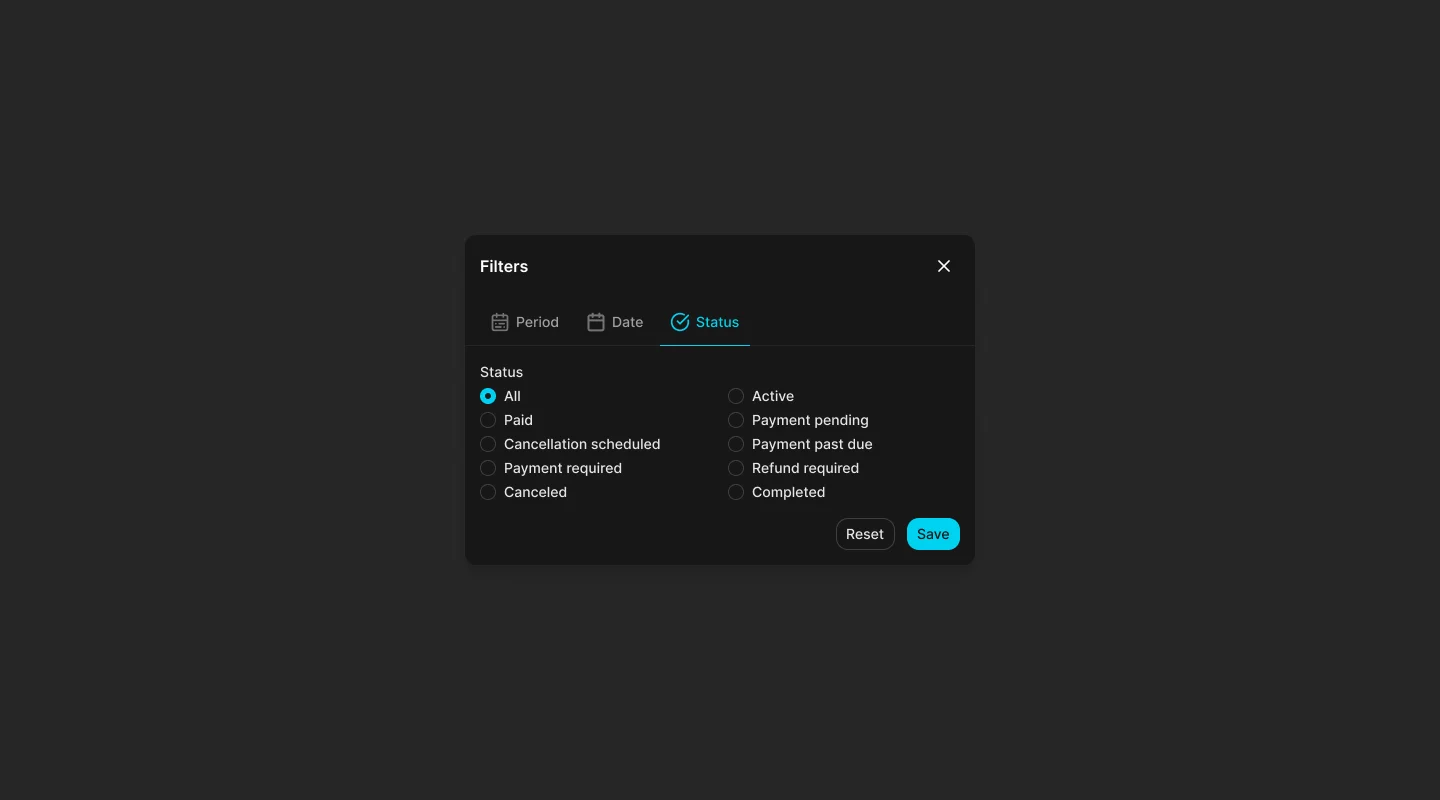
Switching tabs preserves draft choices. Save applies Period, Date, and Status together and closes the dialog. To discard unsaved choices, use the close control; reopening restores the applied choices. Clicking the background does not close this dialog. Reset clears all three groups and closes it, while the separate search remains. Save or Reset returns to page one; the filter badge counts active groups, not results or the two ends of a date range. Site summary cards remain independent of these filters.
Open the details
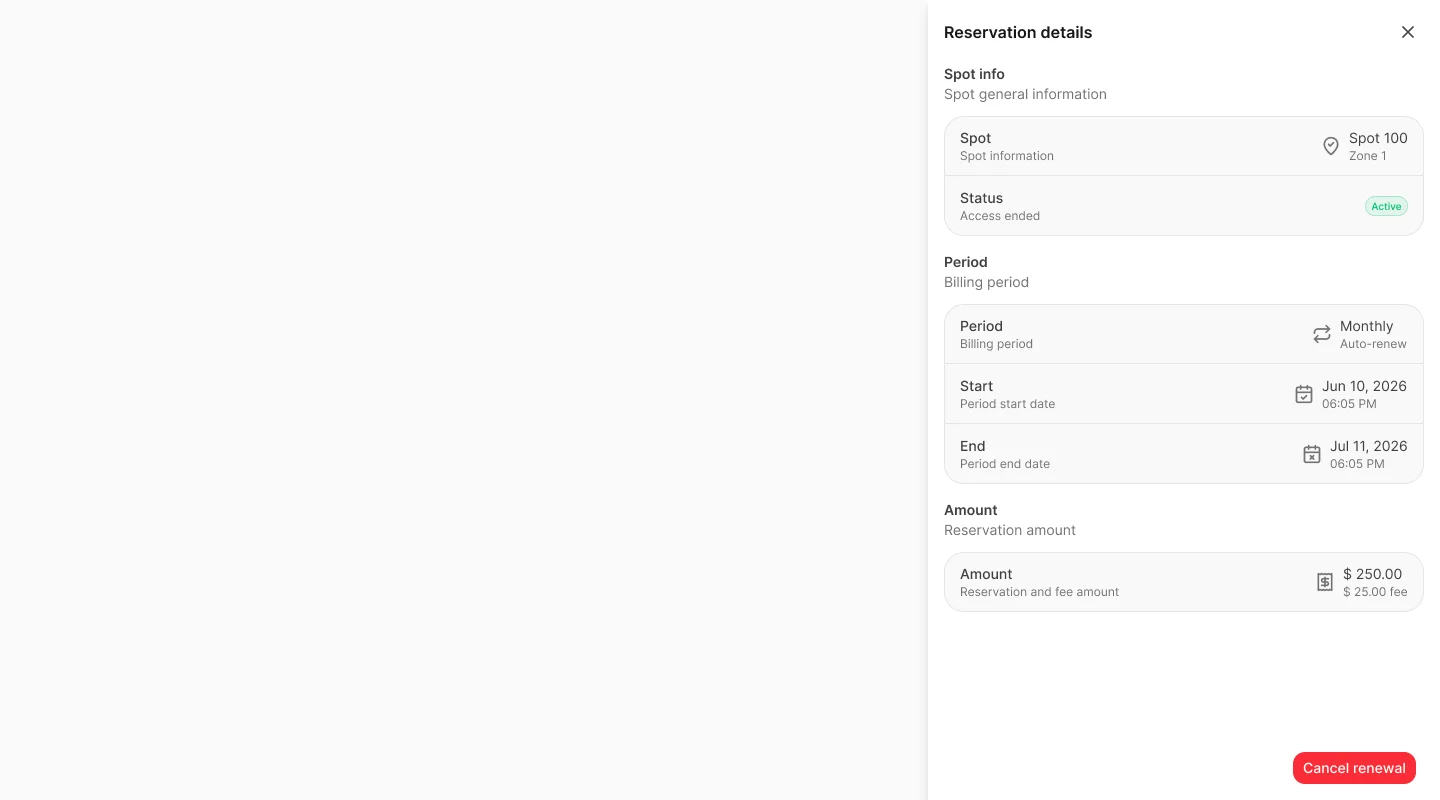
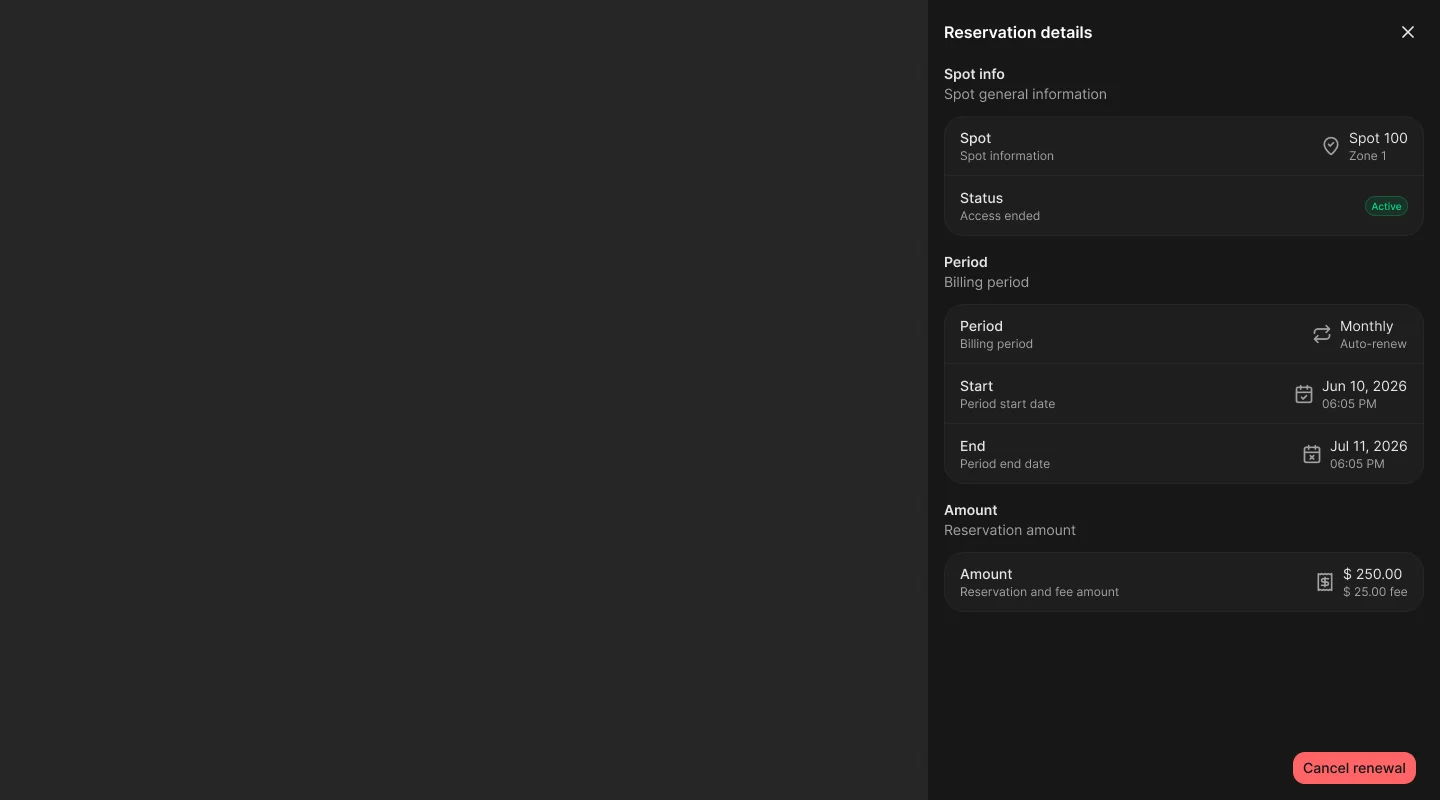
Open Details from the row menu, or select exactly one row and use the Details action above the table. Check the spot, zone, status, billing mode, dates, amount, and fee before acting. The drawer opens with the row's information and tries to refresh it; if that refresh fails, the row's information remains visible. Use Refresh and reopen Details before relying on an uncertain state.
Access timing appears beneath the status badge. A passed end date does not by itself determine cancellation eligibility.
Use an available action
If the state permits it, select Cancel renewal for an established subscription or Cancel reservation for other eligible bookings. Canceled, Completed, and Cancellation scheduled reservations cannot be canceled again. Check the spot and billing mode before opening the confirmation: the current dialog does not repeat the reservation's identity.
The current confirmation is titled Cancel, asks Are you sure you want to cancel?, and uses a red Cancel button to submit. To leave without submitting, use the close control in the upper-right corner. The description and Warning explain the effect for the selected booking:
- An unpaid checkout is canceled immediately and grants no paid access, including an unpaid subscription checkout.
- A one-time reservation is canceled, its PIN is disabled, and its Stripe refund is requested. The refund is complete only after the payment provider confirms it.
- An established subscription stops renewing after its current billing period. Existing paid access keeps its validity window; this does not restore suspended or expired access.
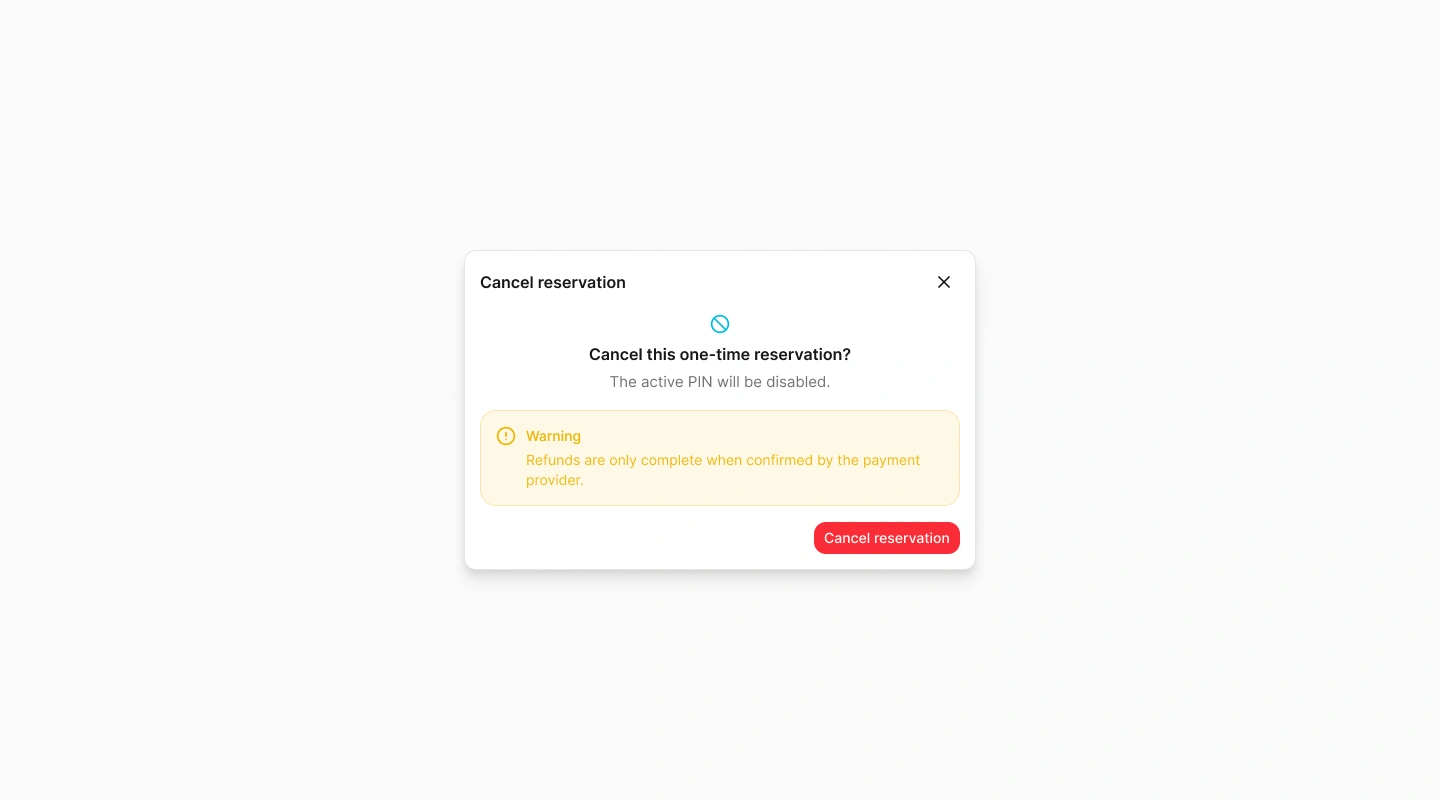
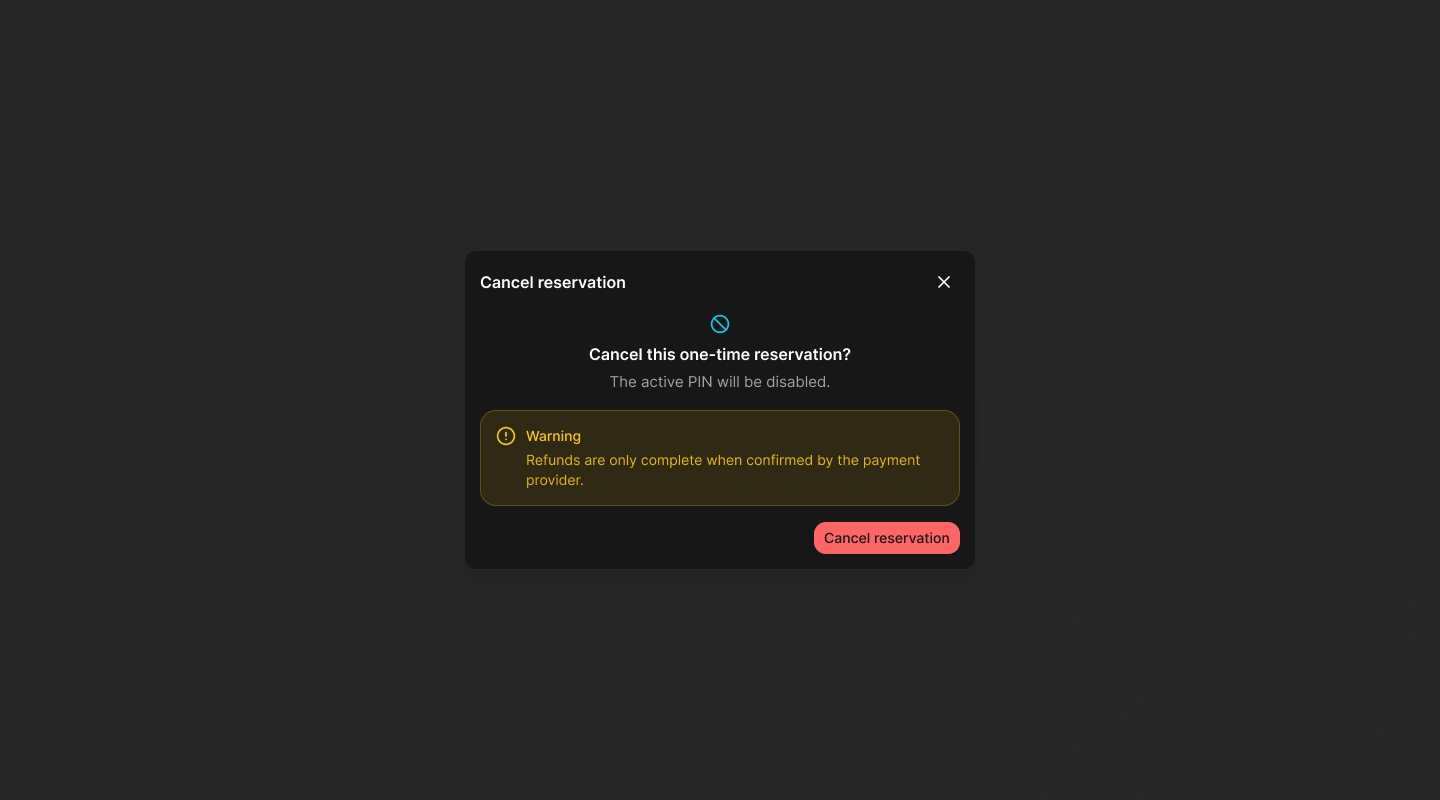
The confirmation does not show a specific access end date. Review the reservation’s dates before confirming.
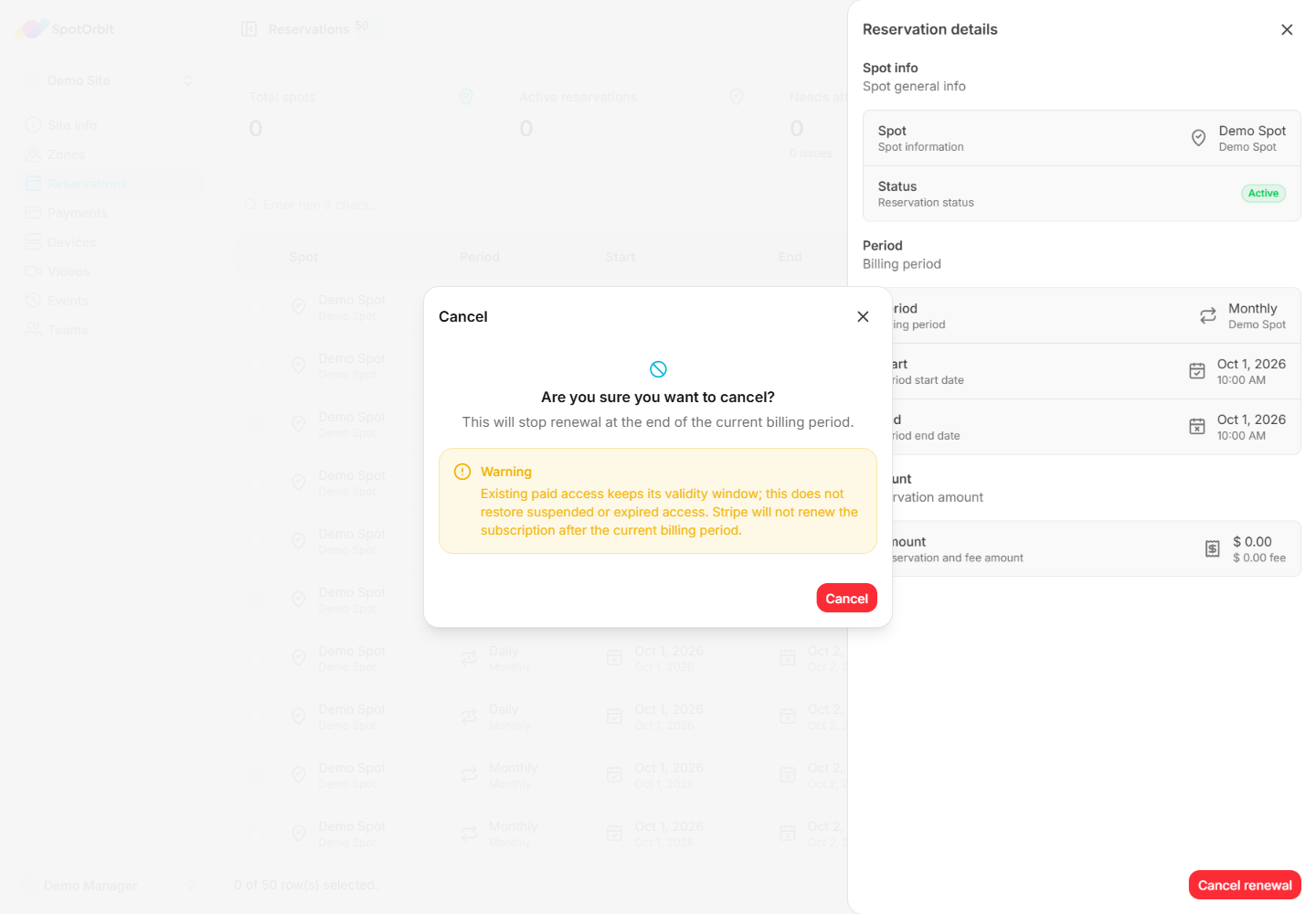
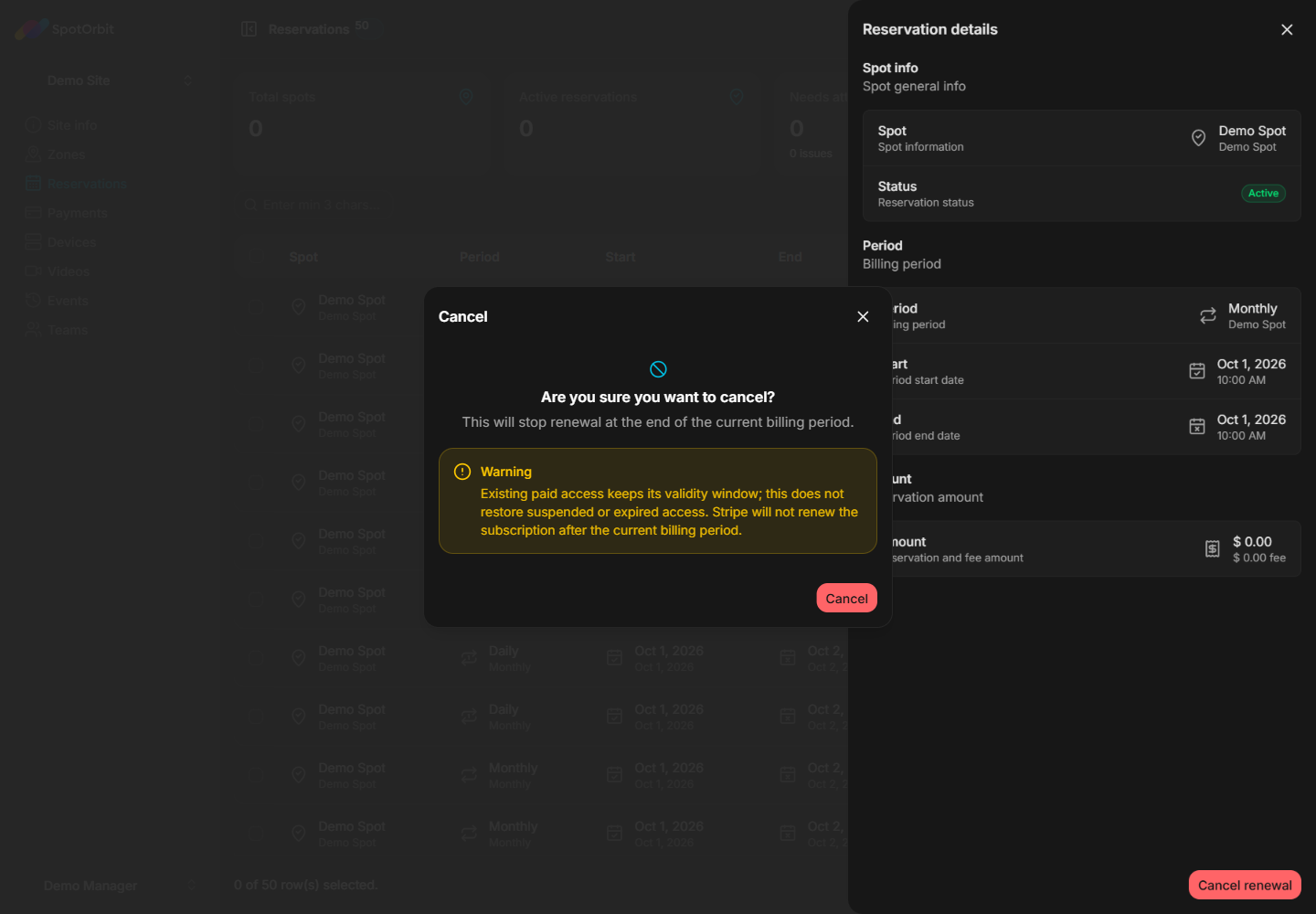
After checking the impact, submit with the red Cancel button and wait while the request is processing. Success closes the confirmation and details and refreshes the list and cards. A subscription result can show Cancellation scheduled; a canceled reservation can also report refund pending, refund failed, or refunded. Review the payment separately before communicating a refund result. Failure shows Could not cancel reservation and keeps the confirmation open. Close it if you do not want to proceed.
Review a scheduled renewal stop
Refresh and open the reservation
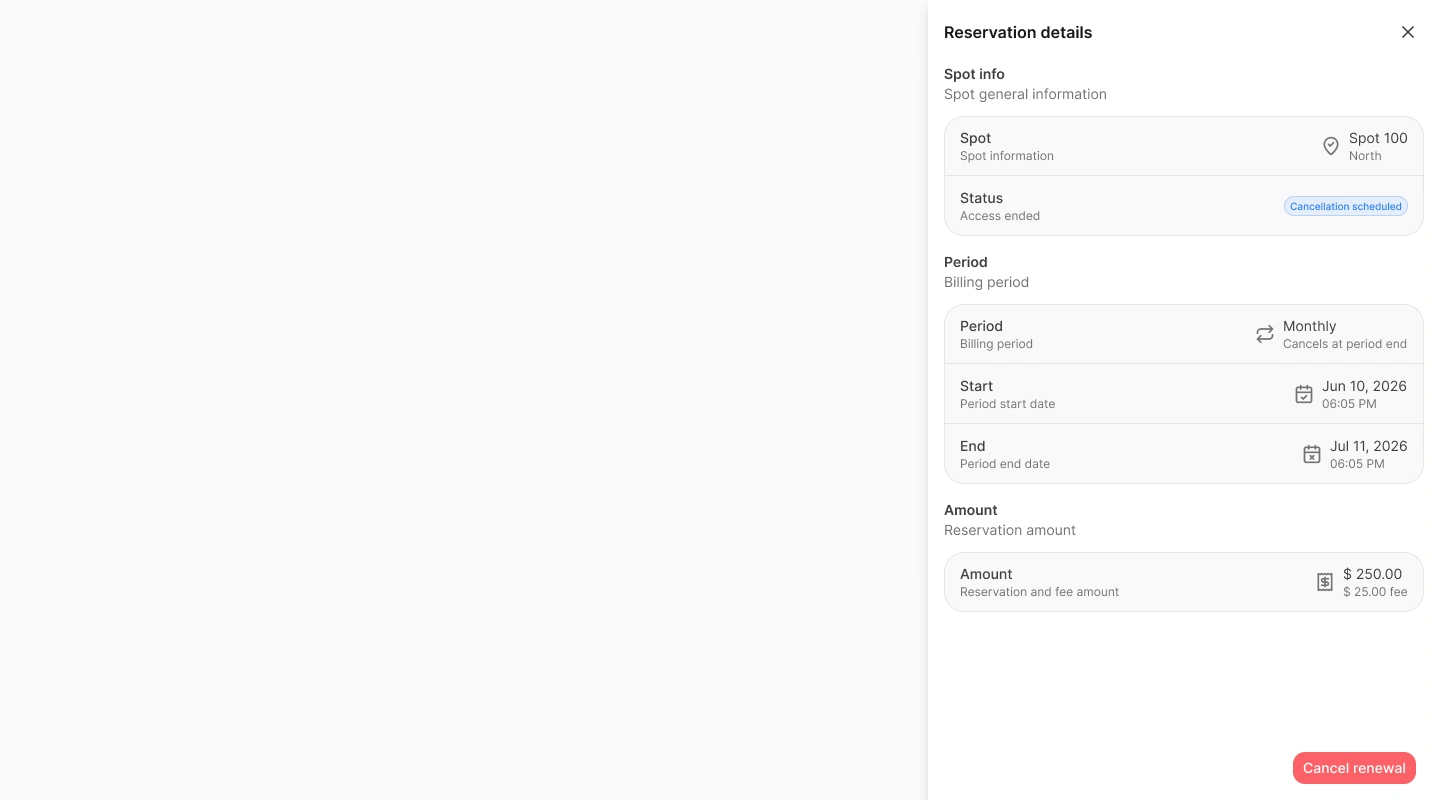
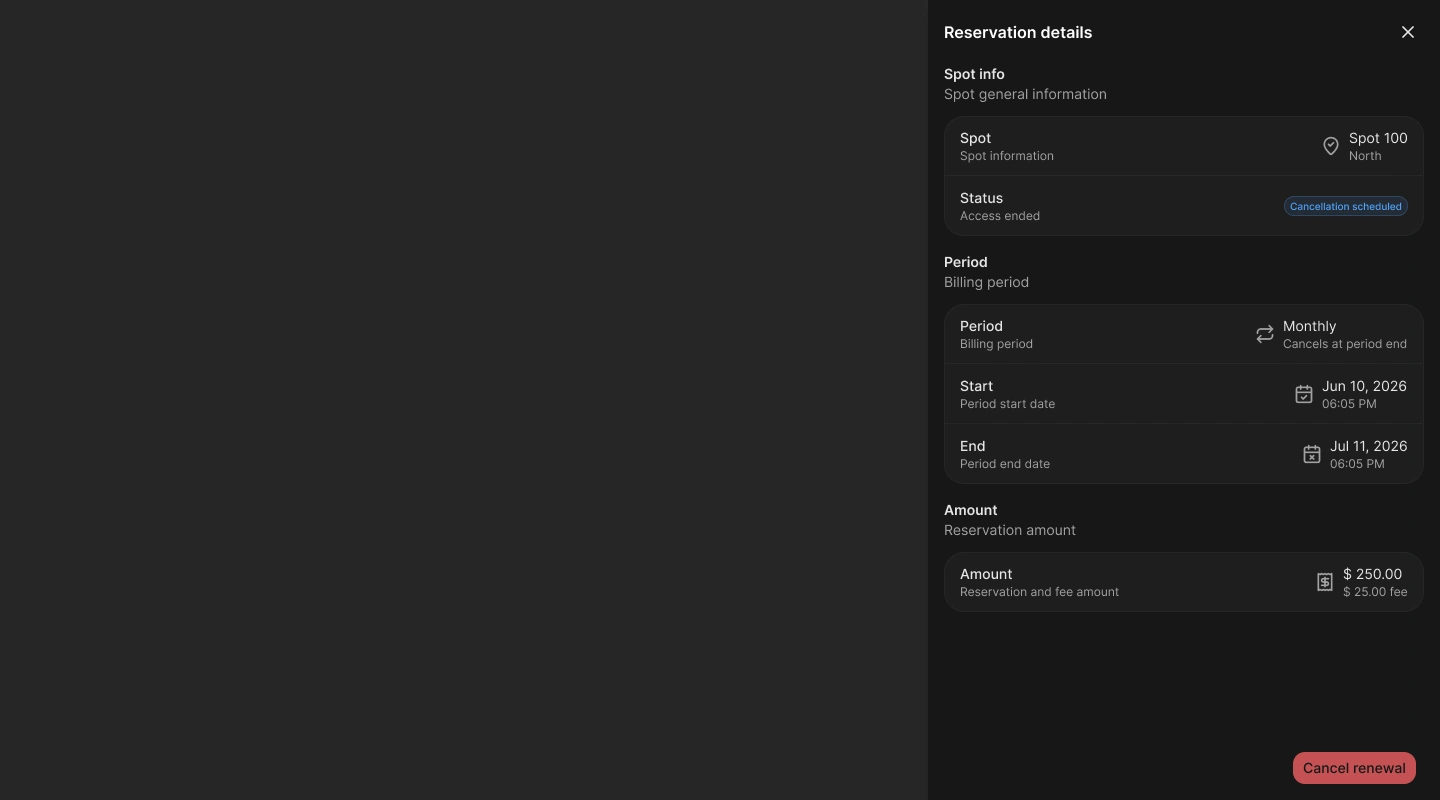
Confirm the site, select Refresh, and open the reservation's Details. Look for Cancellation scheduled and Cancels at period end. Renewal has been scheduled to stop; this is different from an immediately canceled booking or a confirmed refund. The cancellation action is disabled for an already scheduled subscription.
Check the access window separately
Review Start, End, and any access timing message. A scheduled renewal stop preserves the existing paid window but does not extend it or restore access. Access ended can therefore appear alongside Cancellation scheduled.
Frequently asked questions (FAQ)
Canceled, Completed, and Cancellation scheduled reservations cannot be canceled again. Selected-row actions also require exactly one selected row. Access ended alone is not the cancellation rule.
Confirm the active site, reset the three filter groups, and clear the search separately. A shorter search does not apply until it reaches three characters.
They summarize the whole site across all periods. Needs attention counts reservation payment issues, not every failed payment. Table filters do not recalculate those cards.
Check Start, End, and any Access not started or Access ended message as well as the reservation status. A payment or reservation badge alone does not establish current access validity.
No. A reservation can be canceled while its refund is pending or has failed. Check Payments for the provider-confirmed outcome. Cancellation scheduled concerns renewal and is a separate result.
Related content
- Zones and spots — Review the inventory used by reservations.
- Payments — Review related charges.