Manager profile
Overview
Profile displays the signed-in person's name, email, and avatar when available. Open it from the account menu at the bottom of the manager sidebar. The menu also provides Appearance and Logout. Profile is read-only: there is no form here to change a name, email, password, or role.
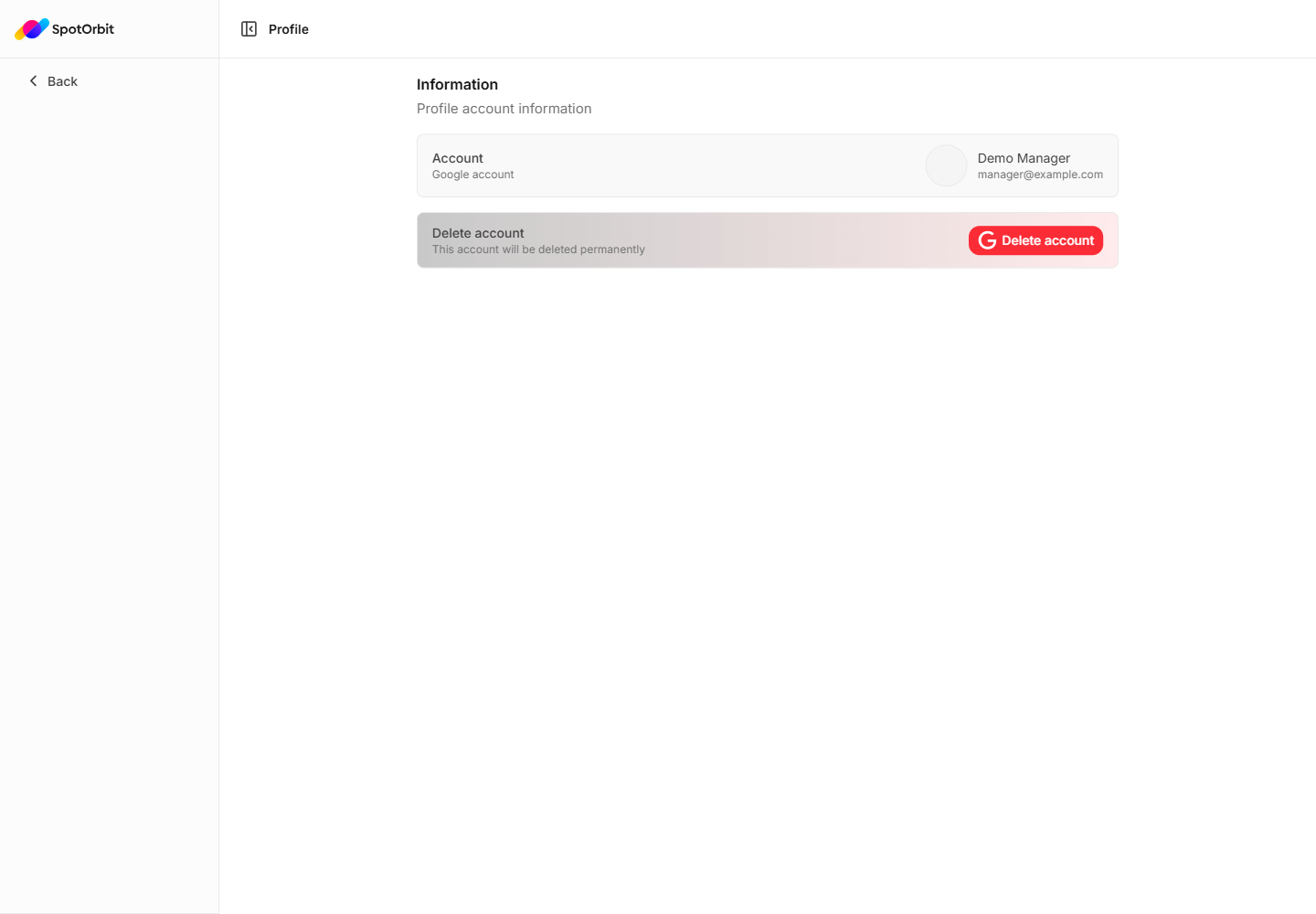
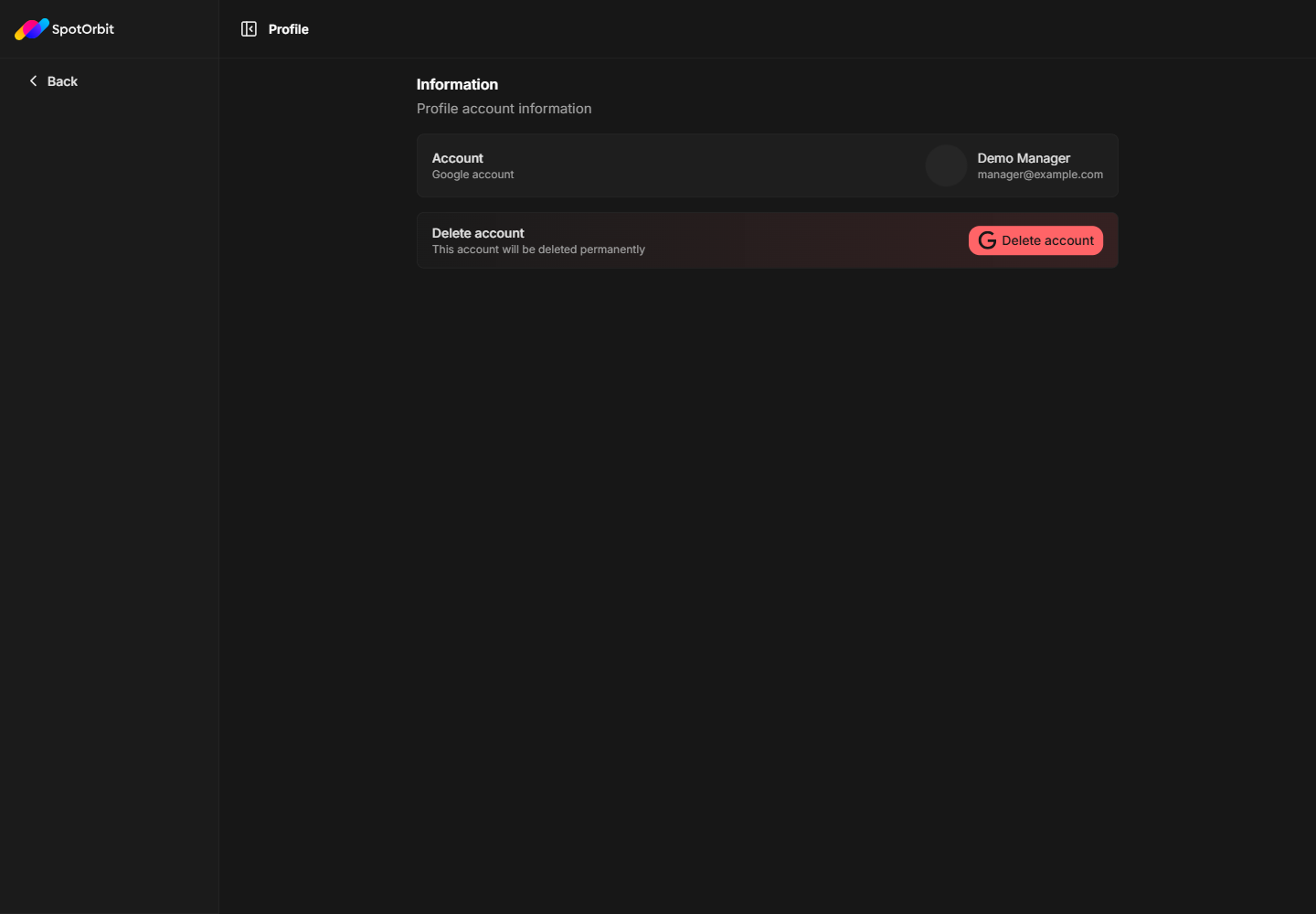
The Information section has an Account row with the display name, email, and avatar or initials. If no display name is available, the email is shown as the name. The row says Google account even though the application also offers email and password sign-in; that label does not establish how the session began. A separate Delete account row displays a red button.
Role, immediately above Logout in the user menu, reopens Select role when the account has both Admin and Manager access. Choose the workspace and its access button; Back keeps the previous choice. This changes the workspace without assigning permissions. Use Back first if a detail page has replaced the user menu.
Use profile and session controls
Open the user menu
Select the account shown at the bottom of the sidebar.
Review Profile
Choose Profile and check the name and email in Information. The detail sidebar shows Back instead of the manager menu; use it to return to Dashboard.
Change appearance if needed
Return to the menu for Appearance → Light/Dark. Theme currently offers Cyan. These presentation choices do not change roles or site access.
Logout when finished
Choose Logout and confirm to end the browser session, or cancel in the confirmation to stay signed in.
Frequently asked questions (FAQ)
No. An authorized administrator must update access.
The button opens a visual confirmation, but account deletion is not implemented. Confirming it does not complete an account-removal process.
No. The Profile row uses that label even though email and password sign-in is also available.
Related content
- Manager workspace — Return to manager guidance.
- Sign out — Follow the complete sign-out flow.
- Sign in — Review the available access options.