Sites
Use Sites to find and manage the locations administered through Spot Orbit.
Overview
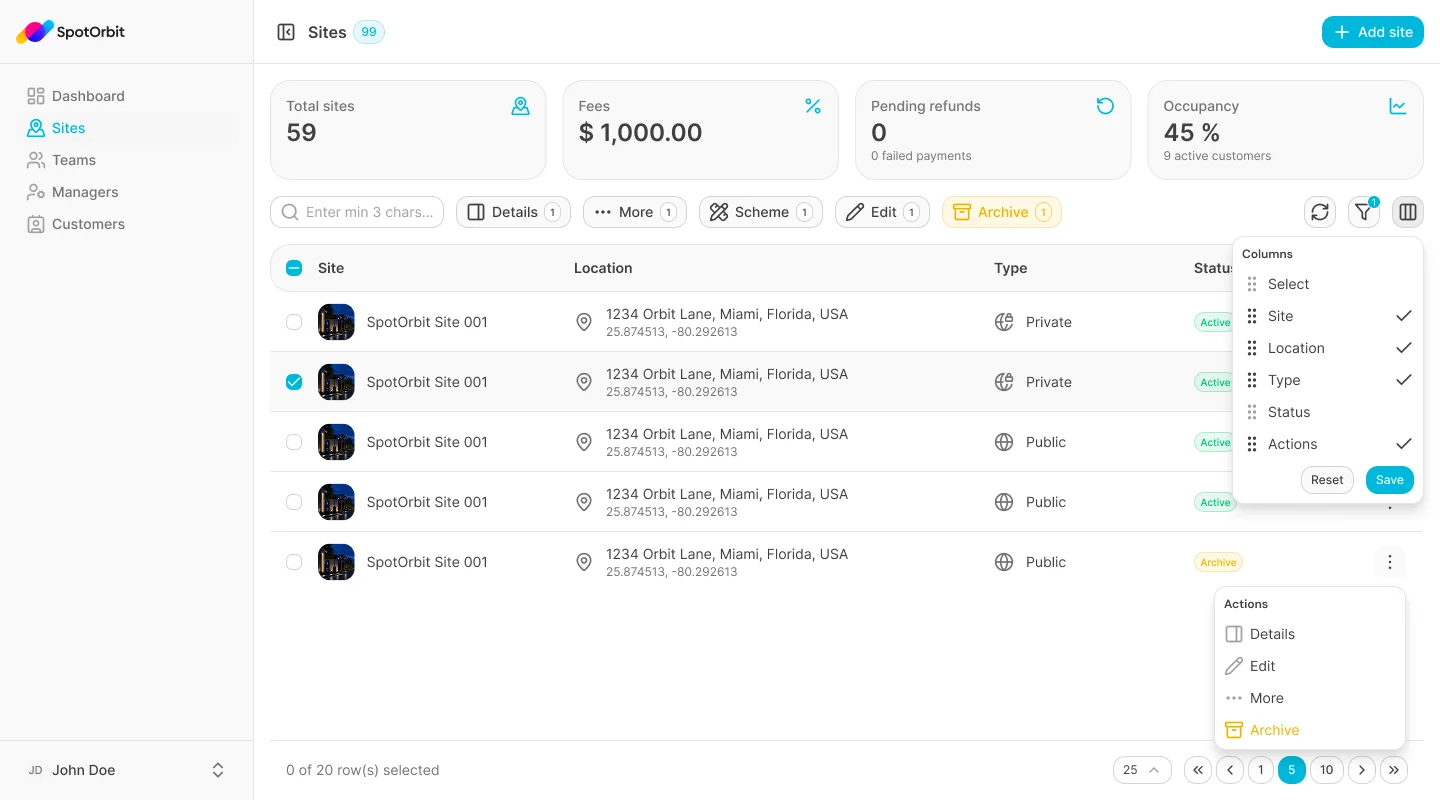
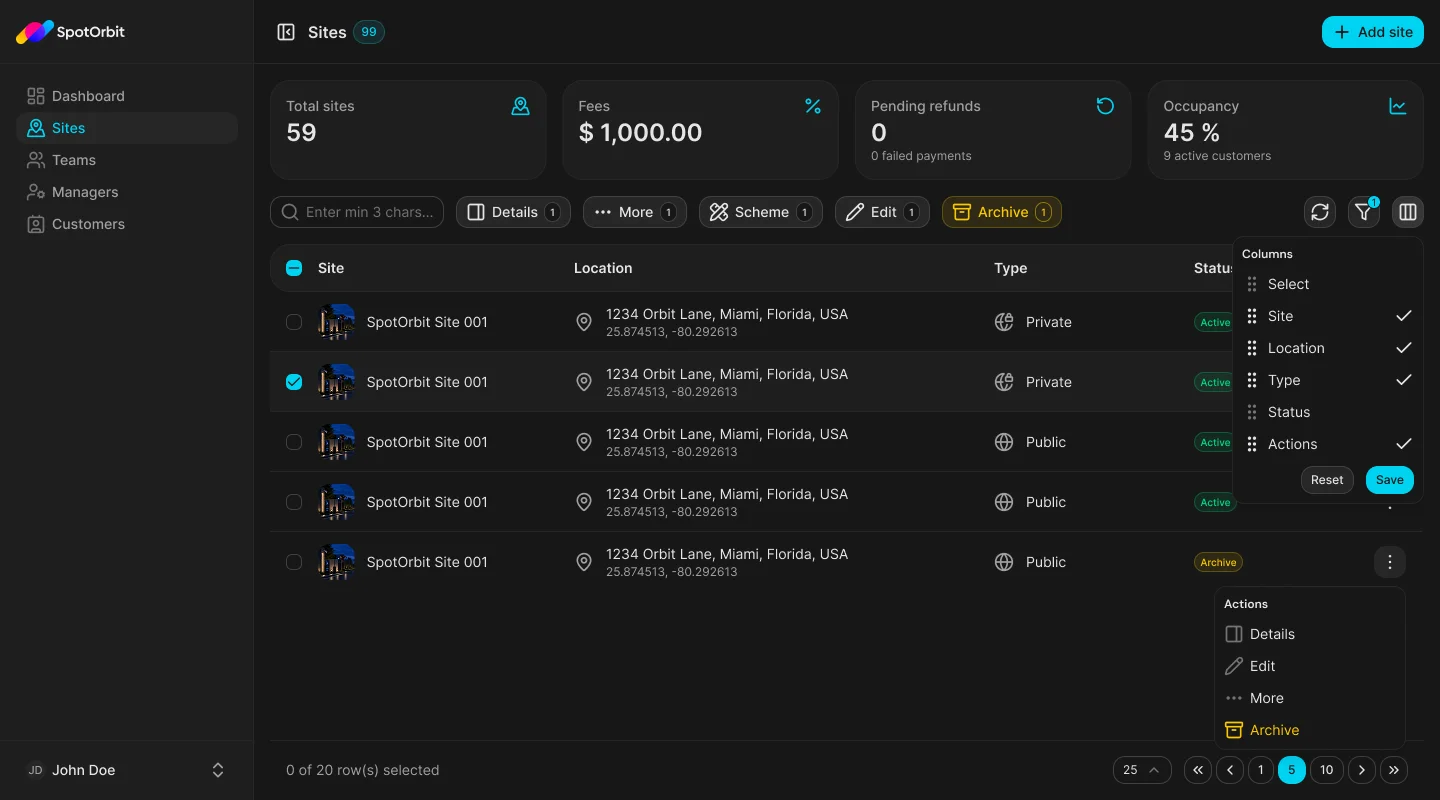
The page provides summary cards and a table of loaded sites. You can search by name, code, or address; filter by visibility and lifecycle status; customize the columns; and open details, editing, full site information, or archive and restore actions.
The page has no export action.
Find and filter a site
Open Sites
Select Sites from the Admin sidebar.
Search the loaded catalog
Enter at least three characters to match a site's name, code, or address.
Apply filters
Open Filters and choose a type—All, Public, or Private—and a status—All, Active, or Archive. Select Save to apply or Reset to clear both.
Review the results
Use pagination and the page-size selector. The initial size is 25; available sizes are 10, 25, 50, and 100.
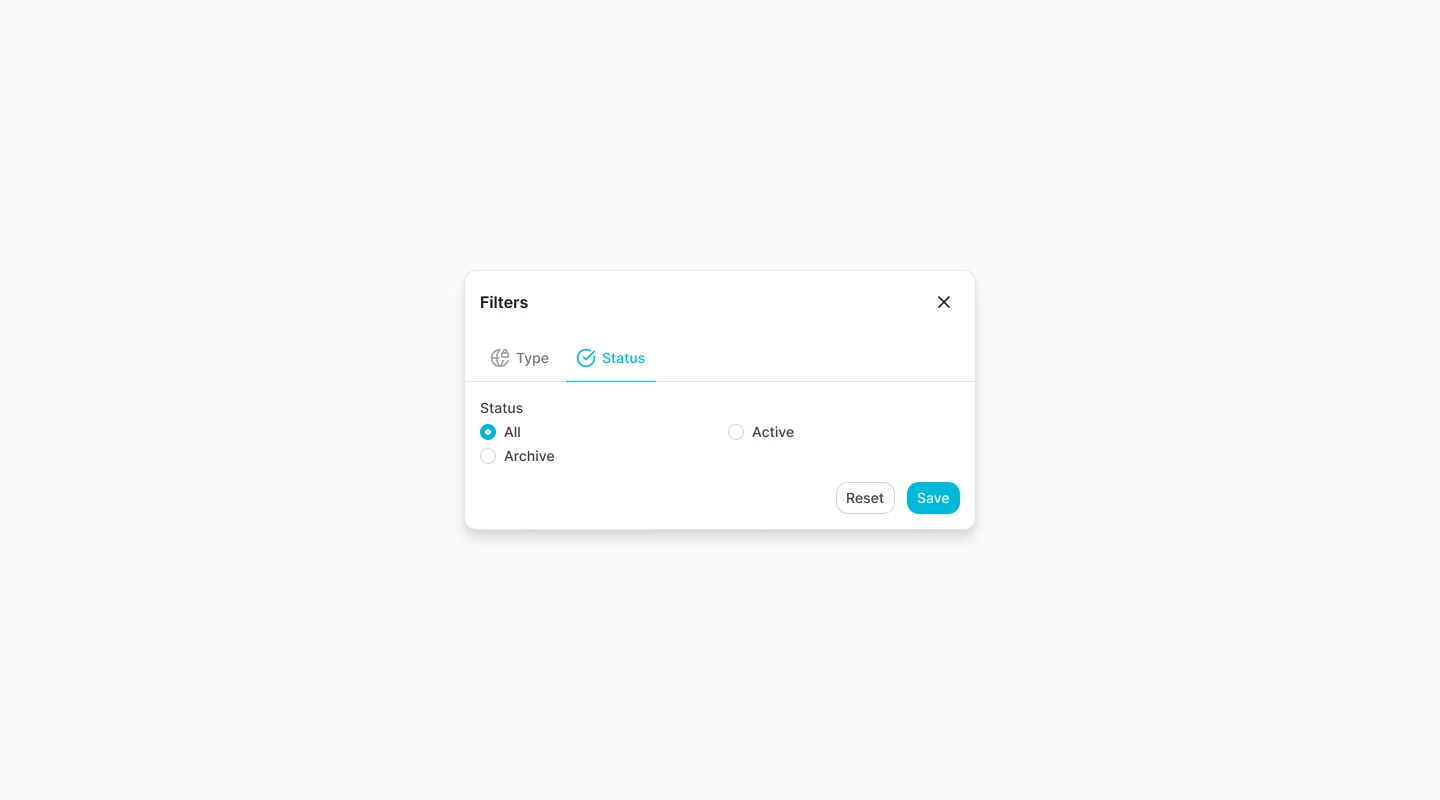
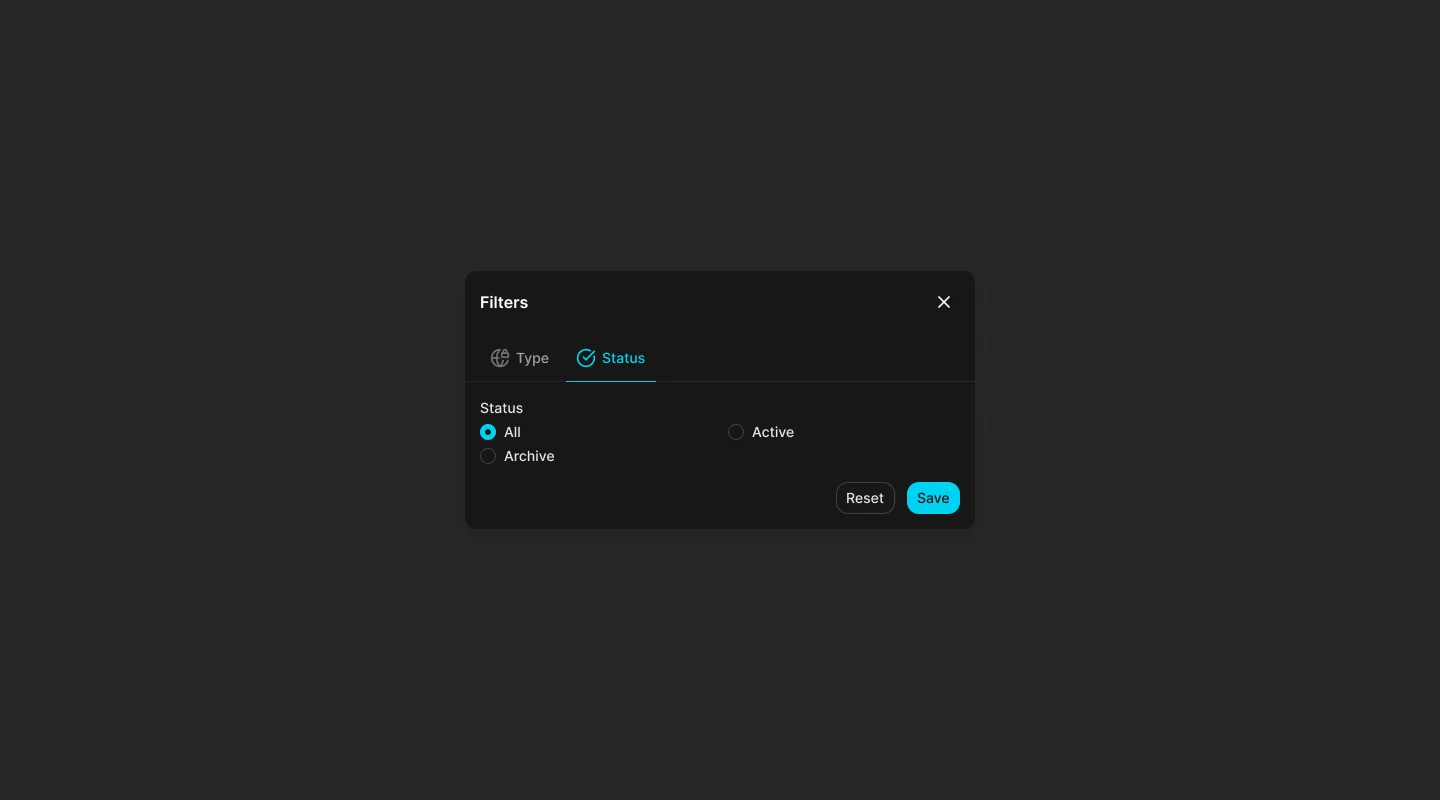
To find archived sites, choose Archive, then select Save. Reset returns both filters to All and closes the dialog. Searching or applying filters returns to the first page and clears selected rows.
Read the table and actions
Each row shows the site image and name, address and coordinates, Public or Private type, and Active or Archive status. Use the columns control to hide, show, or reorder manageable columns.
The row menu offers:
- Details: opens a quick drawer with the yard scheme and general information.
- Edit: opens the site form.
- More: opens the full Site info page and its site-level navigation.
- Archive or Active: opens the applicable lifecycle confirmation.
A row menu acts on that site. Selecting exactly one row also exposes Details, More, Scheme, Edit, and Archive or Active. Scheme is a toolbar action, not a row-menu item. The header checkbox selects the current page. With several rows selected, Archive appears only when all are active; Active appears only when all are archived. Mixed statuses have no group lifecycle action.
Use Refresh table to reload the list; it retains the current search and filters. Column controls change visibility and order, rather than sorting the records.
If loading fails, select Retry. No sites available appears when no site is configured, while No sites found appears when the current search and filters have no matches.
Archive or activate sites
Select sites with the same status
Find sites using search or Status filters. Choose Archive for active sites or Active for archived ones, from a row or compatible selection. Mixed statuses have no group action. The action badge counts the target sites.
Review the confirmation
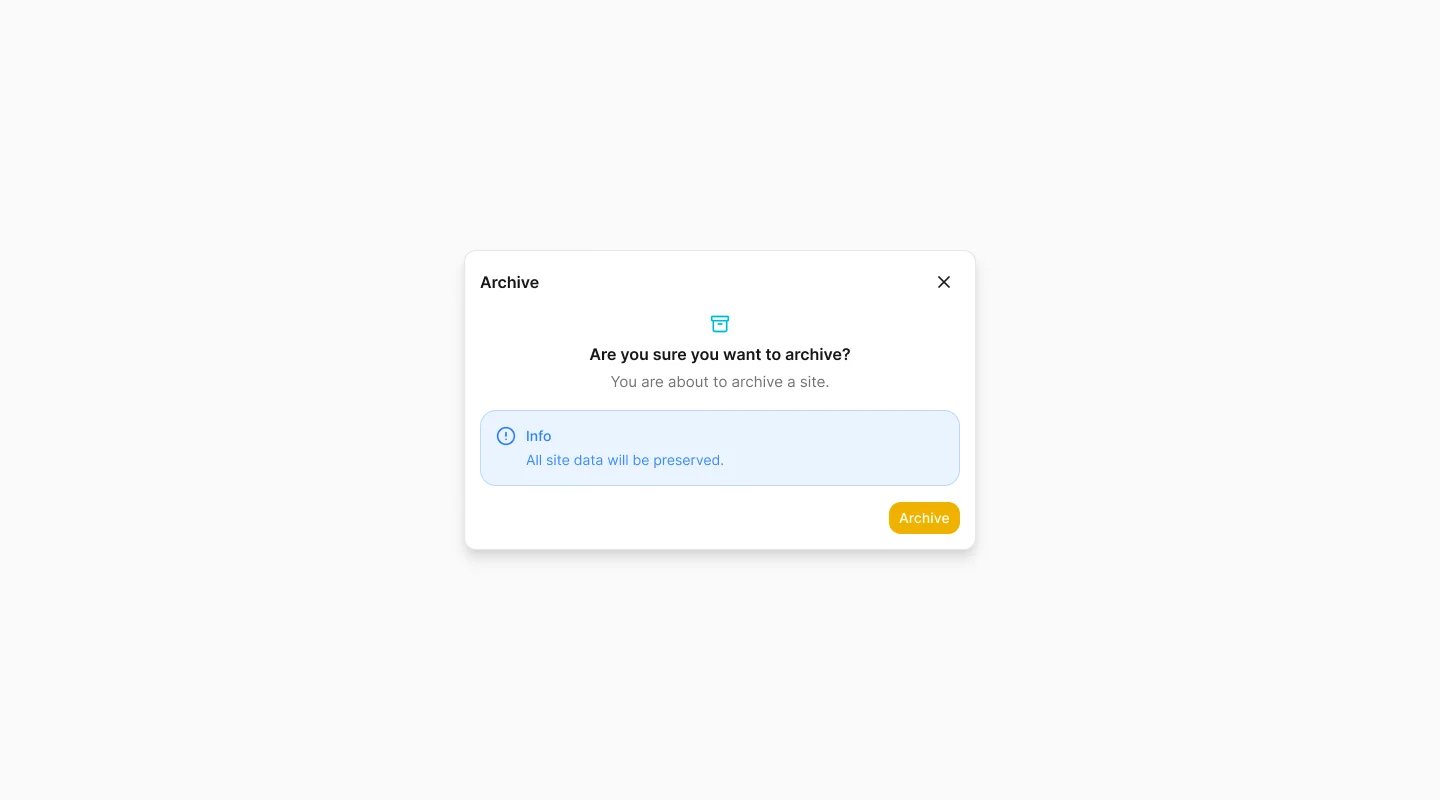
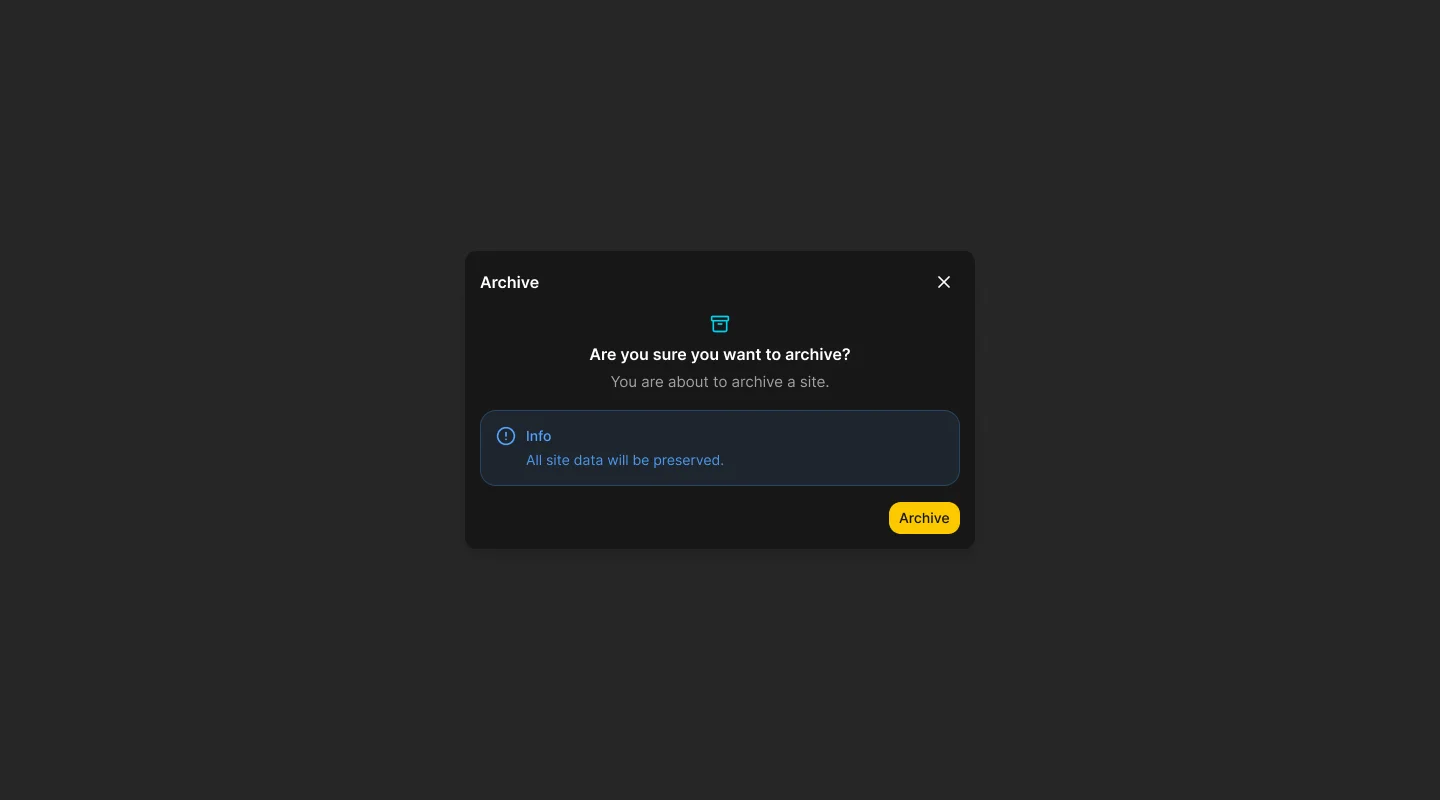
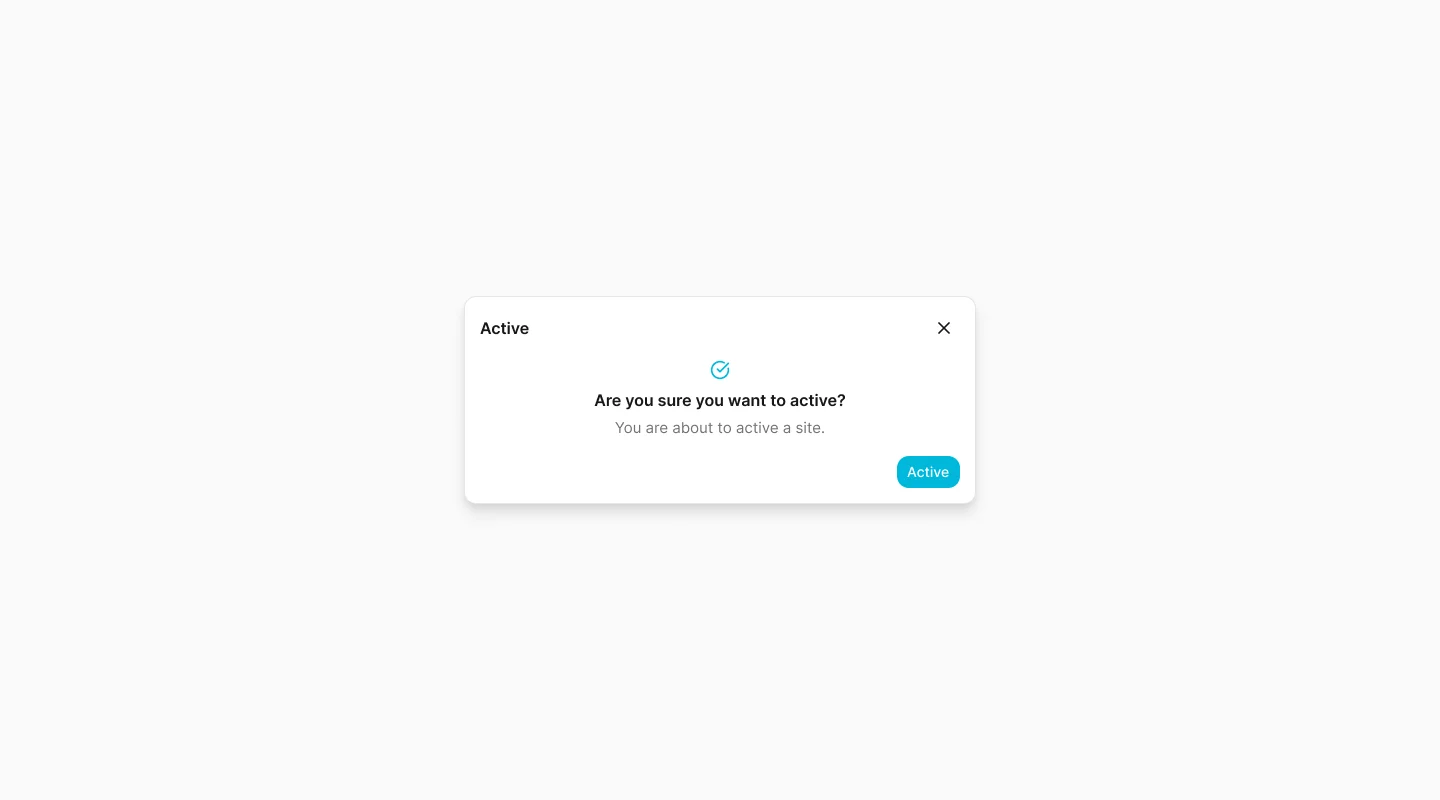
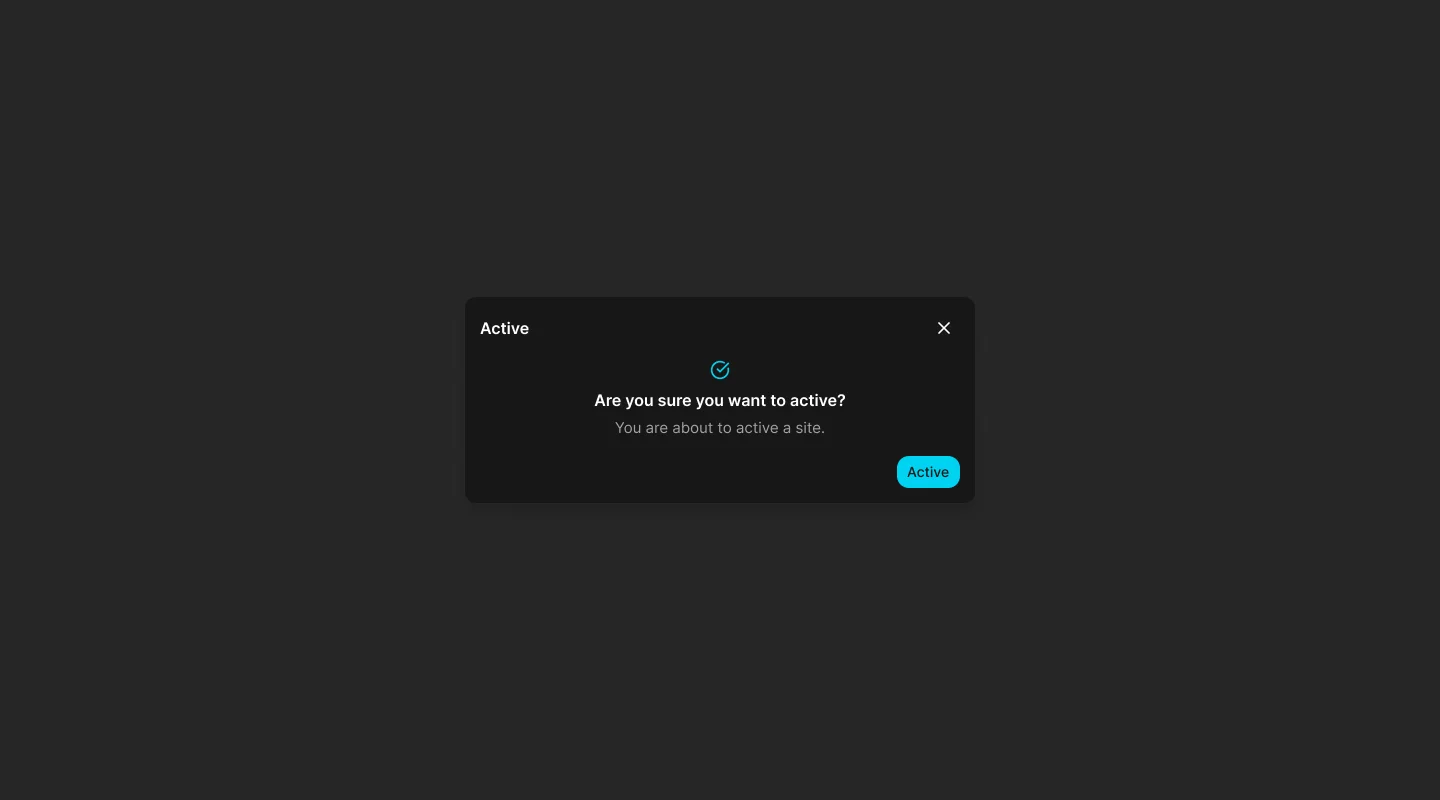
Verify the rows before opening it: the dialog describes a site or site count rather than naming every site. Archive includes an Info notice that all site data is preserved. Active re-enables operations and has no preservation notice. Cancel keeps the current status.
Confirm and review each outcome
Confirm Archive or Active and wait. The action is disabled while submitting. Success reports Sites archived or Sites activated and clears selection. If some sites fail, the message reports updated/failed counts and identifies failures; the confirmation retains only failed sites for retry. Successful updates remain applied. Rows may leave the current filtered list.
Frequently asked questions (FAQ)
Enter at least three characters. One or two characters are not applied as a search.
No. The current Sites page does not expose an export action.
The report cards now use actual site reports. They remain independent of table filters, and show unavailable values if the reports are missing or incomplete. Active customers counts memberships, not distinct people across sites.
Details opens a quick drawer. More opens the full Site info workspace with Zones, Reservations, Payments, Devices, and Videos navigation.
Related content
- Create and edit sites — Configure identity, visibility, and image.
- Site info — Review the full site, yard scheme, metrics, and actions.
- Zones and spots — Manage the site's reservable layout and inventory.
- Teams — Manage access to the currently selected site.