Additional web views
Overview
Admin Web retains additional pages that do not appear in the current administrator or manager menu. Open these through a supplied link or the corresponding path on your Admin Web address. Sign-in and the account's existing permissions still apply. These pages supplement the main workflows; their controls and summaries can differ from the menu's Sites, Devices, Reservations, and Payments screens.
| Application path | Purpose |
|---|---|
/users | Read the selected site's access users and credential summaries. |
/devices | Read device cards and operational health for the selected site. |
/accounts | Open the combined account list; Managers and Customers remain the ordinary scoped menu entries. |
/marketplace/platform | Platform administrator reservations, payments, insights, site profile, and Stripe Connect for the selected site. |
/marketplace/customer | Customer self-service reservation, checkout, and Access / PIN, when that account has customer reservation access. |
Opening /marketplace or /marketplace/manager continues to the manager Reservations screen. These addresses do not open a separate Marketplace menu.
Open a supplied web link
Sign in when requested
Follow the link and use the existing Google or Email & password sign-in. Complete Select role if requested. The requested page is retained through sign-in; selecting a workspace does not grant access to that page.
Check account and site
Confirm the page title and selected site before reading data or submitting an action. A missing site shows a selection message. A Marketplace page can redirect to an available manager or customer area when the account lacks its requested Marketplace mode.
Return to the usual workspace
Use the sidebar for the normal menu workflows. Use a supplied link to return to a view that has no sidebar entry.
Read Users and credentials
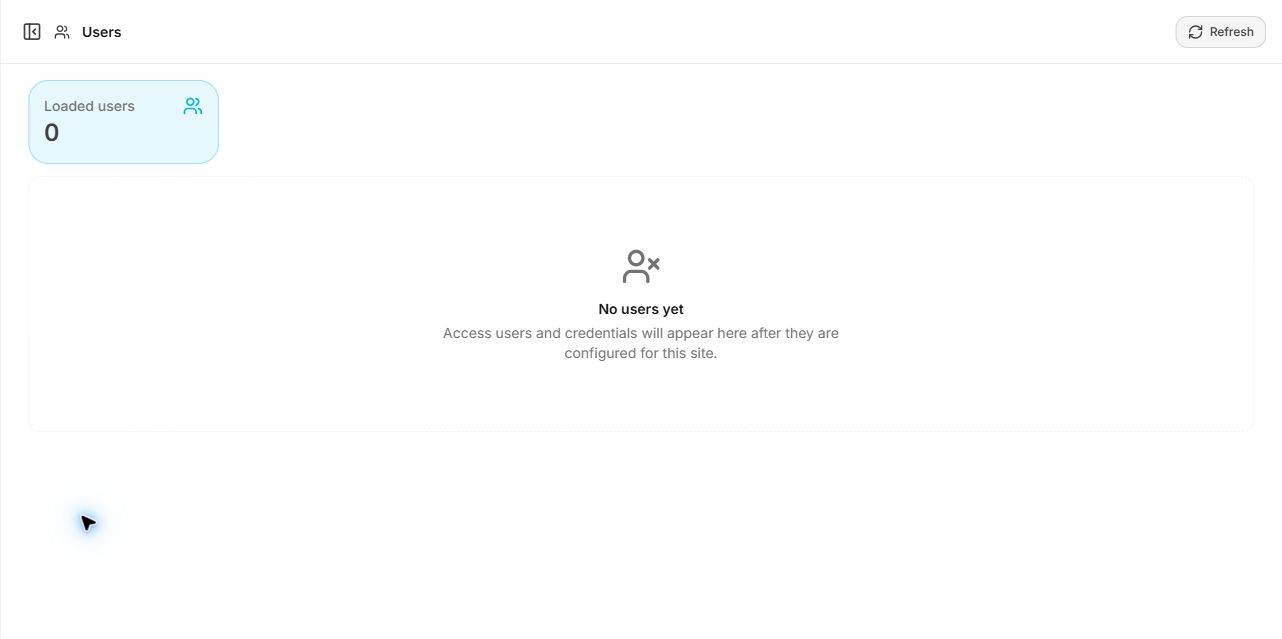
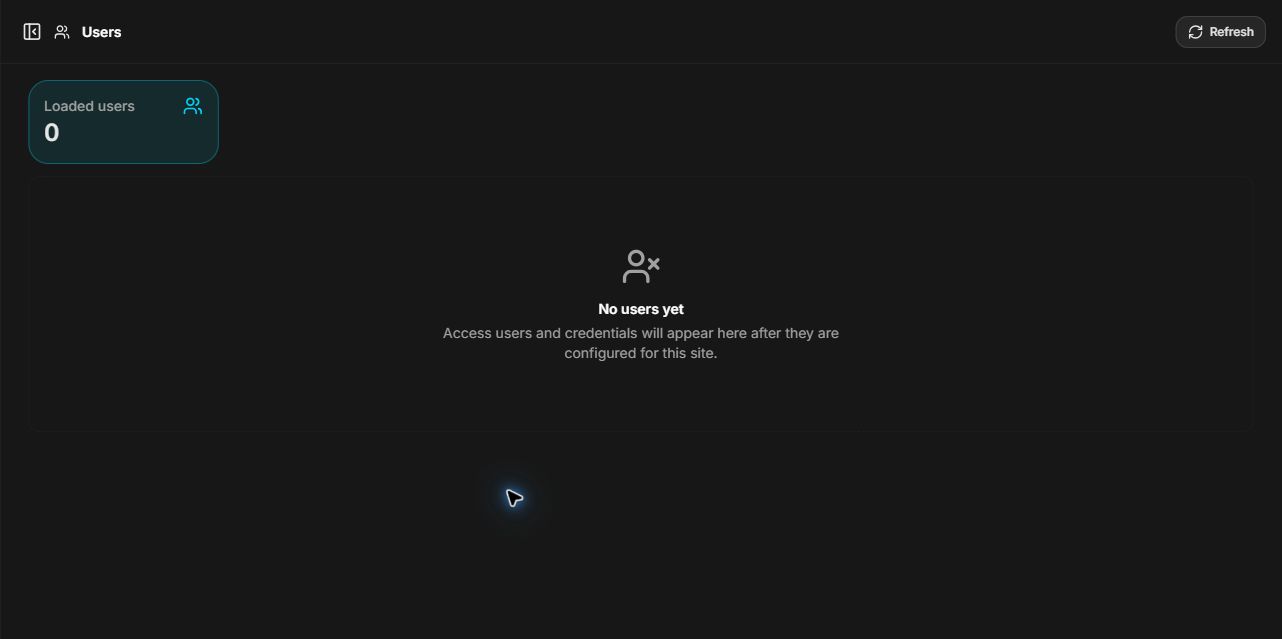
At /users, Loaded users counts the access users loaded for the selected site. It is not the number of platform accounts, Customers, or all users on pages not yet loaded. Each card shows the person's name, status, creation date, and enabled credentials out of the assigned total.
Credential entries show device name (or external device identifier, otherwise Unknown device), external user numeric ID, reported weekday mask, and Enabled/Disabled state. Unknown values are not a confirmation that a credential is usable. No credentials assigned. means that card has none to display. This screen does not reveal a PIN or provide credential creation, editing, or deletion.
Use Refresh to reload. The first request loads up to 20 users; Load more appends the next group when available. There is no search, filter dialog, column control, export, or per-user action. Loading uses placeholders; No users yet identifies an empty collection. Could not load users offers Retry, and No sites available asks you to select a site.
Read the alternative Devices view
At /devices, the Total, Online, and Offline cards summarize device connectivity. Device cards show name, identifier, door state, last contact, Wi-Fi signal, and Online/Offline; critical or open-alert badges appear when reported. This differs from the normal Devices table, whose summary cards describe site reservations and revenue.
Select a device card to open its operational dialog. It separates connectivity and door badges from Last seen, Wi-Fi, Snapshot version, and Firmware. Health has its own Refresh and loading/error state. Its cards show Critical, Open alerts, Reconnects 24h, and Crashes 24h; the detail lists up to four alerts and three recent connectivity and crash records when supplied. The Snapshot value here is a device snapshot version, not a camera image.
The dialog offers Open gate, Sync users, Reboot, and Firmware. Open gate and Sync users require device-operation permission and an online device; gate state can also prevent opening. Reboot asks for confirmation, and Firmware requires a valid HTTPS URL. Successful notices report queued requests, not completion at the device. Follow the device command instructions and verify the target before continuing.
Refresh reloads from the beginning; Load more adds devices when another group exists. There is no search or table filter on this card view. Loading uses placeholders, No devices yet is empty inventory, Could not load devices offers Retry, and No sites available requires a selected site. Close the dialog to leave without sending a command.
Use the platform Marketplace view
/marketplace/platform requires platform administrator Marketplace access. It operates on the selected site. Yards counts accessible sites; its zone description and the financial and occupancy cards describe the selected site's report across all periods. Pending refunds includes a separate count of failures in the recent payment sample. Table search and filters do not change these summaries. Refresh reloads reservations, payments, and the report.
| Tab | Available work |
|---|---|
| Reservations | Spot/customer reference, status, rate and billing, start/end, amount, and platform fee. Search starts at three characters; Filters applies a Status or resets to All. Pagination starts at 25 and follows available pages. View access and cancellation appear for eligible reservations. |
| Payments | Created date, status, billing mode and customer reference, zone/spot, amount with platform fee, manager net, Stripe reference, and Details. Search starts at three characters; the Payment status selector filters immediately. Pagination starts at 25. |
| Insights | Reservation mix by status and rate; up to eight conflict/past-due reservations, six failures from the recent payment sample, and eight upcoming expirations. These are limited report lists. No pending issues describes the supplied attention lists. |
| Site Profile | Address, Public/Private visibility, preview image, and Customer preview. This form has its own Save site profile action. |
| Stripe Connect | Open onboarding for the selected site's Stripe setup. |
Reservations are ordered by start date descending and Payments by creation date descending. Changing site, search, status, or page size resets the corresponding pagination. Both tables have column controls and refresh; they have no export or bulk operations. The reservation filter's Reset clears the applied status and closes the dialog while retaining search. Follow the confirmation's specific cancellation effect as explained in Reservations.
Could not load account offers Retry; No yard selected requires a site. An unavailable Marketplace mode is identified or redirects to another mode the account can use. Empty reservation/payment messages describe the current matching list. The report does not have its own visible error state here; zero summary values alone do not establish a successfully loaded report.
Save Site Profile or open Stripe Connect
Confirm the site and open Site Profile
Use the selected site's Marketplace view and choose Site Profile. Its address permits up to 500 characters. A Public site requires an address and a preview image; Private prevents new self-service reservations. These choices are separate from site lifecycle.
Review and save the profile
Choose a JPEG, PNG, or WebP image up to 5 MiB to replace the current preview, or keep the current image. Review Customer preview and select Save site profile. Save is disabled without changes, during submission, or while validation fails. Wait for Site profile saved.; a failure leaves an error. Switching sites resets this form's unsaved draft. This form has no name or lifecycle editor.
Open onboarding when needed
Choose Stripe Connect, confirm the site, and select Open onboarding. A successful request navigates this browser to the returned Stripe session; the button shows loading while requesting it. Creating that session does not confirm verification or payout readiness. Complete the hosted requirements and return to Admin Web as directed there.
Reserve through the customer web view
/marketplace/customer requires customer reservation access on the account. It is a web flow independent of the Mobile App guide. The tabs are Reserve Spot, My Reservations, and Access / PIN. Cards show selected spot, checkout mode/rate, quote subtotal with units, and manager net with platform fee; they describe the current quote rather than all site revenue.
Choose the site, rate, and dates
Use a Public site. A Private site shows Not available for reservations while preserving My Reservations. In Reserve Spot, set Daily, Monthly, or Annual and Start/End. Changing rate or dates clears the selected zone, spot, and old quote. Monthly End is read-only and follows Start by 30 days.
Select available inventory
Choose a zone and then an enabled spot. Zone cards show availability counts; spot cards show name/code, price, and Available or the reason selection is disabled. Wait for Checking availability.... Retry reloads failed availability. No spots available for this date or no zones for the reservation window calls for another window or inventory choice.
Request and review the quote
Select Quote. Review Quote summary, subtotal, checkout mode, units, platform fee, and manager net. If Spot no longer available appears, availability is refreshed and a new selection may be needed. Checkout remains disabled without an available quote.
Create checkout and continue payment
Select Checkout or Subscribe, according to the quoted mode. Success opens a temporary pending-payment panel with reservation/session references and an expiry countdown. Select Continue payment before expiry to navigate to Stripe in this browser. Creating checkout is not payment confirmation.
After expiry, Continue payment is disabled; Back to availability clears the temporary checkout and refreshes availability, while Create new reservation also clears the selected spot. These controls start a fresh local choice; they do not confirm payment or cancel a paid reservation.
In My Reservations, rows show spot/customer reference, status, rate and checkout/subscription information, start/end, amount, and fee. Search uses at least three characters against the loaded reservations; pagination begins at 25. Column controls and Refresh my reservations are available. The key action opens Access / PIN for an eligible reservation. This table has no customer cancellation, refund, date/status filter, or export action.
Access / PIN shows the returned PIN, Enabled/Disabled, and validity interval. No access selected asks you to use a reservation's key action; Reservation expired/cancelled identifies a cancelled record without access. Check enabled state and validity rather than assuming a displayed PIN currently permits entry. Account errors offer Retry; No yard selected and Marketplace unavailable distinguish site and account prerequisites.
Check the return from checkout
Stripe returns to a reservation-specific web page after success or cancellation. Keep that link intact; an unrecognized outcome shows Checkout link is invalid. Open Marketplace returns to the customer web view.
| State | Meaning and next action |
|---|---|
| Confirming payment | Spot Orbit is waiting for confirmation. The success page checks periodically for up to 30 seconds. |
| Still confirming payment | The initial checks timed out. Payment may have completed; use Refresh or Check again instead of assuming failure. |
| Access pending | Payment is confirmed, but a PIN is not yet supplied. Check again later. |
| Reservation confirmed | A PIN has been returned. Review Enabled/Disabled and Valid from/until before using it. |
| Checkout expired | The reservation reports cancellation/expiry before checkout completion. Open Marketplace to review it. |
| Checkout cancelled | The cancellation return reports that checkout was not completed. Open Marketplace to review reservations. |
| Could not confirm reservation | Review the error and use Retry. A failed status request is not proof that payment failed. |
Loading placeholders are separate from confirmation. A returned success address alone does not confirm payment or an enabled credential. Refresh or Check again restarts confirmation checks; no refund or cancellation is submitted from this page.
Frequently asked questions (FAQ)
They remain available through direct application links. The current menu uses the normal administrator and manager workflows; opening a link does not grant permissions.
No. Users shows site access users and credentials. Customers reviews customer relationships or accounts in its workspace's scope.
No. The account must independently have customer reservation access. A role choice only selects a workspace.
Continue payment is disabled after expiry. Return to availability or create a new reservation after reviewing the existing one's state.
No. Wait for payment confirmation and the returned PIN, then check its enabled state and validity interval.
Related content
- Sign in — Enter a protected web destination with an existing account.
- Manager workspace — Use the current menu and selected-site customer workflows.
- Devices — Review normal device pages and command conditions.
- Reservations — Understand cancellation and access effects.
- Payments — Review the normal site payment history and details.