Create and edit sites
Overview
Use Add site or Edit from Sites to maintain a site's profile. Both right-side drawers contain a preview image, required Name and Location, Public/Private Type, close control, and Save. Private is the initial type for a new site. Neither form has Status, Invitation link, or Pending links. Manage invitations through Teams → Add team after choosing the intended site.
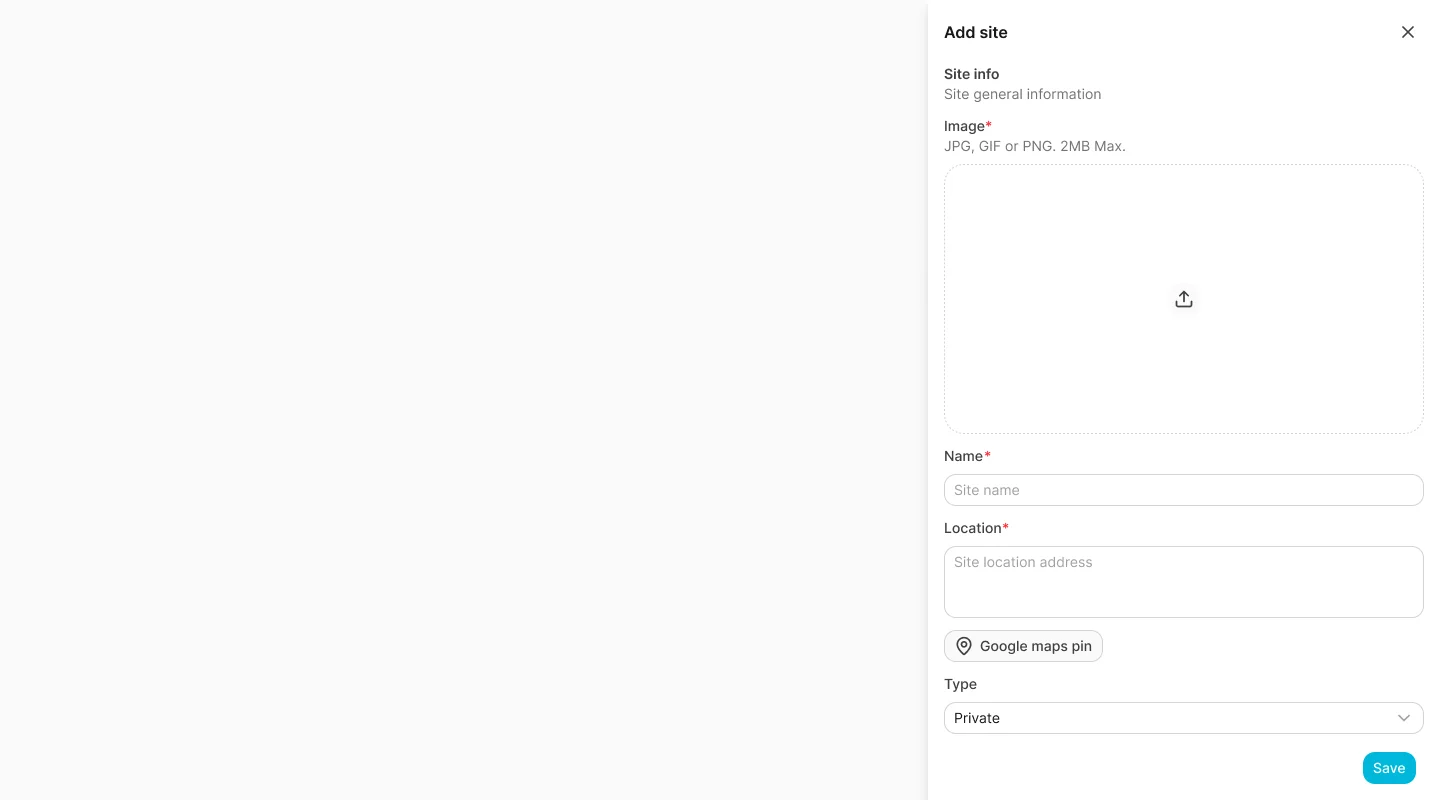

Create a site
Open Add site
Select Add site in the Sites header.
Complete the profile
Choose a required preview image meeting the limits above. Enter Name and Location and select Public or Private. For example, use Example Garden at 500 Example Way, Example City, with Private type. Google maps pin opens the entered address in Google Maps.
Save and verify
Select Save and wait for the site-created notice. Success closes the drawer; confirm the saved name, address, type, and Active status in Sites. A failed create reports Could not create site; correct the rejected fields or image before trying again. Closing without Save discards the form.
Edit an existing profile
Open the intended site
Choose Edit in the row menu, Details drawer, or Site info header. Confirm the loaded name and location.
Update the fields
Change name, location, type, or preview image. The existing image can show Loading image… or Image unavailable while it is retrieved. Clearing its preview allows a replacement; that alone does not delete the saved image.
Save or abandon
Select Save and check the update notice. Close with × to abandon unsaved profile changes. Use the separate Archive or Active action to change lifecycle.
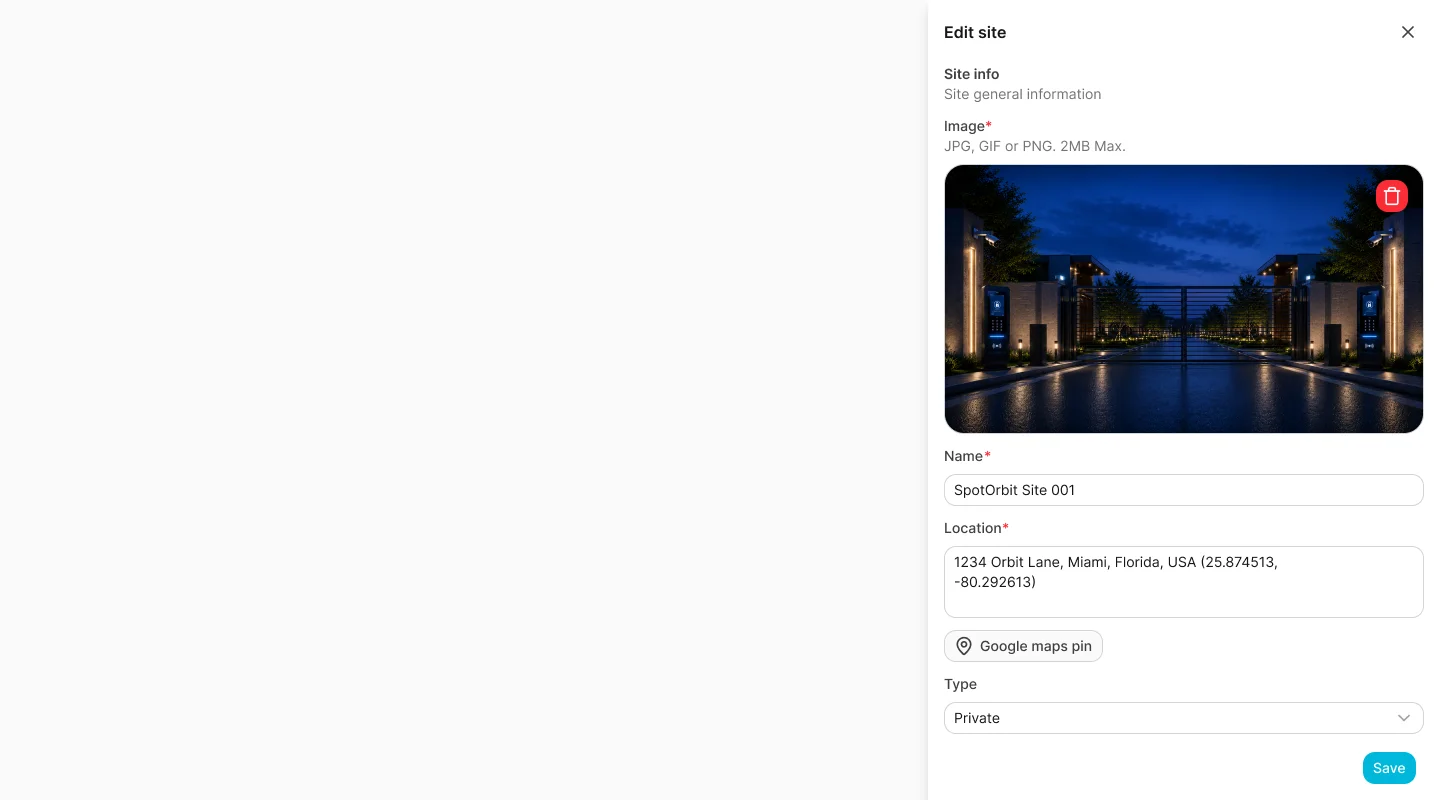

Manage invitations separately
The site profile no longer creates, lists, copies, resends, or revokes invitation links. Use the dedicated Teams invitations workflow and confirm its site before creating an invitation. Saving this profile does not invite a manager.
Frequently asked questions (FAQ)
Check required Name, Location, and preview image. The image must meet the file type, 2 MiB, and 200–4096 pixel dimension limits.
They are no longer in Edit site. Open Teams → Add team after confirming its active site context as explained in Teams invitations.
No. Use Archive for an active site or Active for an archived site and confirm that separate action.
No. It clears the displayed preview so you can choose a replacement. Review and save a replacement to update it.
Related content
- Sites — Find a site and use lifecycle actions.
- Site info — Review the saved profile and yard scheme.
- Teams invitations — Create and manage invitation links.