Payments
Overview
Open Payments from the Manager menu for the site selected in the sidebar. The menu is available for a site you can manage. Without a selected site, the page shows No site selected and asks you to select one before viewing payments. The title badge counts matching payments.
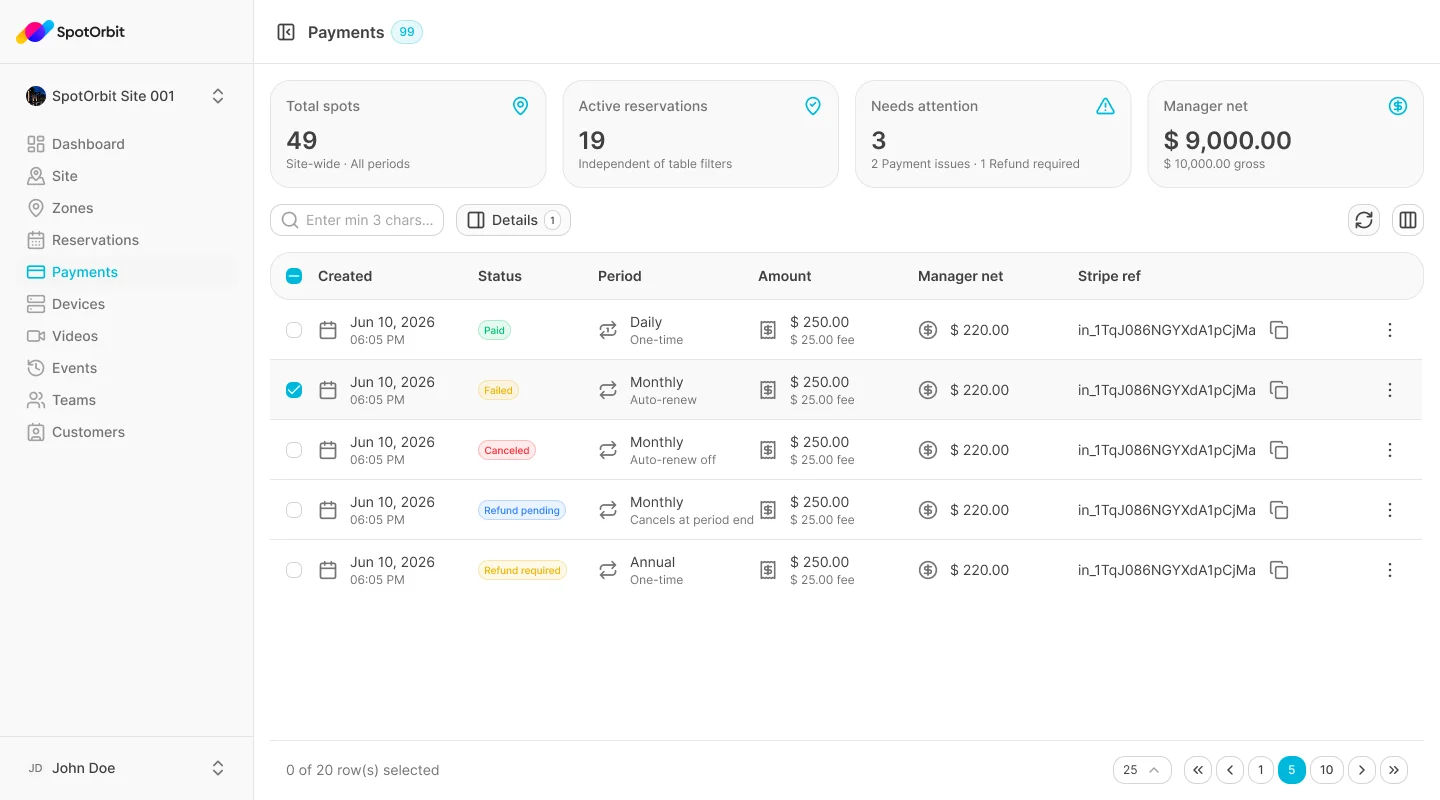
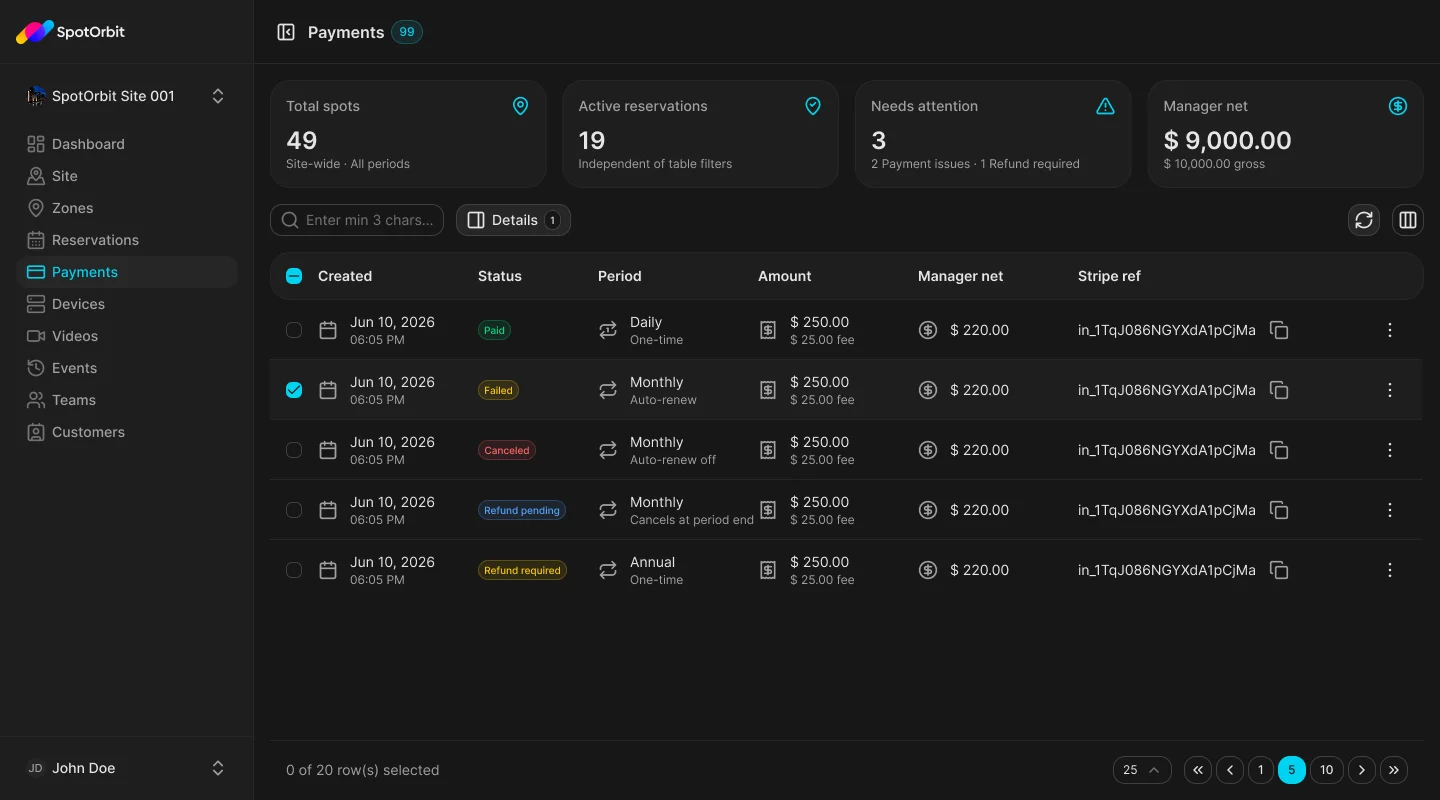
Four cards show Total spots, Active reservations, Needs attention, and Manager net, with gross underneath. These describe the entire site across all periods, independently of table filters, as indicated by Site-wide · All periods and Independent of table filters. Needs attention counts reservations with overdue payment, required payment, or a payment conflict requiring a refund, rather than every failed transaction. Refresh reloads the list and cards.
Payments are requested newest first. Each row shows Created, payment Status, Period and billing mode, Amount with fee, Manager net, and Stripe ref. Created is the payment's creation time, displayed in the browser's local time zone, rather than the reservation's start or refund completion. Daily, Monthly, and Annual are pricing periods; renewal information is shown separately. Amount, fee, and manager net are distinct values. Copy the reference from the row or drawer for follow-up: it can identify an invoice, checkout session, or subscription, or use the payment's own identifier as a fallback.
Search applies from three characters after trimming leading and trailing spaces. Filters narrows by Period, Date, and payment Status; its badge counts active filter groups. The column control changes visible columns. Open Details from a row menu or by selecting exactly one row and using the action above the table. Choose 10, 25, 50, or 100 rows per page; 25 is the default. Available page controls work after loading finishes. Changing the site, search, filters, or page size returns to page one. Empty results show No payments recorded for this yard yet. There are no manual refund, retry, or export actions here.
Review a payment
Filter the transactions
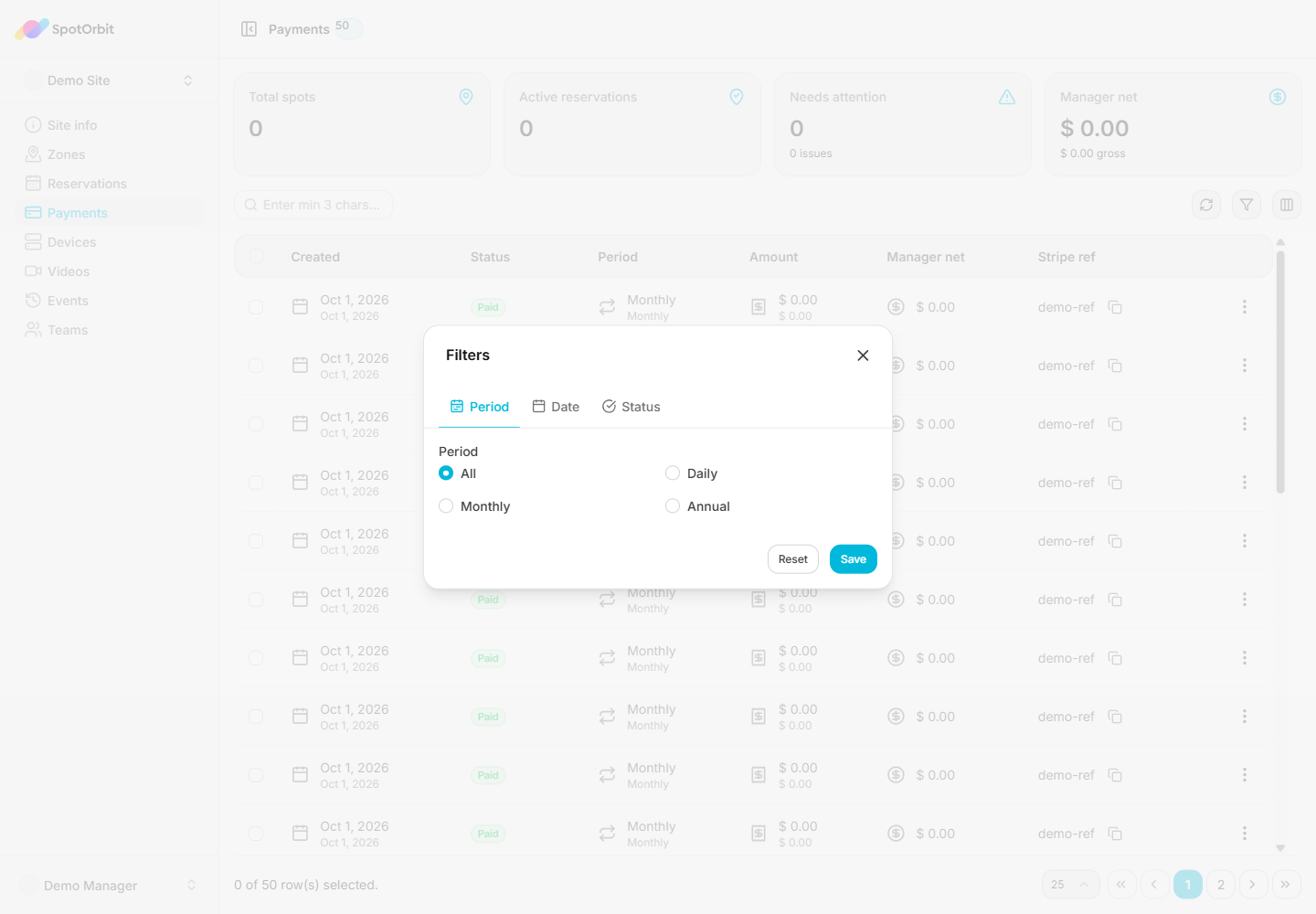
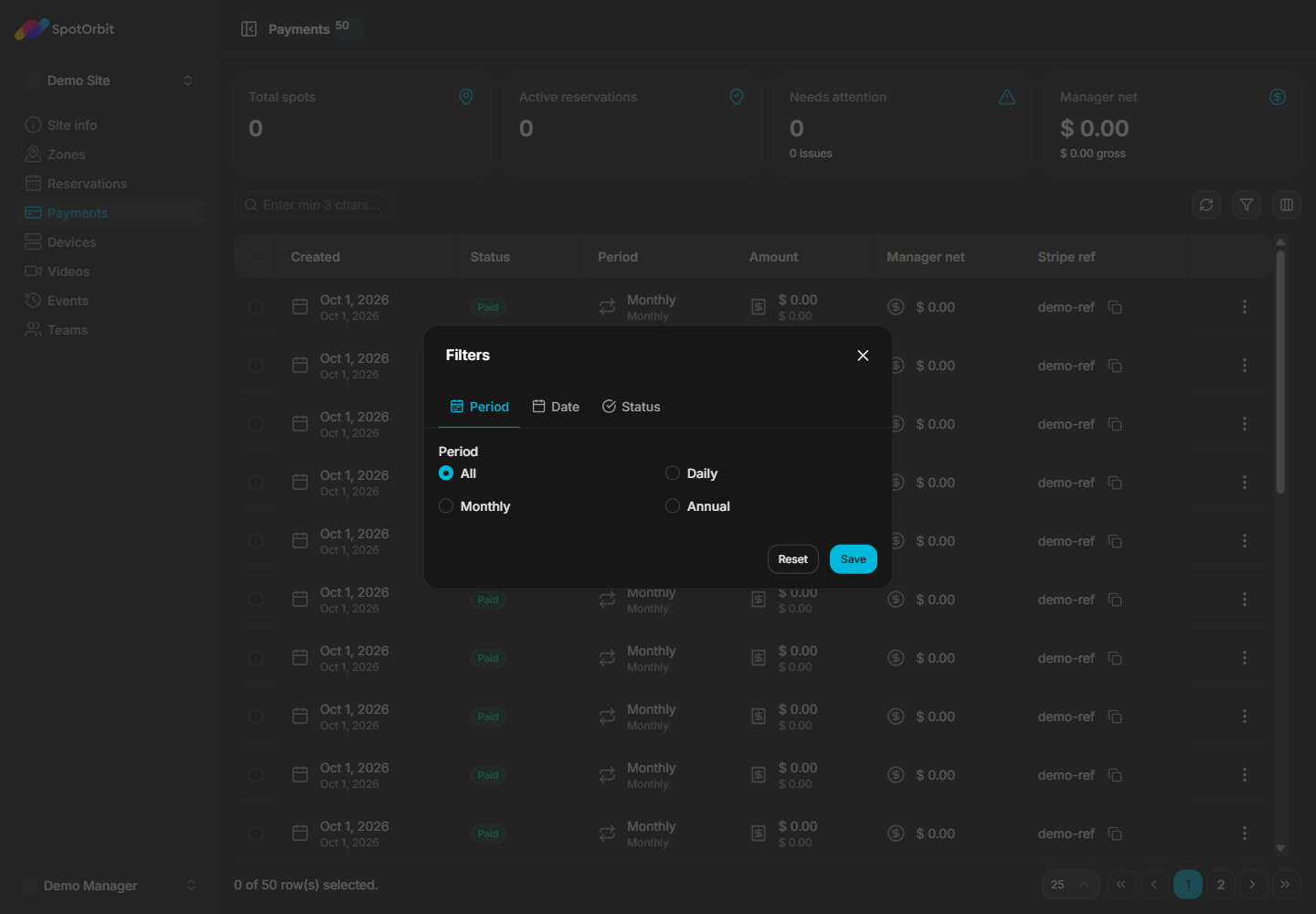
Confirm the active site. Enter at least three search characters, or open Filters. In Period, choose Daily, Monthly, or Annual for the pricing period. All removes only this restriction and keeps the date and status choices. It does not select a particular calendar month or renewal mode.
You can change tabs without losing draft choices. Save applies all three groups, closes the dialog, and returns to page one. Closing without Save keeps the applied choices. Reset clears all three groups and closes the dialog; it does not clear the separate search. Date ranges use complete days in the browser's local time zone. Filtering changes the displayed results, not a payment's state.
Choose a date range
Select the Date tab, then the read-only Date field to open the range calendar. Choose the first and last days across the two displayed months. The range uses the browser's local time zone, from midnight on the first day through the end of the last day. It is independent of the Daily, Monthly, or Annual pricing period.
The Date field opens a two-month range calendar.
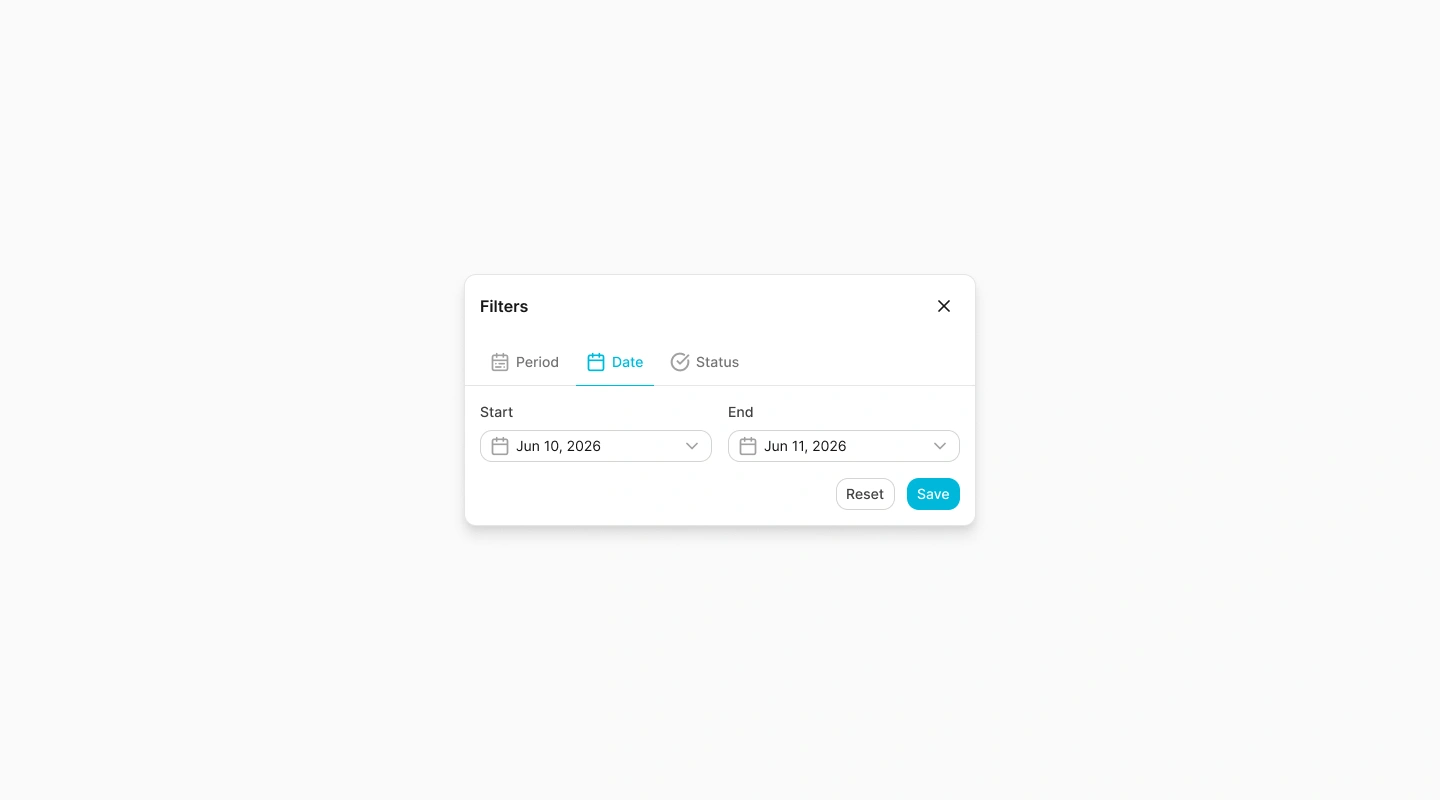
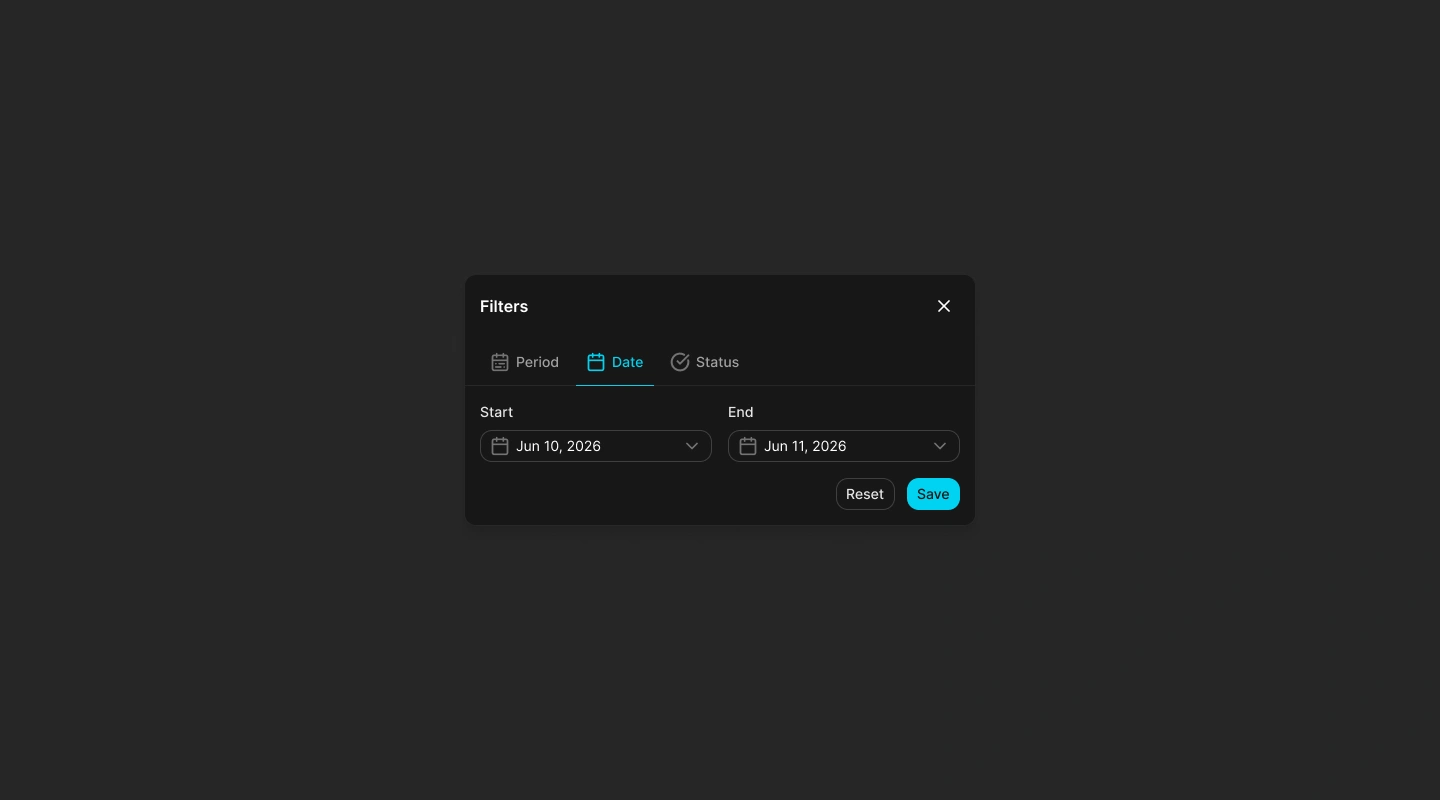
Switching tabs keeps the draft range. Save applies it with the period and status; Reset clears all three groups, closes the dialog, and returns to page one without clearing the search. To discard unsaved changes, use the close control; reopening restores applied choices. Clicking the background does not close the dialog. The filter badge counts the Date group once, even when both ends are set. Site summary cards do not change with the filters.
Choose a payment status
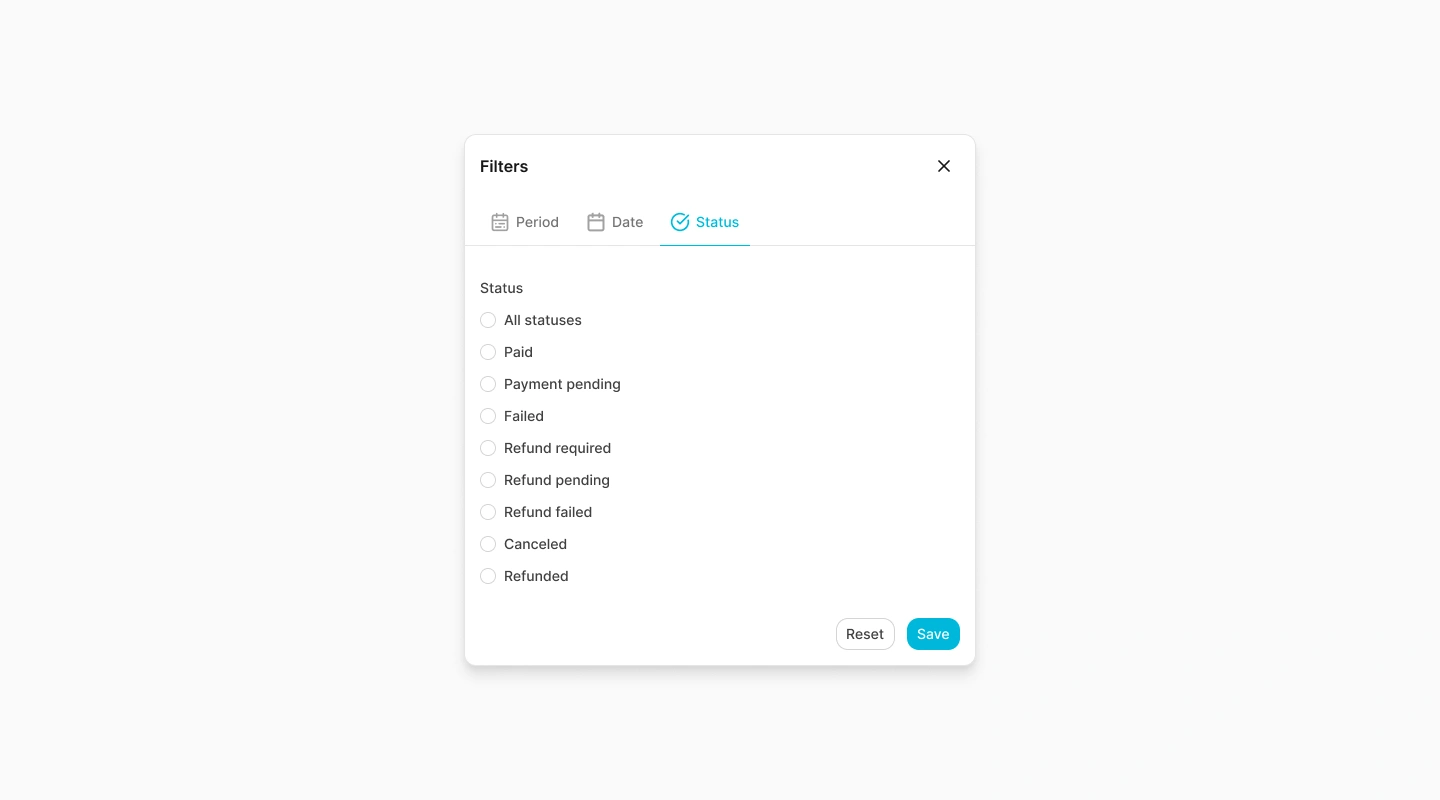
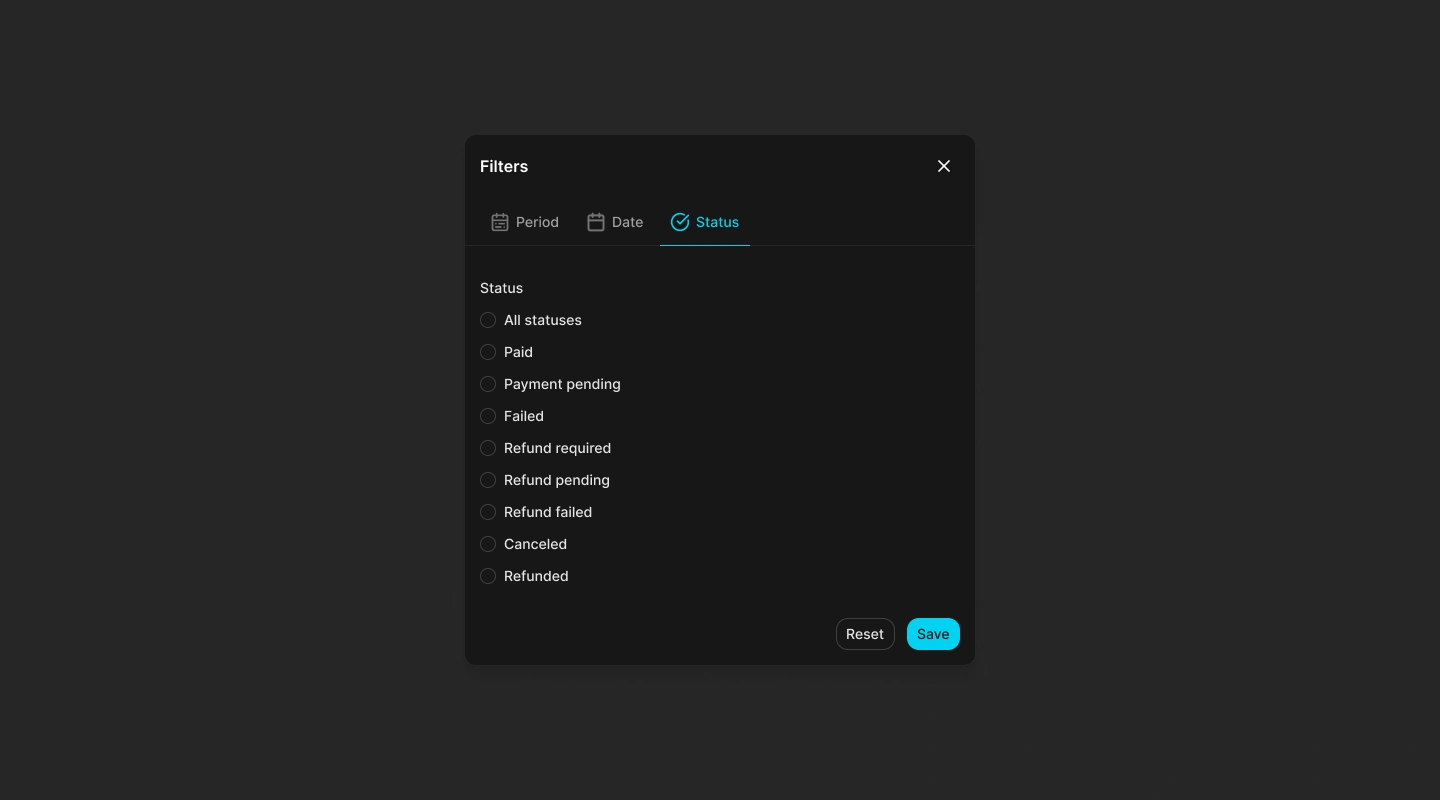
In Status, choose Paid, Payment pending, Failed, Refund required, Refund pending, Refund failed, Canceled, or Refunded. These are payment states, distinct from reservation status and billing mode. Choose All to remove only the status restriction, then Save to apply it with the other draft filters.
Choose All to remove the status restriction. Selecting a state filters the list; it does not start, retry, or complete a refund.
Open a payment
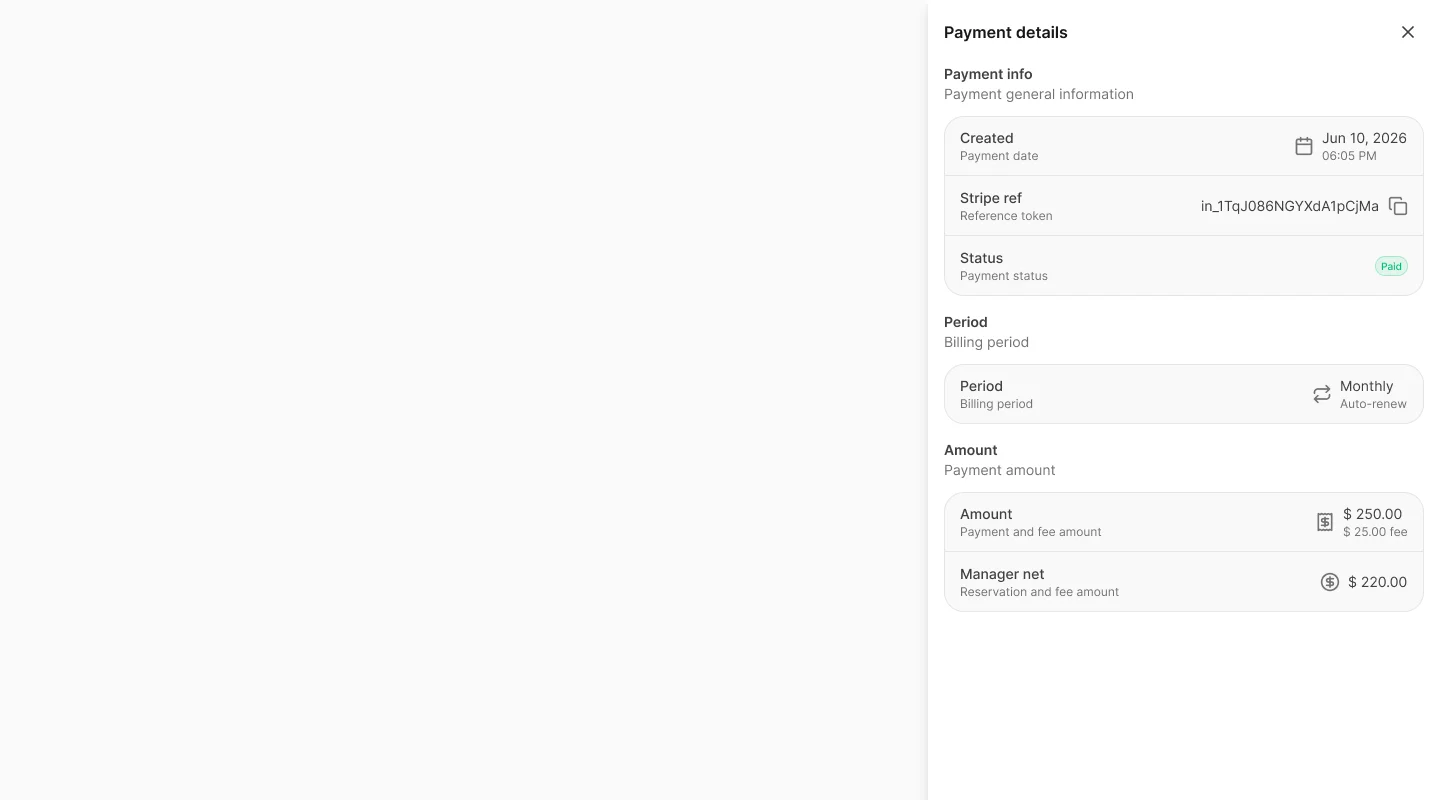
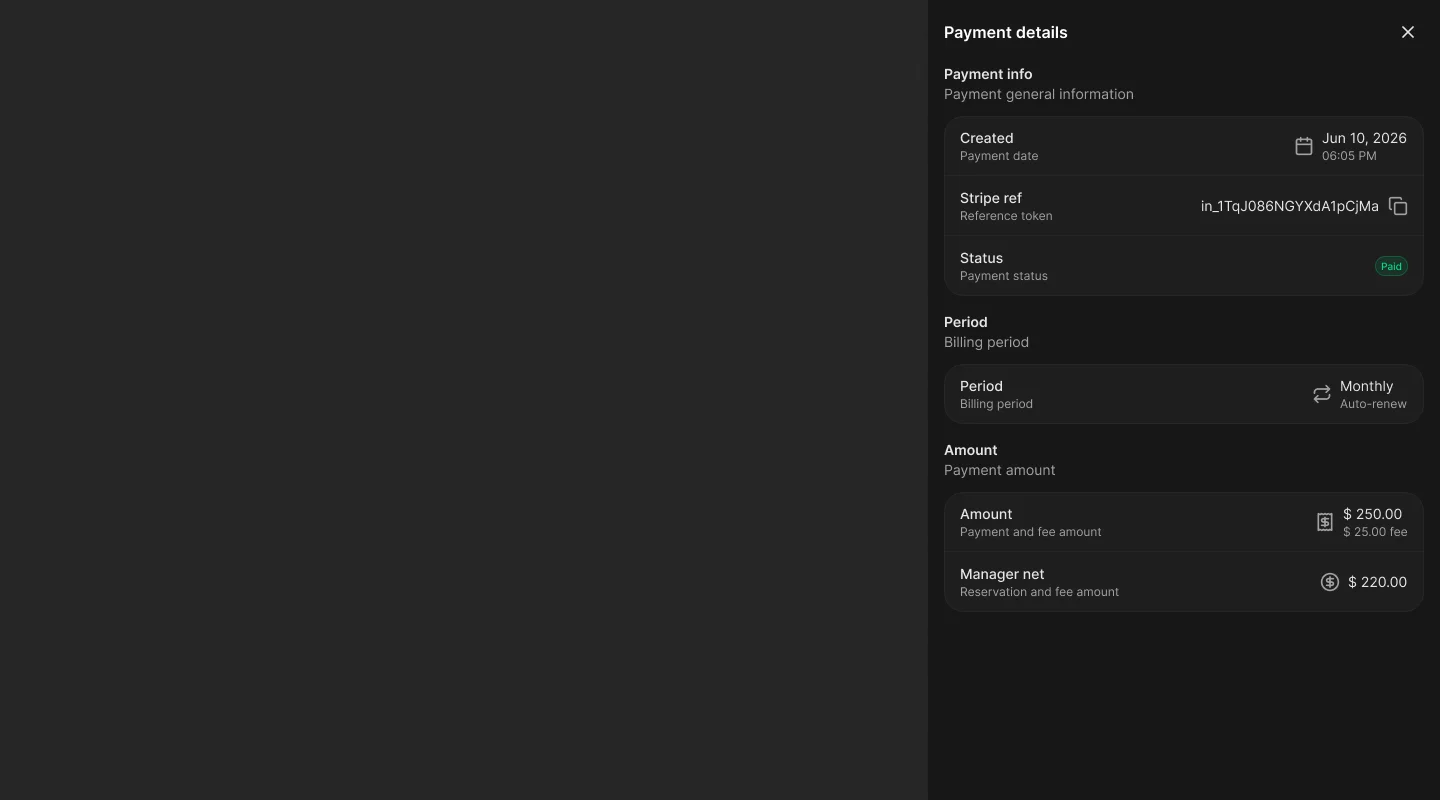
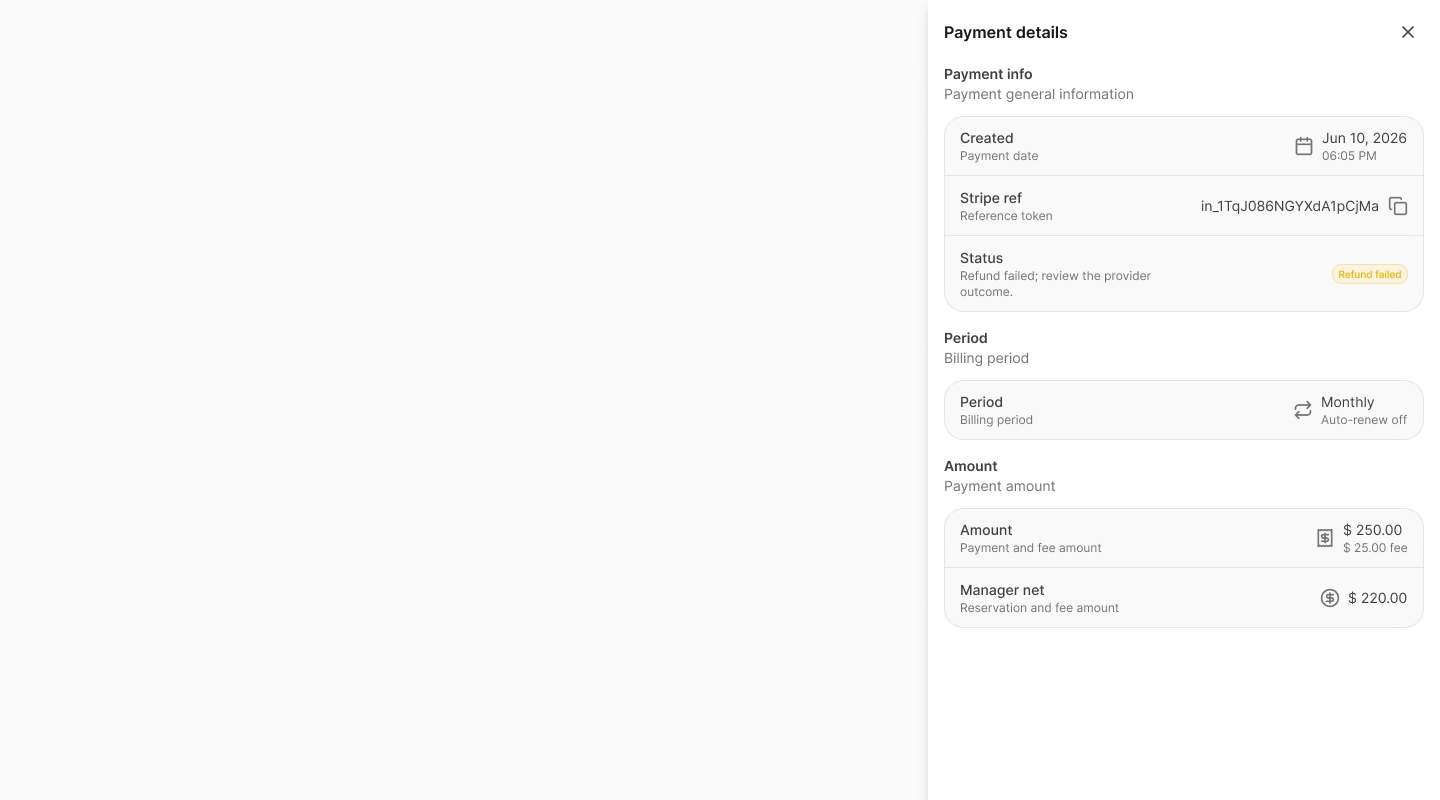
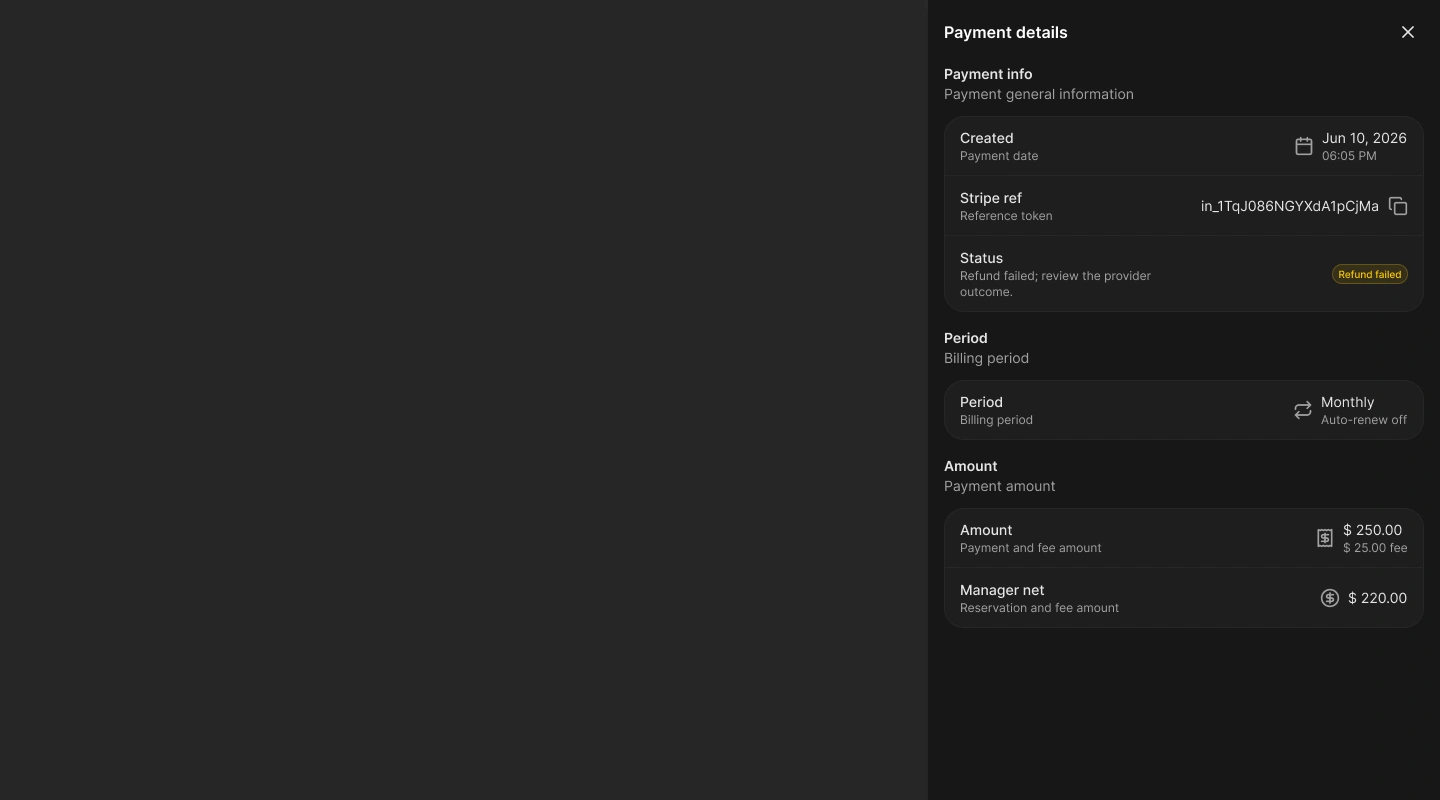
Find the payment using its date, status, amount, and reference. Use its row menu's Details, or select exactly one row and use Details above the table. The drawer shows Created, a copyable Stripe ref, Status, Period and billing mode, Amount with fee, and Manager net. It does not include a reservation's zone or spot.
The drawer opens with the list row and attempts to refresh it; if that refresh fails, the row's information stays visible. Refresh and reopen Details when you need to check an uncertain result.
Interpret the outcome
Read the payment status separately from the reservation's state and renewal mode. A pending or failed refund is not a completed return of funds. Use the refund review below to check the available outcome and identifiers.
Review a refund outcome
Check a pending refund
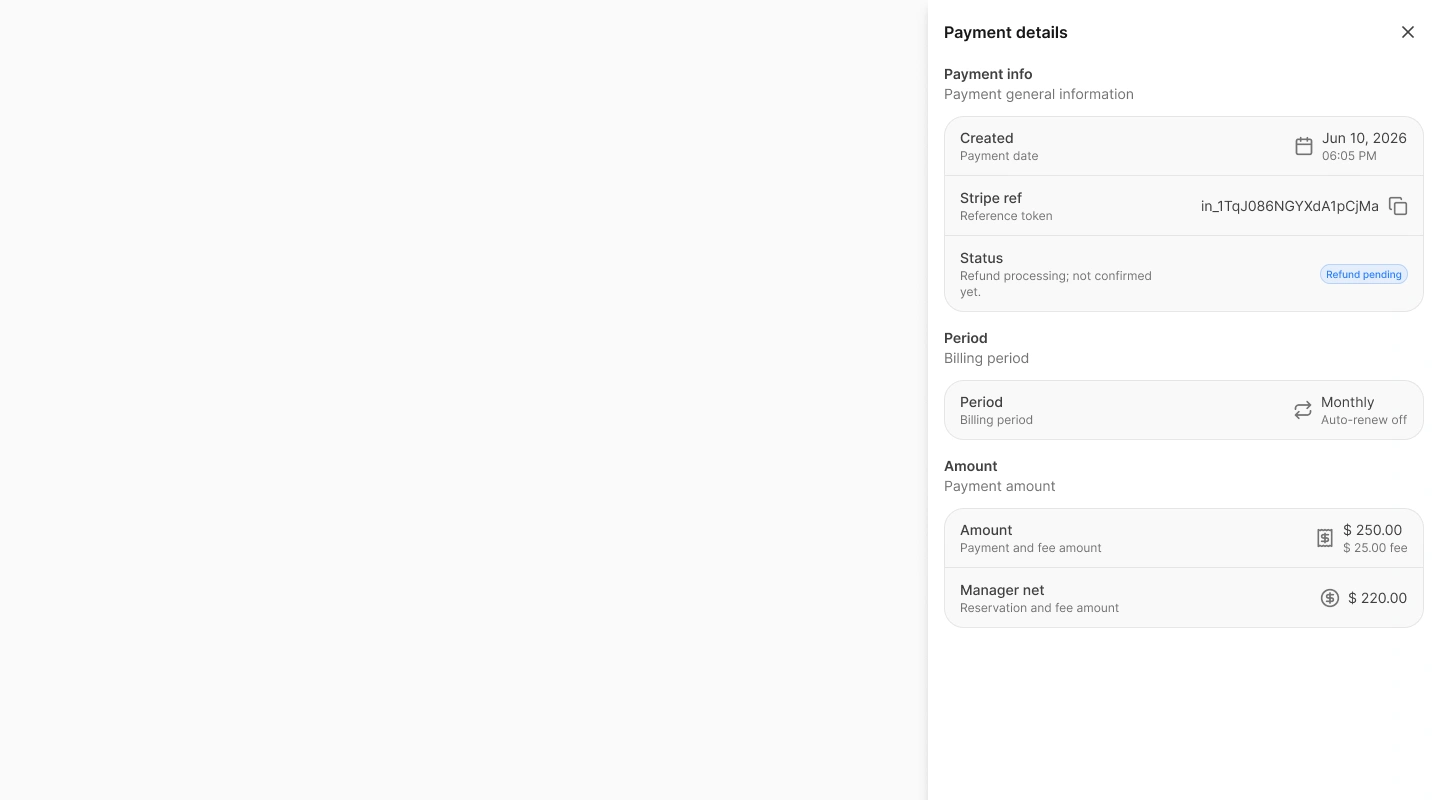
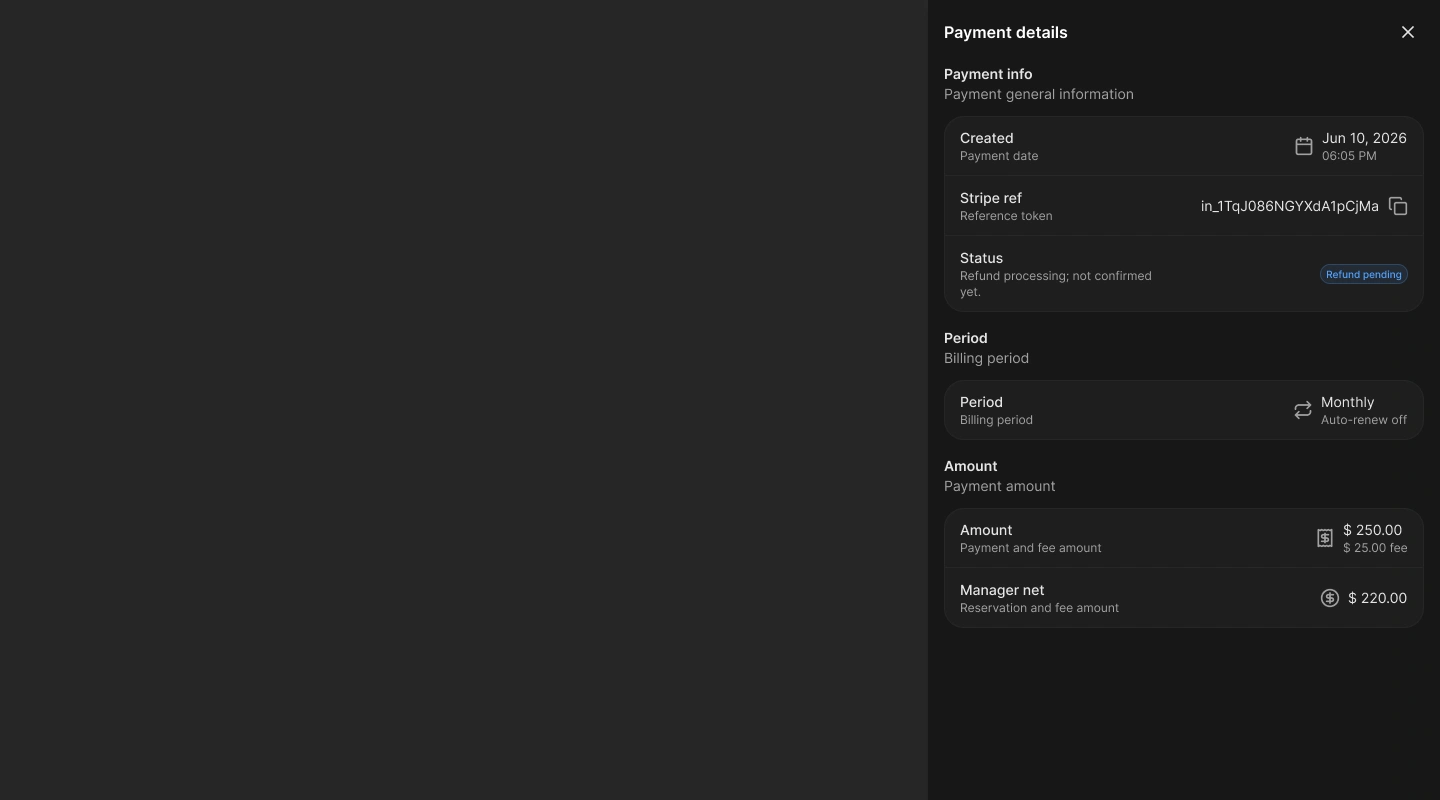
Confirm the site, refresh the list, and open the payment's Details. Refund pending means Refund processing; not confirmed yet. It does not confirm that funds have returned. Read the payment reference and the separately displayed renewal mode; Auto-renew off is not a refund result.
Check a failed refund and available evidence
Refund failed asks you to review the provider outcome. In the current drawer, the additional Refund section shows the workflow status for refund-related states or when a refund identifier is available. Check Stripe refund, Requested, and Completed or Failed when provided. Requested marks the refund workflow's start, not payment creation; Completed or Failed refers to its outcome. Review any failure reason displayed. The Stripe refund identifier is separate from the payment's Stripe ref.
Recheck before communicating the outcome
Use Refresh and reopen Details to request the latest available information. A Refunded status describes provider confirmation; it does not guarantee an additional Refund section when no refund identifier is available. If a detail refresh fails, the drawer can retain the list row's data. Keep the available payment and refund identifiers for follow-up rather than treating missing fields as a successful outcome. This page has no manual refund or retry action.
Frequently asked questions (FAQ)
Confirm the active site, reset the period, date, and status filters, then clear the search separately. Without a selected site, choose one in the sidebar first.
This screen is for review. It provides no manual refund submission or retry action. Check the payment and refund status before communicating a result.
Daily, Monthly, and Annual describe pricing periods. The additional billing mode explains whether payment is one-time, auto-renewing, scheduled to stop, or no longer renewing.
They summarize all periods across the site and are independent of table filters. Needs attention concerns reservation payment issues, not all failed payments in this list.
Refresh and reopen Details. Read the status message and any refund identifier, Requested time, Completed or Failed time, and failure reason provided. Pending and failed are not completed refunds; this screen offers no manual retry.
Related content
- Reservations — Review the associated booking.
- Events — Check operational history.