Site info
Use Site info as the starting point for working inside an individual site.
Overview
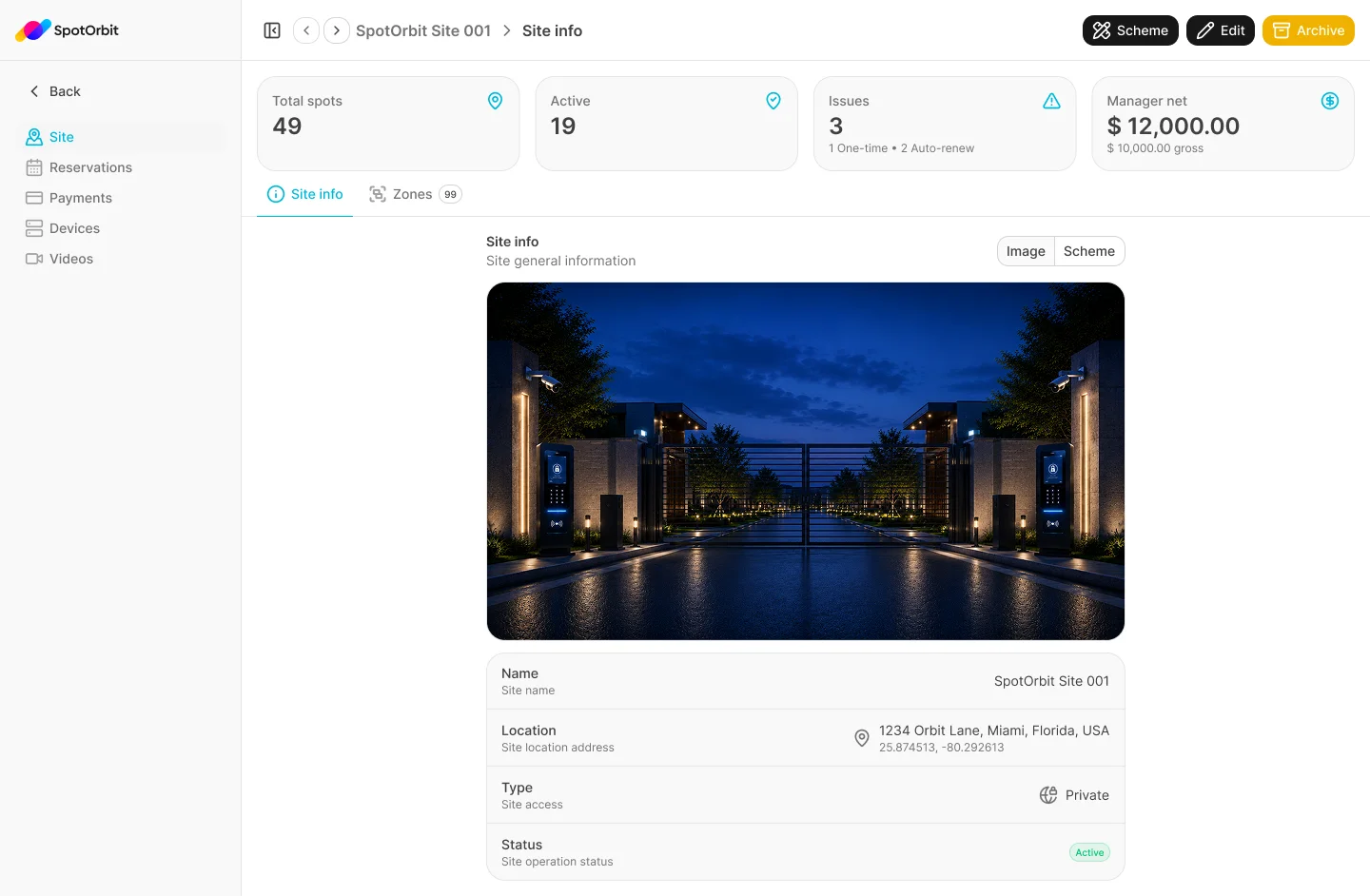
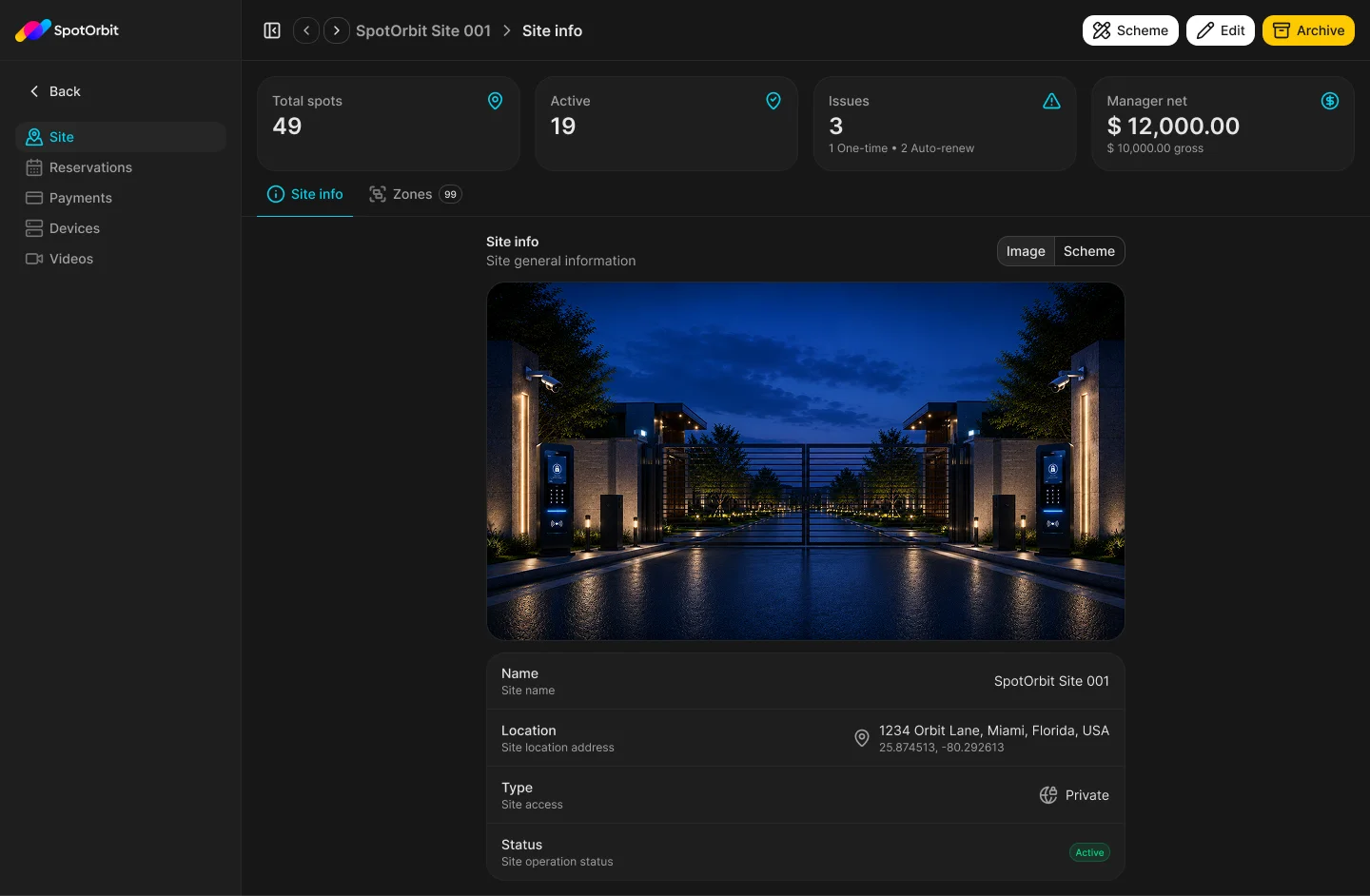
Open Site in the site detail sidebar, then use Site info or Zones at the top. Site info displays four operational summary cards and the profile. Image is selected initially; choose Scheme beside it to inspect the mapped perimeter, zones, and spots. The profile shows Name, Location with coordinates when both are available, Public/Private Type, and Active/Archived Status. A missing address appears as Address not available. Zones are managed in the Zones tab and its count, not a list below the profile. Reservations, Payments, Devices, and Videos remain separate site pages.
Open and review a site
Open the full page
From Sites, open a row menu and select More. The quick Details drawer also provides More.
Confirm the selected site
Use the header breadcrumb and previous or next controls to verify or change the current site.
Review the profile
Check name, address, coordinates when available, Public/Private type, and lifecycle status. Open the Zones tab to review zone records.
Explore the yard scheme
Select Scheme beside Image to review the layout. Scroll to zoom, drag to pan, and use Center view to recenter. Select a mapped zone or spot to open its details when the record is available. Changing this view does not edit the layout. The separate Scheme button in the header opens the layout editor.
Use the header actions
- Scheme: opens the yard layout editor for this site. This header action is separate from the Image/Scheme view switch inside Site info.
- Edit: opens the site profile form when the account has platform administrator access and is using the administrator workspace. Selecting the Manager role keeps the profile read-only.
- Archive or Active: opens the site lifecycle confirmation.
Archiving retains site data and history. Restoring returns the site to active operations, but it does not automatically restore zones or spots that were archived separately.
Open the lifecycle confirmation
Verify the site in the header, then select Archive for an active site or Active for an archived site.
Review and confirm the action
Read the confirmation. Archive explains that all site data will be preserved; Active re-enables operations; its confirmation has no extra notice. Select the matching Archive or Active action to continue, or close the dialog to leave without confirming.
Check the result
After success, the dialog closes and Site archived or Site restored appears. If Unable to archive site or Unable to restore site appears, the dialog remains open; do not treat the action as completed.
Understand the operational summaries
The cards report Total spots, Active for active reservations, Issues with payment issue and required refund counts, and Manager net with gross revenue beneath it. These are whole-site summaries, rather than counts of the zone or shapes currently visible. Open Reservations, Payments, Zones, or device activity to inspect the underlying records.
The Sites catalog separately aggregates reports across loaded sites.
The cards show placeholders while loading. If the selected site is unavailable, the page displays Site not found. See Image and scheme states below for preview messages. Use Edit to manage a site’s preview picture, or the header Scheme action to work on its layout.
Image and scheme states
Image retains its preview frame and shows No image when no preview exists, Loading image… while loading, or Image unavailable after it cannot load. Scheme retains its frame and shows No Scheme when no perimeter, zone, or spot drawing exists. These placeholders are not proof that site records are missing. This view has no image upload control.
Frequently asked questions (FAQ)
It opens the graphical layout editor. The Image/Scheme switch within Site info only changes the view; the site profile form does not edit perimeter, zone, or spot geometry.
Yes. Selecting a mapped zone or spot opens its detail drawer when that item exists in the loaded site data.
No. Zones and spots keep their own lifecycle states.
Image shows No image, Loading image…, or Image unavailable when a usable preview is absent. Use Edit to manage the preview picture, or select Scheme beside Image to inspect the layout without editing it.
Related content
- Create and edit sites — Update the site's profile.
- Zones and spots — Manage layout inventory and pricing.
- Reservations — Review bookings for the selected site.
- Payments — Inspect financial records and refunds.