Devices
Overview
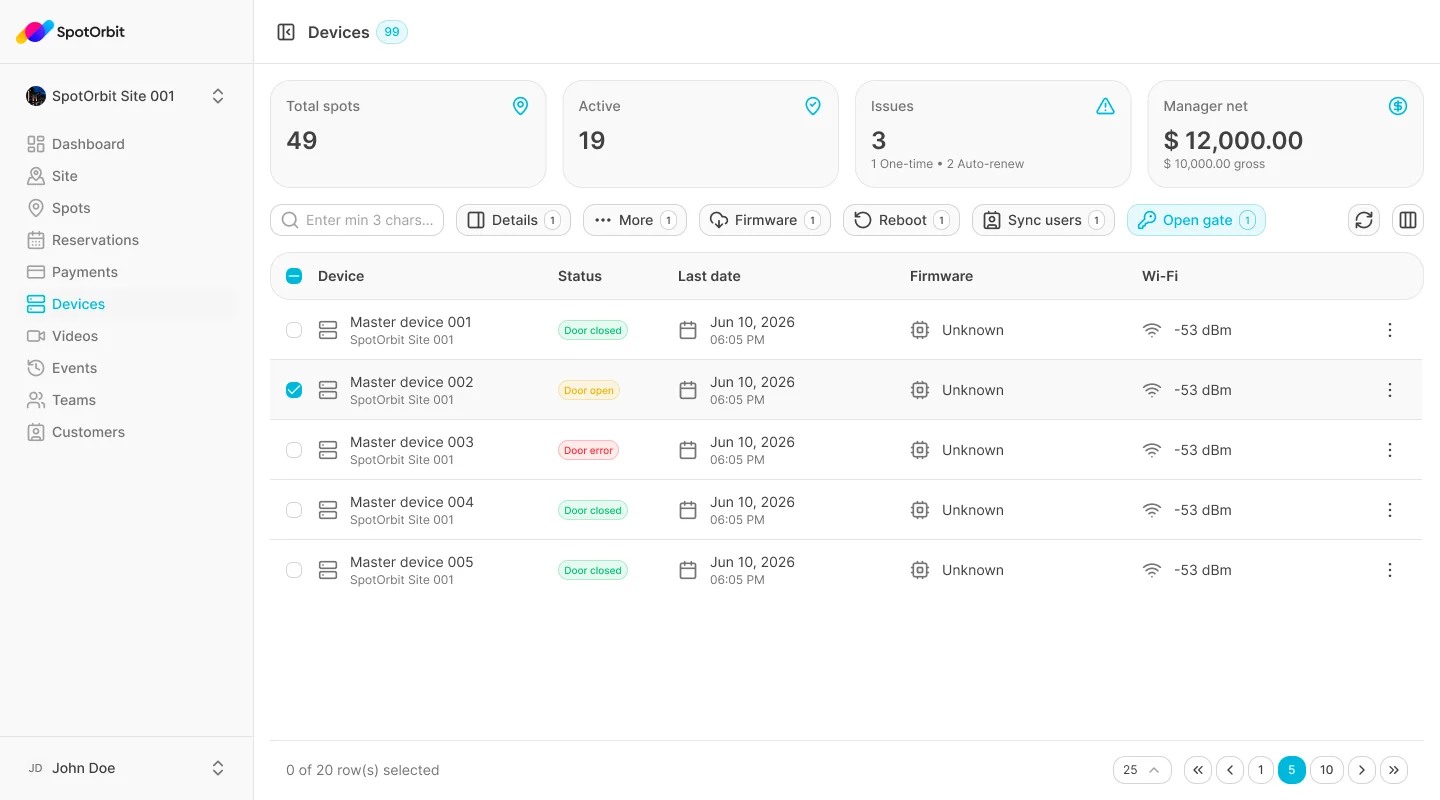
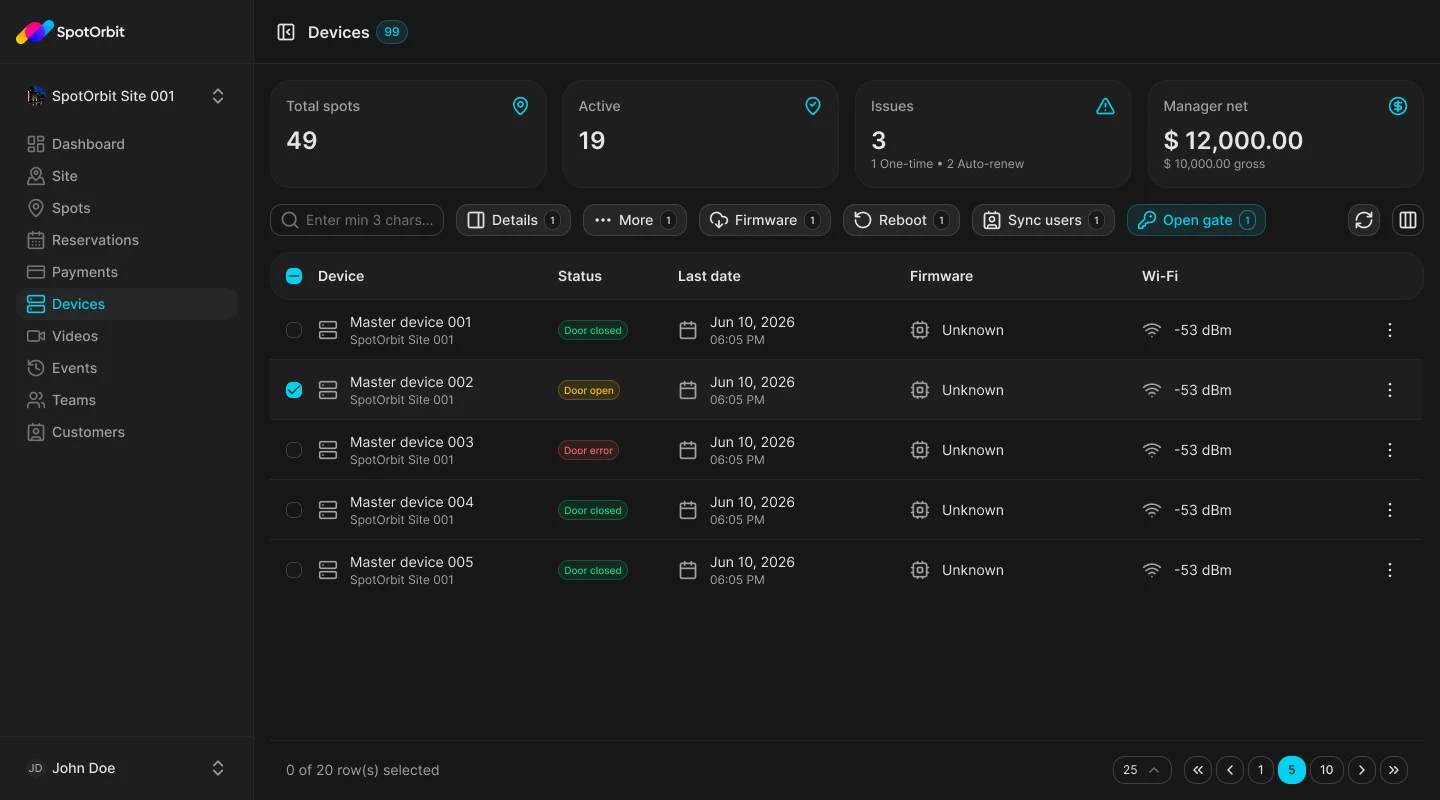
Select a site you can manage in the sidebar, then open Devices. If no site is selected, No site selected asks you to choose one before viewing devices. The count beside Devices indicates matching devices, not events or reservations.
Four cards describe the site: Total spots is its inventory; Active counts active reservations; Issues counts reservations with payment past due, payment required, or a refund required after a payment conflict. The One-time/Auto-renew description separates conflict and past-due reservations. Manager net shows the site's net revenue with gross beneath it. These are site reservation and financial summaries, not counts of online devices or hardware alerts, and searching the device table does not narrow them. Wait for loading to finish; a zero alone does not establish that the site report loaded successfully.
The table has Device with its site, Status for the reported door state, Last date for the last recorded contact, Firmware, and Wi-Fi. Door closed, Door open, and Door error describe the gate, not connectivity. Missing door state is Unknown, missing Last date is a dash, missing firmware is Unknown, and Wi-Fi is a numeric signal in dBm or Unknown. None establishes a new live reading.
Search applies a term of at least three characters; shortening it below three removes the search restriction. Refresh devices reloads the device list. The column control changes visibility and order. Pagination starts at 25 rows and offers page-size and navigation controls; wait for loading before paging. Changing site, search, or page size returns to the first page; site or search changes also close Details. Selection clears when table data or pagination changes. No devices yet. is also shown when the search has no results; clear the term before concluding the site has no devices.
Use a row menu or select exactly one device for Details and More. Selecting one or several devices also offers Firmware, Reboot, Sync users, and Open gate through a confirmation for the selected devices. Details is a quick summary; More opens Device info and Activity. The list has no Add device, deletion, export, or separate filter dialog.
Inspect a device
Find the device
Confirm the site selector, then enter a name or search term of at least three characters. Check Device, site, door state, and Last date before choosing a record. Clear search to restore the unfiltered list, or use Refresh devices to reload it. A displayed timestamp is the last recorded contact, not proof that a device is currently online.
Review quick Details
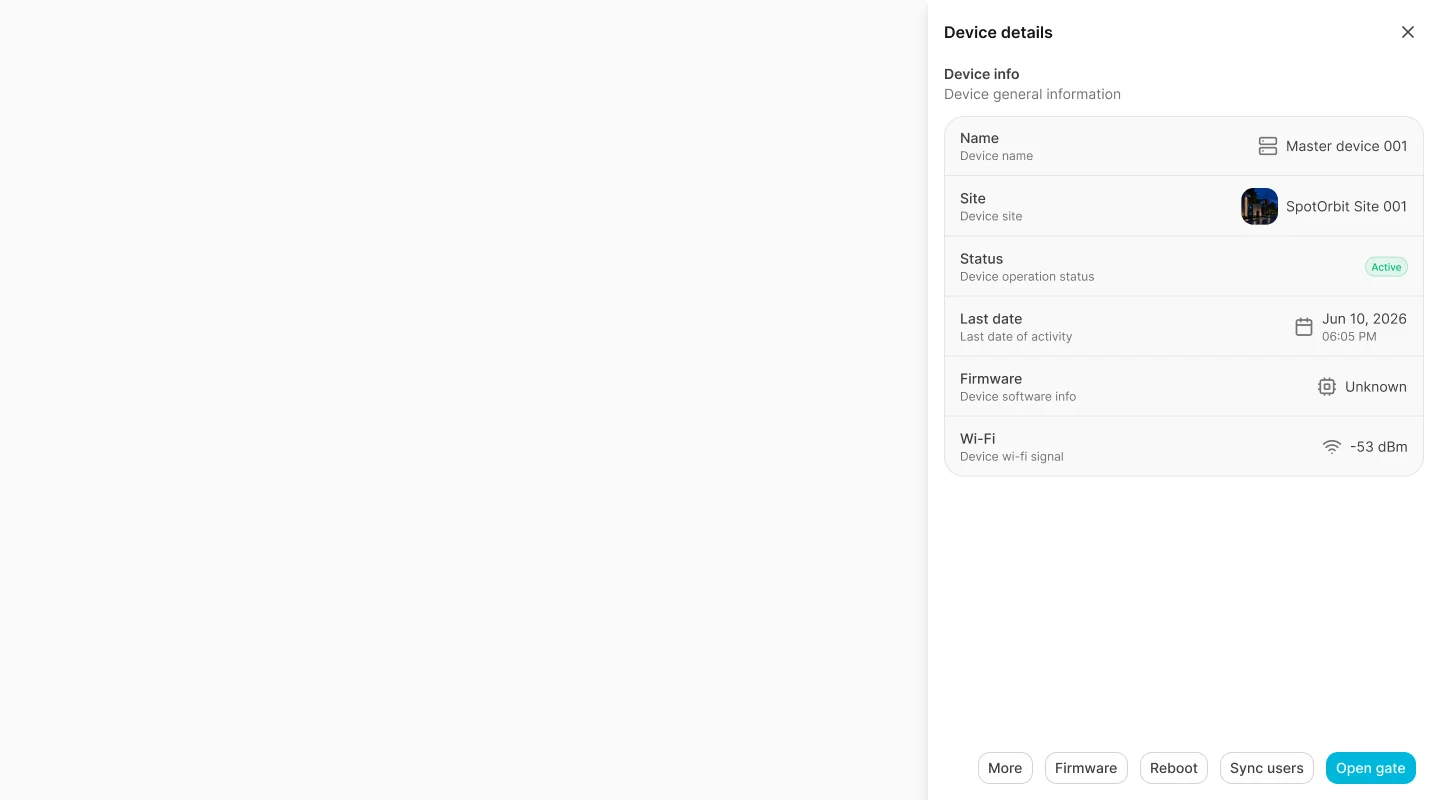
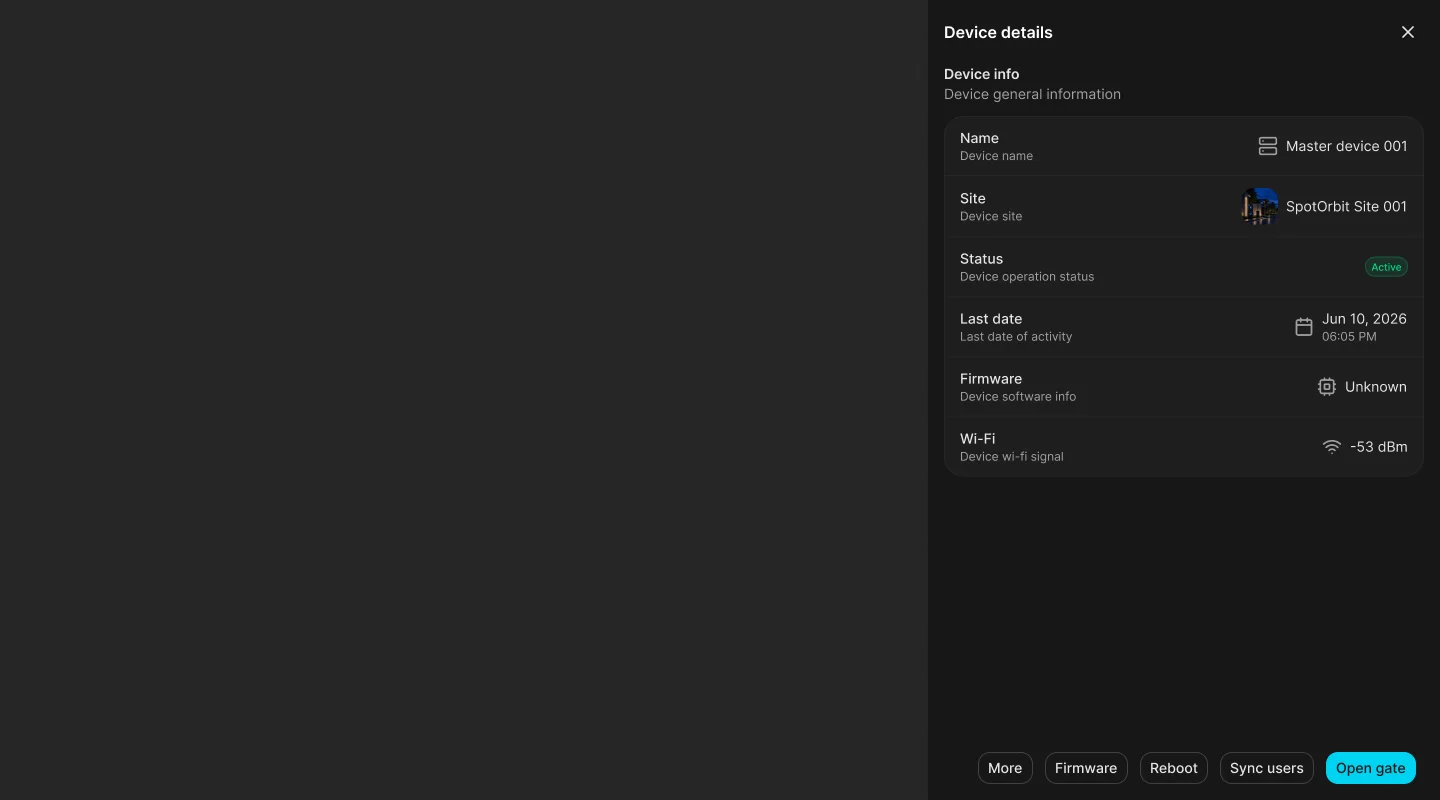
Open Details from the row menu or after selecting exactly one row. Device details opens on the right with read-only Name, Site, Status, Last date, Firmware, and Wi-Fi. Check the name and site before using a command. Status is Active or Inactive according to connectivity; Last date is recorded contact, missing firmware is Unknown, and Wi-Fi is the reported dBm value or Unknown.
The footer offers More, Firmware, Reboot, Sync users, and Open gate. More opens Device info for that device. All four commands require an online device and permission to operate devices at the site, and Open gate checks the door state. These are separate conditions: Active alone does not establish that Open gate is available. Close the drawer with its close control to return to the table without issuing a command.
Continue to Device info
Select More in the drawer or the device's row menu to open Device info.
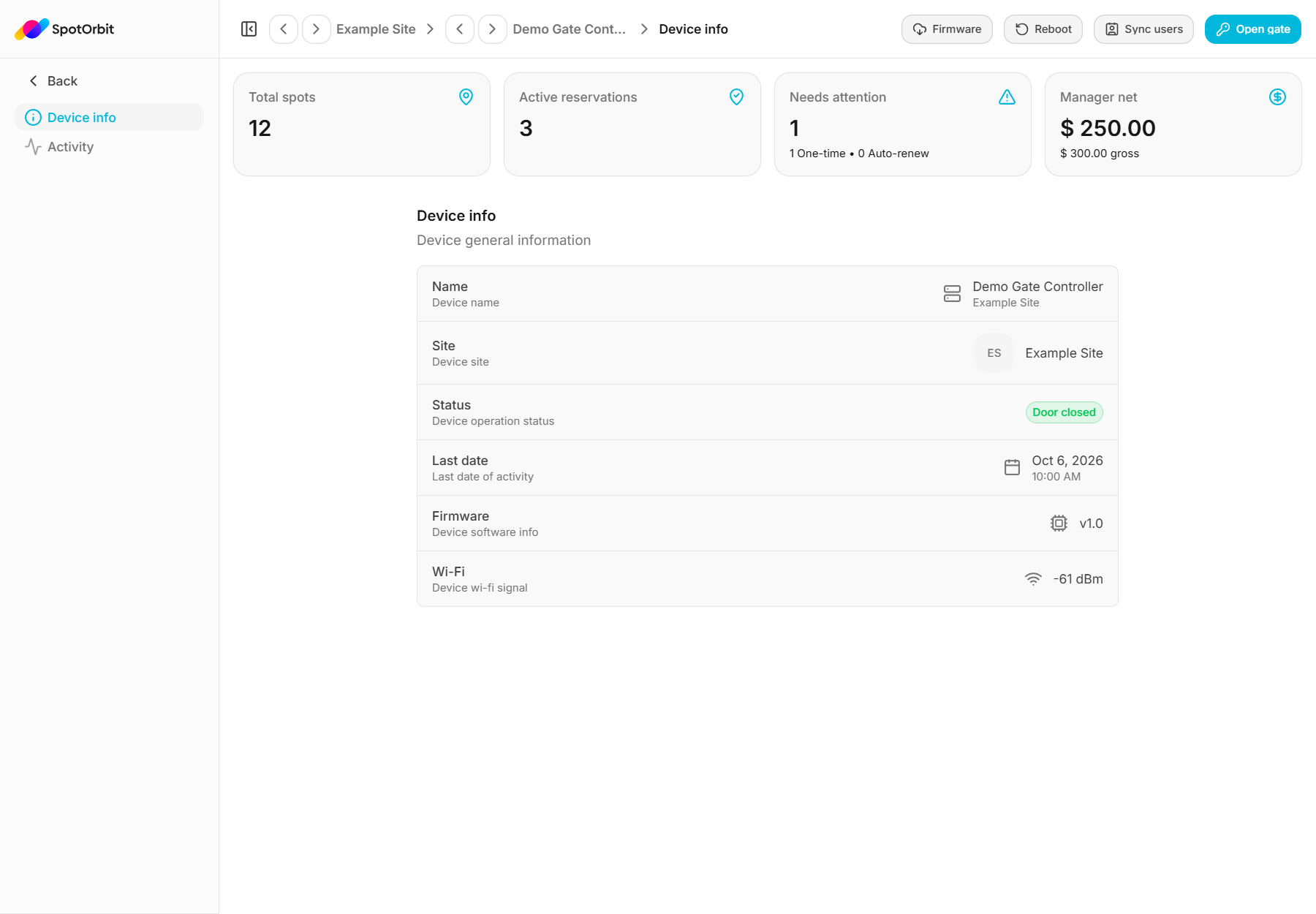
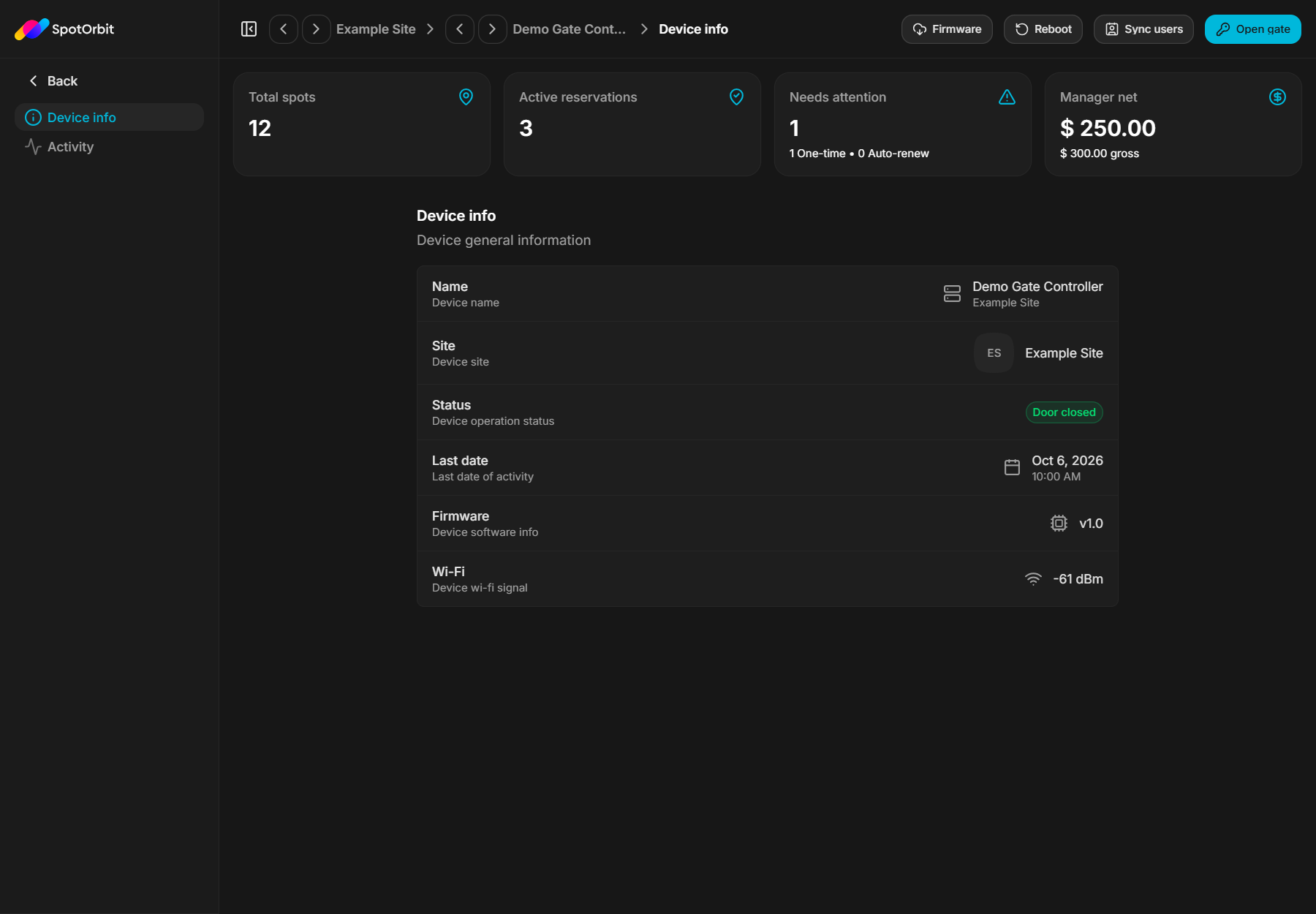
Device info identifies the site and device in the header. Its read-only fields are Name, Site, Status, Last date, Firmware, and Wi-Fi. In Device info and the quick drawer, Status is Active/Inactive according to connectivity, rather than door state. Last date is recorded contact, Firmware the reported version or Unknown, and Wi-Fi the reported signal in dBm or Unknown. Use the site's summary cards as site context, not device telemetry. Device info offers Firmware, Reboot, Sync users, and Open gate with their respective conditions.
Use Device info and Activity in the detail sidebar, and Back to return to the parent device list. Available previous/next device arrows move through devices in the same site by name, preserving the current section. Site arrows, when available, open the first device by name in the adjacent site and keep the current section; a site without devices opens its empty list. If that navigation fails, Unable to navigate to site is shown. Device not found offers Retry to reload the requested device; a missing record is not an offline status.
Review Activity
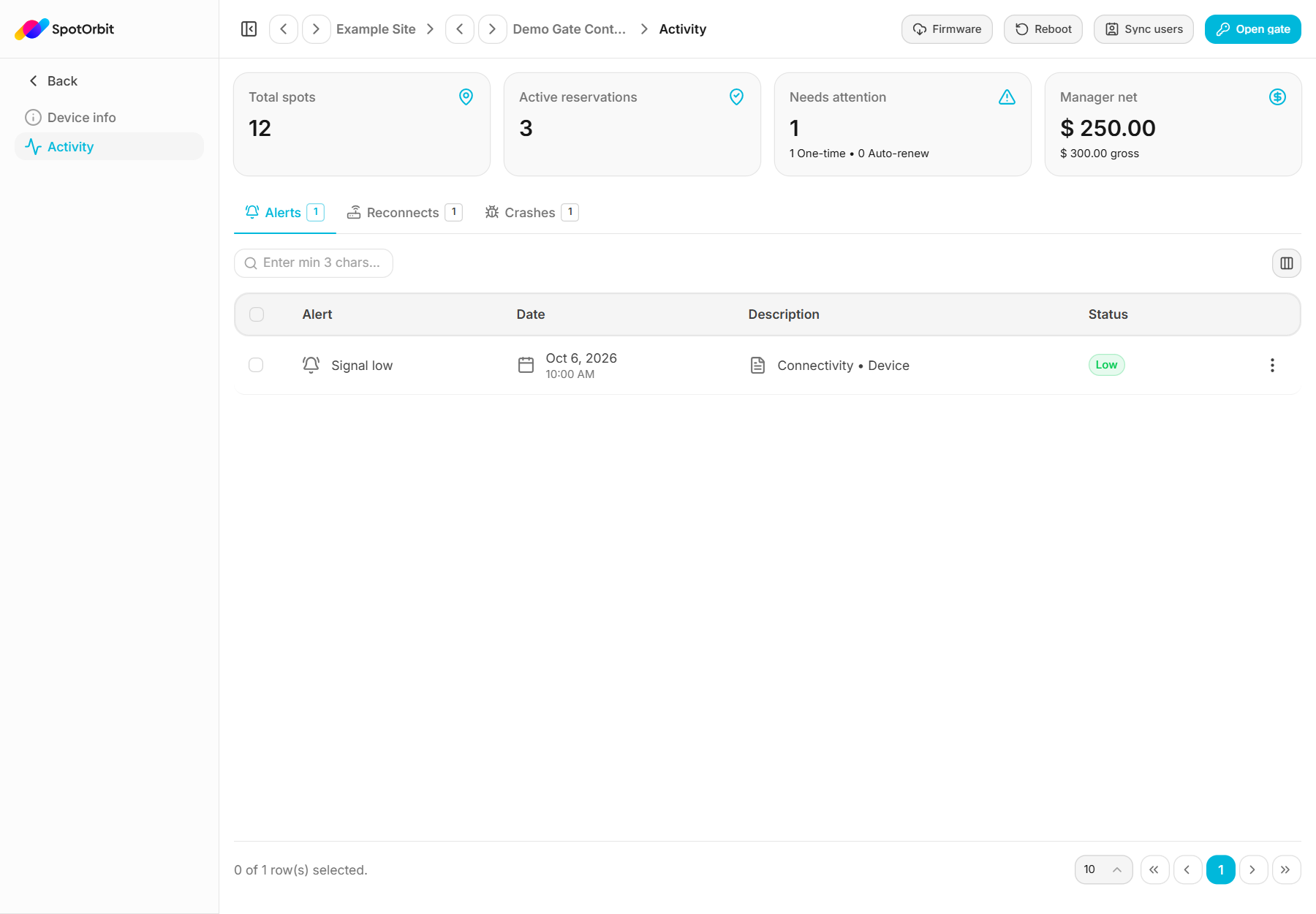
Open Activity for Alerts, Reconnects, and Crashes. Each tab counts its available events before search; the Activity title count is the sum of all three groups. These counts do not show how many devices are currently offline, and they need not match the site Issues card.
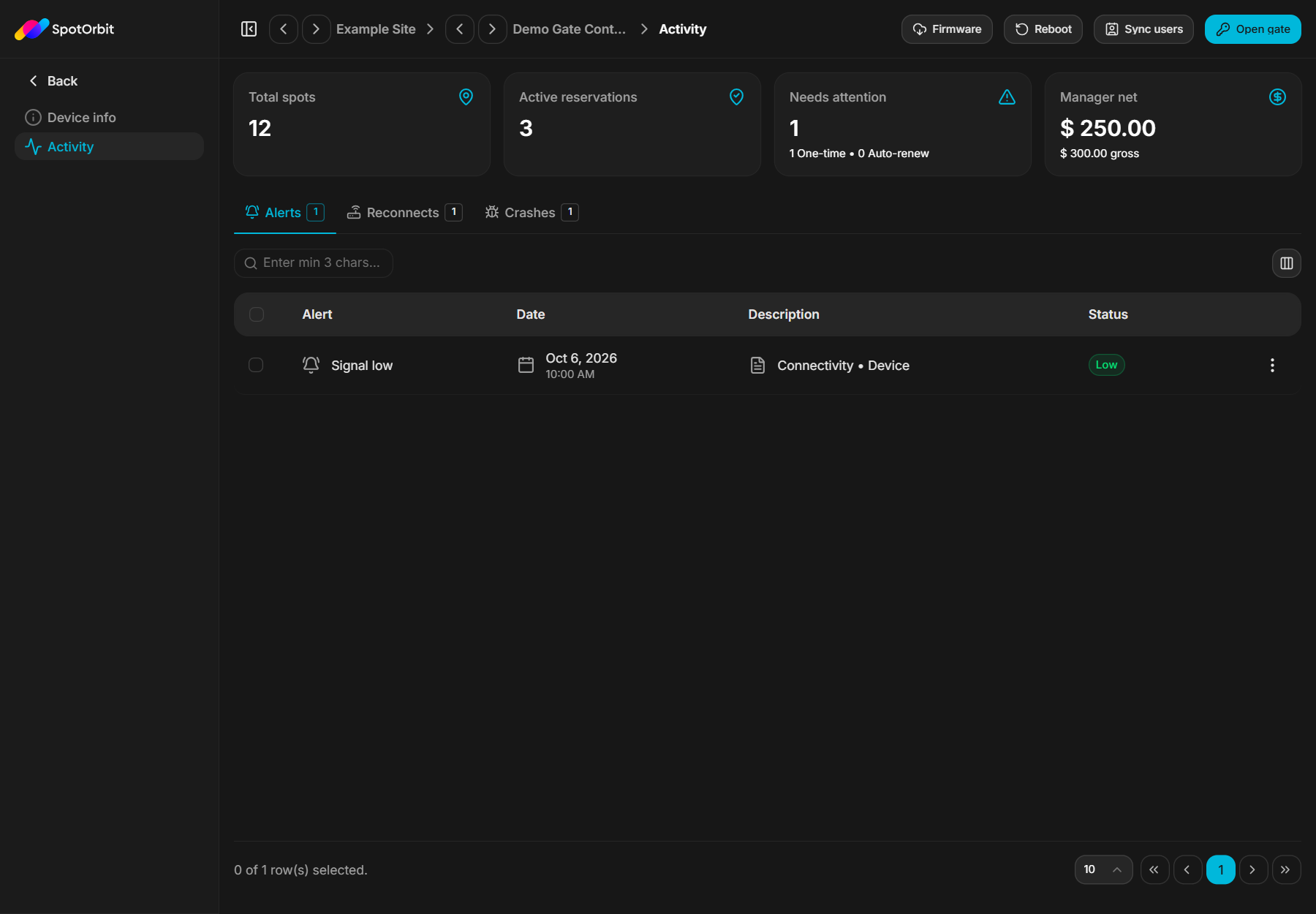
Rows show Alert, Reconnect, or Crash; Date; Description; and Status. Alert Status is severity, not gate state or connectivity. Its date is the opening date when supplied, otherwise creation; the description gives its category and Node only when reported. Reconnect descriptions give seconds offline or Offline duration unknown; crash descriptions give the reported crash type or Crash type unknown. A crash report is displayed as Critical; it does not establish the device's current connectivity. Dates and times use the browser's local time zone.
Search with at least three characters across the event title, description, status, or recorded date value; a shorter term removes the restriction. Use column visibility/order and pagination, initially 25 rows. Switching tabs clears search, pagination, and selection; changing search returns to the first page and clears selection. Changing page or page size also clears selection. Open Details from a row or after selecting exactly one event to read its title, date, description, and severity. There are no bulk event actions.
Refresh activity reloads the device and its activity. Wait for loading to finish. A failed load shows an error rather than confirming there are no events. Empty results show No alerts yet., No reconnects yet., or No crashes yet.; clear search before concluding the selected group is empty. Activity hides device commands and provides no Media or Live playback.
Inspect an alert
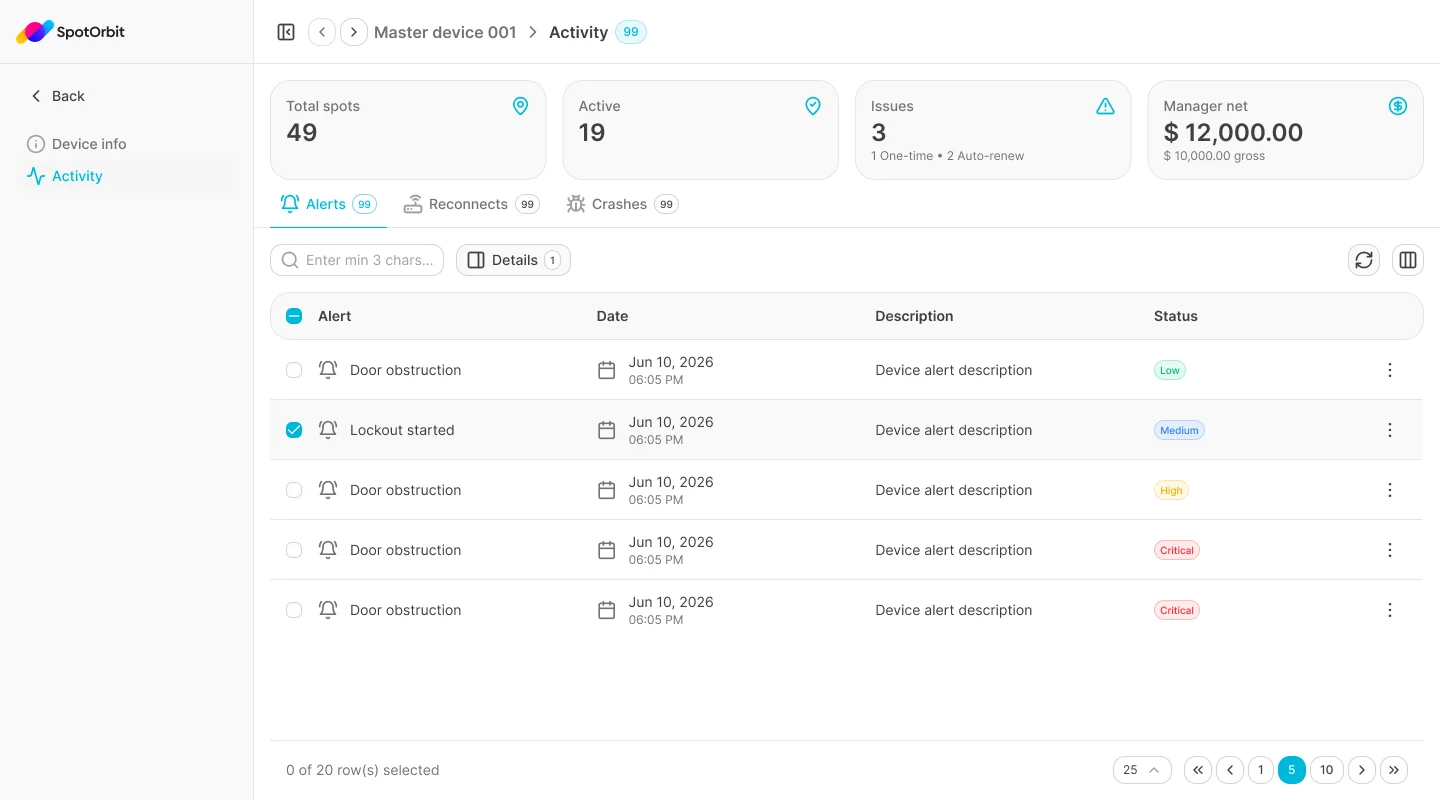
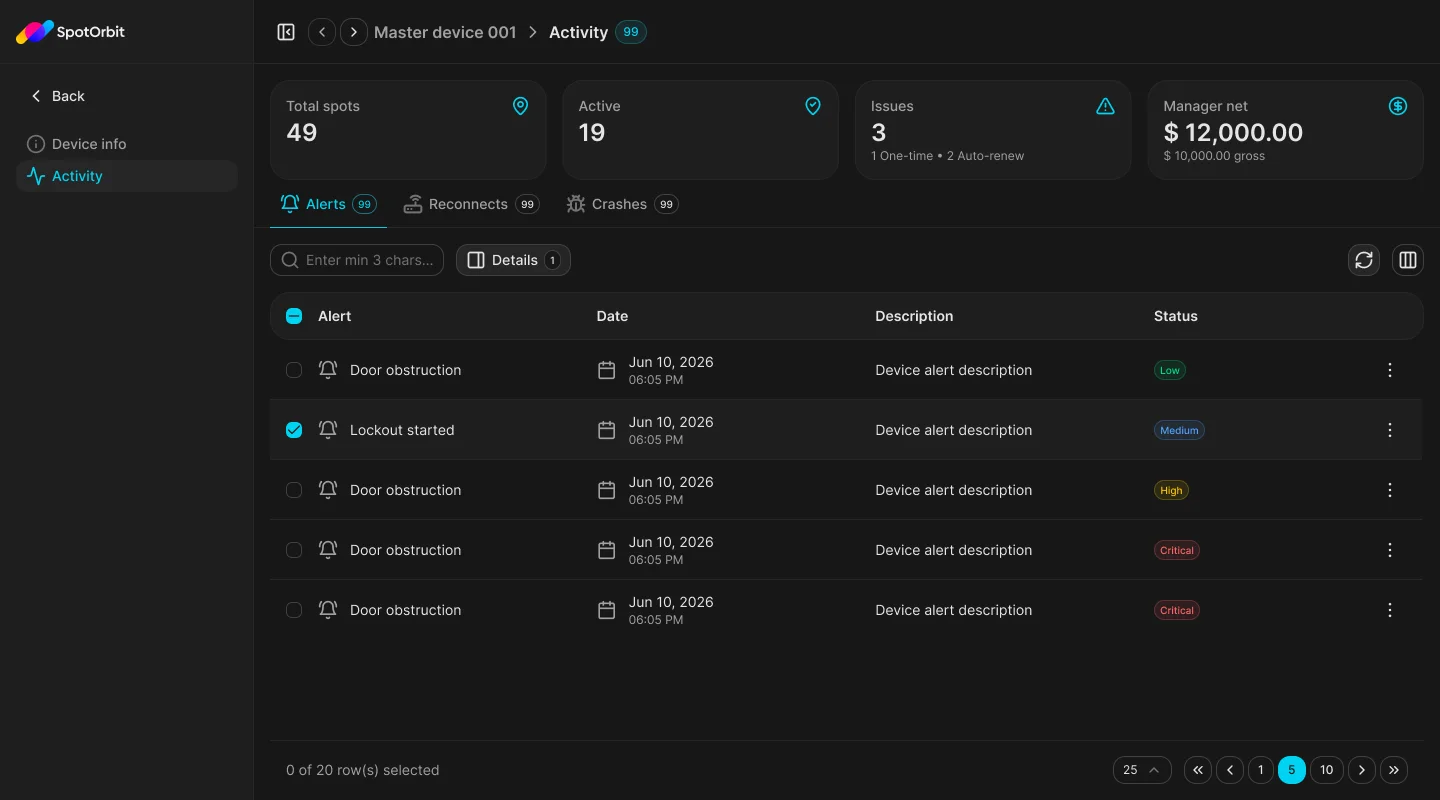
Use Activity → Alerts to inspect reported alerts for the device in the header. Alert names the event; Date is its opening date, or creation date when opening is unavailable; Description contains its reported category and Node only when supplied. Status gives severity: Low, Medium, High, or Critical. It does not indicate whether the door is open, the device is online, or an alert has been resolved.
Confirm the device and choose Alerts
Check the site and device in the current header, then select Alerts. Its badge counts available alerts before search. Search or page through the rows as needed; the site Issues card counts reservation attention, not these alerts.
Open the intended alert
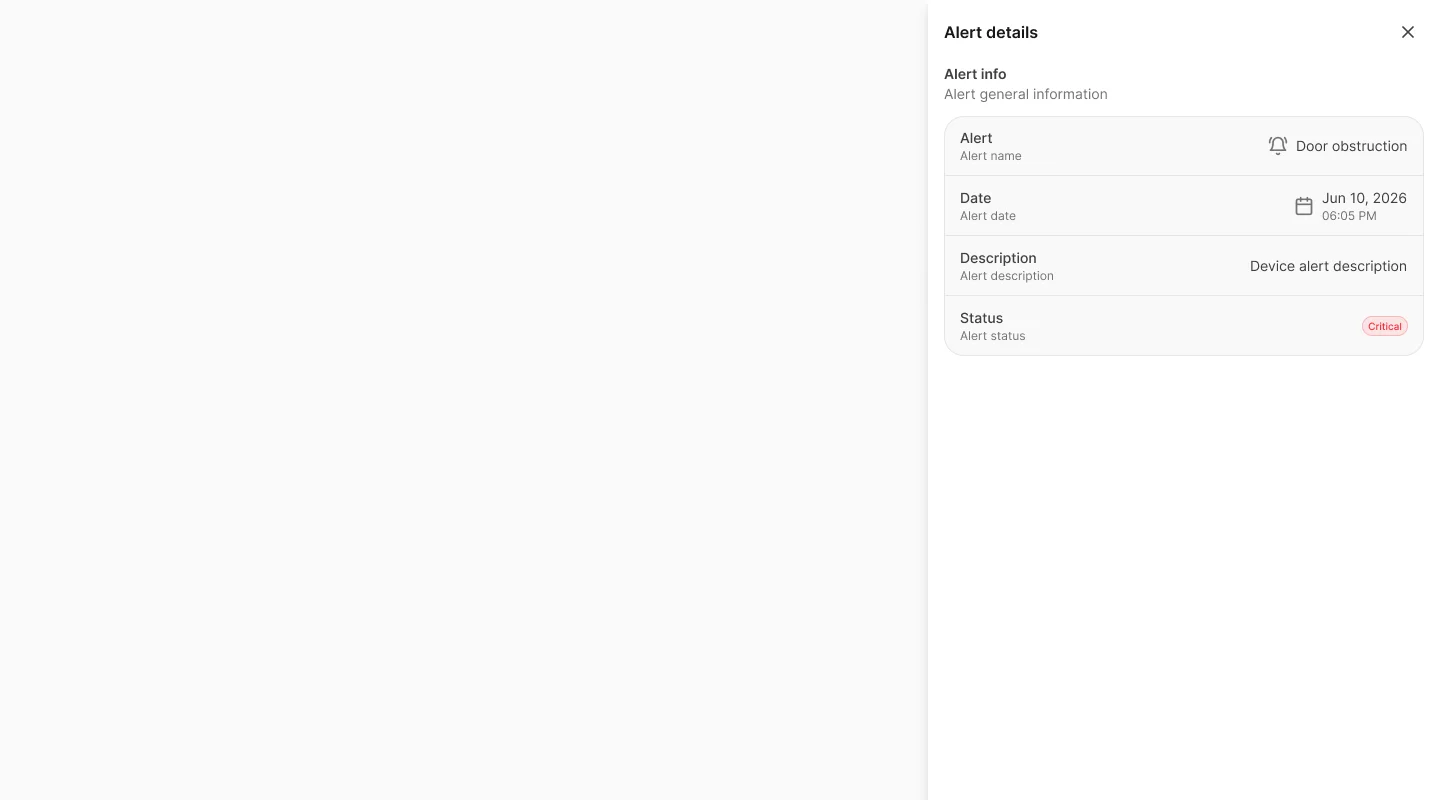
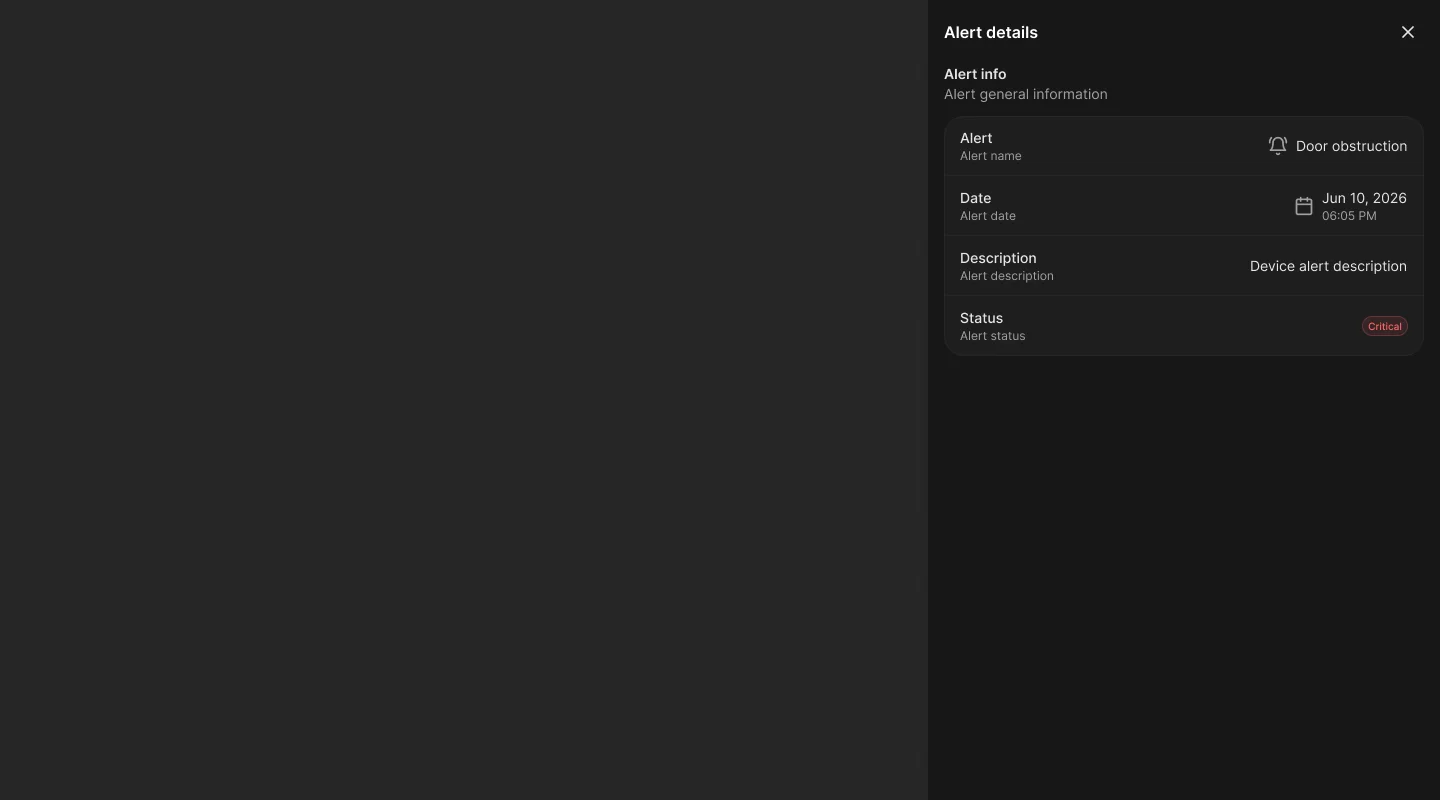
Choose Details from that row's menu, or select exactly one row and choose Details in the toolbar. Alert details shows that row's Alert, Date, Description, and Status. Compare these four values with the intended row. The drawer does not repeat the site and device, so confirm that context before opening it.
Close the read-only detail
Use the close control to return to the list. This drawer has no action to acknowledge or resolve an alert, change its severity, or operate the device, and no Media action. Reviewing or closing an alert does not resolve it. Use Refresh activity on the list to reload the available information; check Device info separately for reported connectivity.
Inspect a reconnect
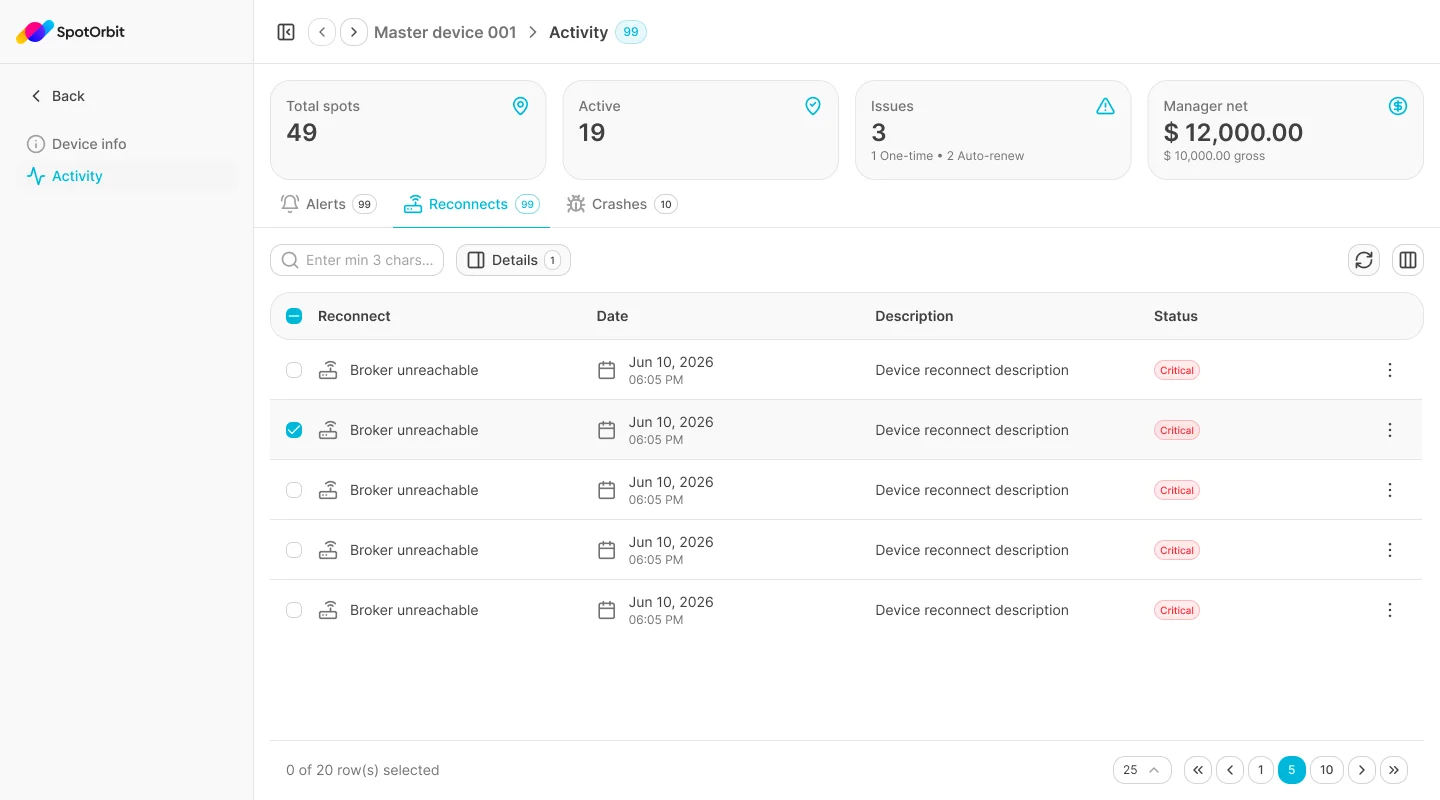
Open Activity → Reconnects to review reported connectivity events. Reconnect gives the reported reason, Date is the event's creation time in the browser's local time zone, and Description gives seconds offline or Offline duration unknown. Unknown duration does not mean zero downtime. Status is severity; the reason alone does not determine it.
The first matching condition below determines severity. The detail does not expose every value used in this classification.
| Severity | Condition |
|---|---|
| Critical | A reboot occurred during the outage, or the reported offline duration is at least 3,600 seconds. |
| High | At least five reconnect attempts, or at least 600 seconds offline, when no Critical condition applies. |
| Medium | At least two attempts, at least 60 seconds offline, or any reported lost events, when no higher condition applies. |
| Low | None of the higher conditions applies. This can coexist with an unknown offline duration. |
Confirm the context and choose Reconnects
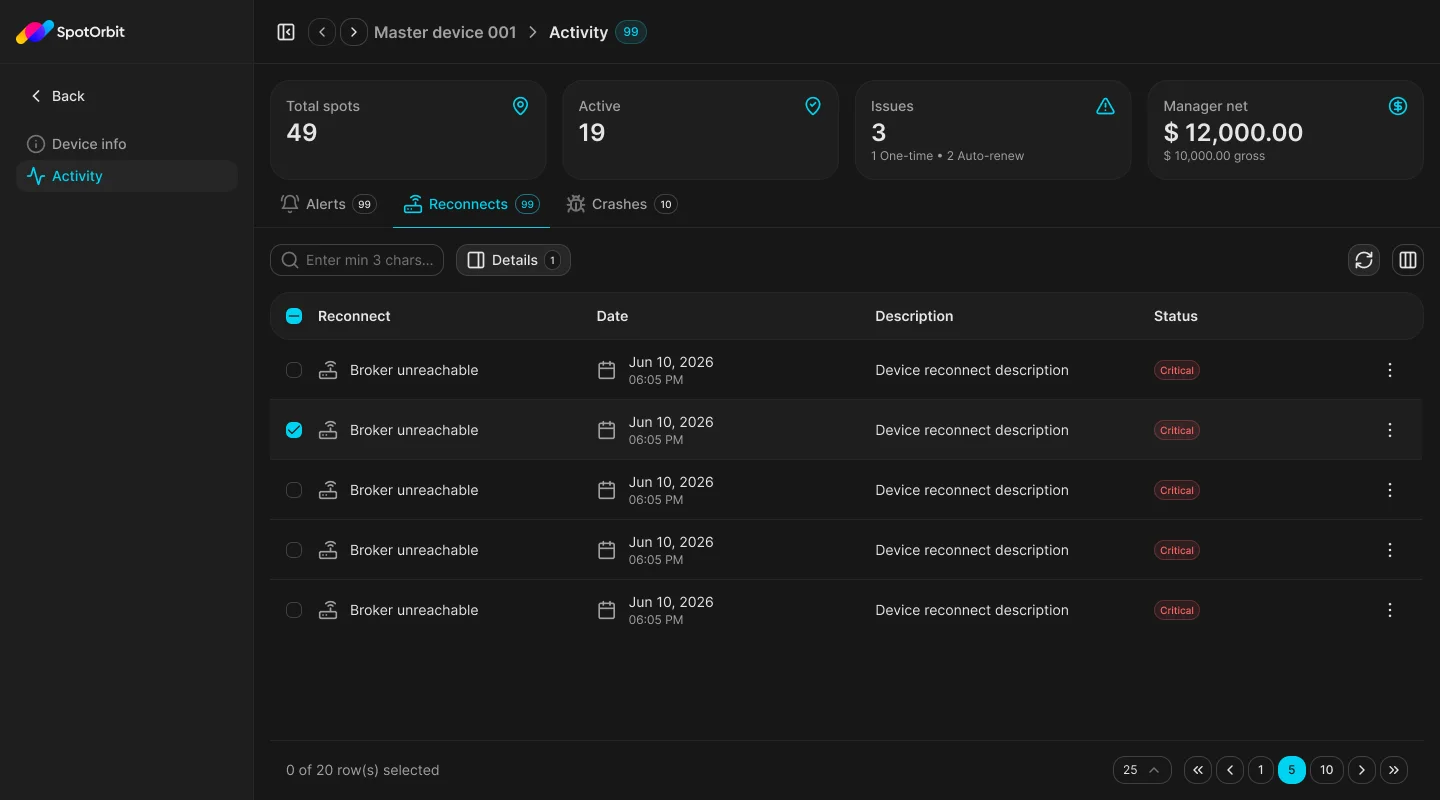
Check the site and device in the current header, then select Reconnects. Its badge counts available reconnect events before search. Search or page through the events as needed; switching tabs clears the previous search and selection.
Open a reconnect's Details
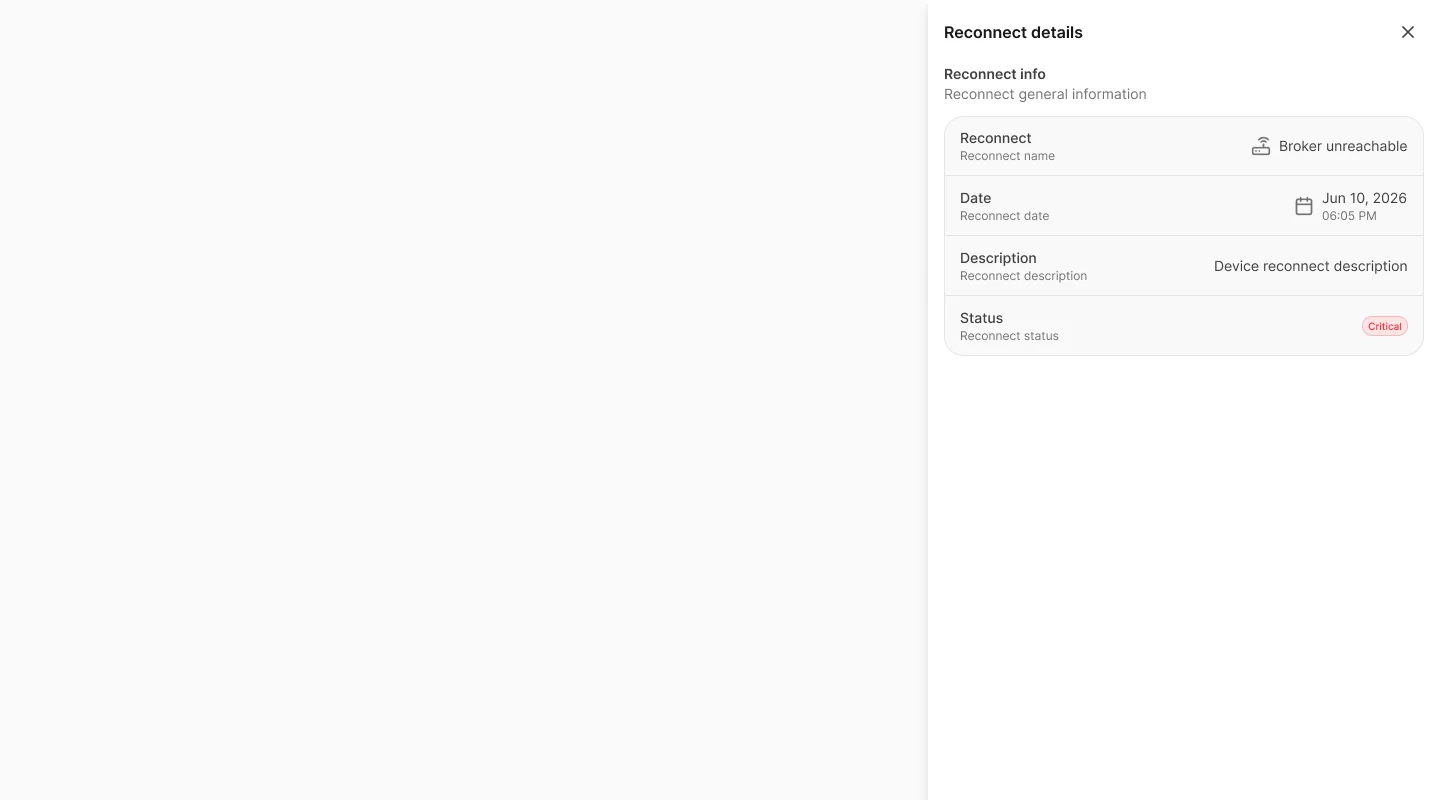
Use Details in that row's menu, or select exactly one event and choose Details in the toolbar. Reconnect details repeats the selected row's Reconnect, Date, Description, and Status. Check the reason, time, duration when reported, and severity. The drawer does not repeat the site or device.
Close and check current connectivity
Close the read-only detail and use Refresh activity on the list to reload events. This drawer provides no manual reconnect, resolution, device command, or Media action. A past reconnect and its severity do not establish whether the device is online now; open Device info to review its reported connectivity and last contact.
Inspect a crash report
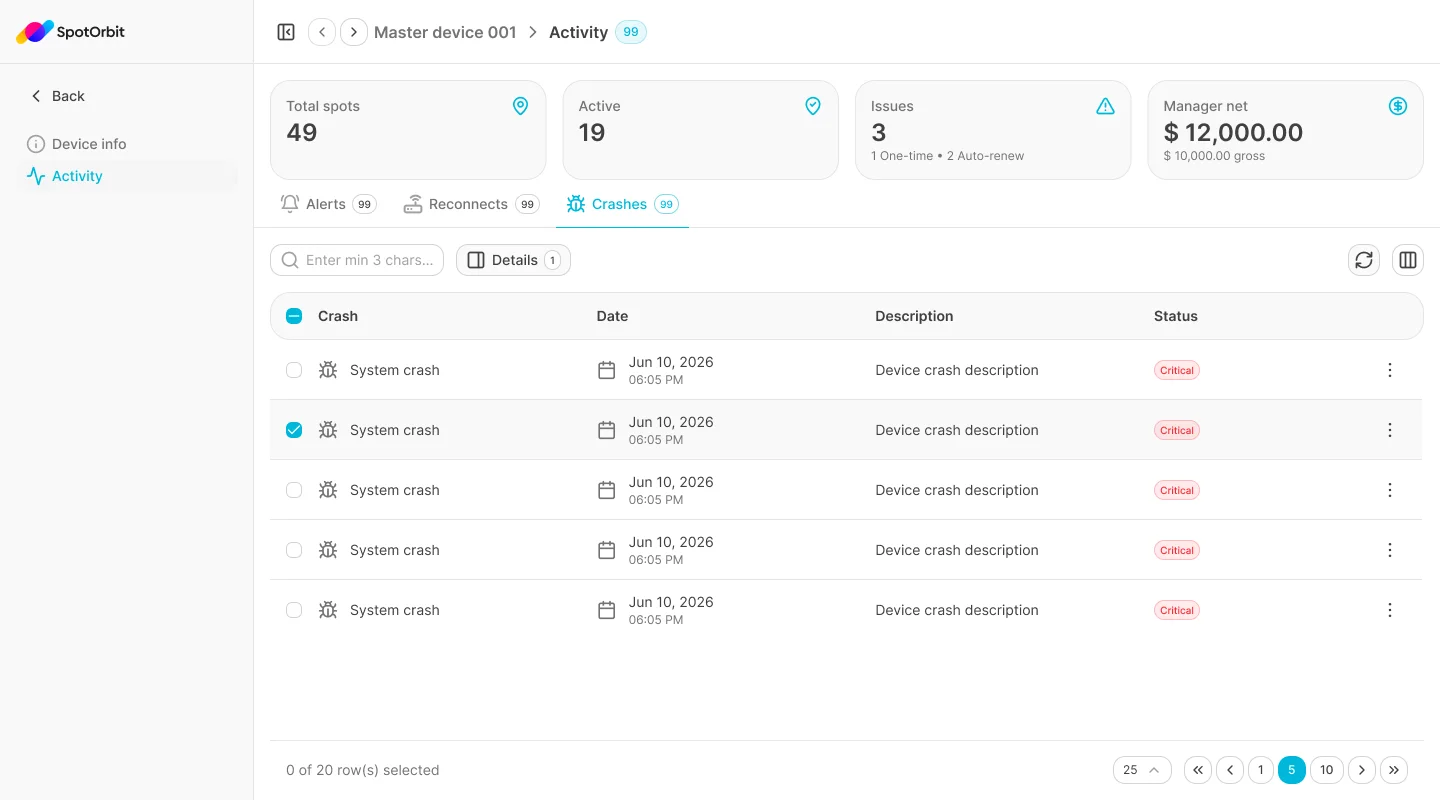
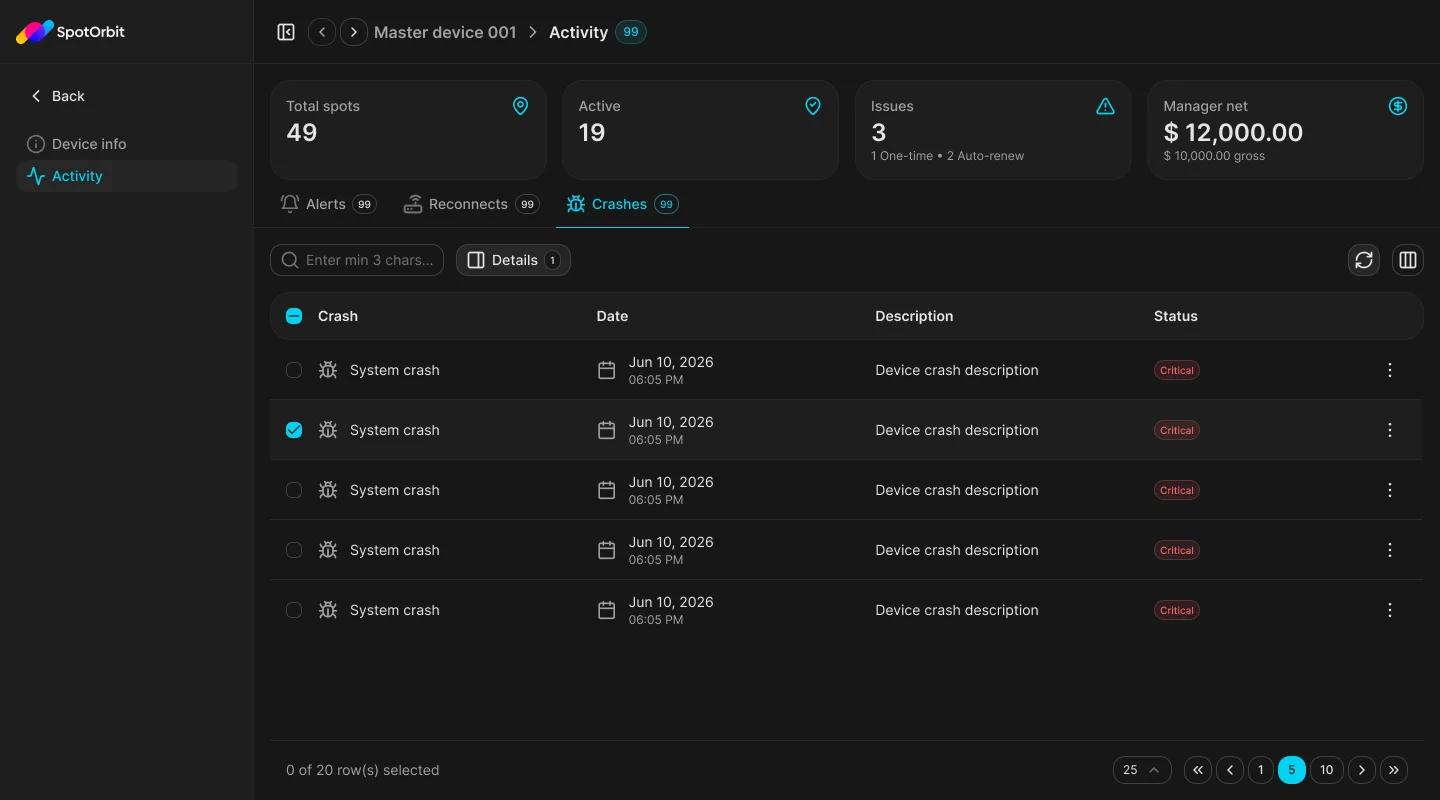
Open Activity → Crashes to review reported crashes. Crash gives the reported reason, Date is the report's creation time in the browser's local time zone, and Description gives the reported crash type or Crash type unknown. The date does not confirm when recovery completed. Every crash report is displayed as Critical, including one with an unknown type; this does not establish the device's current connectivity.
Confirm the device and choose Crashes
Check the site and device in the current header, then select Crashes. Its badge counts reports before search. Search or page through the reports; a group count is not a count of devices currently disconnected.
Open the intended report
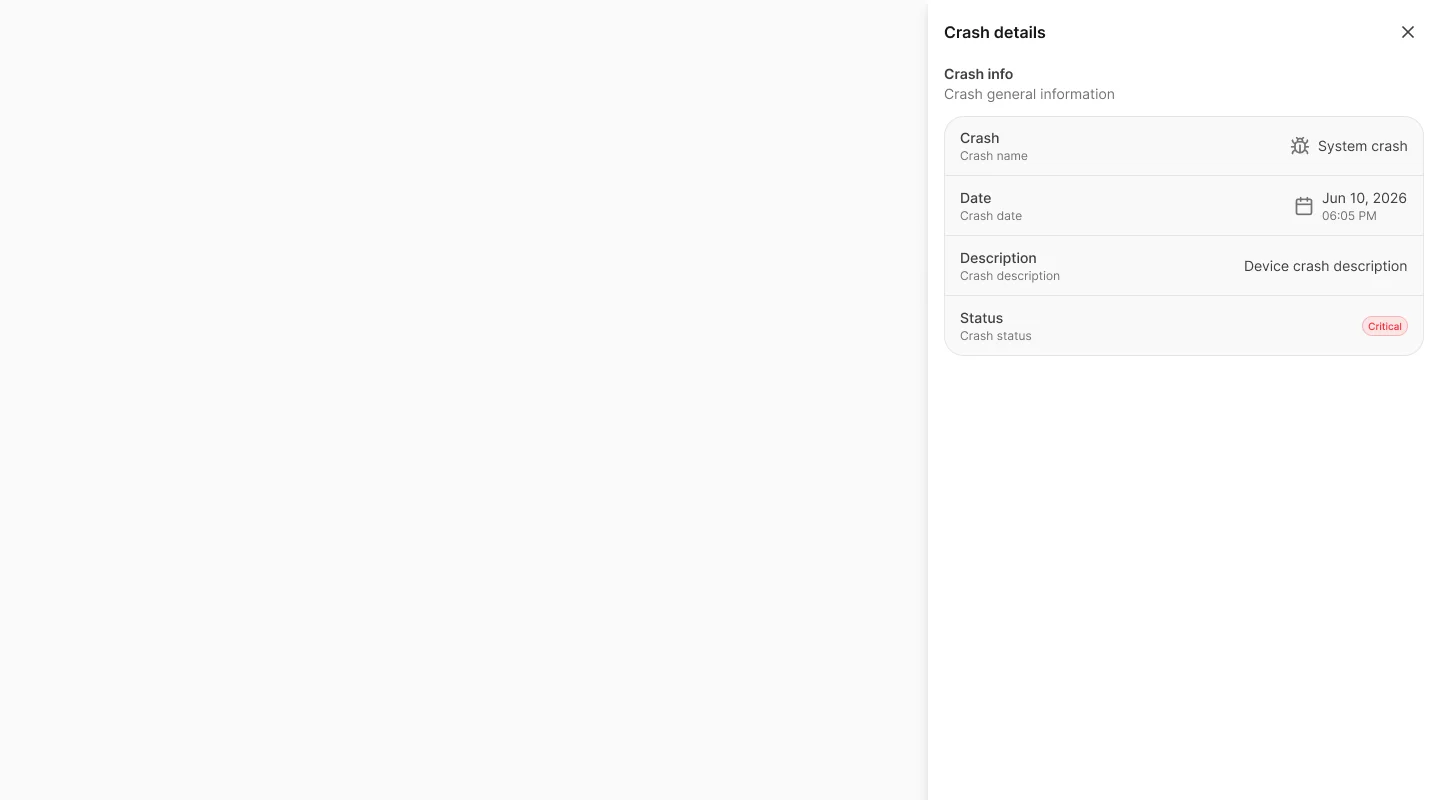
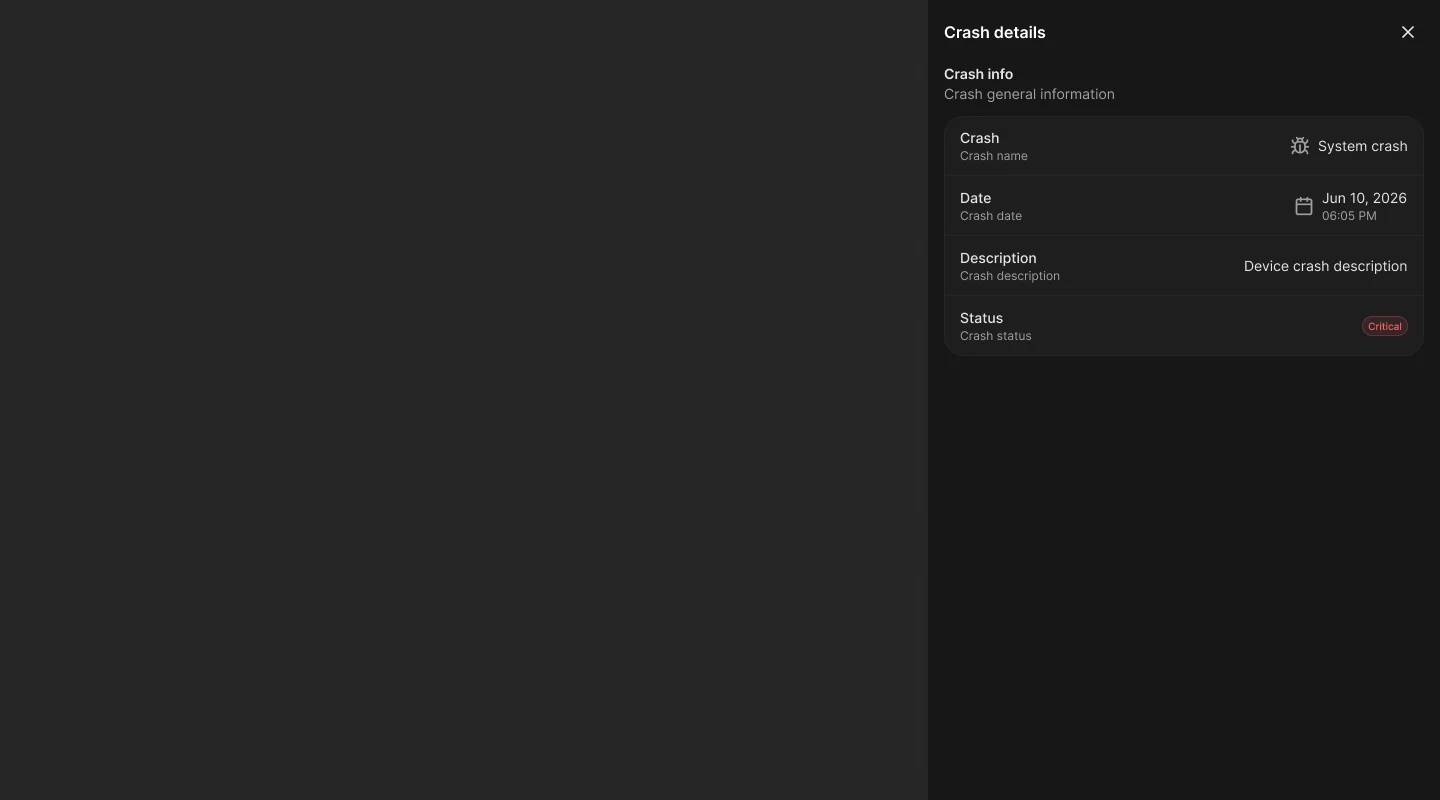
Use its row menu's Details, or select exactly one report and choose Details in the toolbar. Crash details shows Crash, Date, Description, and Status from that report. Compare these values with the intended row and retain the site/device context from the page; the drawer does not repeat it.
Close the read-only report
Use the close control to return to the list, then Refresh activity to reload its information. Reading or closing a report does not repair or resolve it. There is no repair, reboot, resolution, or Media action in this drawer. Open Device info separately to check connectivity and the last recorded contact before following the site's operating procedure.
Send an operational command
Choose the intended device
Open its row menu or select just one row. Check the name, site, connectivity, and current door state.
Choose the action
Open gate and Sync users queue requests when enabled. Both require an online device and permission to operate devices at that site. Open gate also checks the reported door state and can be disabled while the gate is open or in fault. Reboot opens a confirmation. Firmware asks for a valid HTTPS firmware URL before it can be submitted. Reboot and Firmware check connectivity and operating permission before opening their dialogs; they do not use the same door-state condition as Open gate. A visible toolbar button alone does not establish that its command can run.
Check the result
A successful Open gate, Reboot, or Firmware request reports that it was queued with a request identifier. Sync users reports the queued user count and snapshot instead. These confirmations do not mean the physical operation has completed. If a command fails, review the displayed error and the device's latest status.
Send a command to selected devices
Select eligible devices
Check the site, names, connectivity, and door state. Select one or more devices on the current page. All must belong to the selected site, be online, and allow device operations. Open gate also requires an eligible door state. A blocked target disables the group action and its tooltip identifies the reason. Wait for a current command batch to finish.
Review and confirm the command
Choose Firmware, Reboot, Sync users, or Open gate in the selection toolbar. The dialog names every selected device and describes the effect: gate opening, current access-user snapshot, temporary unavailability during reboot, or firmware update. Firmware requires a valid HTTPS URL accepted by the service's permitted firmware sources. Use only the approved URL for that controller. Select the Queue action to submit or Cancel to abandon.
Inspect every result
Requests are sent separately. Each accepted result shows Queued and its request identifier; errors are shown per device. Done closes the results. Nothing is retried automatically. A connection error can leave a request's outcome unknown: check status before sending another physical command. Closing the dialog does not cancel commands already sent. A session change or leaving the view prevents remaining unsent requests; start a newly confirmed batch when appropriate.
Frequently asked questions (FAQ)
Active/Inactive in Device info and quick Details reflects reported connectivity. Door state, reconnect severity, and a crash report's fixed Critical status mean different things. A past event does not establish current disconnection, and the page does not determine the physical cause of lost connectivity.
Return to Devices and change the active site if your account has access. On a detail page, available site arrows open that site's first device by name or its empty device list; check the header after navigation.
The device may be offline, your current site may not permit the operation, or its door state may prevent opening.
No. The confirmation says the request was queued; check the device's later status or activity for the outcome.
Activity counts events in each group before search; Issues counts reservations needing attention across the site. Searching narrows the event rows without changing those counts. Reading or closing an alert does not resolve it or change these counts. Clear search and refresh before treating an empty table as an empty event group.
Related content
- Manager workspace — Review the active-site scope.
- Videos — Inspect site video equipment.