Site information
Overview
Site in the manager sidebar opens Site info, alongside a Zones tab. Site info shows identity, operational summaries, and the visual layout. Check the selector and Name before working on reservations, payments, devices, or spots.
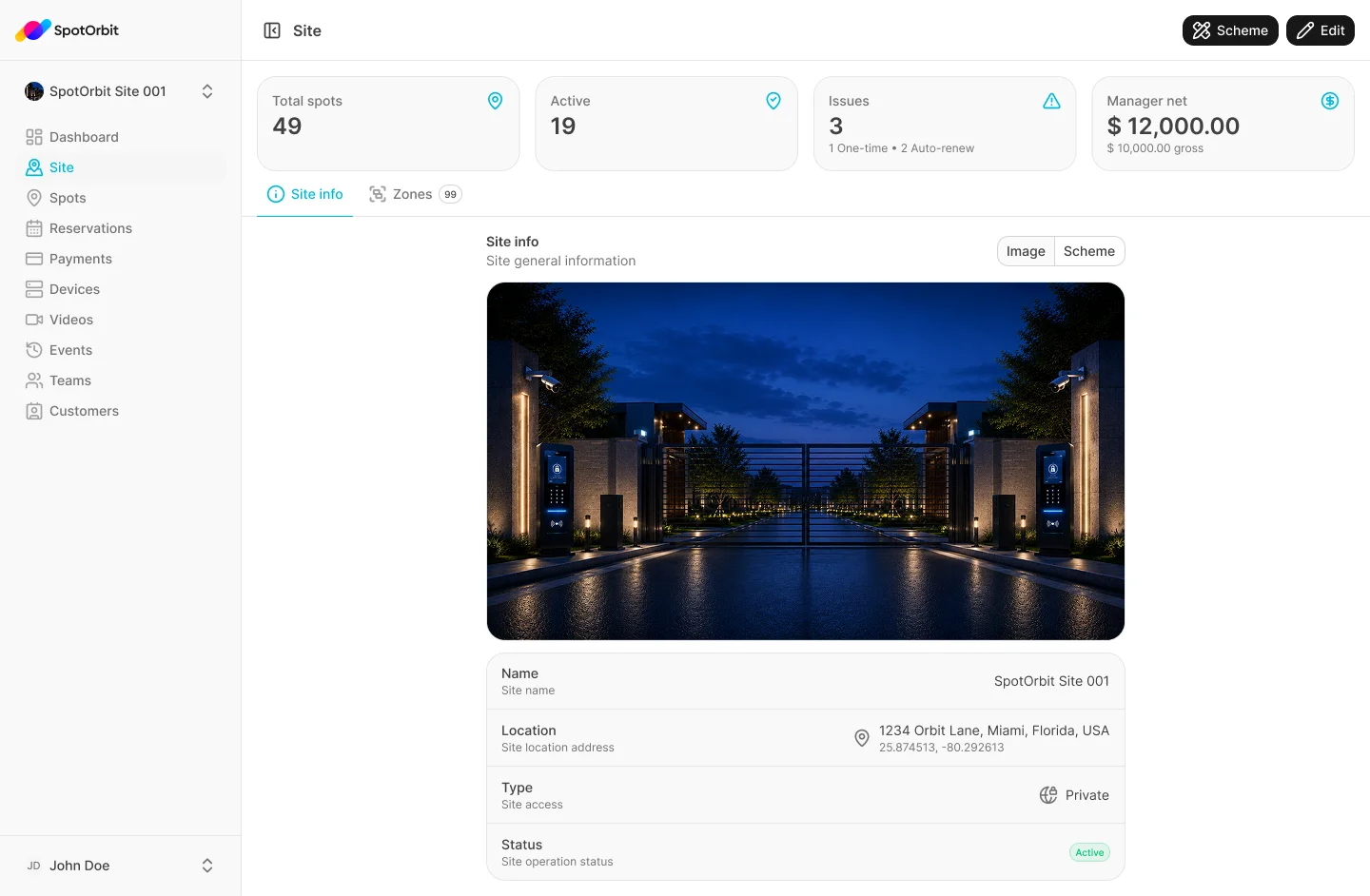
Four cards report Total spots, Active, Issues, and Manager net. Total spots is the site's space count; Active counts active reservations. Issues combines payment issues and required refunds, with each count identified beneath the total. Manager net is the net amount; gross revenue appears below it. These cards describe the whole site rather than just the zone or spaces currently visible. The cards show placeholders while loading. Site not found appears if the selected site is unavailable.
Image is selected initially and shows the site preview when available. Select Scheme beside Image to view the layout within Site info. The separate Scheme button in the page header opens the layout editor. Switching the visual does not edit the site or save a layout change.
The profile contains Name, Location with coordinates when both are available, Type (Public or Private), and Status (Active or Archived). A missing address appears as Address not available. Use the Zones tab and its count to review zone records; they are not listed beneath the profile. On the scheme, scroll to zoom, drag to pan, and use Center view to recenter. No Scheme means no layout drawings are available in that view.
Switching the sidebar site selector from Site info or Zones opens the same section for the newly selected site and keeps the selector synchronized with the page.
Review site information
Select the site
Check the name in the sidebar selector. If several sites are available, open it and choose the one you intend to review.
Open Site info
Select Site in the manager sidebar, then Site info. Compare Name and Location with the selected site.
Review the summary and visual
Read the metric cards, then switch between Image and Scheme beside the Site info heading to inspect the picture or layout. See Image and scheme states below if a preview is unavailable.
Check zones and status
Check Active/Archived status in Site info and review zone records in Zones before continuing.
Understand the available actions
The manager view has a Scheme button for opening the site layout editor. It does not show site-level Edit, Archive, or Active, even when the same account also has platform administrator access. Switch to the administrator workspace to use its permitted site actions. An individual zone or space opened from the scheme may have its own actions; check the selected item and its confirmation before changing it.
Image and scheme states
Image retains its preview frame and shows No image when no preview exists, Loading image… while loading, or Image unavailable after it cannot load. Scheme retains its frame and shows No Scheme when no perimeter, zone, or spot drawing exists. These placeholders are not proof that site records are missing. This view has no image upload control.
Frequently asked questions (FAQ)
Your account may have only one visible site. The selector still shows its name; an empty list displays No sites available.
Yes. The selected site sets the context for the manager's operational pages. Check its name after switching.
The Manager workspace offers Scheme and keeps the site profile read-only. An account with platform administrator access must use the administrator workspace for site-wide Edit, Archive, or Active.
Image shows No image, Loading image…, or Image unavailable when a usable preview is absent. Choose Scheme to inspect the layout instead; the image toggle does not upload a picture.
Related content
- Manager workspace — Understand role navigation.
- Zones and spots — Review the site's parking layout.
- Reservations — Interpret the site's booking activity.