Manager
Overview
Use the site selector at the top of the sidebar to choose the site you manage. With site management access, the same operations menu is available on Dashboard and operational pages: Dashboard, Site, Spots, Reservations, Payments, Devices, Videos, Events, Teams, and Customers. Site opens Site info and its Zones tab. Spots opens the site's spots directly, without requiring a selected zone.
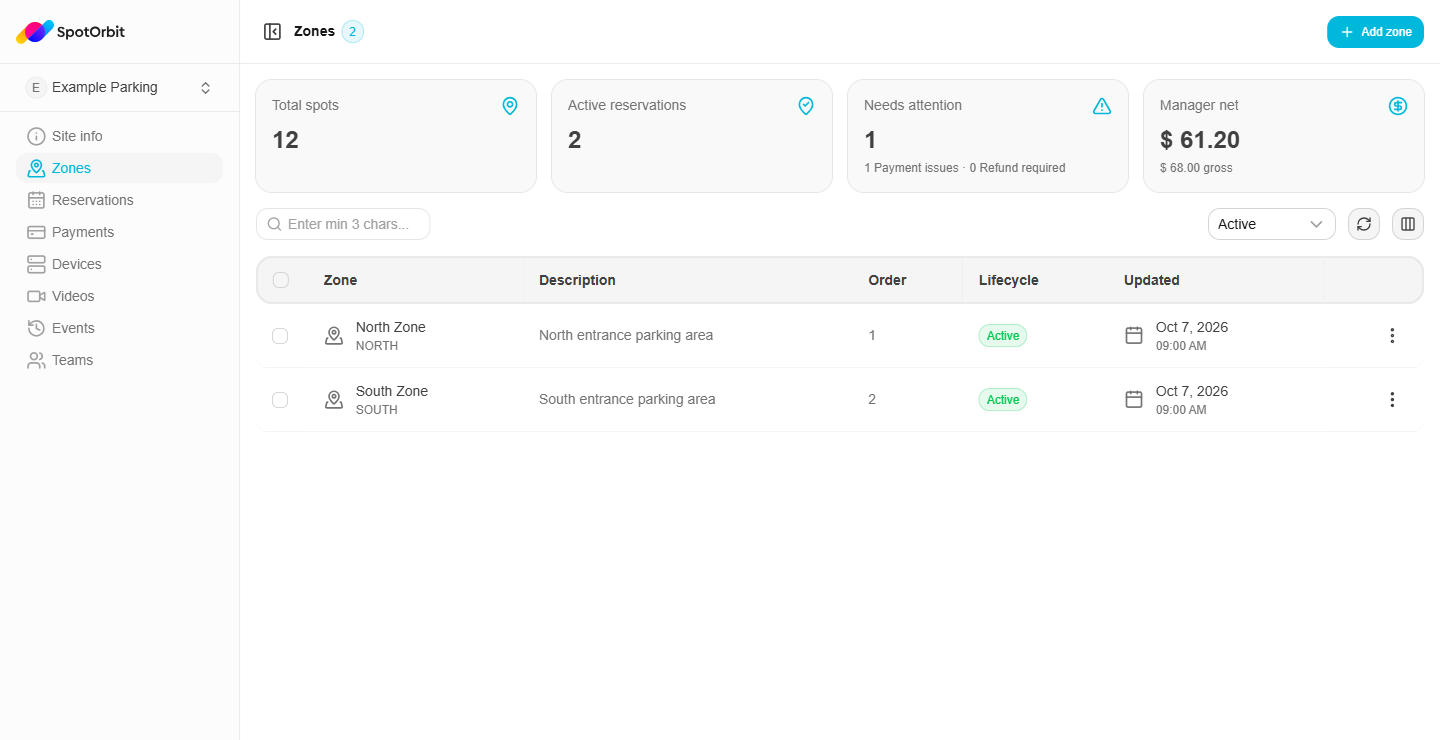
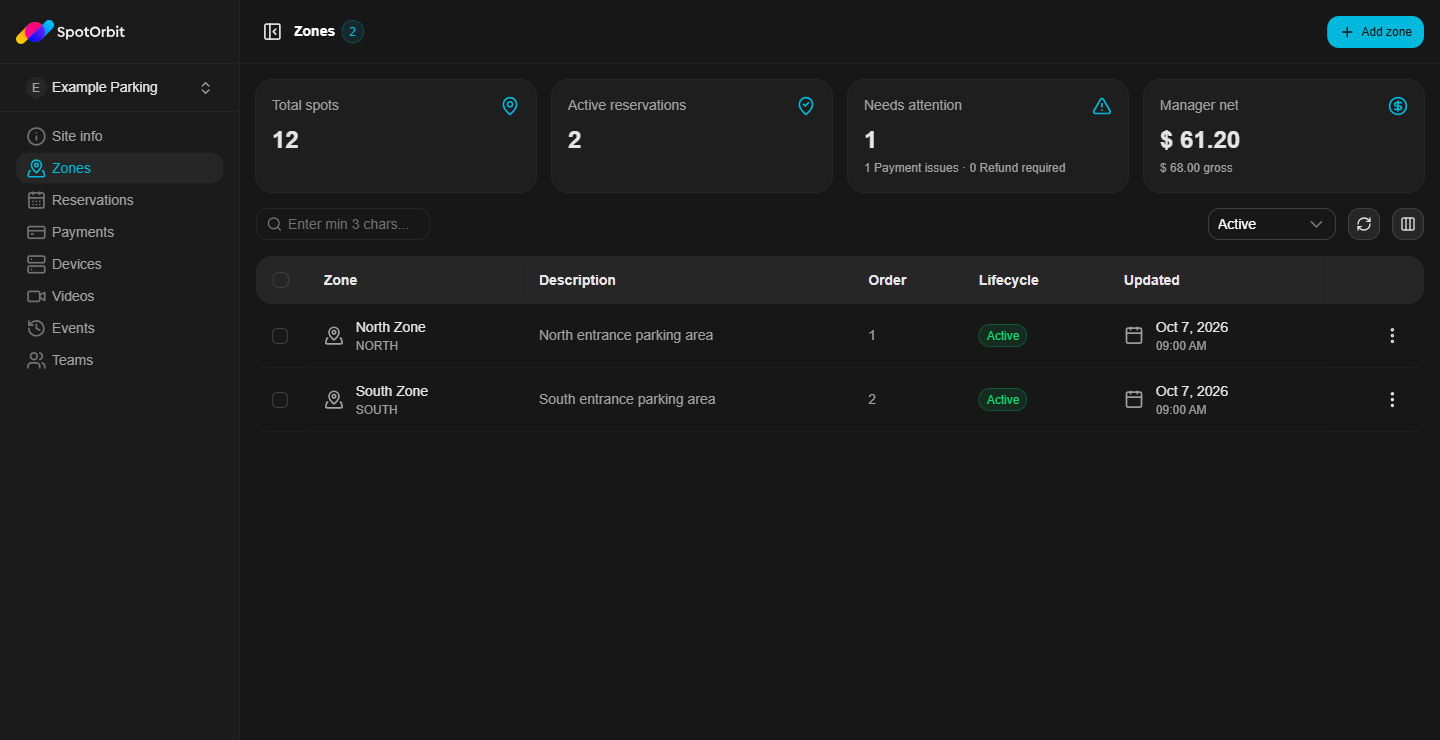
The selector stays visible with one site. With no management access to the selected site, navigation falls back to Dashboard. The footer opens Profile, Theme, Appearance, and Logout. Theme offers Cyan; Appearance selects Light or Dark. Detail pages can replace the main menu with Back and record links.
Choosing Manager at sign-in keeps Customers and Teams within the manager scope even if the same account also has platform administrator access. It does not grant additional permissions.
Role, immediately above Logout in the user menu, reopens Select role when the account has both Admin and Manager access. Choose the workspace and its access button; Back keeps the previous choice. This changes the workspace without assigning permissions. Use Back first if a detail page has replaced the user menu.
The site selector includes only non-archived sites where your verified account has an Owner, Admin, or Manager membership and local, global, and effective access are Granted. This remains true for an account that also has platform access. Switching sites while on Site info or Zones updates that page to the selected site; check its name before continuing.
Start managing a site
Confirm the site
Read the selected name at the top of the sidebar. Open the selector to choose another available site; a check marks the current one. No sites available means there is none to select.
Choose an operation
Open Site for its profile and Zones, Spots for its inventory, or another menu entry for that operation. Teams manages site memberships and invitations. Customers reviews customer relationships, access, activity, and reservations for the site.
Review the result before switching
Check the updated status or notification after an action. Recheck the site whenever you start work elsewhere.
Read the selected site's Dashboard
Open Dashboard and confirm the site selector. Its cards show Total devices, Online, Offline, and the latest available Video state with its update time. These are device and video summaries, separate from the spot, reservation, Issues, and Manager net cards on operational pages.
The lower sections show up to five devices, five recent access attempts, five commands, two camera-state cards, and three video events. Device rows include a Door badge; Online/Offline totals are in the cards. Camera states show motion information and update time; recent video events can include a zone badge. These limited lists do not represent the site's complete history, and Dashboard has no search, filters, editing, or export.
Wait for placeholders to finish. No sites available asks you to select an accessible site; an empty activity section means it has no records to display. Could not load dashboard offers Retry when information cannot be loaded. Changing the selected site changes the Dashboard scope.
Review site customers
Customers lists customers of the selected authorized site. The Total spots, Active, Issues, and Manager net cards describe that site's operational report, not the number of customers or their spending. A missing report is displayed as unavailable rather than zero.
Rows show identity, the Customer site relationship, available account dates, and effective Access as Granted or Denied. There is no Sites column. Account creation and last sign-in dates remain — when unavailable; reservation dates do not substitute for them.
Find a customer
Check the site, then search with at least three characters in the loaded customer page. Filters → Status offers All, Granted, and Denied for effective access; Date lets you choose a date range for the site customer list. Save applies the criteria; Reset clears them. Date filtering does not supply missing account dates. Column controls and pagination are available.
Open Details or More
Details opens the customer drawer with identity, site relationship, site access, and available dates. More opens the full page with Account info, Activity, and Reservations. Back returns to Customers; previous and next stay among that site's customers.
Verify the page scope
The full page keeps the customer and site it was opened for. Its actions, metrics, activity, and reservations follow that site even if another site was selected elsewhere. If access to the page's site is lost, protected content and actions become unavailable.
The quick drawer's Access indicates the local site setting. The table and full Account info show effective access, which also considers global denial. A local grant can therefore coexist with an effective Denied state.
Change a customer's site access
Choose customers with the same local permission
Use Denied or Granted in a row, Details, or the full customer page. Selecting several customers offers Denied when all local permissions are Granted, or Granted when all are Denied. Mixed or unavailable local permissions have no group access action, even when effective Access badges look the same.
Verify the site and confirm
Check the selected people and site before opening the confirmation. It uses the action title Denied or Granted and generic customer text; do not rely on it to repeat every target. The confirmation has no note field. Confirm the named action or cancel.
Review the result
Success refreshes access. A partial failure keeps only the failed or unsent customers for an explicit retry; successful changes remain applied. A site or session change clears the previous confirmation and stops remaining unsent requests.
Change a customer's site role
Role manages the selected site's team membership. Choose manager to grant a Manager membership or Customer to remove an existing team membership from that site. On the full page, Admin is visible but disabled: global Admin roles require the administrator workspace.
Open Role and wait for the membership
Check the customer and site. If loading fails, use Retry rather than treating an unavailable membership as absent.
Select an allowed change
Choose Manager or Customer. Reset restores the existing selection. Save is disabled without a change, while loading, or when you cannot edit that person. You cannot change your own membership or an Owner; an Admin membership requires an Owner's site permission to change.
Save and confirm removal if needed
Select Save. Choosing Customer for an existing membership opens a separate Remove membership confirmation. Review it before confirming.
Site-role changes leave global roles and access settings unchanged and preserve customer history and reservations. Removing a team membership and denying a customer's site access are separate operations.
Review customer activity and reservations
Open the customer with More, then choose the required section.
- Activity: device events only for that customer at the page's authorized site. Rows show device/site, date, and result; a granted result is labeled Approved. Search applies to the loaded page from three characters. Refresh, column controls, pagination (initially 25), and read-only Details are available. There is no date/status filter or export.
- Reservations: only that customer's reservations for the same site. Search starts at three characters; Filters has Period (All, Daily, Monthly, Annual), Date, and Status. Save applies and Reset clears the draft. The table supports columns, pagination (initially 25), and Details. An available cancellation action asks you to review and confirm its specific effect.
An activity error offers Retry activity. A reservation-loading error offers Retry reservations; cancellation is unavailable during loading or an unresolved collection error. No activity or reservations is different from an unavailable authorized customer page. Changing customer or losing site permission clears the previous details and disables protected actions.
Frequently asked questions (FAQ)
Verify the Manager workspace and management access to the selected site. Dashboard uses the same operations menu when that access is available.
Yes, when they are available to your account. Select the site for list operations and check the explicit site of any open customer detail page.
A global denial overrides the local site grant. Only an authorized platform administrator can change global account access.
No. It removes the site's team membership after confirmation. The customer access setting is a separate operation.
Detail pages can replace it with Back and record-specific links. Use Back to return to the parent list.
Related content
- Site information — Review the selected site.
- Zones and spots — Organize parking inventory.
- Reservations — Review site bookings and cancellation effects.
- Profile — Open account settings and appearance controls.
- Teams — Manage site team memberships and invitations.