Videos
Use Videos to monitor the cameras assigned to the selected site.
Overview
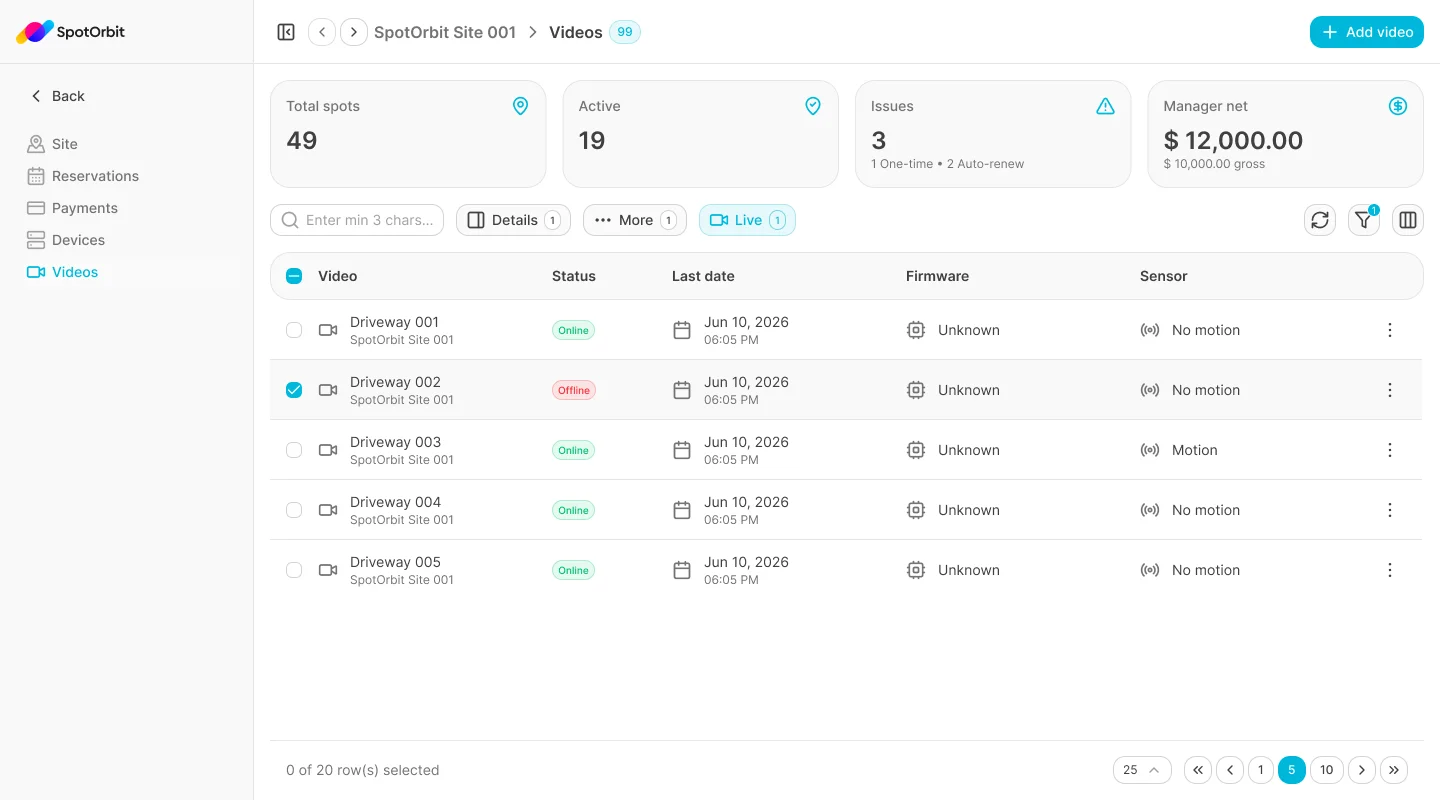
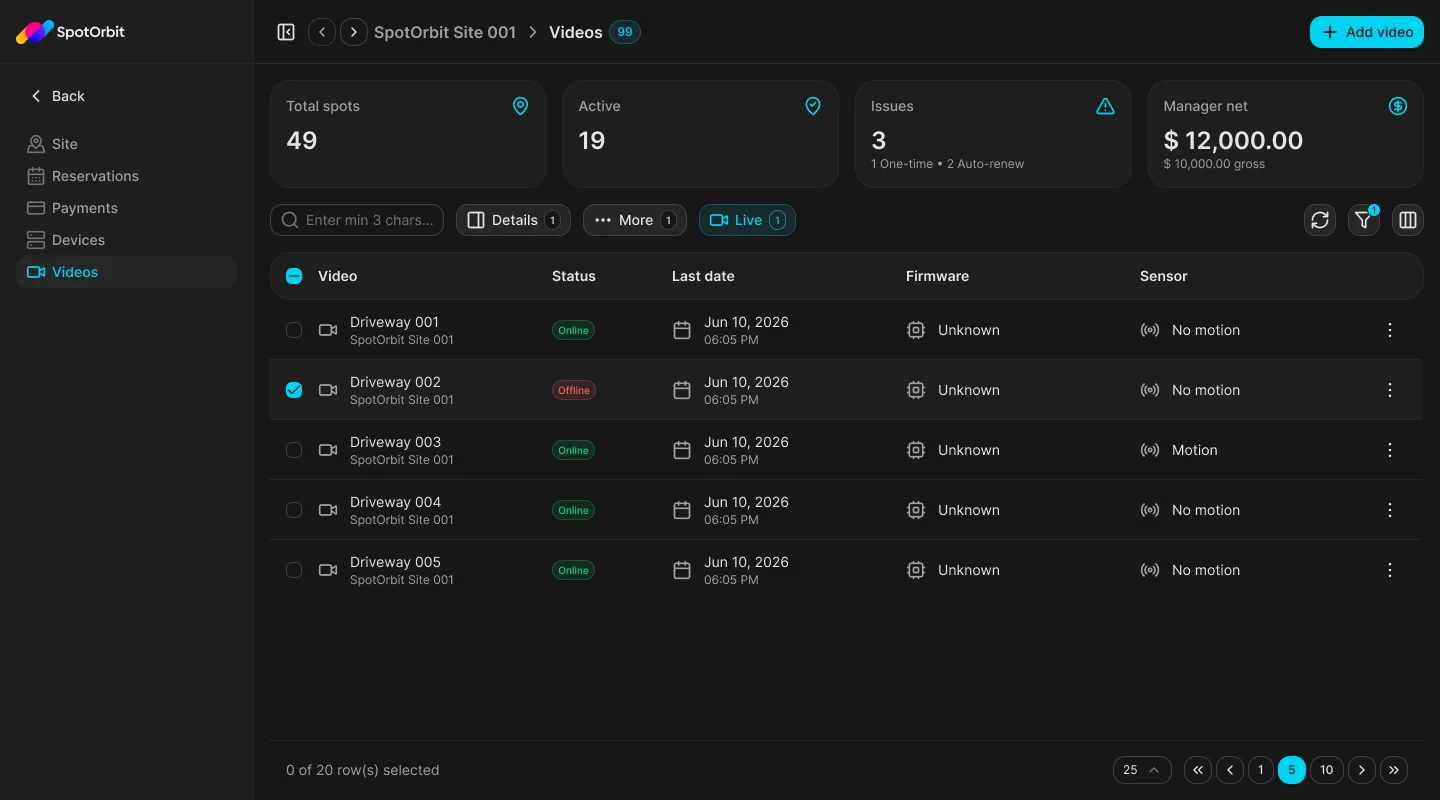
As an Administrator, open a site and select Videos in its internal sidebar. Confirm the site in the breadcrumb before choosing a camera. The four summary cards describe the whole site: Total spots, Active reservations, Issues needing attention, and Manager net, with gross revenue beneath it. They are not camera totals or event counts.
| Column | Meaning |
|---|---|
| Video | Camera name and the site to which it belongs. |
| Status | Reported camera state, presented as Online or Offline. Online does not guarantee playback. |
| Last date | Last reported contact, or the camera's update date when no contact date is available. Dates and times use your browser's time zone. |
| Firmware | Reported software version, or Unknown when none is supplied. |
| Sensor | Number of open alerts, such as 1 open alert, or No alerts. It is not a motion reading. |
Search the camera list with at least three characters. Refresh reloads cameras. The column control lets you show, hide, or reorder columns, then apply the changes with Save; Reset restores the default draft before saving. The footer provides page size and navigation through available pages. The camera list starts at 10 rows per page. Changing site, search, or applied status returns to page one, clears selection, and closes quick details. Changing page or page size clears selection; page size also returns to page one. Pagination only offers pages already reached or made available by the next-page result.
Use Filters → Status to choose All, Online, or Offline. Save applies the draft and closes the dialog; a changed status resets the list. Reset changes only the draft to All, so select Save to apply it. Closing without saving keeps the applied status. The filter badge indicates whether a status is applied, not how many cameras match it.
The row menu provides Details, More, and Live. The same selection-toolbar actions appear only with exactly one current camera selected, each showing 1. With none or several selected, no selection action appears. Add video is visible in the site header but has no implemented creation flow.
While cameras load, wait for the table to finish. Could not load videos offers Retry; Site not found means the selected site is unavailable. No videos yet. means the current list has no rows, including a search or status filter with no matches. Clear search and reset the applied status before concluding the site has no cameras.
Review a camera
Find the camera
Confirm the site and enter at least three characters when you need to search the server-side camera list.
Check the row
Review its Online or Offline state, last recorded contact, firmware version, and number of open alerts.
Choose a view
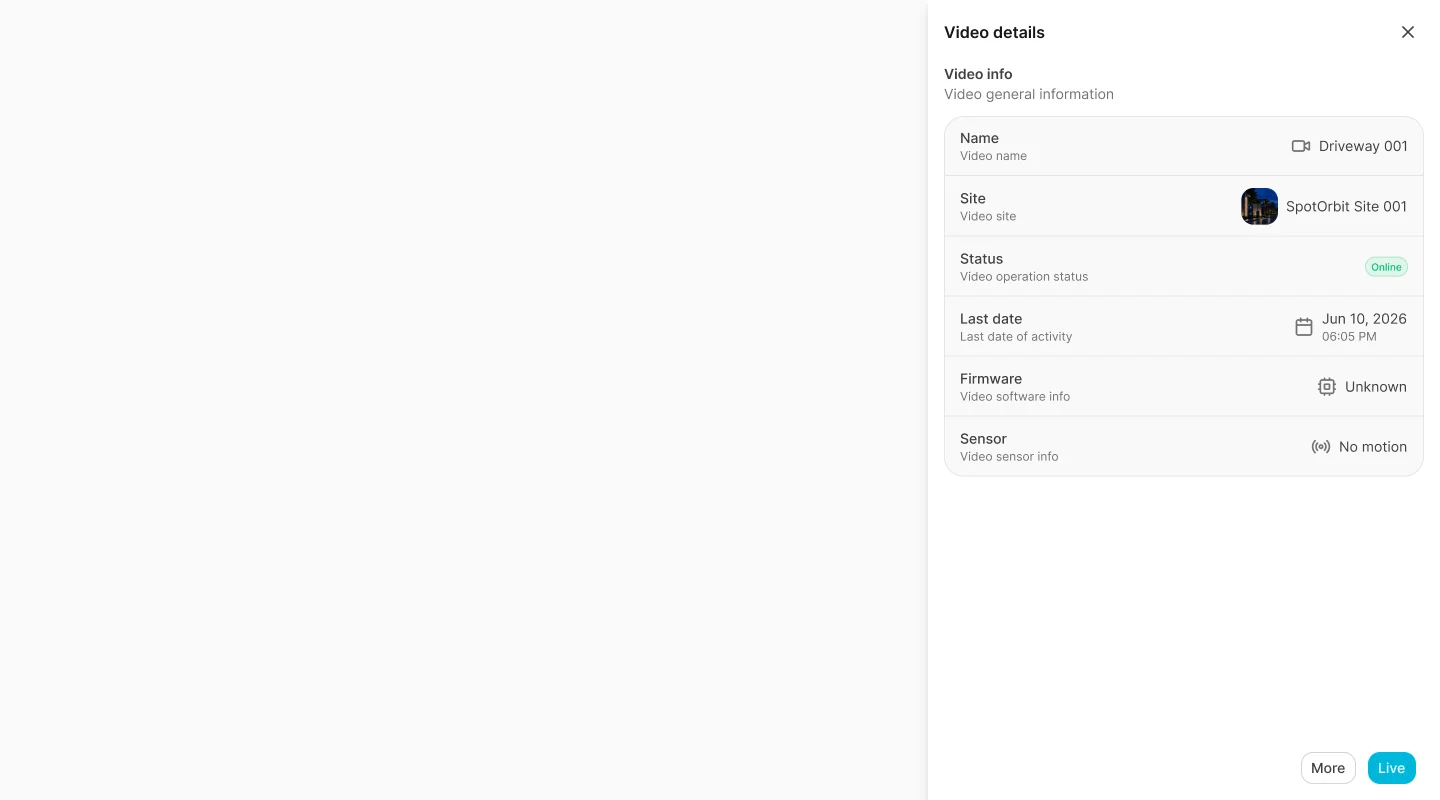
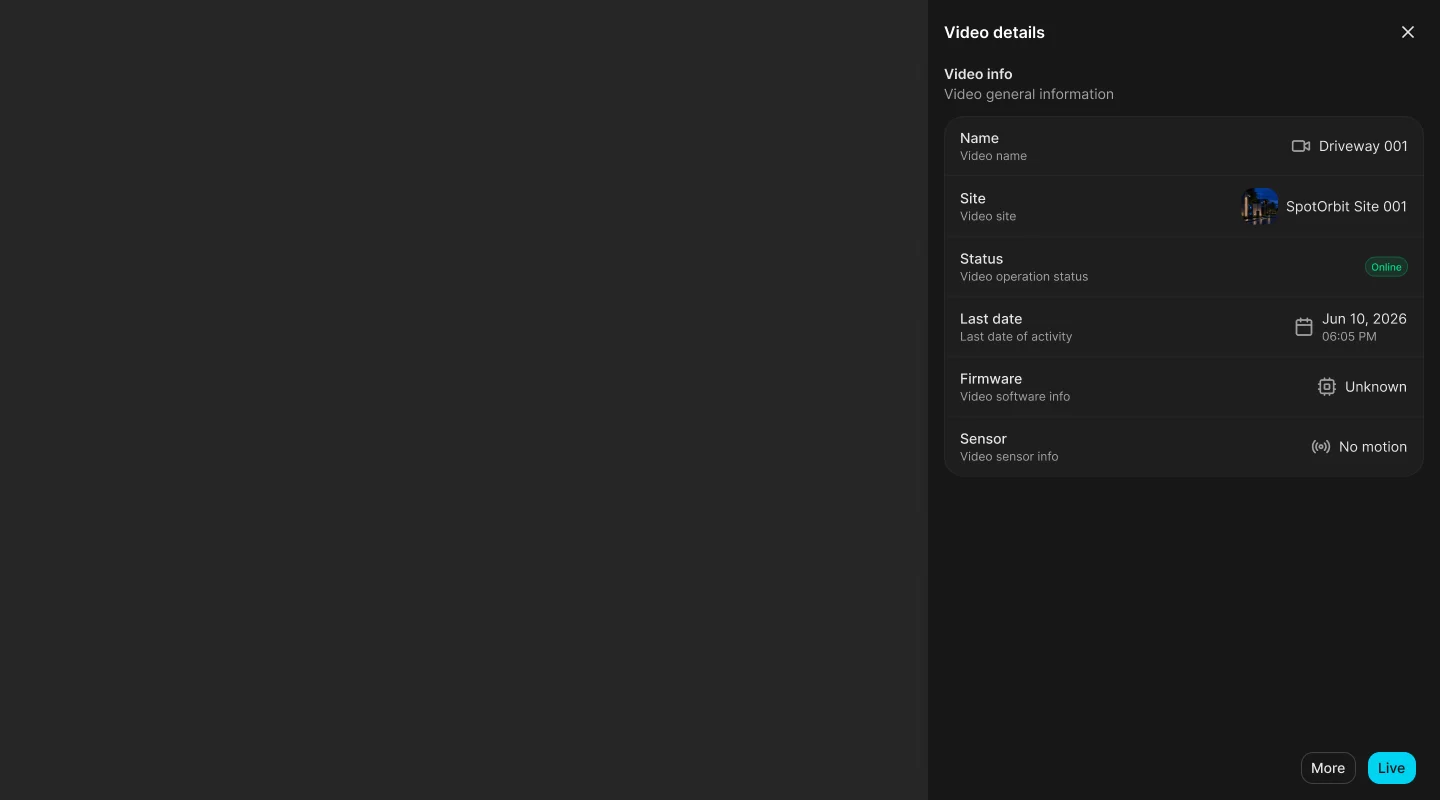
Select Details for a quick drawer, More for the dedicated Video info page, or Live for the live video dialog.
Return to the camera list
Close the quick drawer when you finish. Use Back from the full camera workspace to return to the site's camera list.
Read Video info
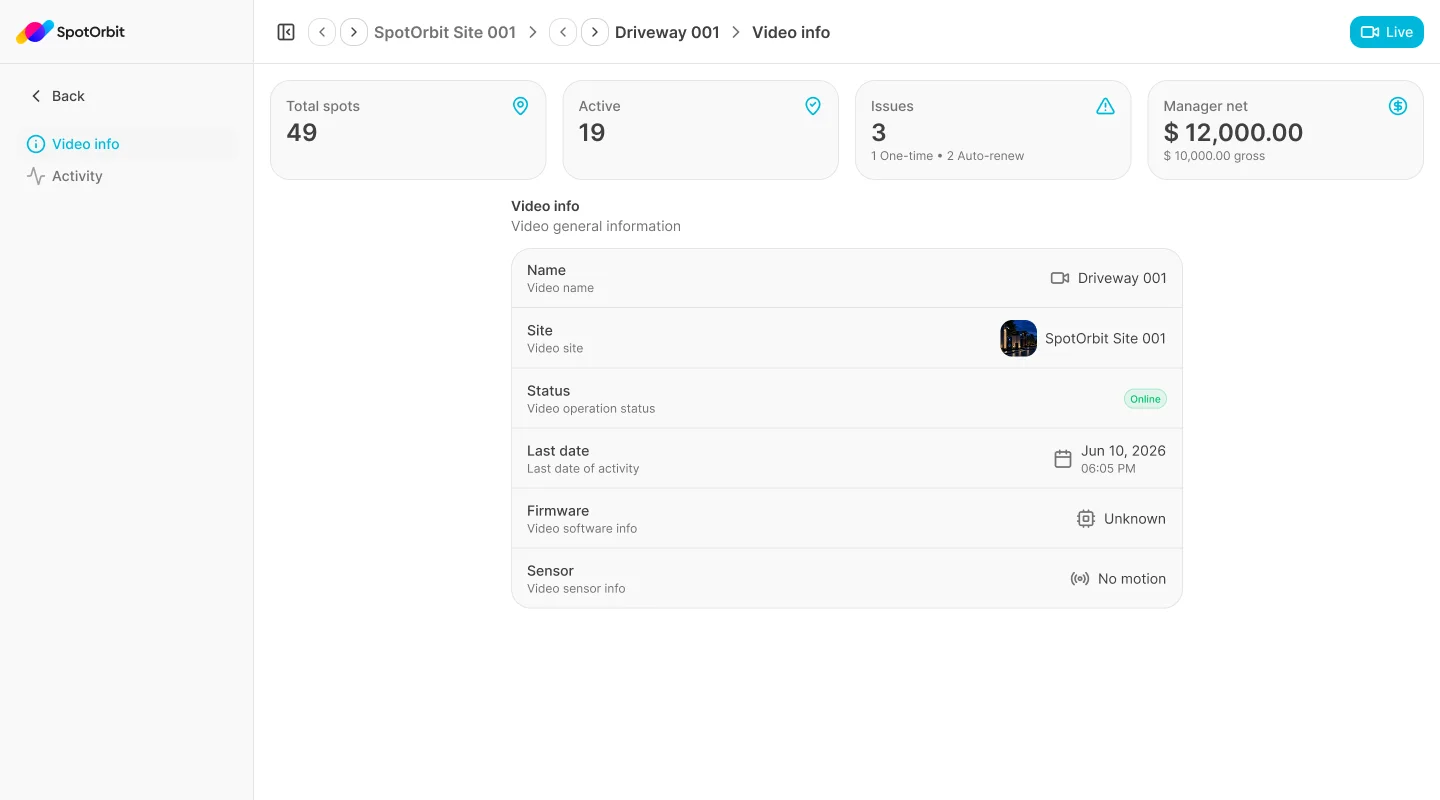
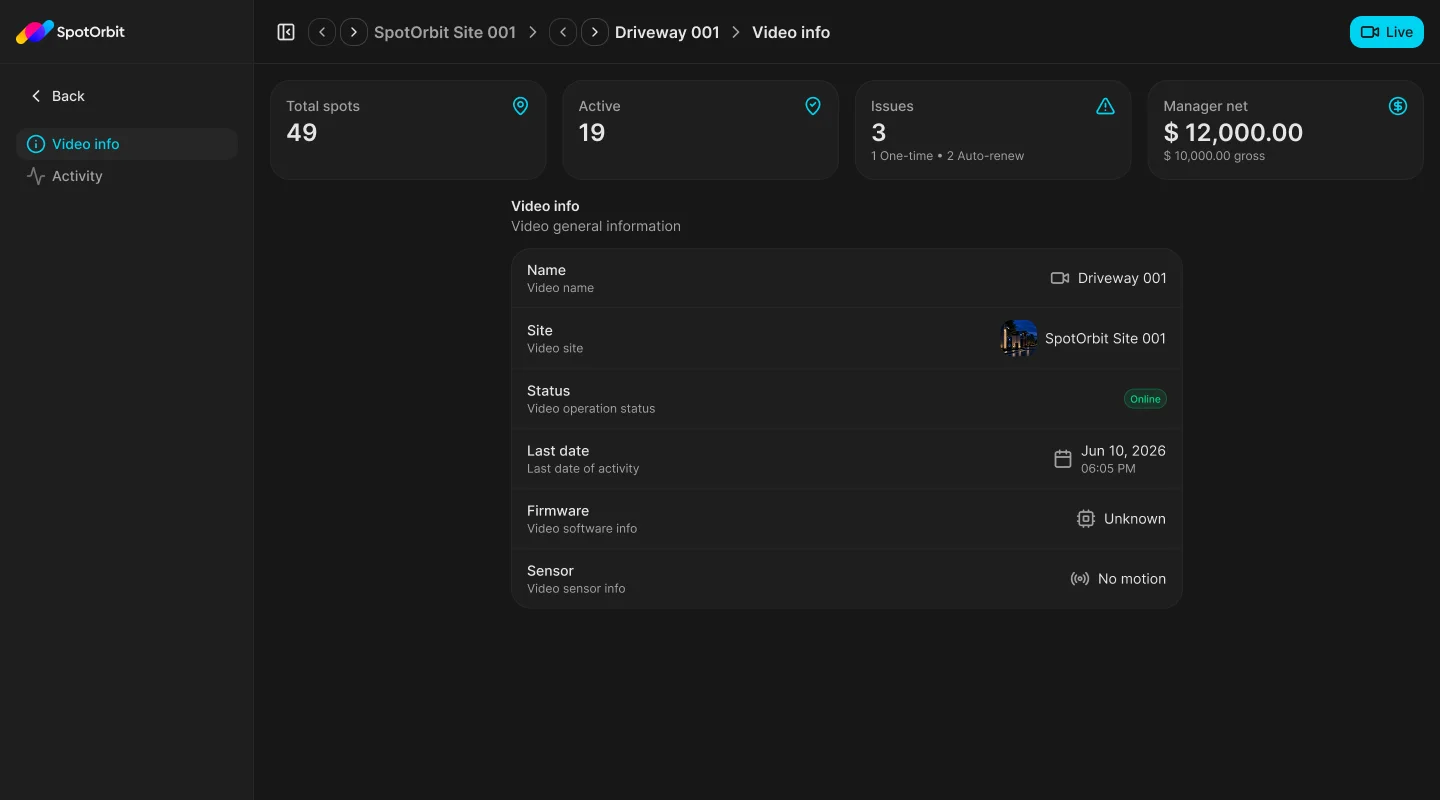
Video info expands the camera summary into a read-only page. Its header identifies the site and camera and offers Live; the sidebar provides Back, Video info, and Activity. The four cards remain site summaries. The information panel contains Name, Site, Status, Last date, Firmware, and Sensor, with the same meanings as the list. A camera can be Online and still have open alerts.
Open the intended camera
Choose More for that camera in the list and confirm its name and site in the full page.
Read the reported values
Check Last date before relying on Status or Sensor. Firmware may be Unknown. These values describe the camera record, not a live image or confirmation that an earlier event has been resolved.
Continue or return
Select Activity to inspect that camera's events or Back to return to the list. Available previous/next camera controls move within the same site in name order and preserve the current section. If Video not found appears, wait for loading to finish, use Retry, or return to the list; the camera may be unavailable in the site's registry.
Open Live
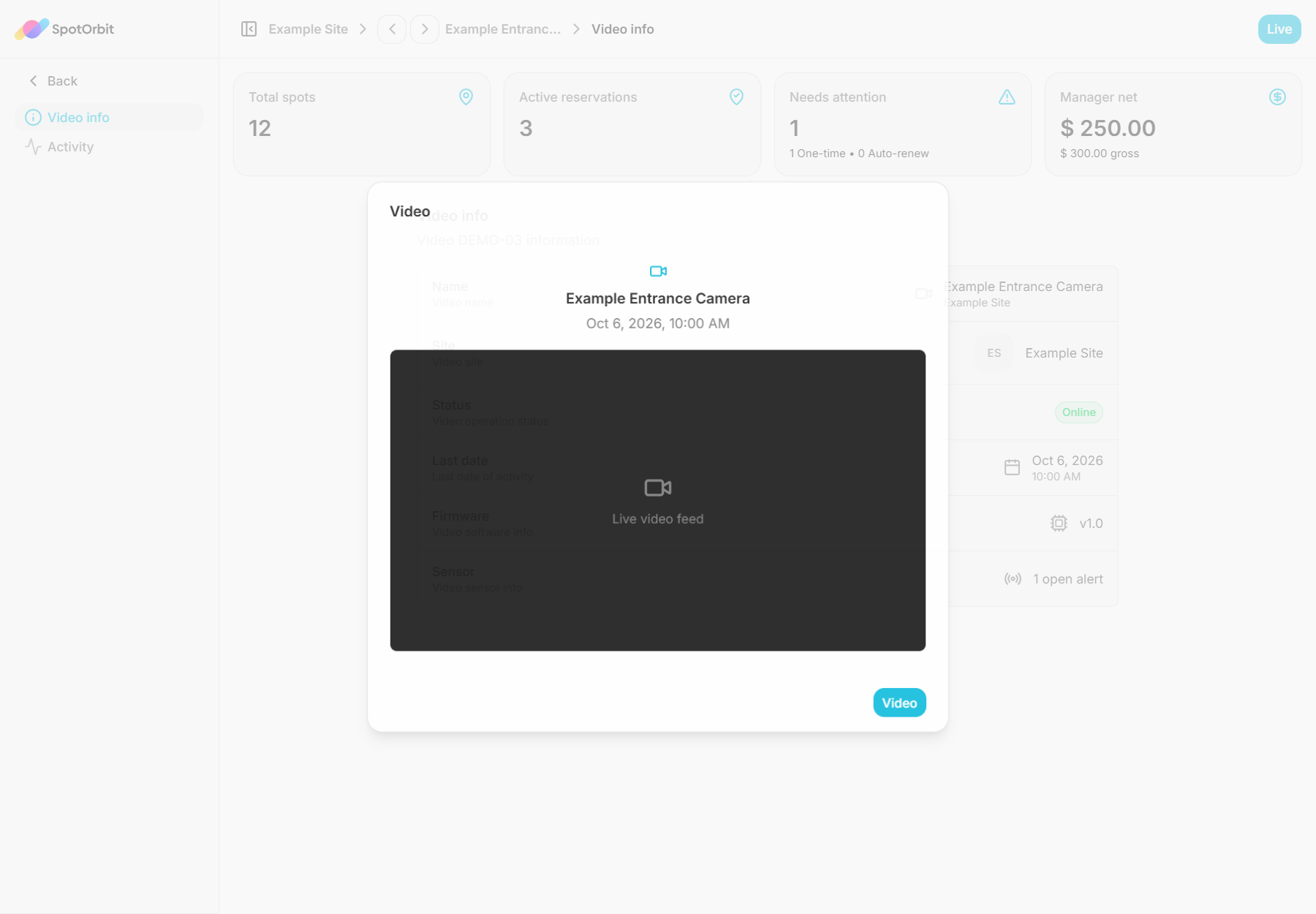
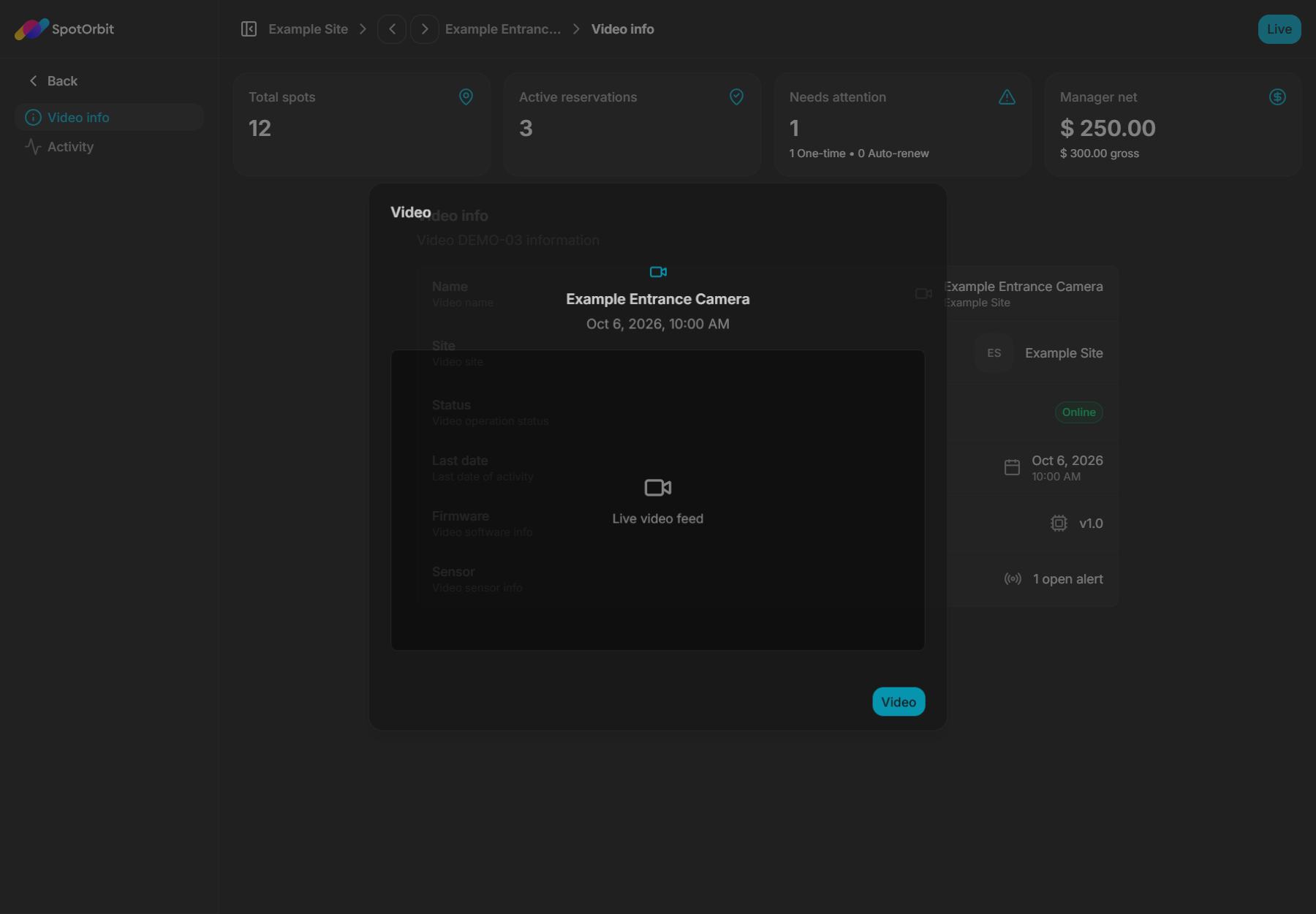
Live opens a dialog with the selected camera's name, last recorded date, and a “Live video feed” placeholder. The current version does not provide playback in this dialog; its Video button does not start a stream. The full camera workspace also contains Video info and Activity.
Review camera activity
Activity shows the camera's loaded events in Alerts, Reconnects, and Crashes. Alerts also includes incidents. The page loads up to 100 recent camera events; tab counts cover those loaded records, not the camera's lifetime history or the site's Issues total. Rows show the event title, occurrence date and time, description, and reported severity, falling back to event status when no severity is supplied. A missing description uses the event kind. Event Status is separate from the camera's Online or Offline state; reconnect and crash events use their reported values.
Open Activity for the same camera
From Video info, select Activity and confirm the site and camera remain the ones you intend to inspect.
Find a loaded event
Choose Alerts, Reconnects, or Crashes. Search with at least three characters to match title, description, status, or the recorded date value within that tab's loaded records. Shorter text leaves those records unfiltered. Changing tab clears search and selection and returns to page one; changing search also resets page and selection. Column visibility and order are adjustable. Pagination starts at 25; changing page clears selection, and changing page size also returns to page one.
Inspect or refresh the event
Use a row's Details action, or select exactly one row to show the toolbar action. Details is read-only. Media is offered when the event has a usable identifier; its presence does not guarantee a snapshot or clip is available. Refresh activity reloads the camera and its events. There is no Live header action in current Activity; return to Video info for Live.
An empty tab shows No alerts yet., No reconnects yet., or No crashes yet. Clear search before treating this as an empty loaded category; it does not establish that no older events exist. The date of an event is not its resolution time or the time of a new live image.
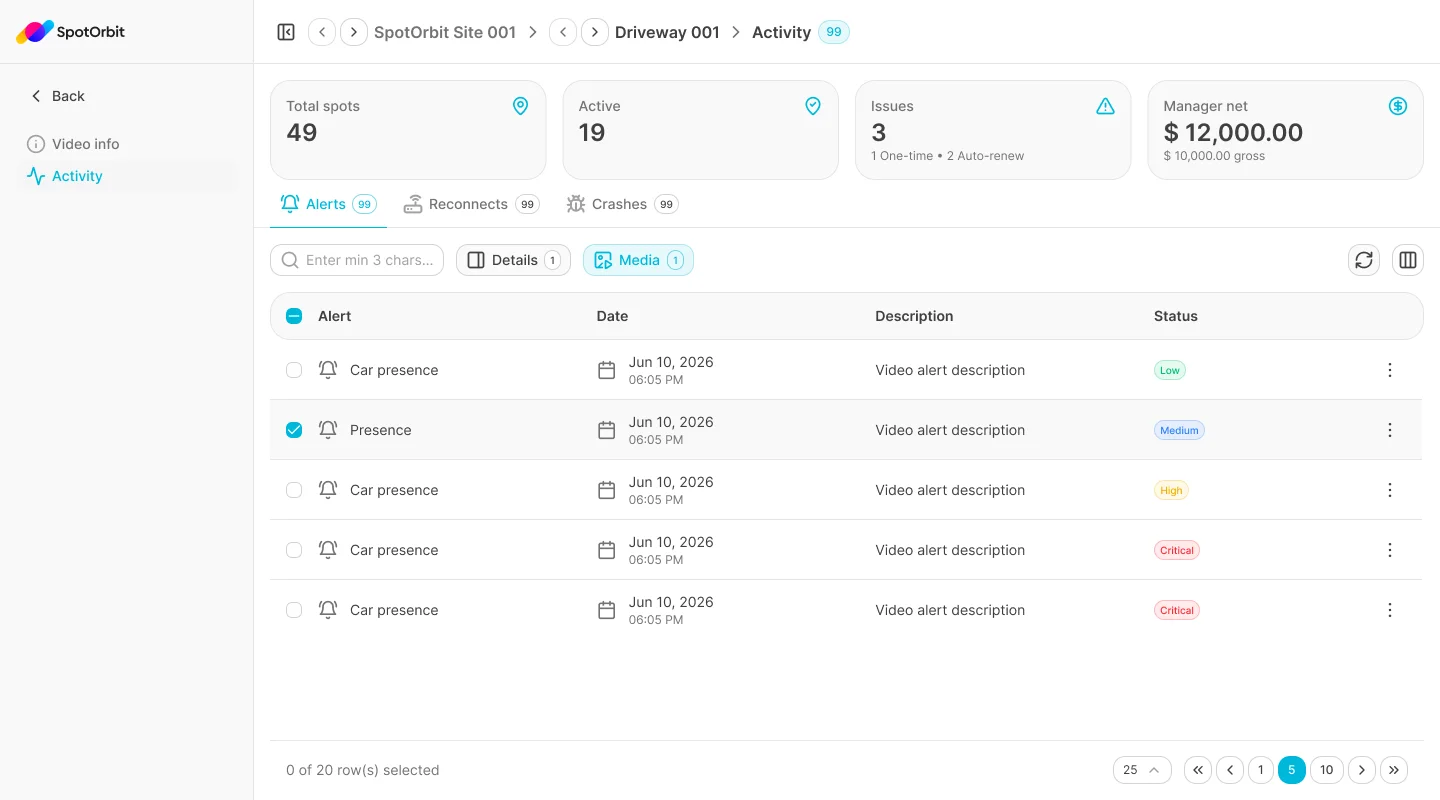
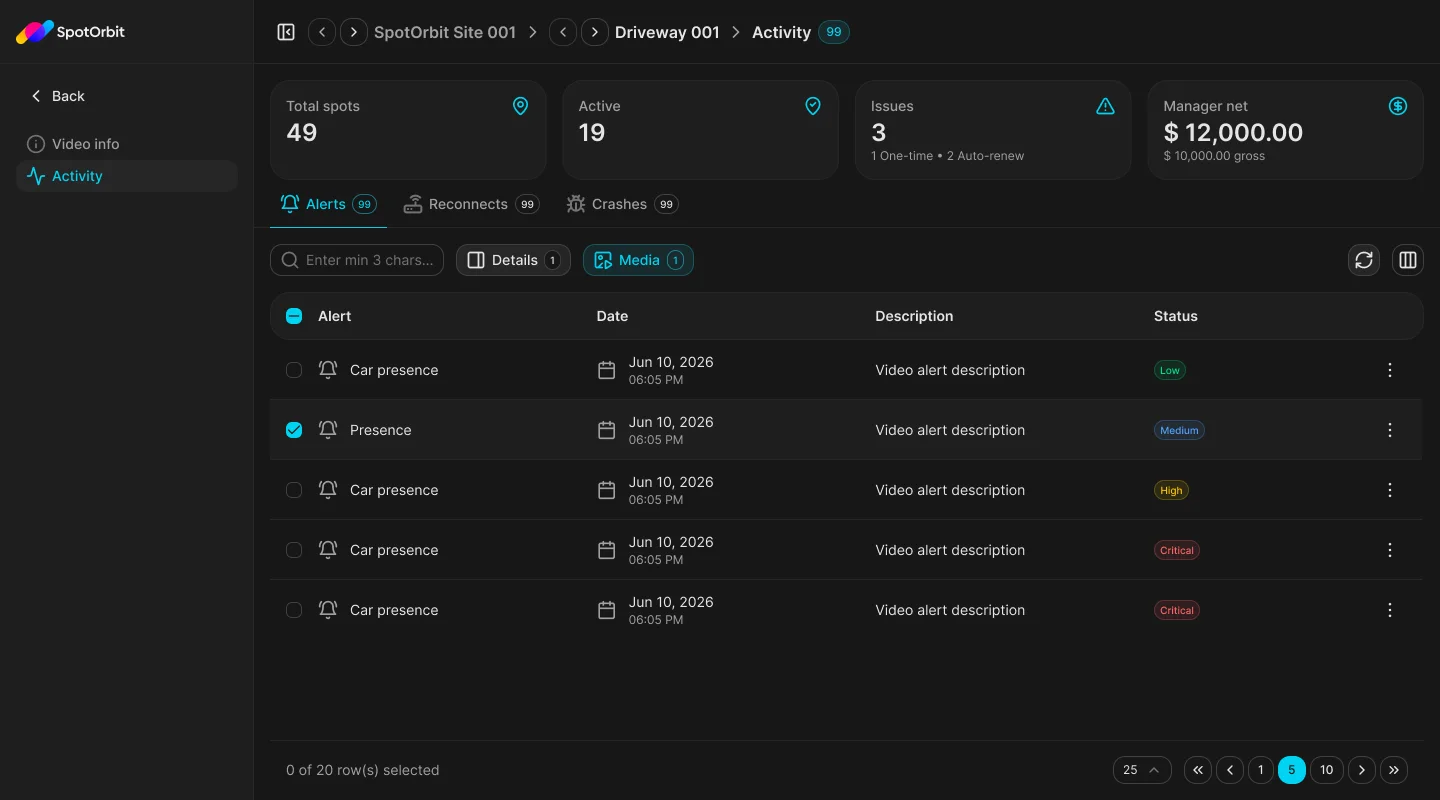
View event media
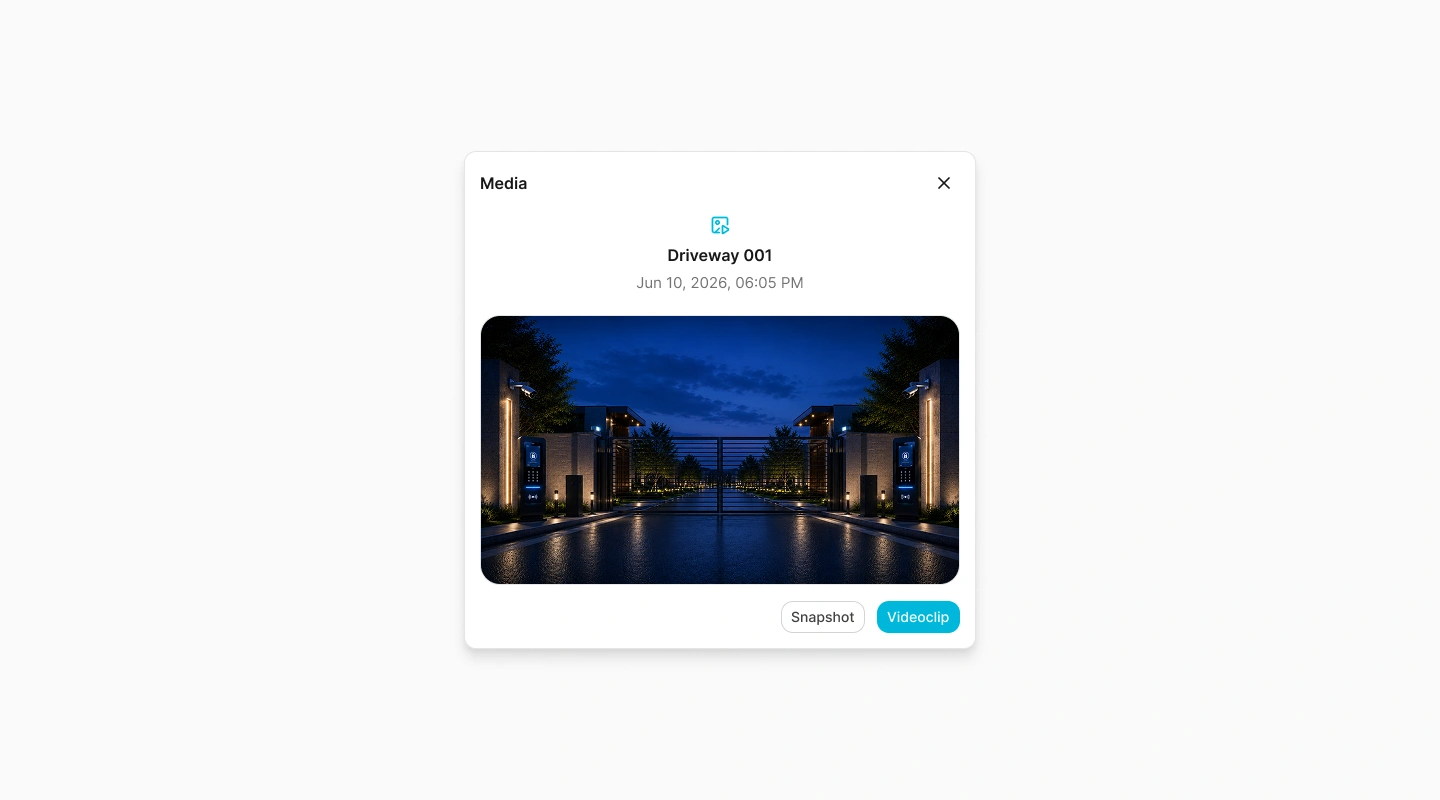
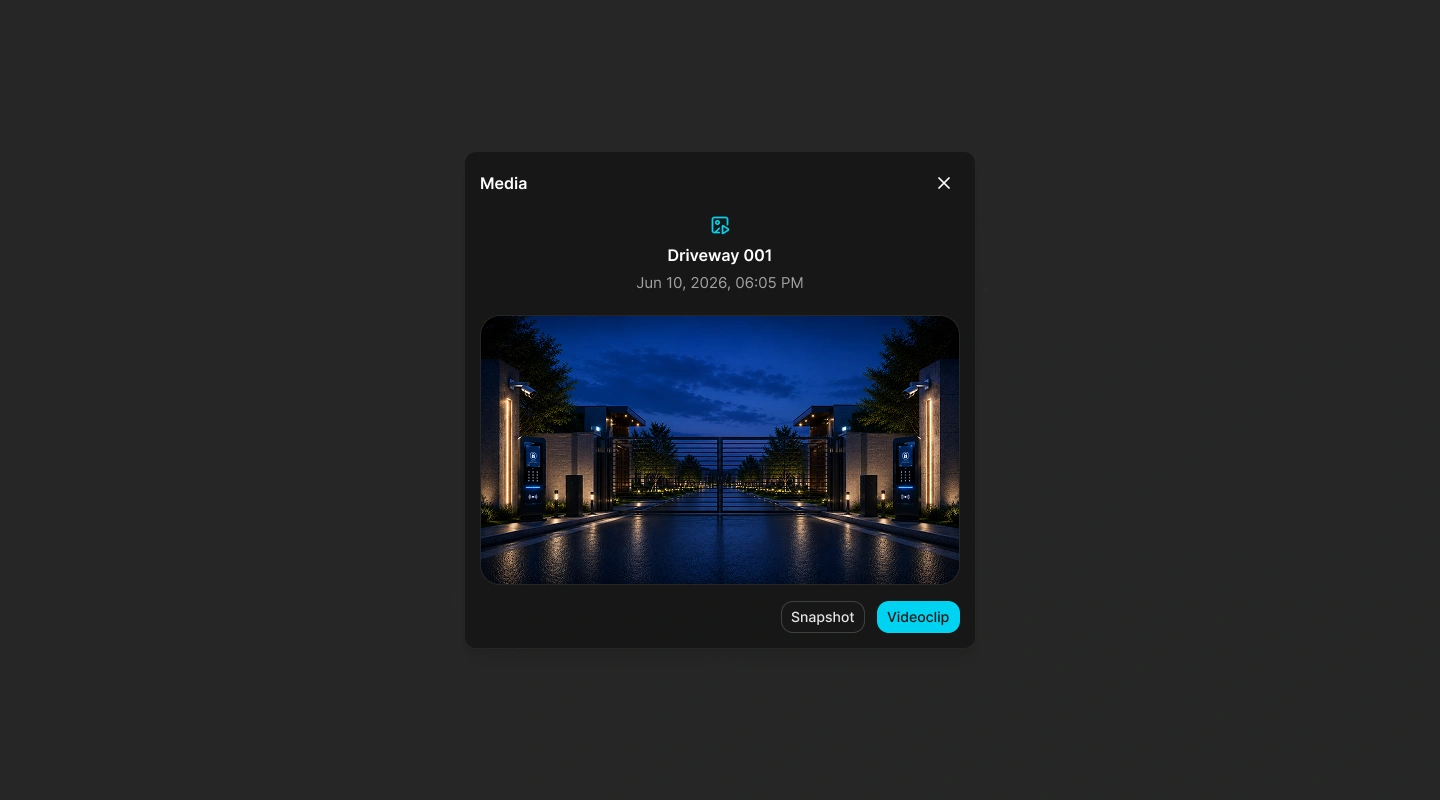
Media belongs to a recorded camera event. It is separate from the Live placeholder.
Open the intended event
In camera Activity, open a row's Details and choose Media when available, or select exactly one event and use its Media action. Check the camera on the page and the event's title and time before opening the viewer.
Choose Snapshot or Videoclip
The dialog initially selects Snapshot and requests the event's media. Wait for Loading media... to finish. Snapshot displays the available still image; Videoclip displays the available clip with playback controls. A clip can use the event's recorded video when no separate clip is supplied.
Interpret missing media and close
No snapshot available or No videoclip available means the selected mode has no usable media URL. A visible Media action does not establish that either file exists, and this viewer has no separate error or Retry control. Close it to return to the activity; opening an event's Media requests its media again.
Navigate between sites and cameras
Use the available previous/next controls at the camera level to move through that site's cameras by name while retaining Video info or Activity. At the site level, the arrows open the adjacent site's first camera by name in the same section. A site without cameras opens its Videos list. Check both names after navigation. At a boundary or without an available neighboring record, the corresponding arrow is unavailable.
If the target site's cameras cannot load, Unable to navigate to site appears and the current page remains. Changing site or camera closes old Live and Media dialogs so their context cannot be confused with the new record. Back returns to the parent camera list.
Frequently asked questions (FAQ)
Enter at least three characters. Shorter text is not sent as a search.
Details opens a quick drawer. More opens the full camera workspace with Video info and Activity.
Media needs an event identifier. Even when the action is offered, the corresponding snapshot or clip may be unavailable. The action does not start a live stream.
No. Sensor shows the camera's reported open-alert count. Activity counts the loaded events in each category, up to 100 recent events across the camera's categories. Site summary cards describe the whole site.
No. The current dialog displays a static placeholder with the camera name and last recorded date; it does not start video playback.
Related content
- Devices — Review gate hardware and device activity.
- Site info — Return to the selected site's overview.
- Zones and spots — Review the physical layout monitored by cameras.
- Reservations — Review operational activity tied to bookings.