Administrator
The administrator workspace brings together Dashboard, Sites, Teams, Managers, and Customers for platform supervision.
Overview
After sign-in and any required Select role choice, the administrator workspace displays Dashboard, Sites, Teams, Managers, and Customers. It has no manager site selector. Dashboard aggregates non-archived sites; use Sites to open a specific site. Managers lists actual Owner/Manager site assignments; Customers uses the list of accounts assigned Customer, including accounts with other roles. Teams lists site Admin memberships and Platform access.
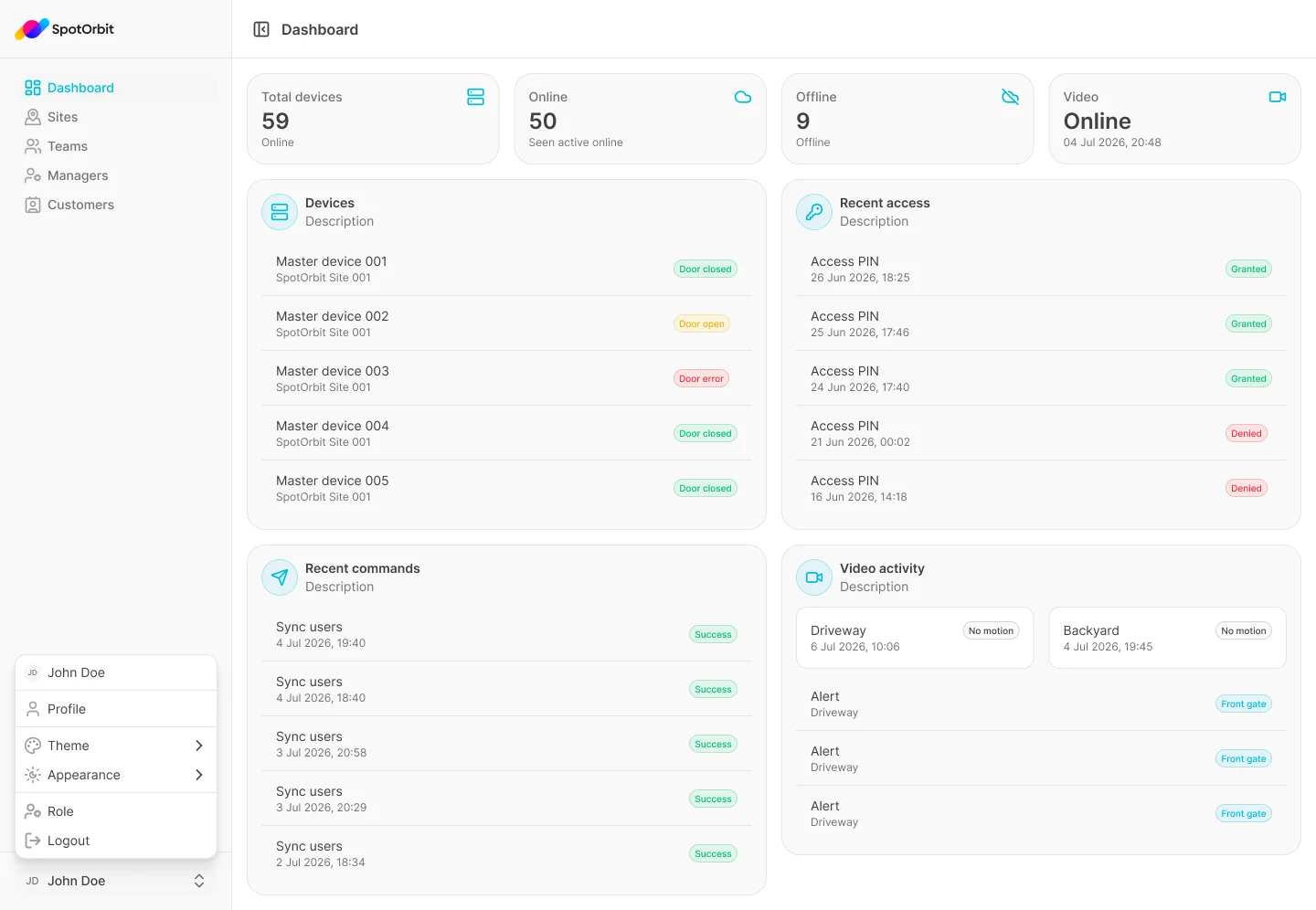
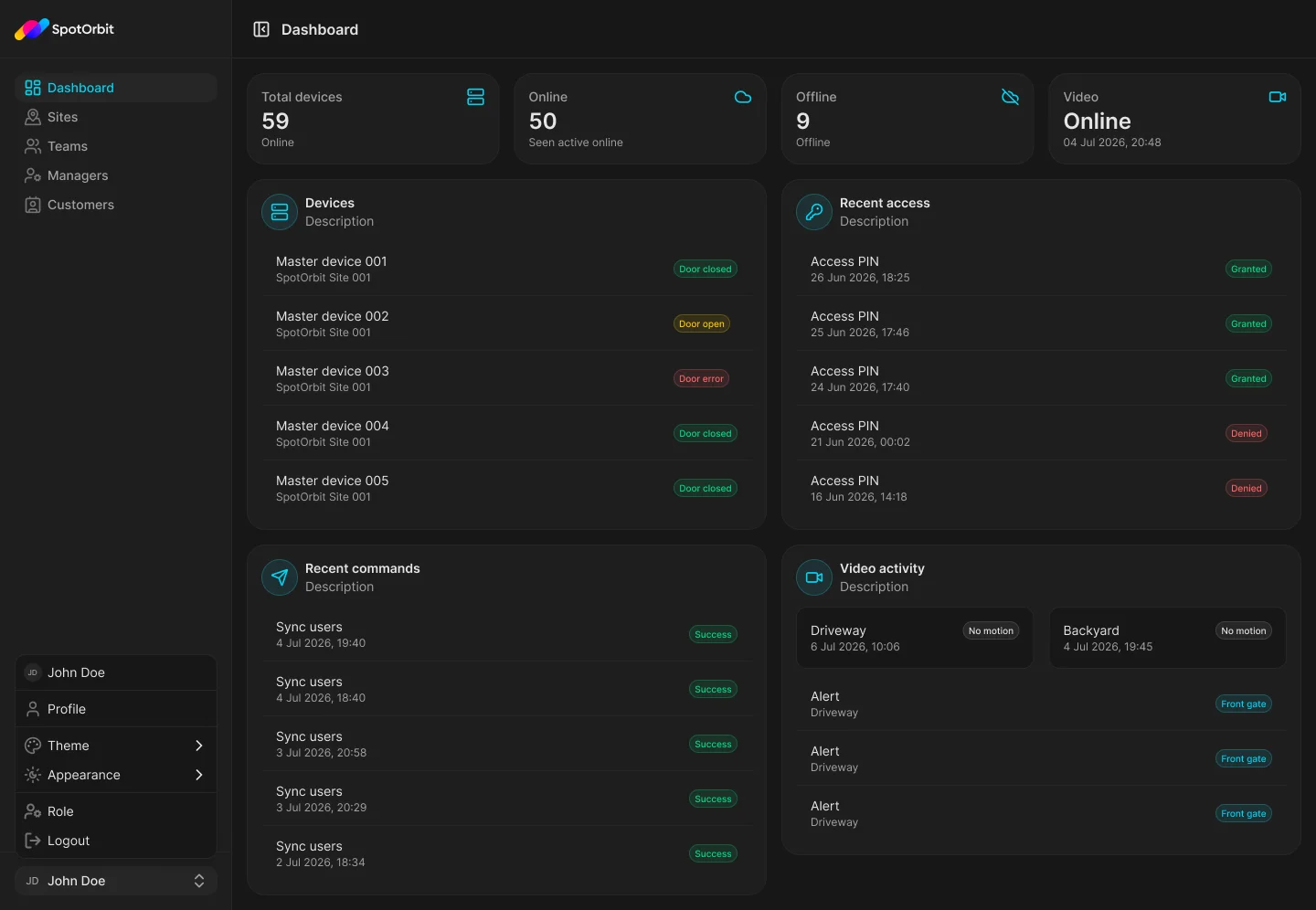
Role in the user menu reopens Select role when the account has both Admin and Manager access. Choose the workspace and its access button; Back keeps the previous choice. This changes the workspace without assigning permissions. Use Back first if a detail page has replaced the user menu.
Before you begin
You need an existing Spot Orbit account with access to the Admin application. Account creation and password recovery are not available from the login screen, so contact your Spot Orbit administrator if you need access assistance.
Complete your first visit
Sign in
Sign in with Google or Email & password. If Select role appears, choose Admin and select Admin access. The application opens your requested protected page or Dashboard.
Confirm the page scope
Dashboard summarizes non-archived sites together. For a site-specific task, open Sites, choose the site, and check its name in the detail header.
Review the Dashboard
Use Dashboard to review device availability, access, commands, and video activity across non-archived sites.
Open another feature
Use the application sidebar to open the tools available to your role. The current page appears in the main content area.
End your session
Open the user menu and sign out when you finish, especially on a shared computer.
Understand the application layout
- Sidebar: opens Dashboard, Sites, Teams, Managers, and Customers; detail pages can replace it with Back and record links.
- Page header: identifies the current page or selected record.
- Main area: displays information and available actions.
- User menu: provides Profile, Theme (currently Cyan), Appearance (Light/Dark), and Logout. Return with Back if a detail view hides it.
Frequently asked questions (FAQ)
The sidebar reflects your assigned role, capabilities, and site access. Ask your Spot Orbit administrator whether your access is correct.
Dashboard aggregates non-archived sites. Inside Sites, check the selected site name in the detail header before interpreting site-specific records.
Yes. Open the user menu at the bottom of the sidebar, select Appearance, and choose Light or Dark.
Use Logout from the user menu and confirm the action. Closing the browser tab alone does not explicitly end the current session.