Account activity
Use Activity to review device operations associated with one account and inspect the context of an individual record.
Overview
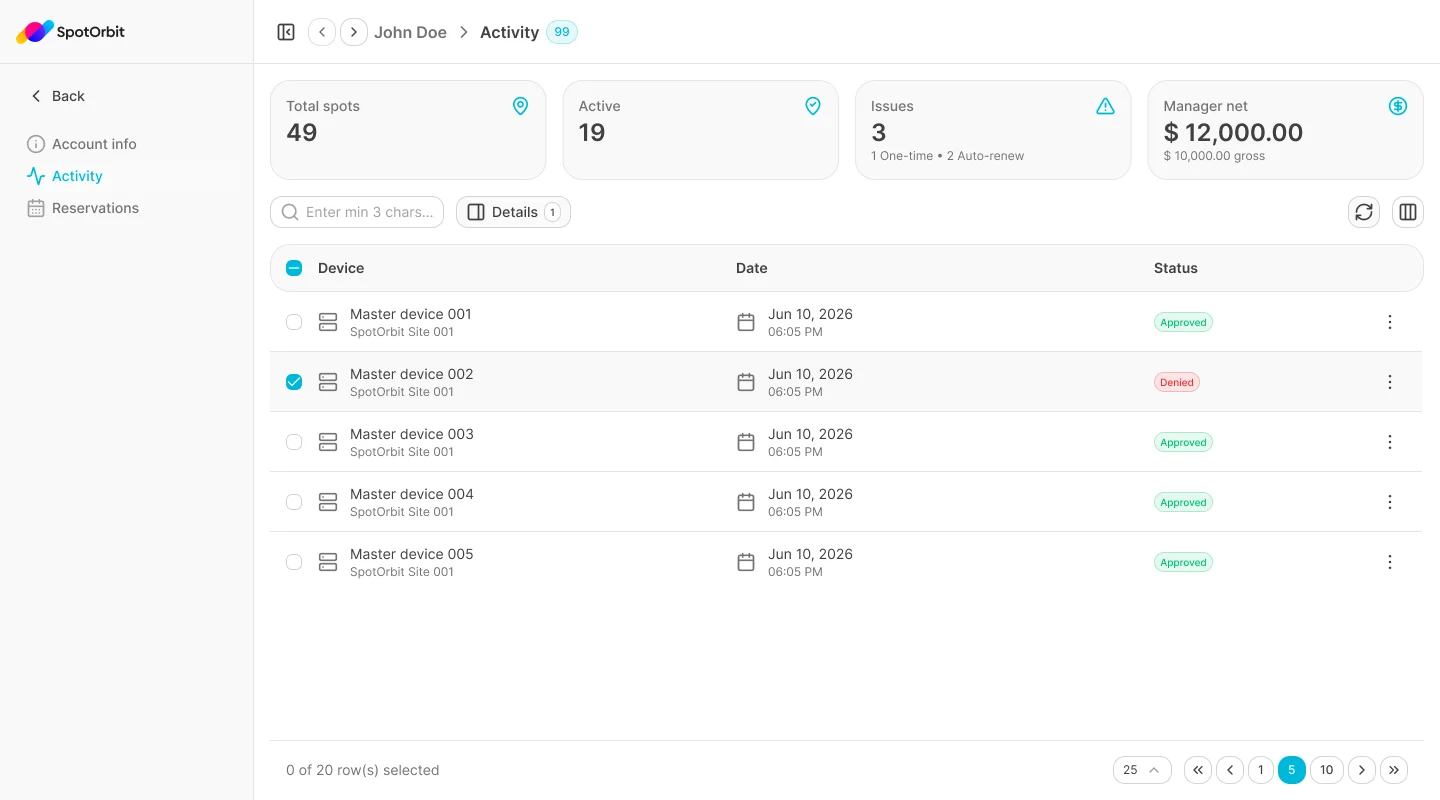
Activity shows device operations for the account named in the detail header. From Customers, the page keeps customer-specific metric cards unavailable as —; it does not replace them with platform account counts. A Manager customer's page shows operational metrics for that page's site and restricts events to that customer and site.
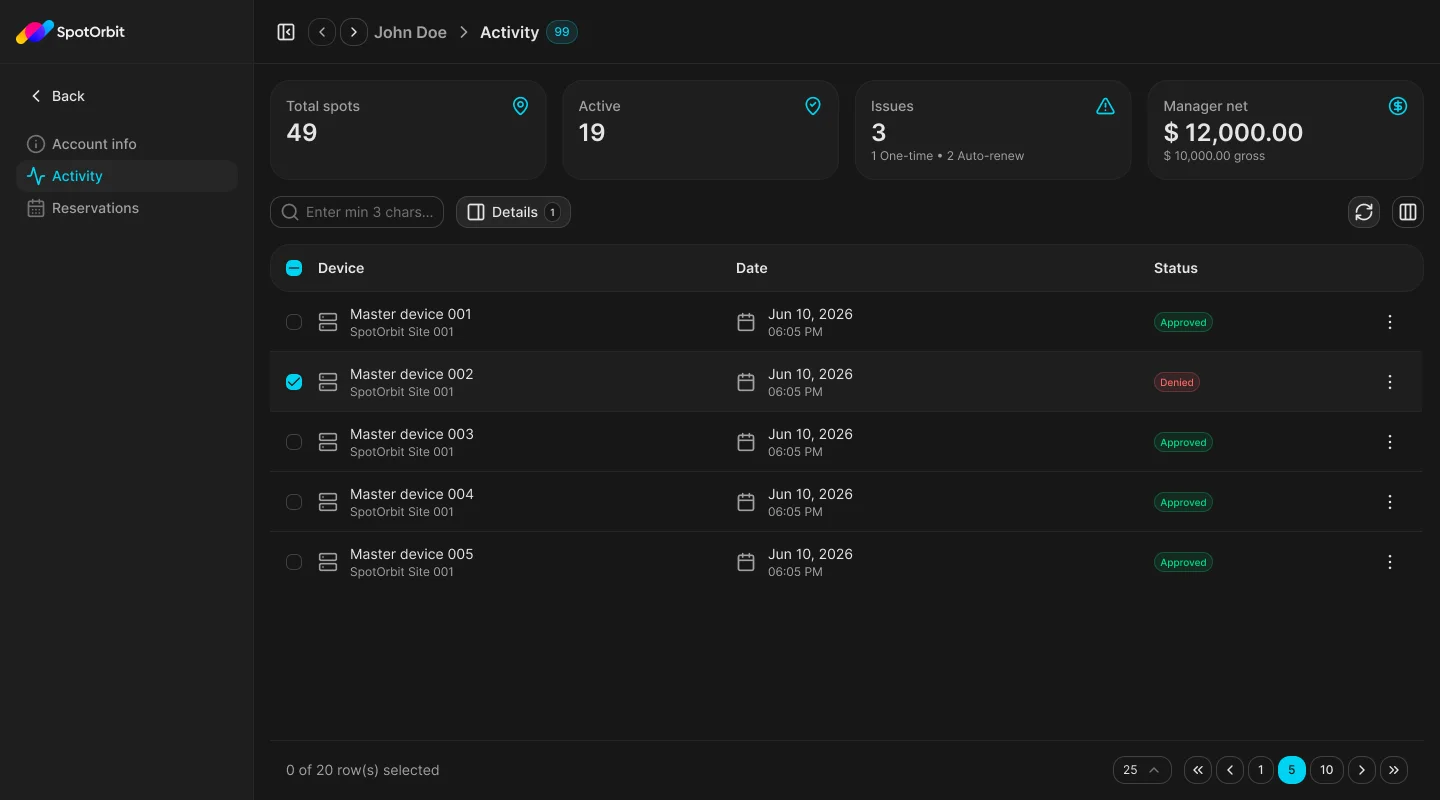
The table shows device and site, occurrence date and time, and operation status. You can refresh, search the loaded page, change visible columns, paginate, and inspect a record. Role and access actions are absent from the Activity header; return to Account info to use the actions available for that account and workspace.
Activity has no date/status filter dialog, export, edit, or delete action.
Open account activity
Open the full account page
From Customers, open the intended customer's actions and choose More. Managers and Teams no longer offer full account pages; older detail links scoped to either return to their directory. Customer and general account activity links remain available.
Select Activity
Choose Activity from the account detail sidebar. The selected account remains identified in the page header.
Verify the account
Check the displayed account name before interpreting the records. Use the previous and next controls when you need to move to another loaded account while remaining in Activity.
Select Back to return to the account list or Account info to review the same account's identity, role, status, dates, and sites.
Read the activity table
Each activity row displays:
- Device: the device name with its site name underneath.
- Date: when the activity occurred.
- Status: the recorded outcome or operation status. A granted result is displayed as Approved.
- Actions: a menu containing Details.
When no records are available, the table displays No activity found. A loading state appears while a page is being retrieved, and an error message replaces the table when the activity request fails.
Search and customize the current page
Search the loaded activity
Enter at least three characters in the search field. The current page is matched against device name, site name, status, occurrence date, and available detail text.
Adjust the columns if needed
Open the columns button to hide, show, or reorder Device, Date, and Status. The selection and action columns remain fixed.
Clear the search
Clear the field to restore all activity rows loaded for that page.
Search is applied to the activity already returned for the current page; it does not request every historical page at once.
Navigate and refresh activity pages
Activity starts at 25 records per page, with 10, 25, 50, and 100 available. Previous/next navigate the available pages; further pages become available as the list loads. Changing page size returns to the first page. Pagination is unavailable during a request or after a page-loading error.
For platform account activity, a count ending in + means more records remain beyond the pages loaded so far; it is not a complete historical total. A Manager customer's activity uses the total reported for that customer and site.
Use Refresh to reload the current activity. Changing the selected account or Manager site clears the previous activity and closes its detail drawer. A loading indicator or Retry activity after an error distinguishes unavailable records from No activity found.
Open activity details
Open the three-dot menu for a row and select Details, or select exactly one row and use the Details button above the table.
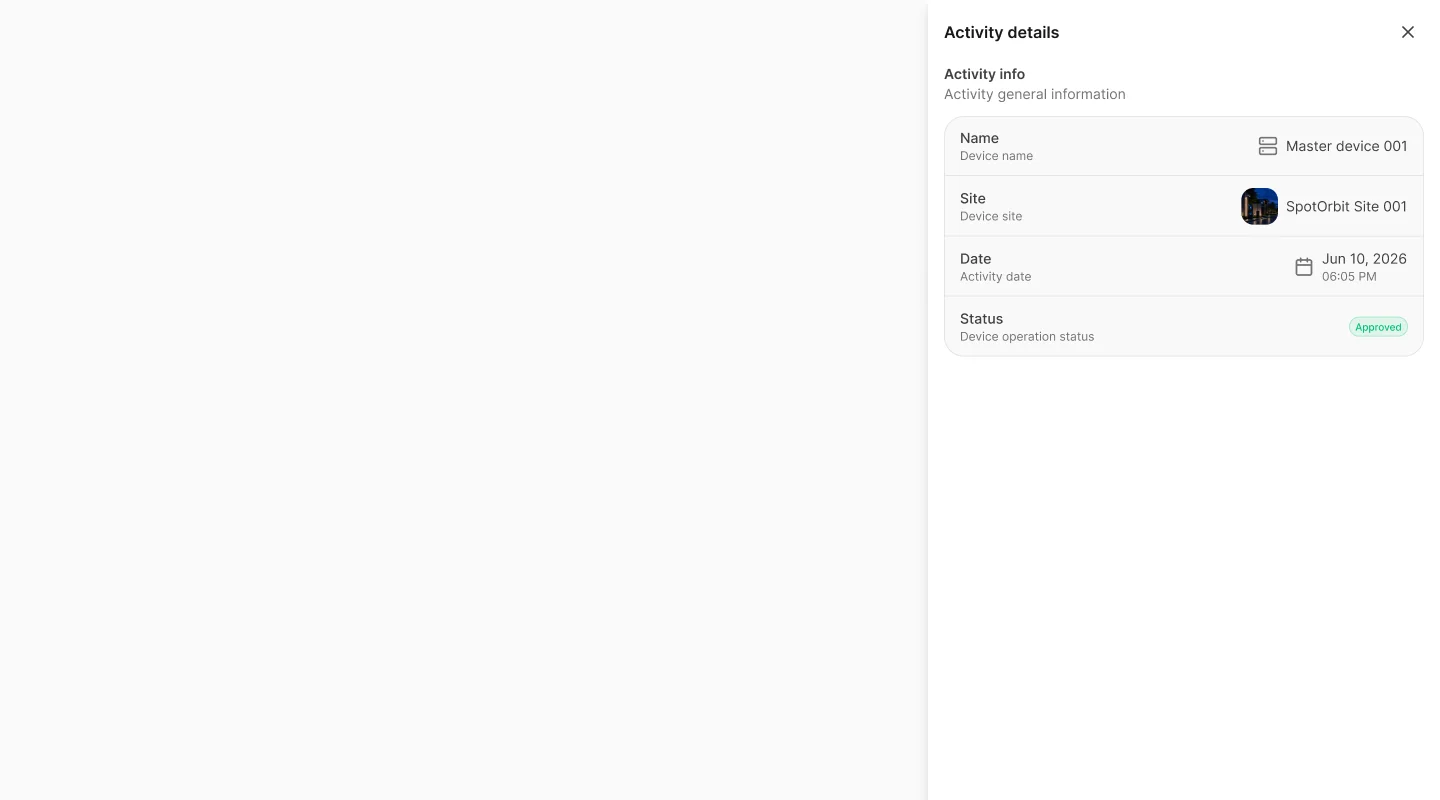
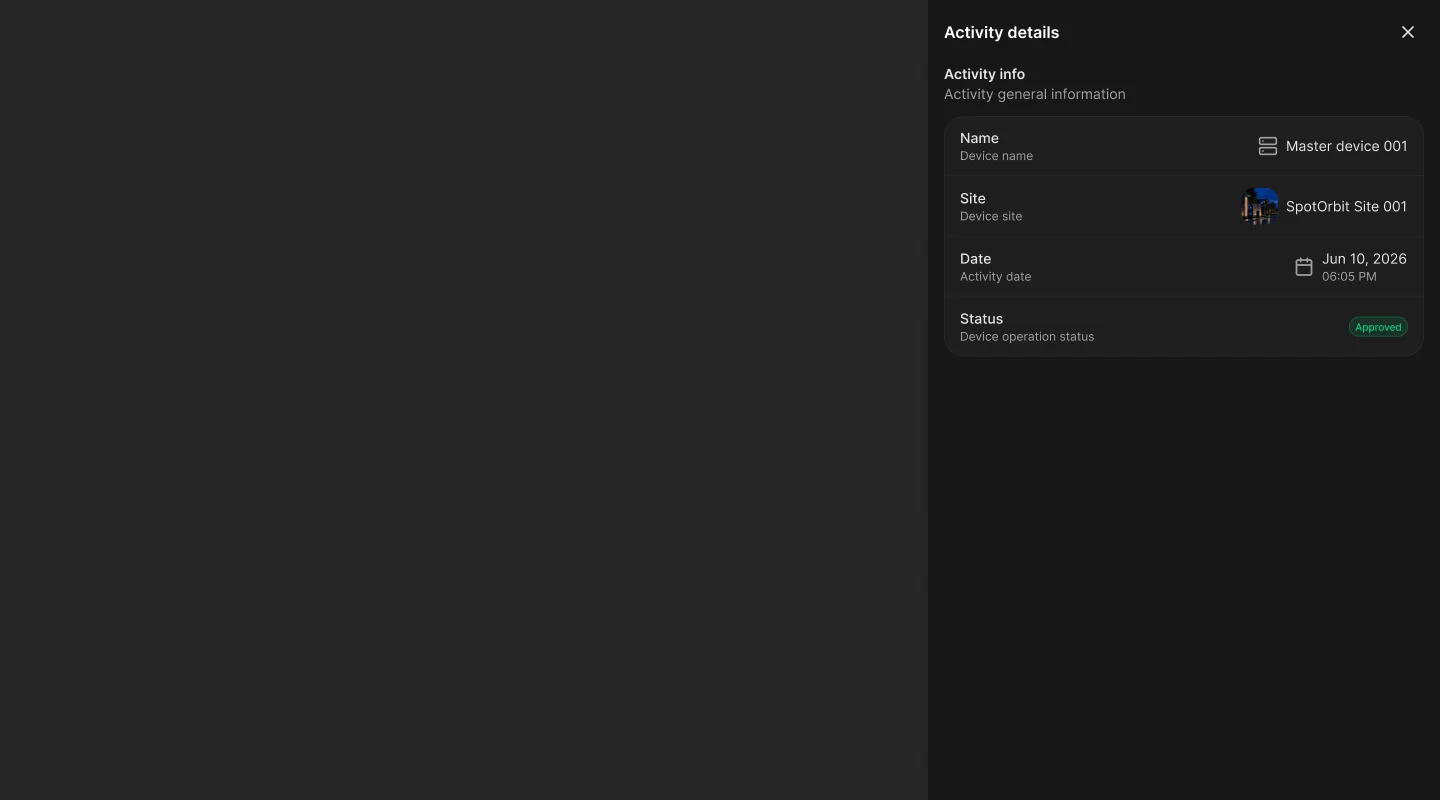
The drawer displays:
- Device name.
- Related site name and preview image when available.
- Activity date and time.
- Device operation status.
Select the close button to return to the table. The drawer is read-only.
Frequently asked questions (FAQ)
Search filters only the rows loaded on the current page. Clear the search, navigate to another page, and then search that page if needed.
No. The current account Activity page has no filter dialog. You can search the loaded page or navigate through its pages.
No. The current page does not expose an export action.
No. Account activity is read-only in this view.
A site preview appears only when the selected activity references a site that has an available preview image.
Related content
- Managers and Customers — Find another account or use account-level actions.
- Account info — Review the selected account's identity, role, lifecycle, dates, and sites.
- Sites — Continue to site-level operational information.
- Getting started — Review navigation and access behavior in Spot Orbit Admin.