Managers and Customers
Open Managers for actual Owner/Manager site assignments or Customers for the list of accounts assigned Customer, including accounts with other roles.
Overview
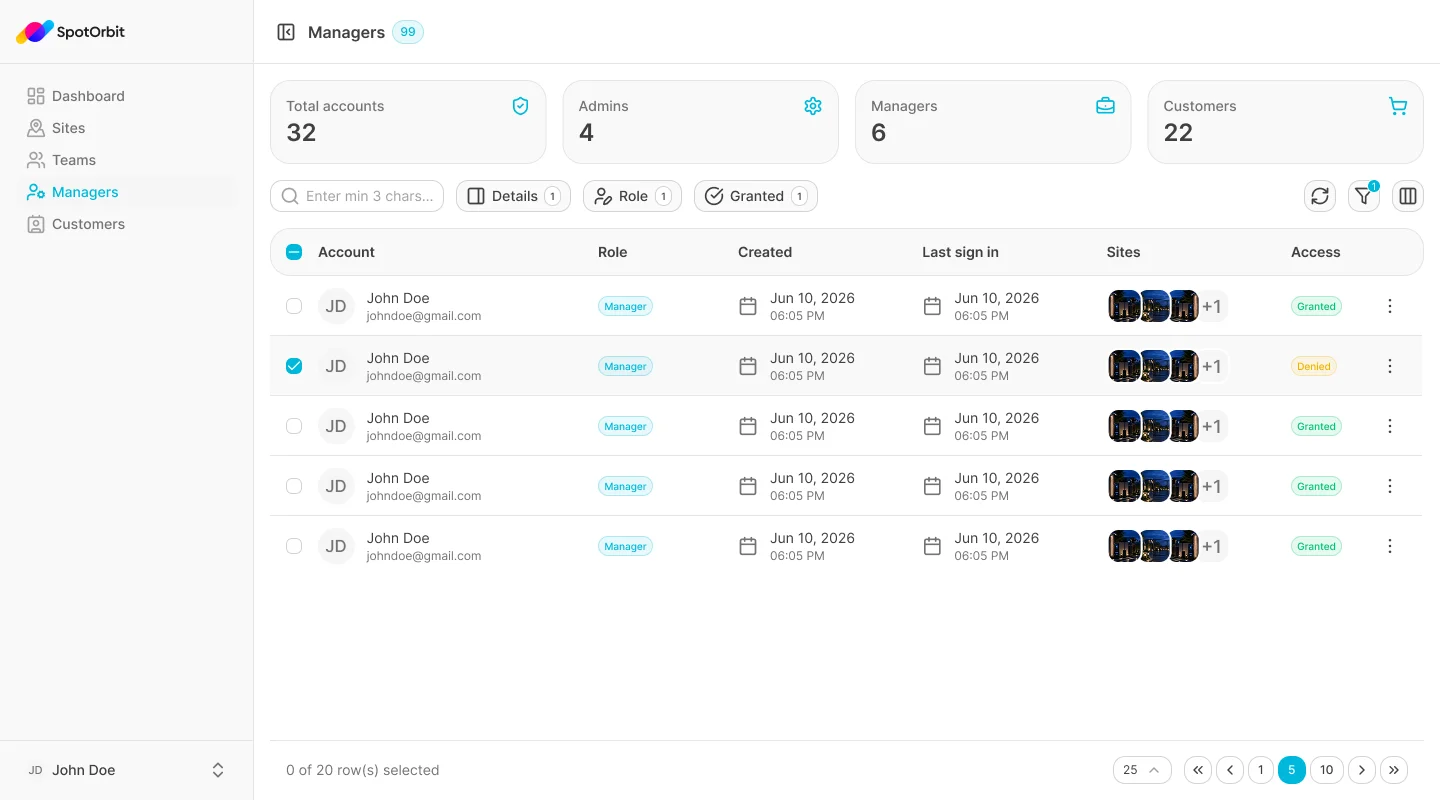
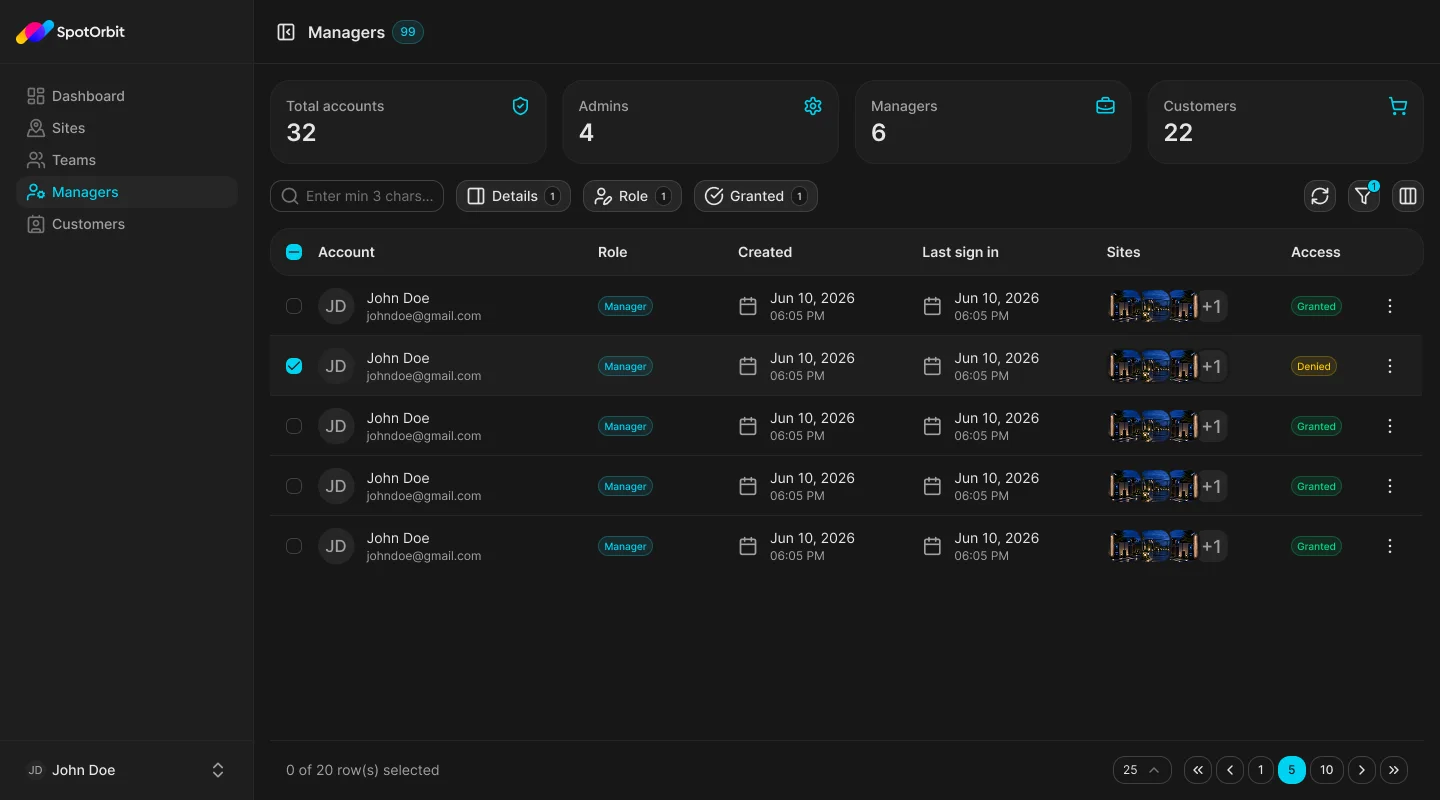
Managers includes accounts with actual Owner or Manager site memberships, even when another primary role is recorded. Role badges show Owner, Manager, or both. Customers includes accounts assigned Customer, even when Admin or Manager is also assigned. One person can appear in both directories. Both lists have account summary cards, search, Date/Status filters, columns, and pagination. Rows show identity, role, dates, sites, and global Access as Granted or Denied.
Details and Role are individual actions. More opens full pages only from Customers; Managers no longer has More. Older full-page links scoped to Manager return to Managers. Denied/Granted can update one account or a compatible selection across all sites. Teams has its own membership/Platform directory and scope.
These lists do not create accounts or export data.
Understand the summary cards
Total accounts counts each distinct loaded person once. Admins, Managers, and Customers count their assigned roles when available, so one person can contribute to several role cards. Without complete role assignments, the cards use the recorded primary role. Several site memberships do not count the same person repeatedly within one role card.
The cards describe the loaded account collection before search, filters, and the selected role list. The number beside the page title counts accounts in that directory before search and filters; the table footer describes the filtered results. A Manager's site operational cards are different from these platform account totals.
Find an account
Open Managers or Customers
Select Managers or Customers in the administrator sidebar and check the title before searching.
Enter a search term
Type at least three characters in the search field. The current loaded accounts are matched against their name, email, user identifier, phone, primary role, actual Owner/Manager badges in Managers, and related site names.
Refine the results if needed
Open the filter control to narrow the table by account status or by an account date range.
Review the matching rows
Use the table, page-size selector, and pagination controls to find the account you need.
Clearing the search restores the unsearched list. Entering one or two characters does not apply a search.
Filter by access or date
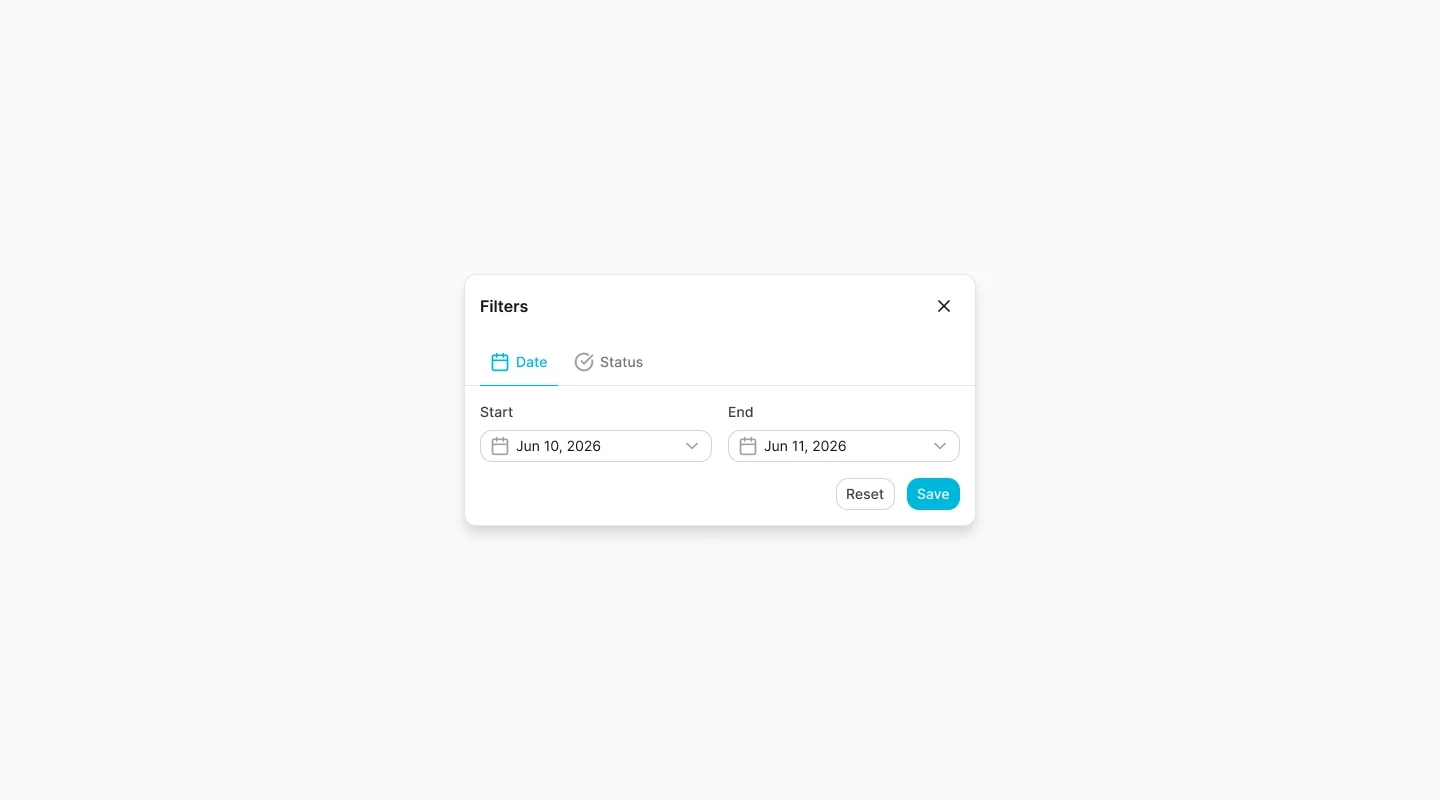
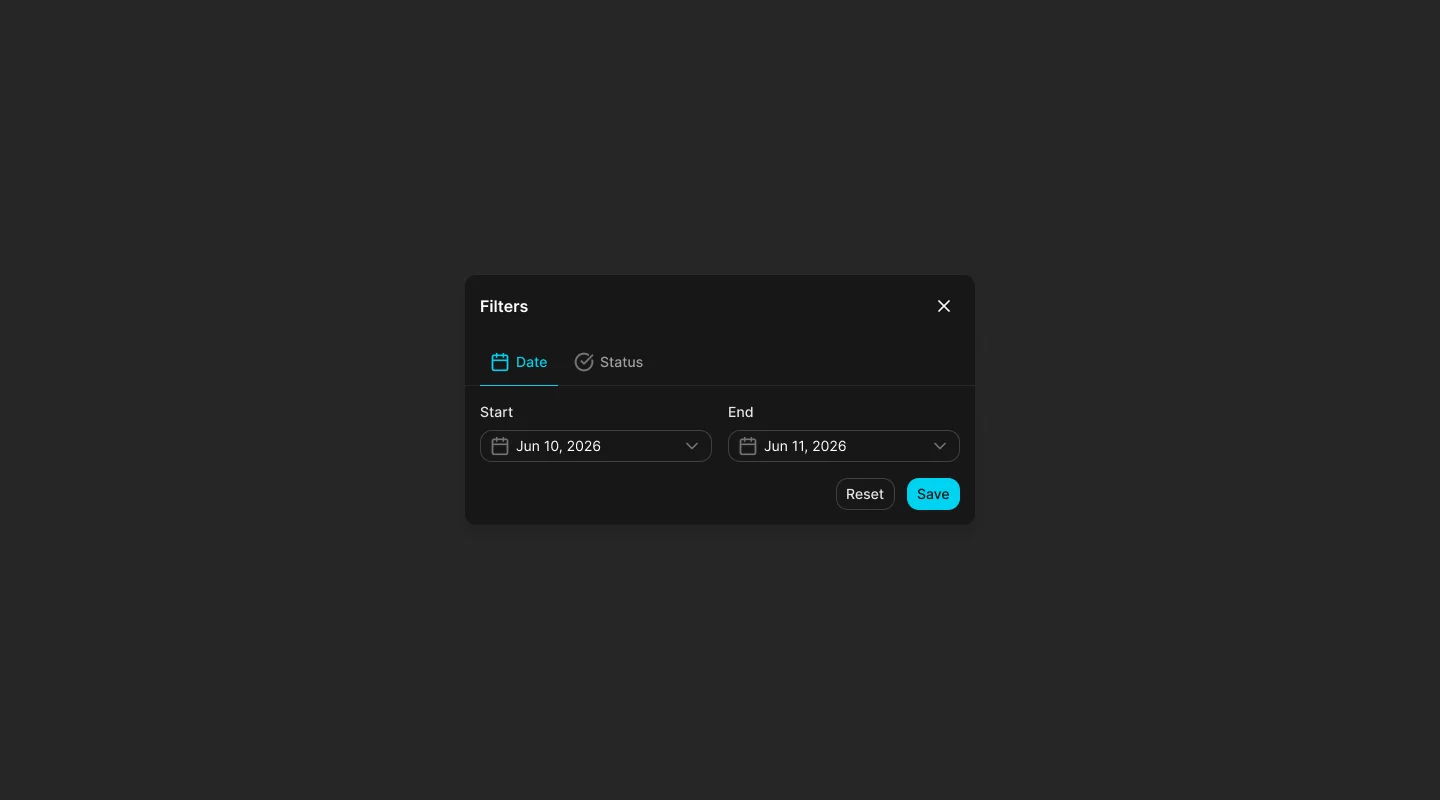
Filters has Date and Status tabs. Status offers All, Granted, and Denied for global account access. On Date, select Start or End to open the two-month range calendar; an account matches when creation or last sign-in falls within the range. You can combine access and date criteria.
Open Filters
Select the filter button above the table.
Set the draft criteria
Choose a date range on Date, an access state on Status, or both.
Apply or clear
Select Save to apply the draft. Reset clears the criteria and returns to the first page. Closing without Save leaves the applied filters unchanged.
Read the table and actions
Use column controls to hide, show, or reorder data columns; selection and actions stay fixed. Page-size and page navigation are available.
- Account: name and email or identifier.
- Role: actual Owner/Manager site assignments in Managers; all assigned account roles in Customers.
- Created / Last sign in: available account dates.
- Sites: managed memberships for Managers; real customer relationships for Customers, including those without a team membership.
- Access: global account access.
- Actions: Details, Role, Denied or Granted; Customers also has More.
Select one account for individual actions. Several selected accounts offer Denied only when all are Granted, or Granted only when all are Denied. Mixed permissions have no group access action. Selecting your own account disables global Denied. There is no bulk role editor. Related sites load separately for each customer across all sites, including archived sites. They do not depend on a team membership or the current site selection. Unavailable indicates that customer’s site lookup failed; other customers can still show their sites. Use Details and Retry sites to retry.
Change account roles and managed sites
The Role dialog uses independent Admin and Manager checkboxes. Customer remains selected and cannot be removed. A person can therefore keep Customer while also using Admin, Manager, or both. Only a platform administrator in the Admin workspace can use this editor; site membership alone does not authorize it.
Open Role and wait for current assignments
Choose Role for one account. Wait for its current roles and Manager sites to load. If Could not load account roles appears, use Retry. An unavailable assignment set prevents editing and saving; the directory’s role badge alone is not enough.
Choose roles and managed sites
Check or clear Admin and Manager as needed. When Manager is selected, use Add site to open Search. Enter at least three characters and select Search or press Enter to apply the name search. One or two characters leave Search disabled; clearing the field restores all choices. Select or deselect site rows, use pagination or the page-size selector as needed, then choose Select to return the choices to the role draft. The picker starts at 25 rows and retains choices across search and pages. Closing it without Select discards only its latest selection changes.
Review and save
Review the Sites cards and use a card’s remove button for a Manager assignment you intend to remove. Reset restores the account’s loaded roles and Manager sites; closing Role abandons the unsaved draft. Only Save applies the complete role and Manager-site selection. Wait for Account roles updated.
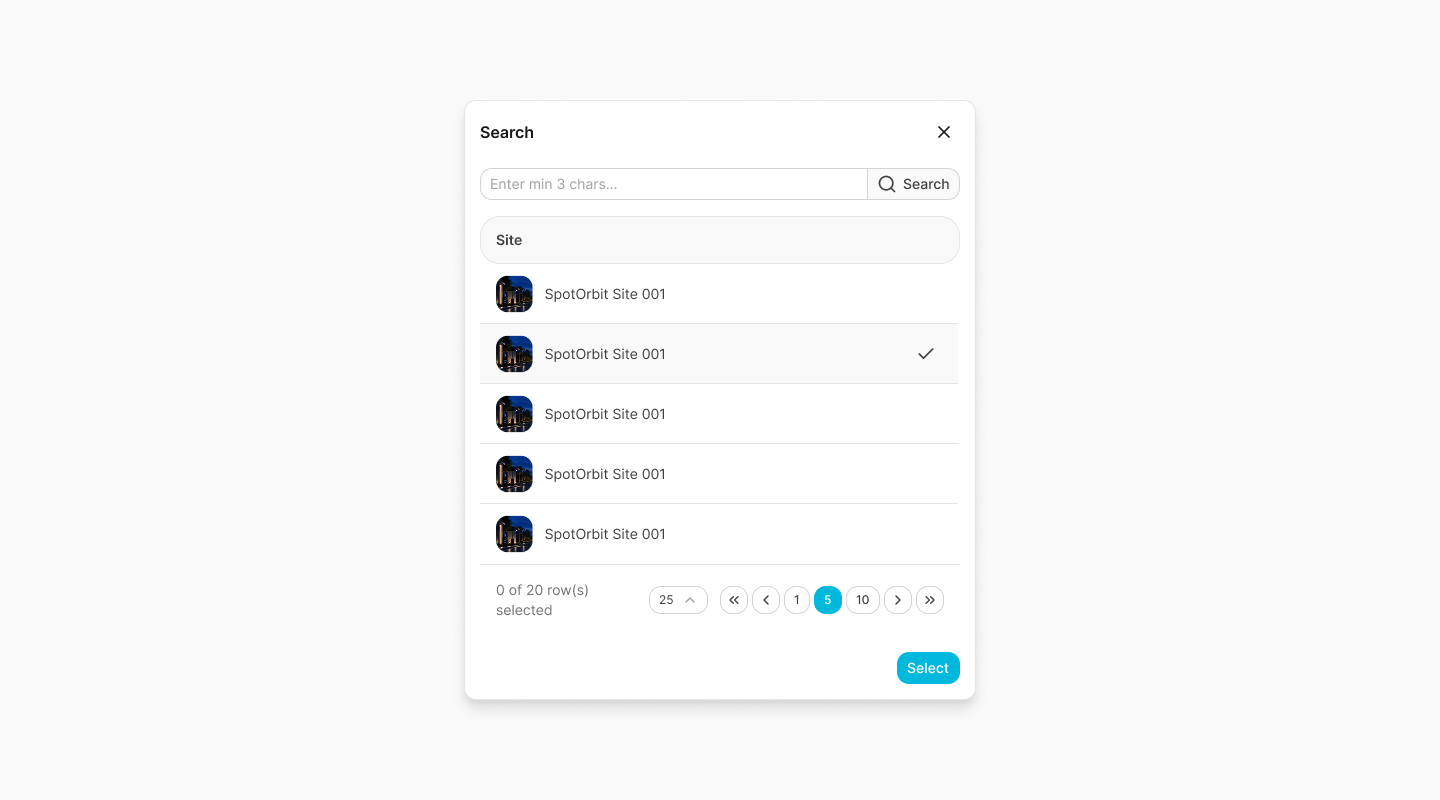
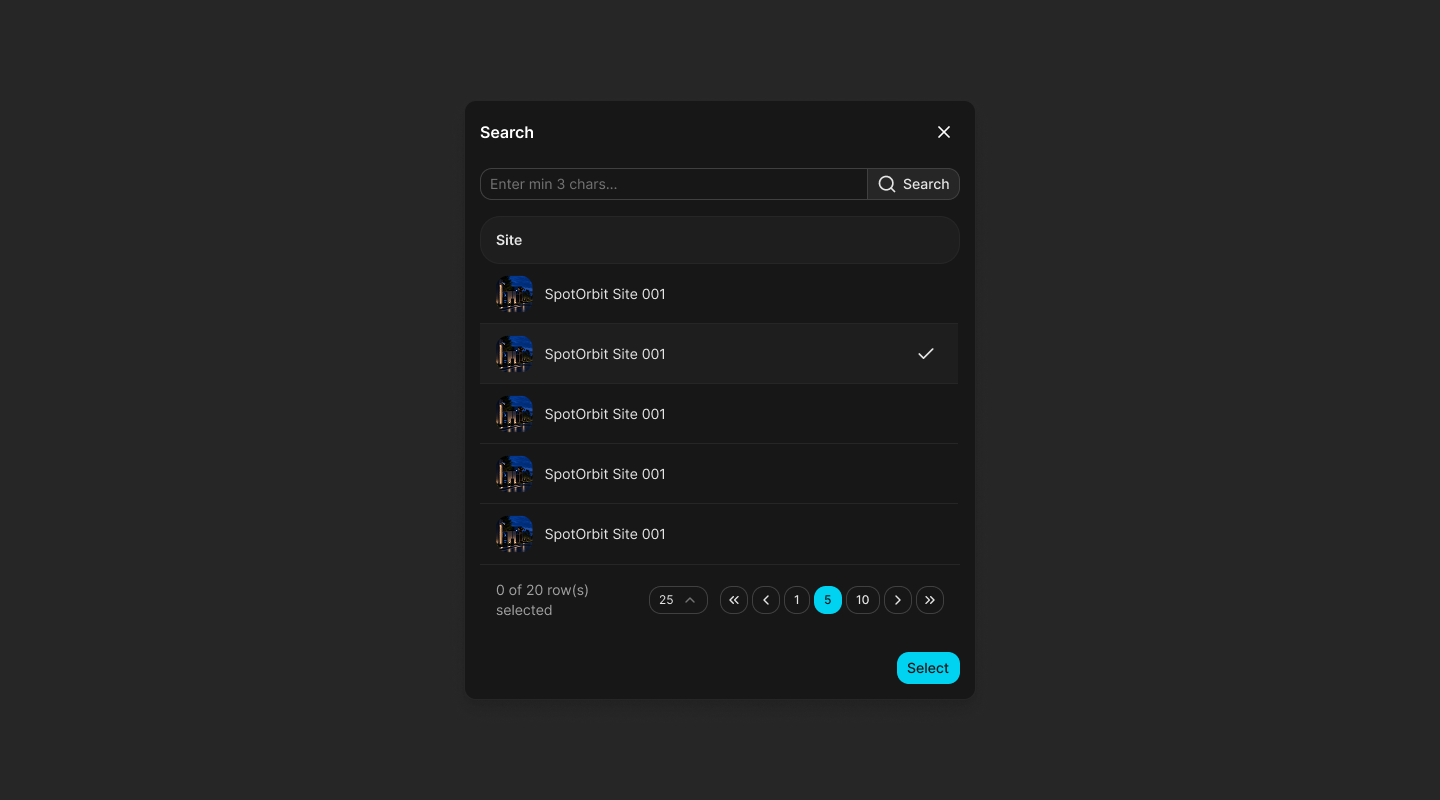
The footer reports the draft selection. The available site choices determine which sites you can assign.
New Manager assignments must use active sites. Existing archived or unavailable Manager assignments remain visible and can be retained or removed through their cards; they cannot be newly selected in Search. No sites available means there are no choices; No sites found means the applied search has no matches. Manager needs at least one selected site unless the account already has an Owner or Admin site membership. Owner and Admin site memberships are preserved separately and do not appear as removable Manager assignments.
Save stays disabled without changes, while loading or saving, or when required assignments are invalid. You cannot clear your own Admin checkbox. Role changes do not restore denied access. Clearing Manager changes that account role and its Manager assignments; it does not remove protected Owner/Admin memberships or the required Customer role.
Deny or grant global access
Choose accounts with the same access
Use Denied for granted access or Granted for denied access. For several accounts, select only rows with the same current access. Mixed selections have no group action. Your own account cannot be denied.
Verify global scope before confirming
Check the selected accounts first. The Denied/Granted dialog uses generic manager or customer text and does not list every target or site. This operation changes global access across all sites. The confirmation has no note field. Confirm the named action or cancel.
Check the result
Success refreshes account data. A partial failure reports updated/failed counts, clears table selection, and retains only failed or unsent accounts in the confirmation for explicit retry. Successful changes remain applied. Changing session or view stops remaining unsent requests; review account state before confirming a new batch.
Loading, empty, and error states
- Loading placeholders appear while the initial account data is being retrieved.
- No managers found or No customers found appears when the current list has no matching rows.
- If the account list cannot load, the page displays the error and a Retry action.
- Use the refresh button to request the account list again without leaving the page.
Frequently asked questions (FAQ)
Enter at least three characters. Shorter text remains in the field but is not applied as a search.
An account matches when its creation date or last sign-in falls within the selected range.
No. These account lists do not expose an export action.
Yes, Denied/Granted supports accounts with the same current access. Details and Role remain individual; More remains Customer-only.
The current menu separates it into Managers and Customers. Managers uses actual Owner/Manager assignments; Customers includes assigned Customer accounts, including those with additional roles. Only Customers has More for account information and activity.
Related content
- Account info — Review identity, dates, status, sites, roles, and access controls.
- Account activity — Inspect the selected account's recorded device activity.
- Teams — Review Admin memberships, Platform access, and invitations.
- Getting started — Review the Admin workspace and its role-based navigation.