Reservations
Use Reservations to review bookings for one site and act on eligible cancellations.
Overview
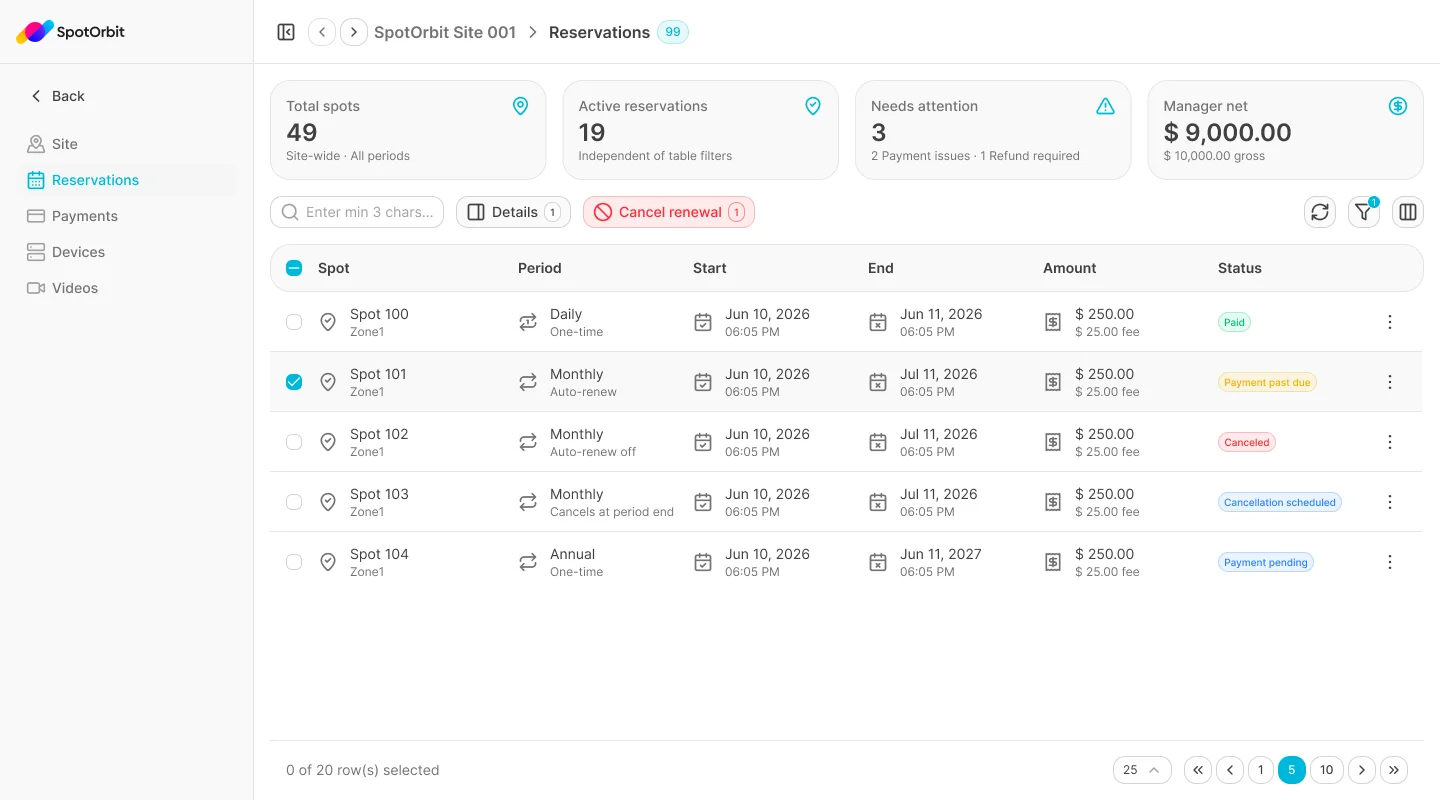
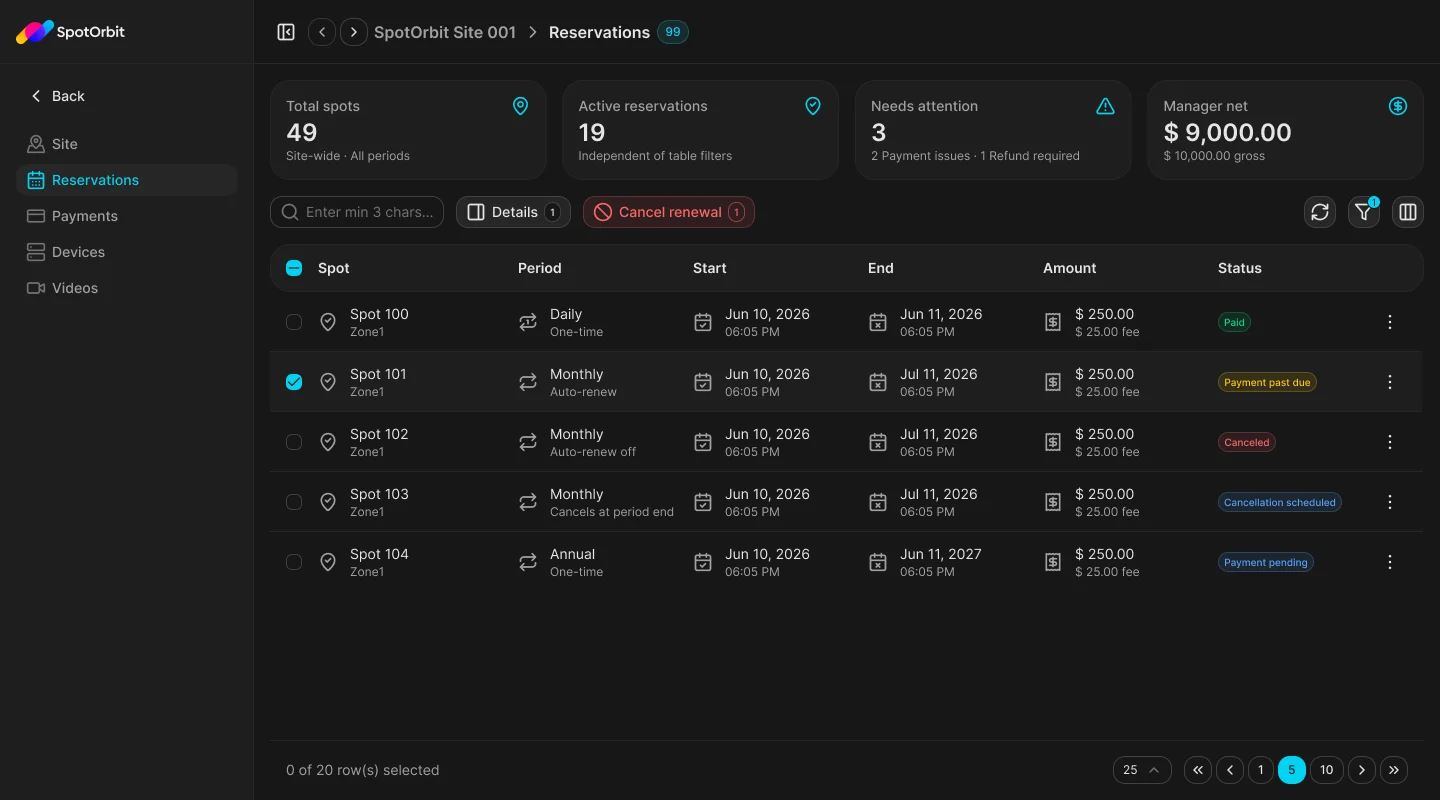
As an administrator, open Sites, choose a site, and select Reservations in its sidebar. Confirm the site in the breadcrumb. Four cards summarize total spots, active reservations, reservations needing attention, and manager net with gross beneath it. These are site summaries; filtering the table does not recalculate them from visible rows.
The table shows Spot and area, Period and billing mode, Start, End, Amount with platform fee, and reservation Status. Auto-renew identifies a subscription; One-time identifies a single payment. For subscriptions, End uses the current billing period's end. Dates and times follow your browser's time zone, including changes in daylight saving time. The summary cards describe the entire site across all periods, independently of table filters. Their labels include Site-wide · All periods and Independent of table filters; a filtered list need not match the card totals.
Needs attention counts reservations with payment past due, payment required, or a refund required after a payment conflict. It is not a count of every unsuccessful payment. In the shared Example Parking example, the site has 12 spots, two active reservations, one payment issue, and USD 61.20 net from USD 68.00 gross.
Search starts at three characters. Filters narrow period, dates, and status; their badge counts applied filter groups. Refresh reloads reservations and site metrics. The column control changes visibility and order. The footer shows selection count, page sizes of 10, 25, 50, or 100, and pagination. Select exactly one row to expose Details and eligible cancellation actions. Multiple selection does not enable bulk cancellation. Wait for loading to finish before using pagination. Empty results show No reservations found.
Find and filter reservations
Confirm the site
Open Reservations from the selected site's sidebar and verify its name in the header.
Search or choose filters
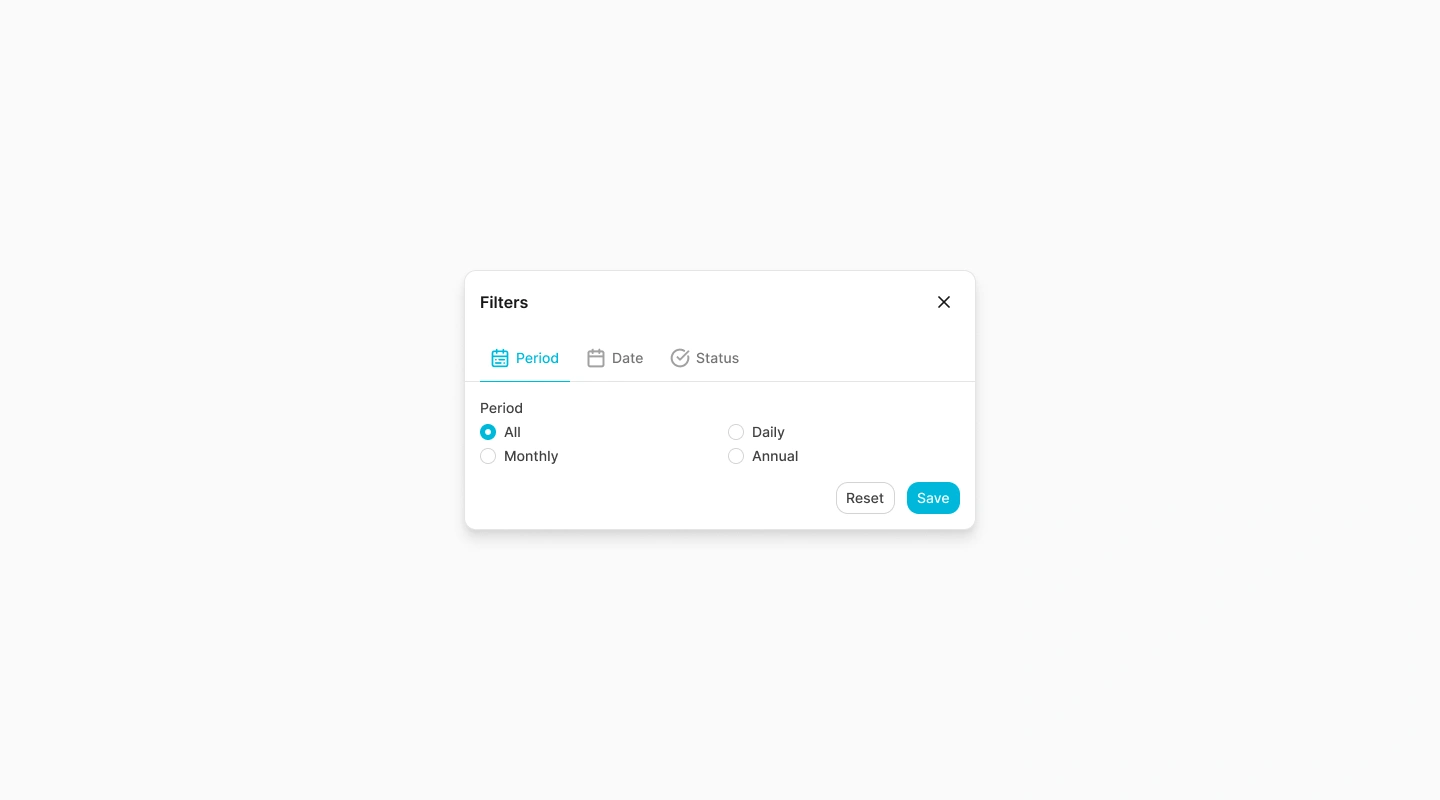
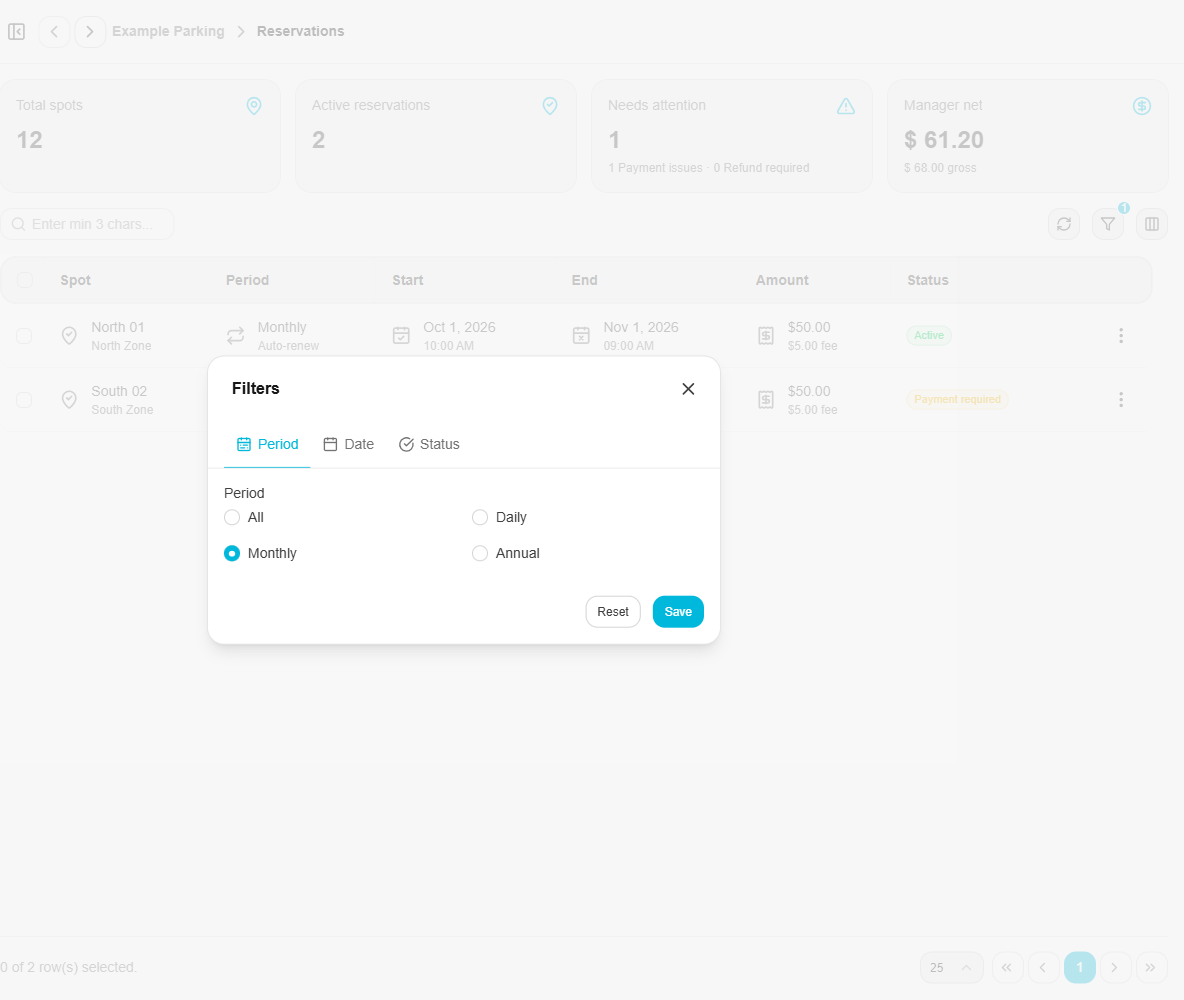
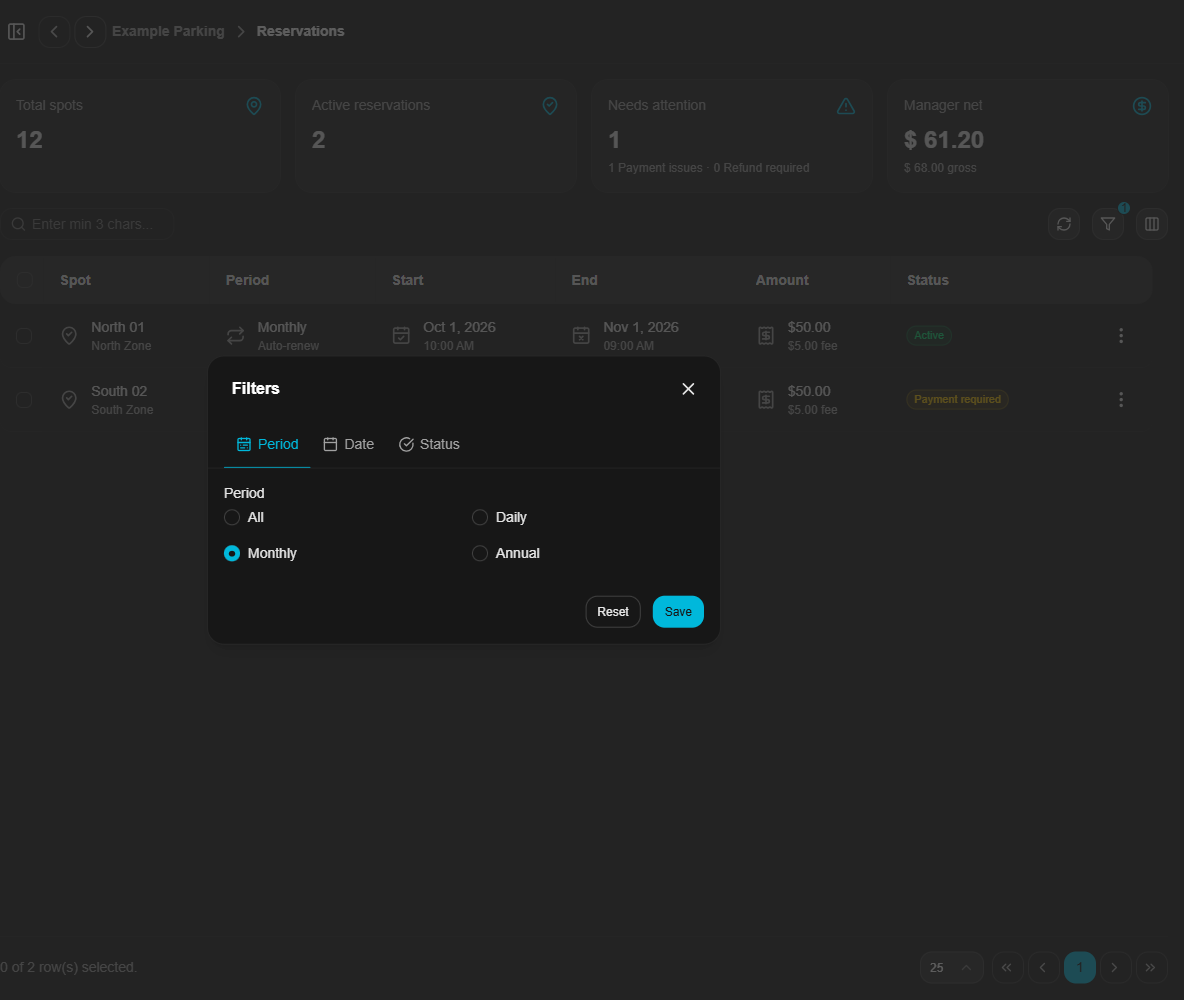
Enter at least three characters in search, or open Filters to combine Period, Date, and Status. Switching tabs preserves your choices until you apply or discard them. The filter badge counts applied groups, not matching reservations or individual dates.
Choose the billing period
In Period, choose Daily, Monthly, or Annual to narrow the reservation's pricing interval. All removes only the period restriction; date and status choices remain. The period does not select a calendar month or determine whether billing is one-time or auto-renewing.
Set the date range
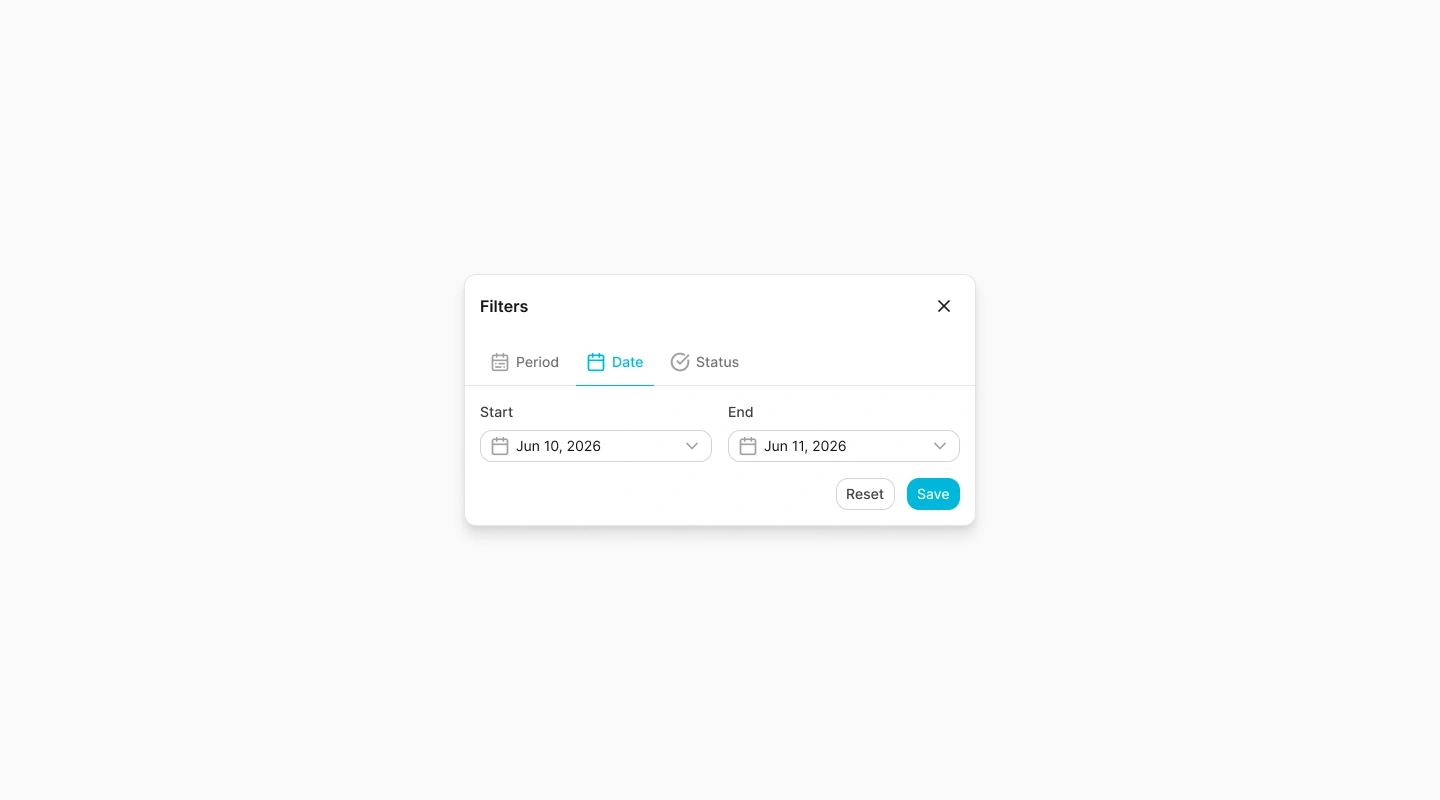
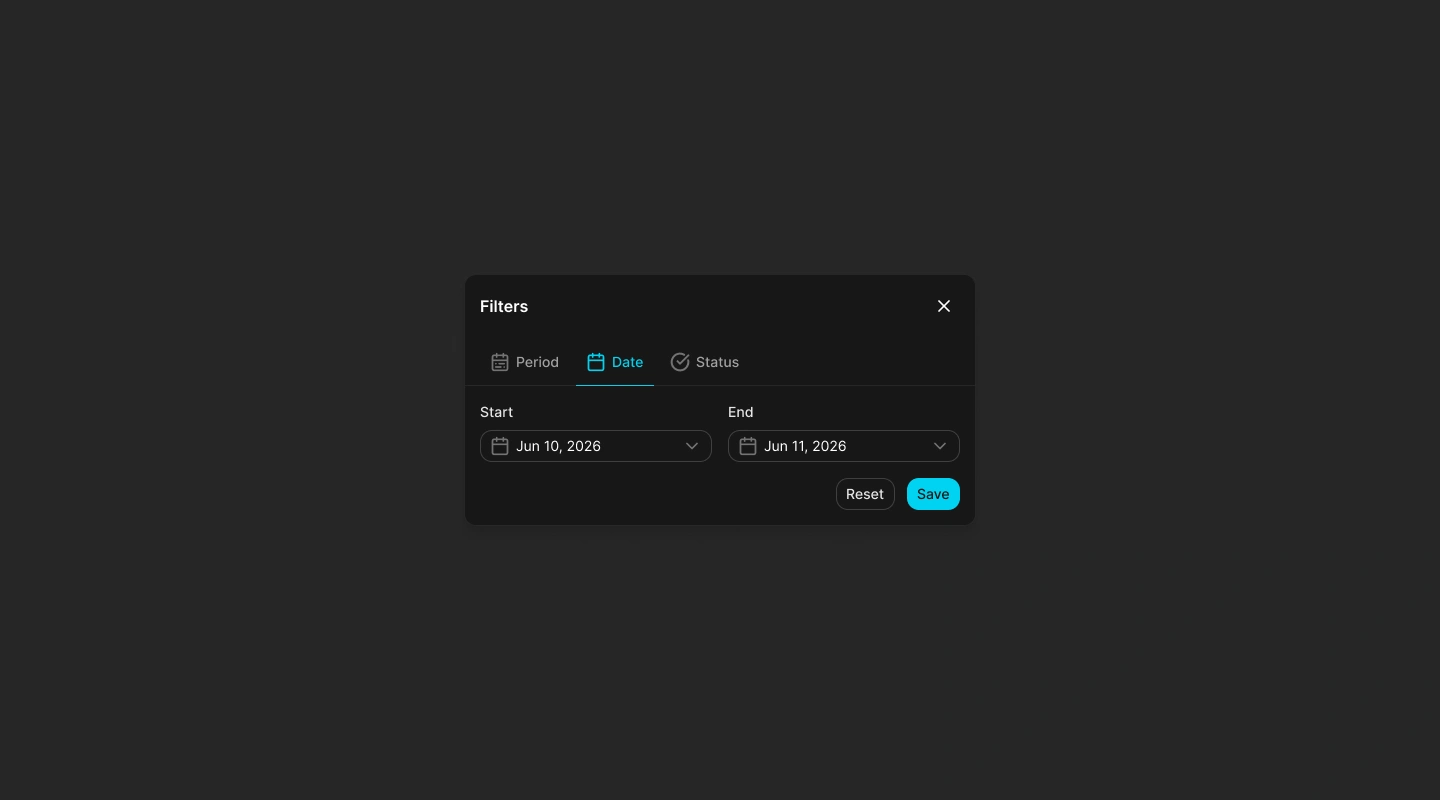
Select Date, then the Date field displaying Select date range or the chosen dates. It opens a calendar showing two months. Choose the range's start and end days in the calendar; the field cannot be typed into. The range uses your browser's local time zone, from the beginning of the start day through the end of the final day, including daylight saving time changes.
Choose the reservation status
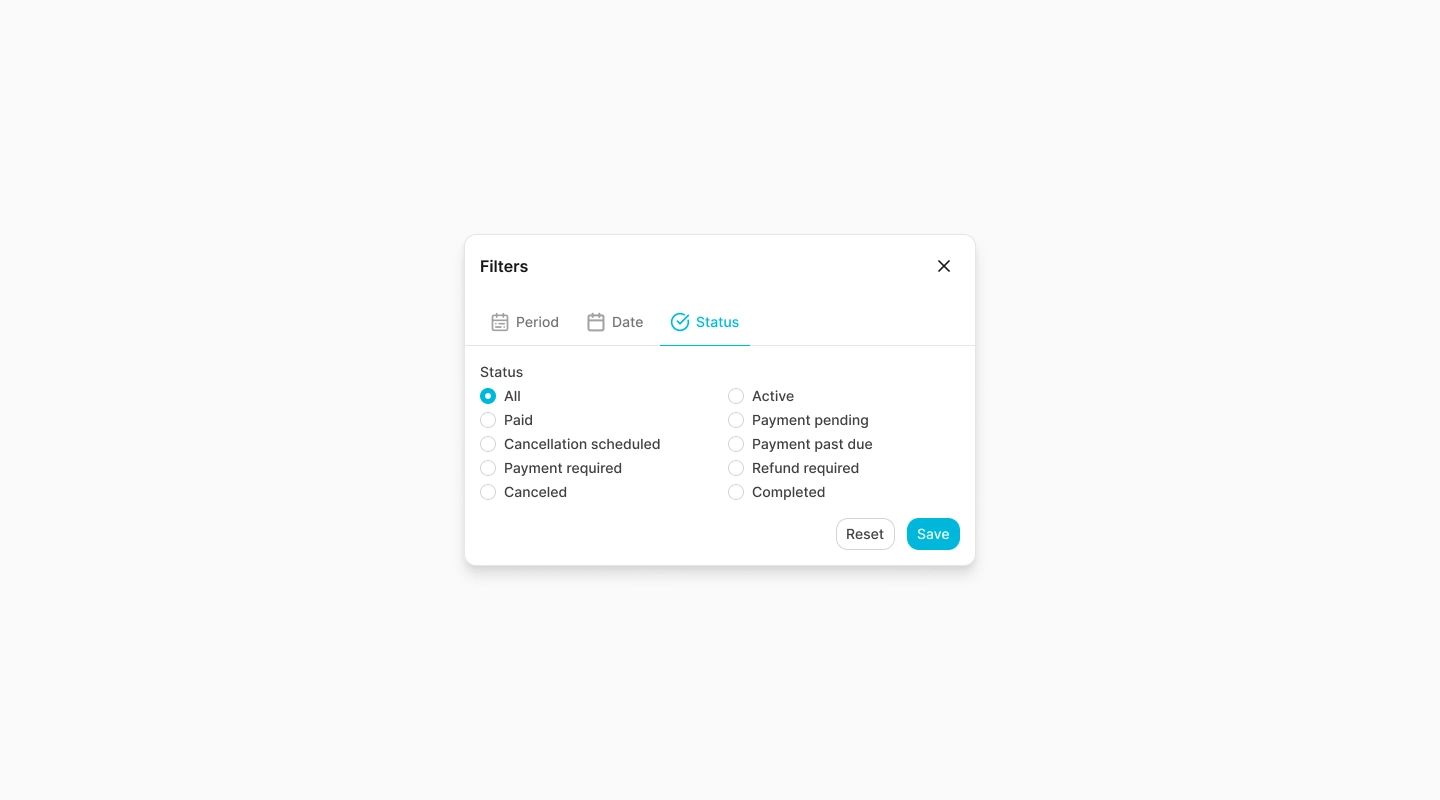
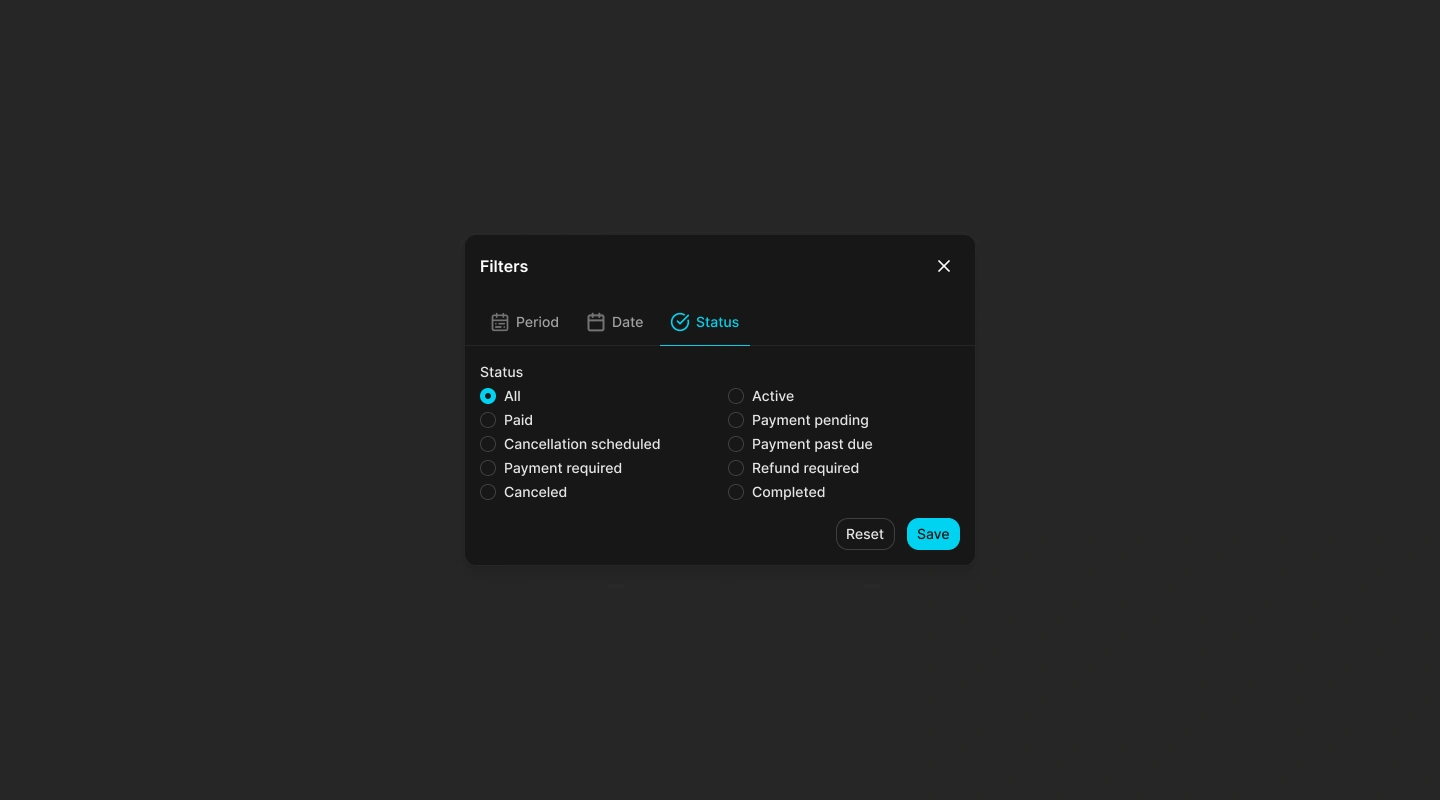
In Status, choose one state: Active, Paid, Payment pending, Cancellation scheduled, Payment past due, Payment required, Refund required, Canceled, or Completed. All removes only the status restriction. These are reservation states; check Payments separately for charge or refund status. Choosing a filter does not change the booking.
Apply the selection
Select Save to apply the choices from all three tabs, close Filters, and return to the first page. Reopening Filters shows the applied choices; the site cards retain their totals. To discard unsaved choices, use the close control; reopening restores the applied values.
Clear filters or refresh
Choose Reset in Filters to clear period, dates, and status, close the dialog, and return to the first page. Clear search text separately to remove the search. Use refresh to reload the current list and site metrics.
Inspect a reservation
Open the details
Open the row's action menu and choose Details. Alternatively, select exactly one row and choose Details from the table toolbar.
Check the booking and amount
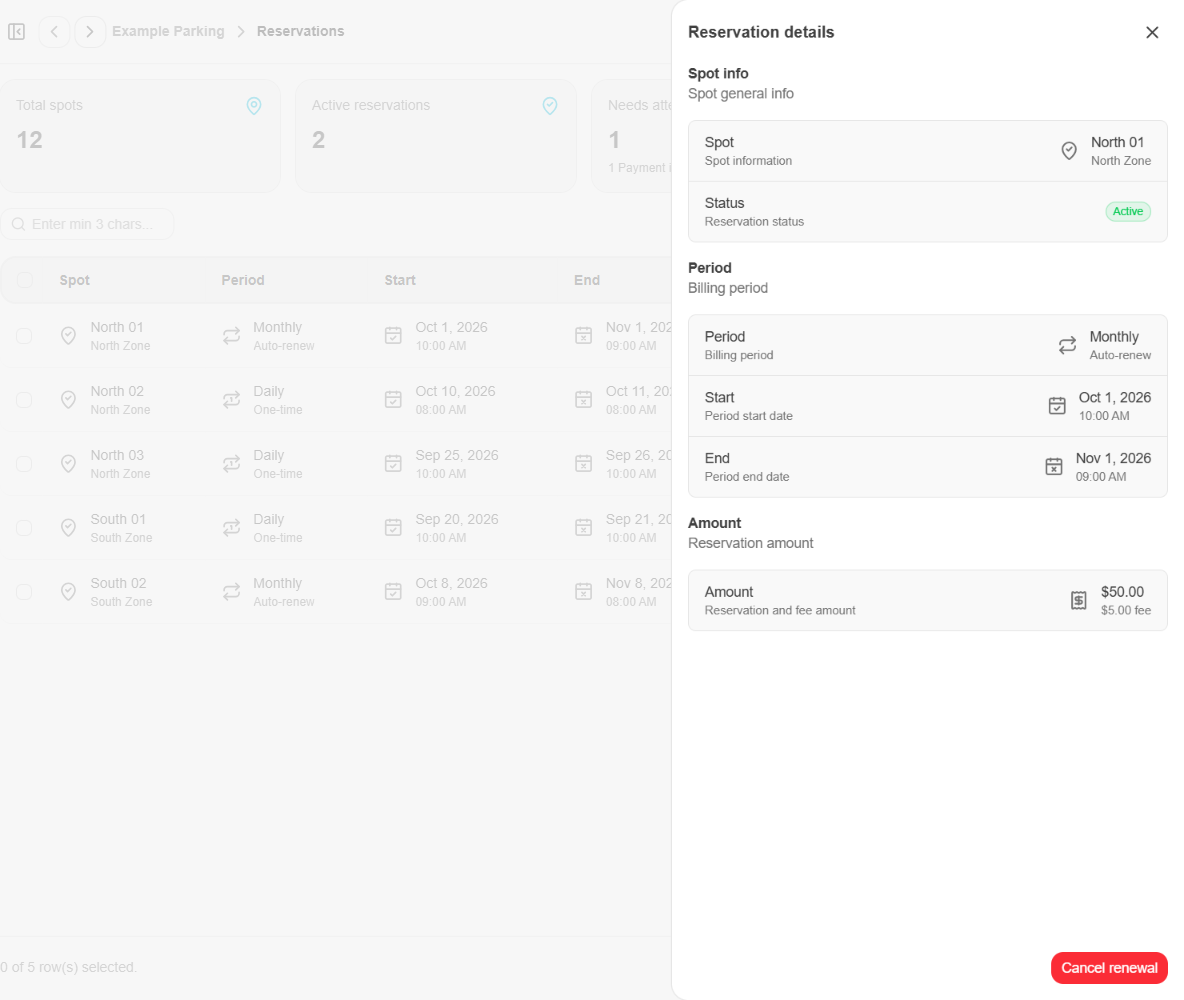
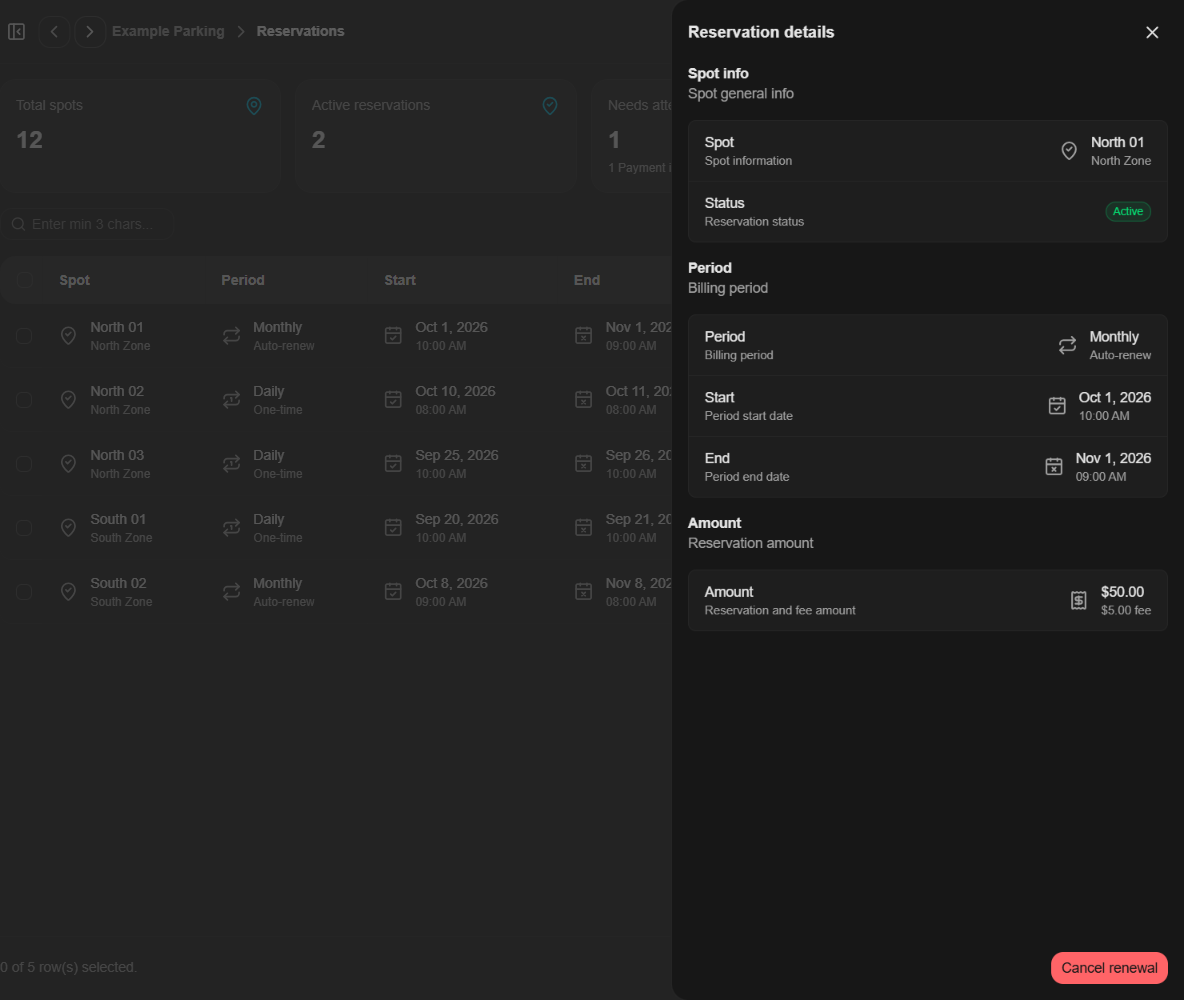
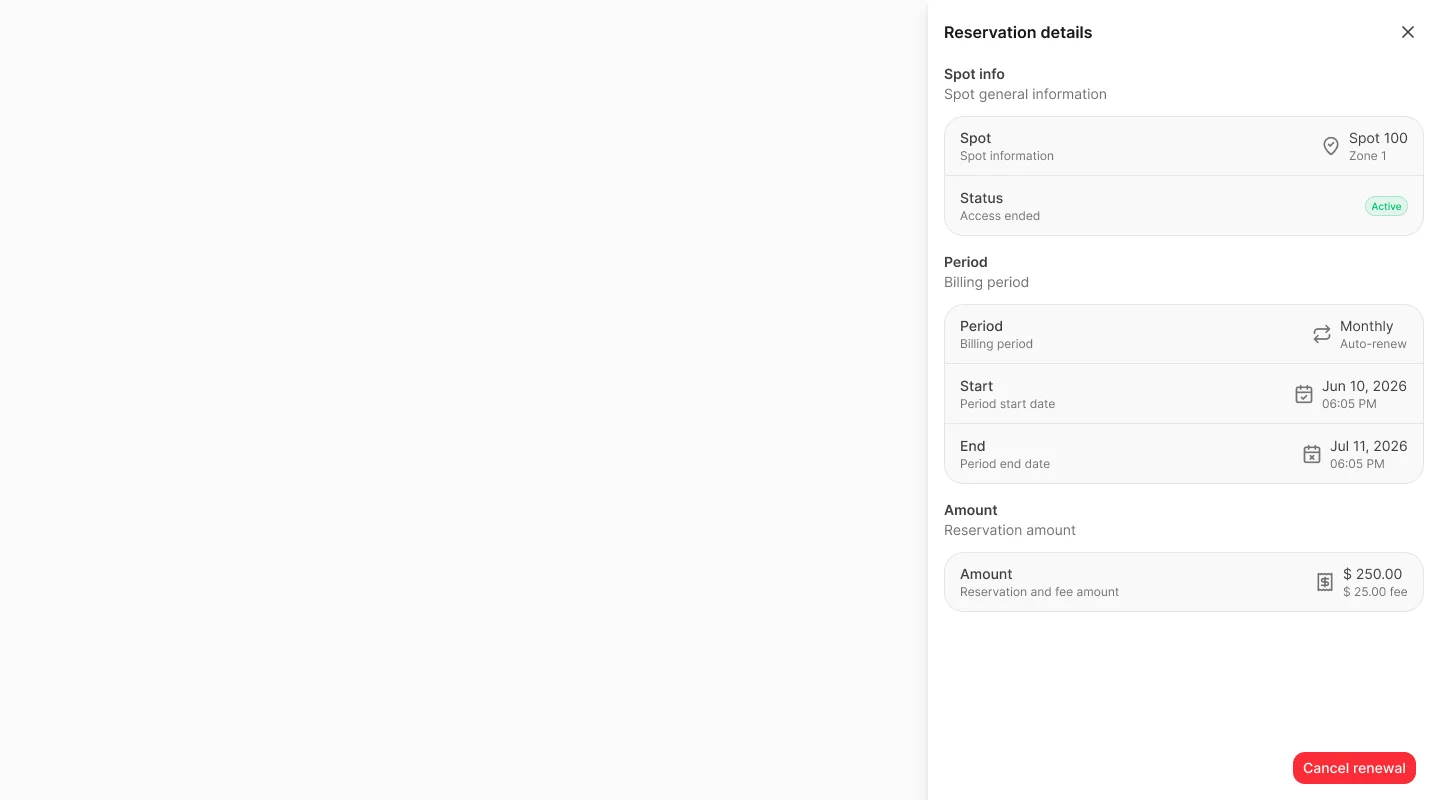
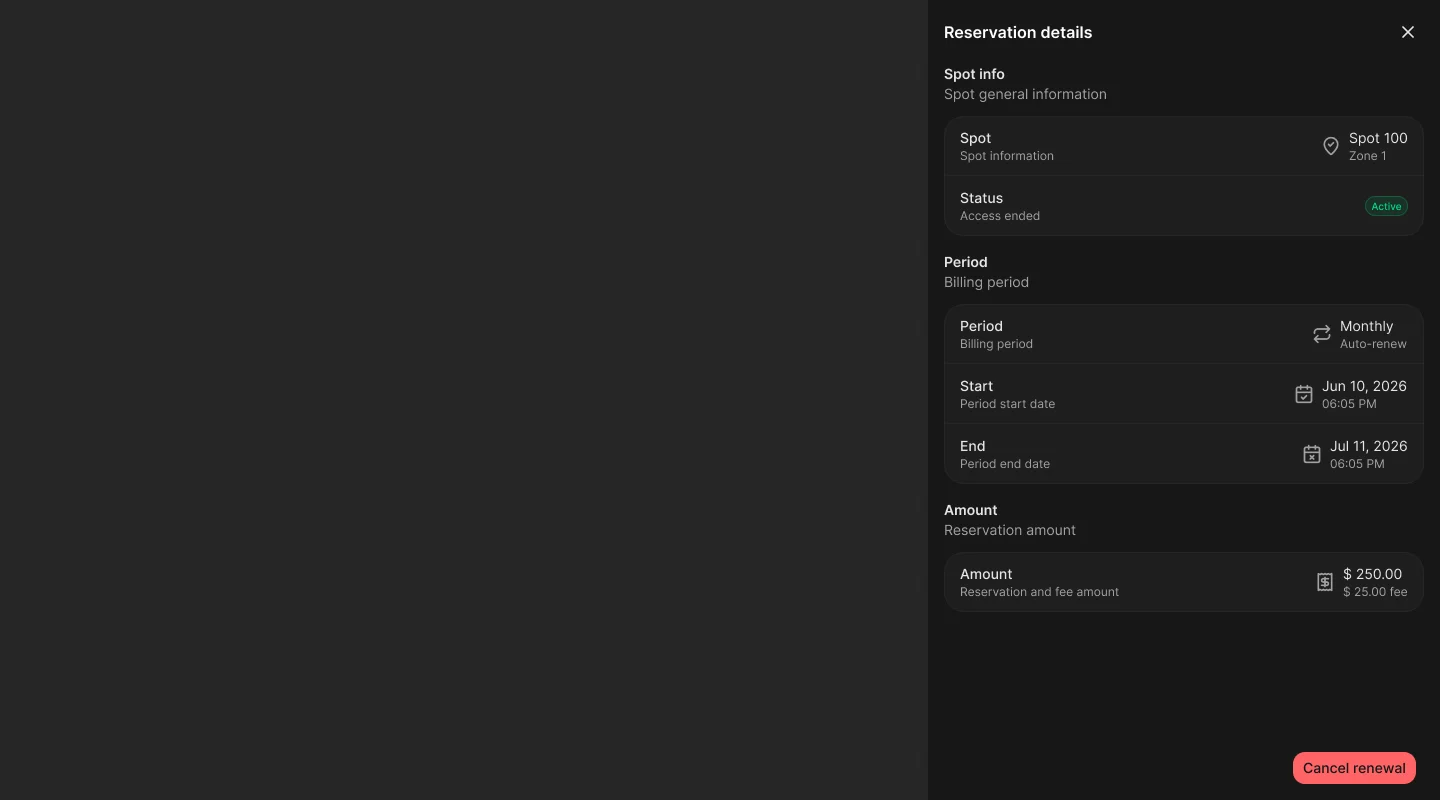
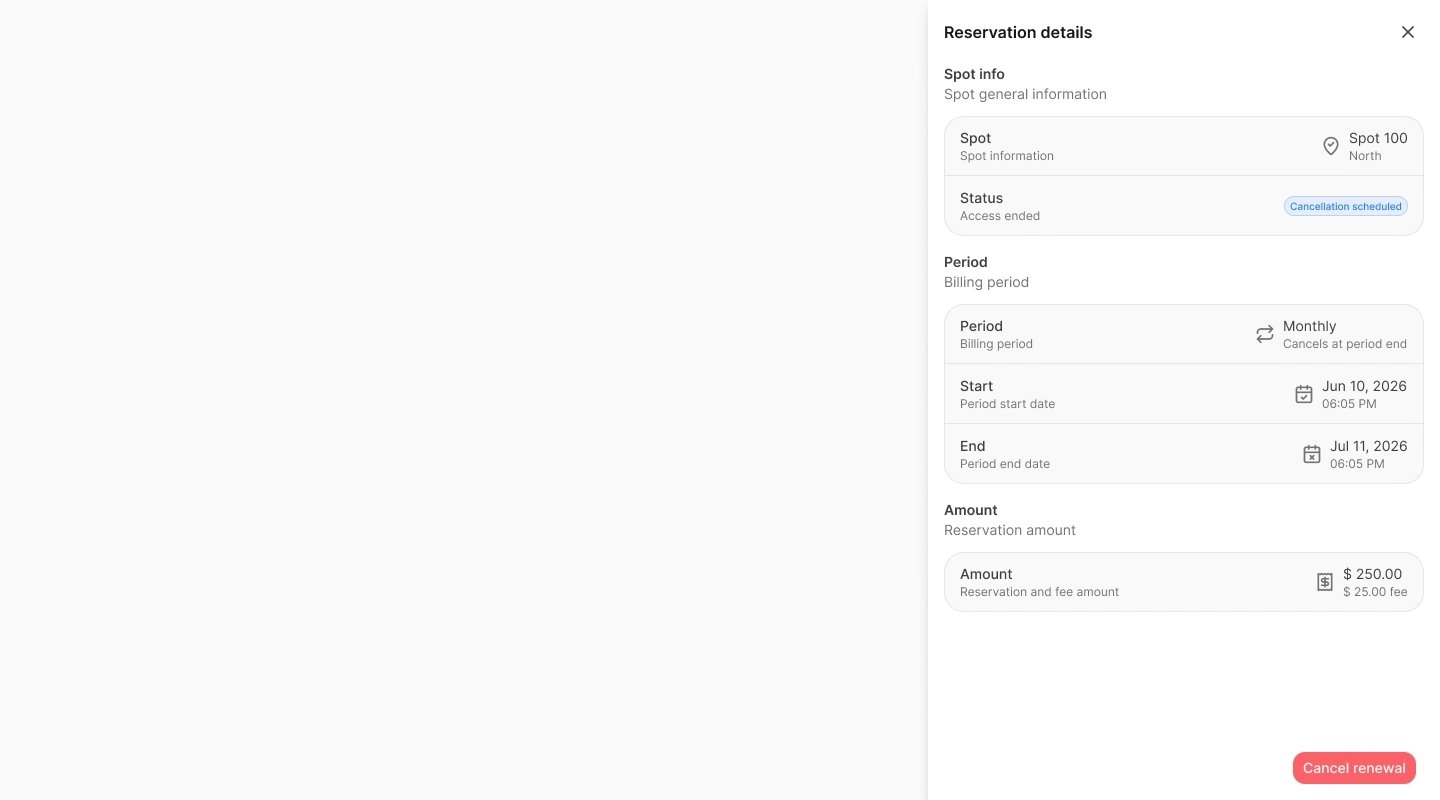
The drawer shows spot and area, reservation status, period and billing mode, dates, amount, and platform fee. Use the dates of your selected booking rather than assuming its status confirms a current access window.
Recognize an ended booking
Access ended can appear alongside Active when the displayed date window has ended. It does not change the reservation's status or establish whether its payment was refunded. Canceled and completed reservations also show an ended window and cannot be canceled again.
The access-window message appears beneath the status badge. Review it separately from the reservation status.
Close the drawer
Use the close control in Reservation details to return to the list.
Cancel a reservation or renewal
Only eligible operational reservations allow cancellation. Canceled, completed, or already scheduled cancellations cannot be canceled again here. The row menu may omit the action while Details shows a disabled button. For eligible bookings:
- Cancel reservation: cancels an unpaid checkout immediately, or cancels a one-time reservation, disables its active PIN, and requests a Stripe refund.
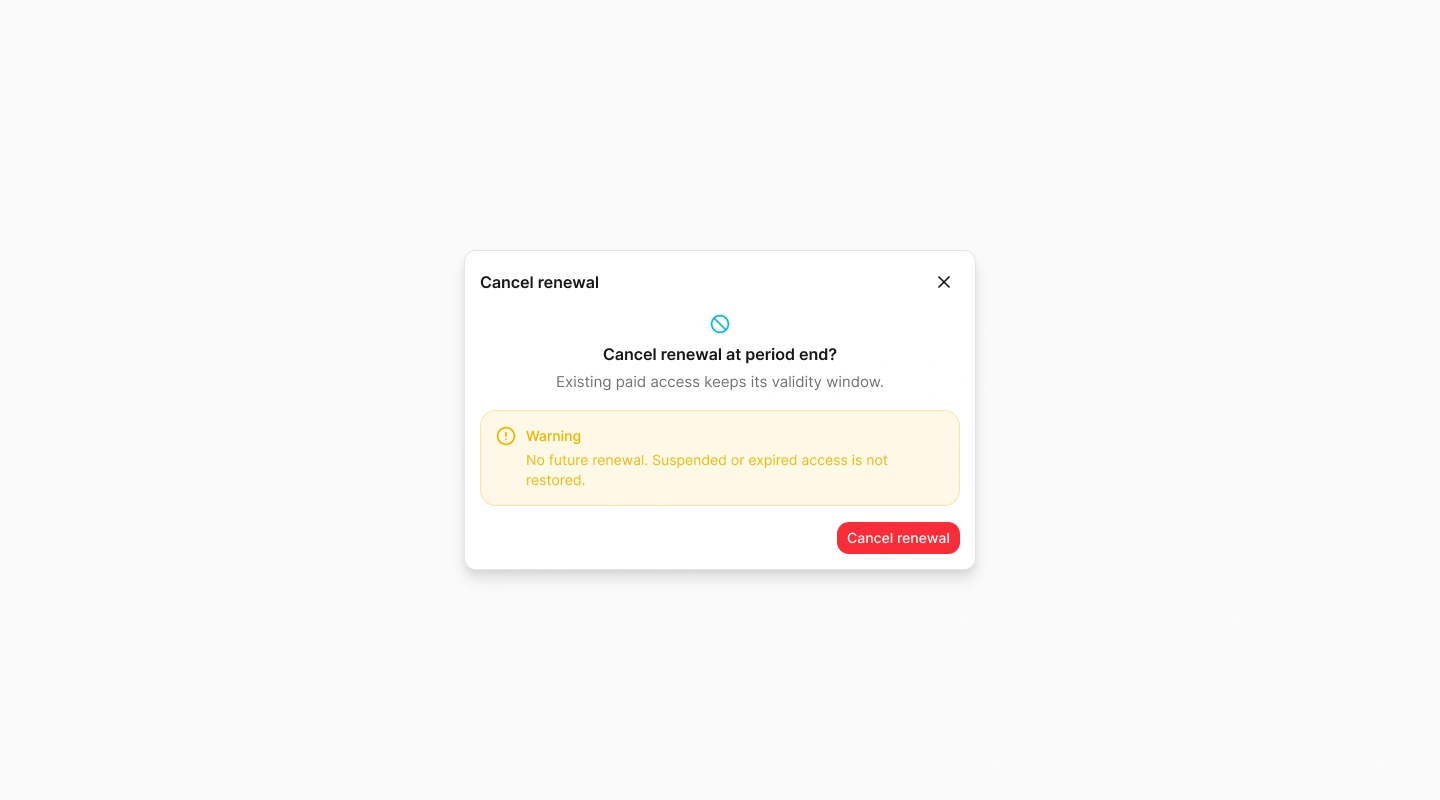
- Cancel renewal: schedules a subscription to stop at the end of the current billing period. Existing paid access keeps its validity window; this does not restore suspended or expired access.
Open the cancellation
Verify the site, spot, period, and reservation in the list or details drawer before choosing its cancellation action. With row selection, select exactly one eligible reservation first. The confirmation does not repeat the booking's identifying information.
Review the impact
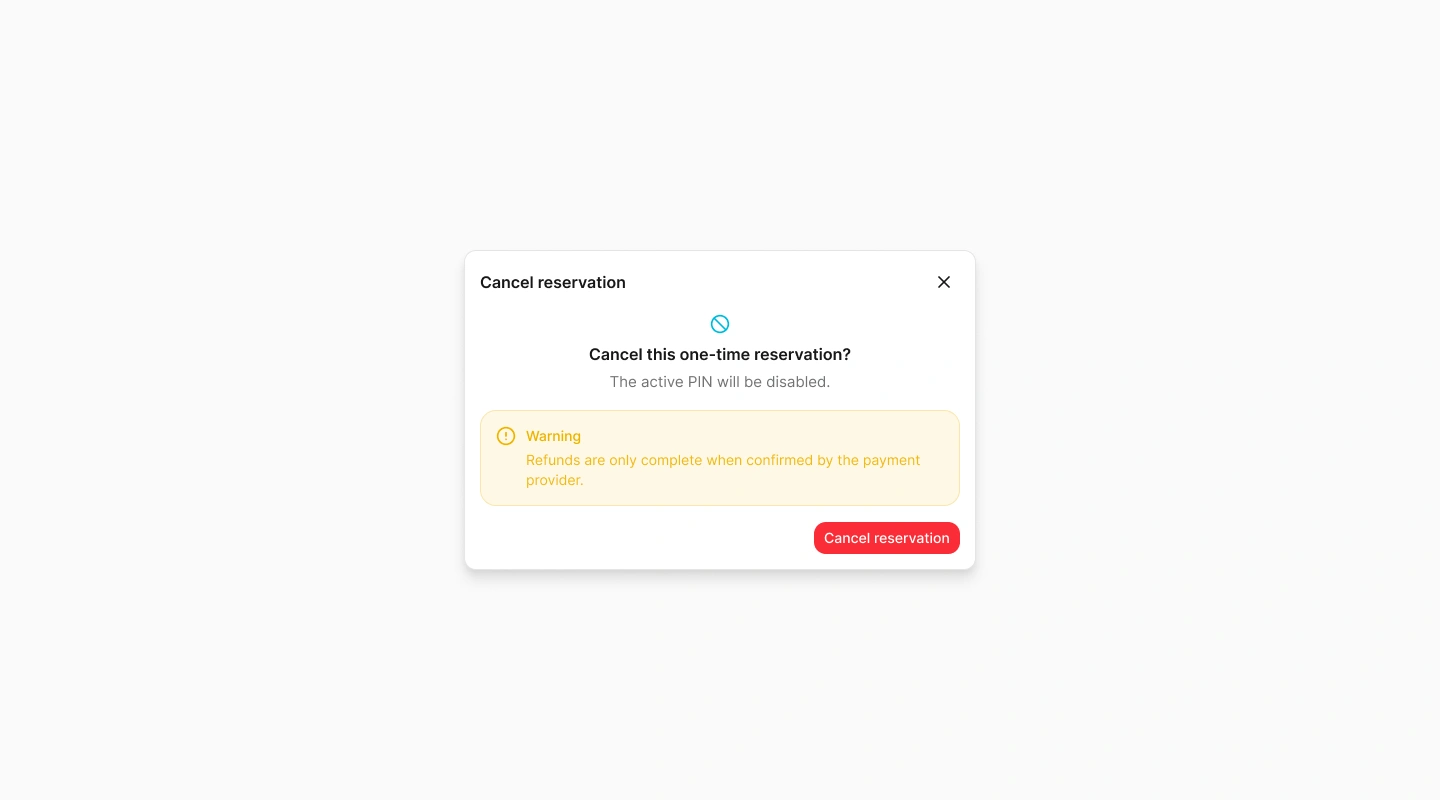
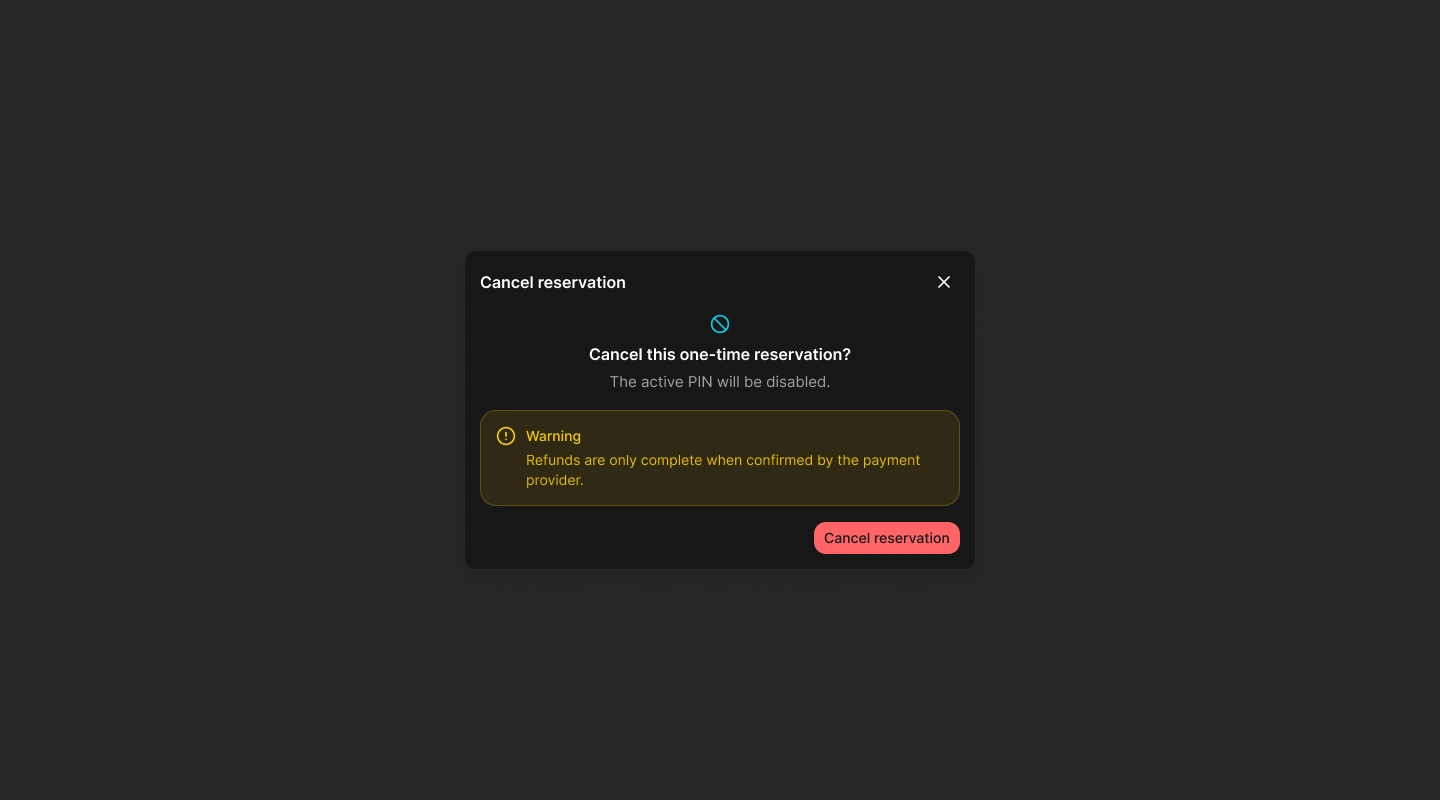
The Cancel confirmation explains the effect on the checkout, PIN/refund, or subscription renewal. Read its description and warning. Use the close control to leave the reservation unchanged.
For a one-time reservation, the warning covers disabling its active PIN and waiting for provider confirmation of the refund. For an unpaid checkout, the description instead explains immediate cancellation and that no paid access is granted.
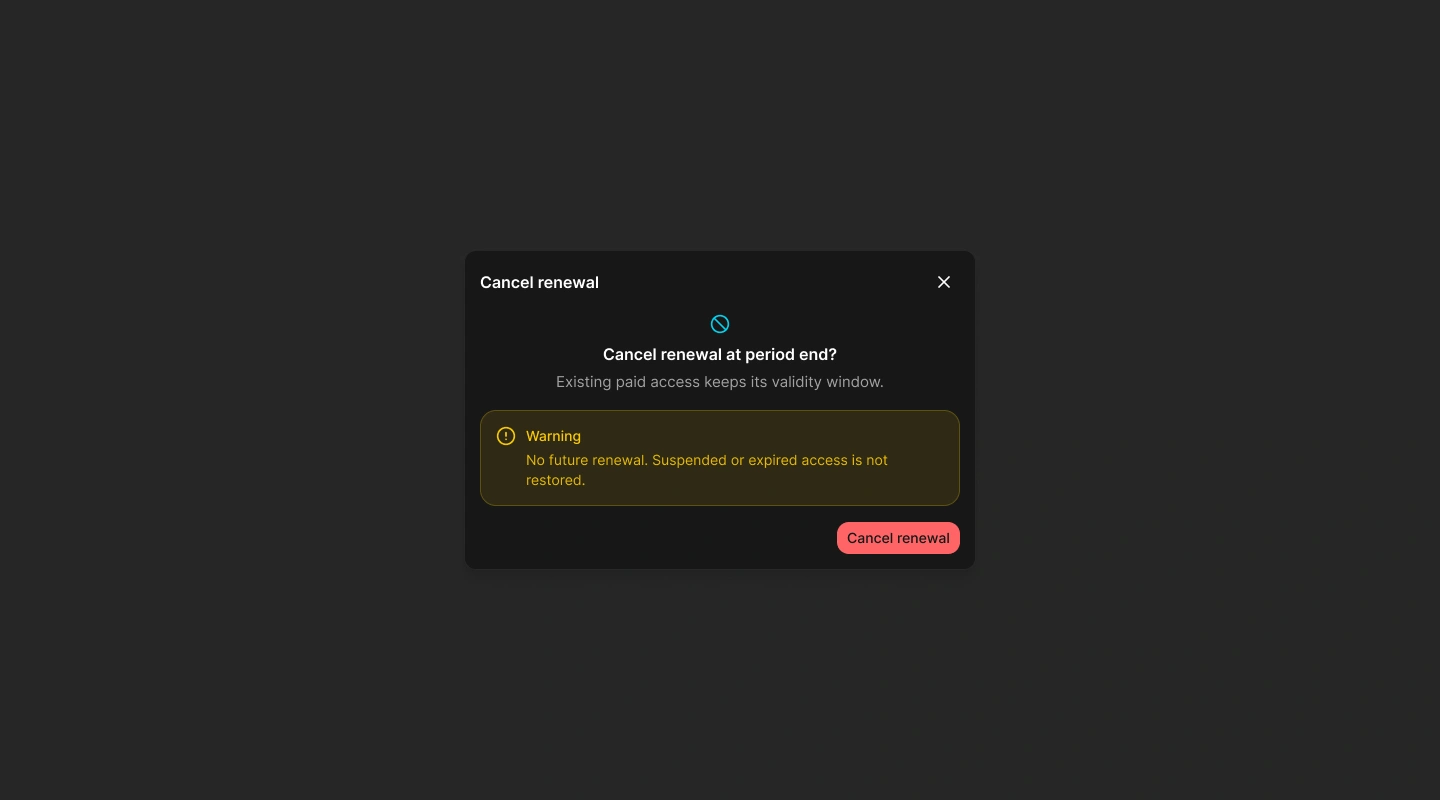
For a subscription renewal, the warning explains that existing paid access keeps its validity window and that renewal stops after the current billing period. Suspended or expired access is not restored.
Confirm when appropriate
Select Cancel in the confirmation only when you intend to perform the described action. The button shows progress while the request is pending. Failure reports Could not cancel reservation and leaves the confirmation open. Success closes the confirmation and details drawer, refreshes the list and site metrics, and reports the cancellation or refund outcome.
Check the outcome
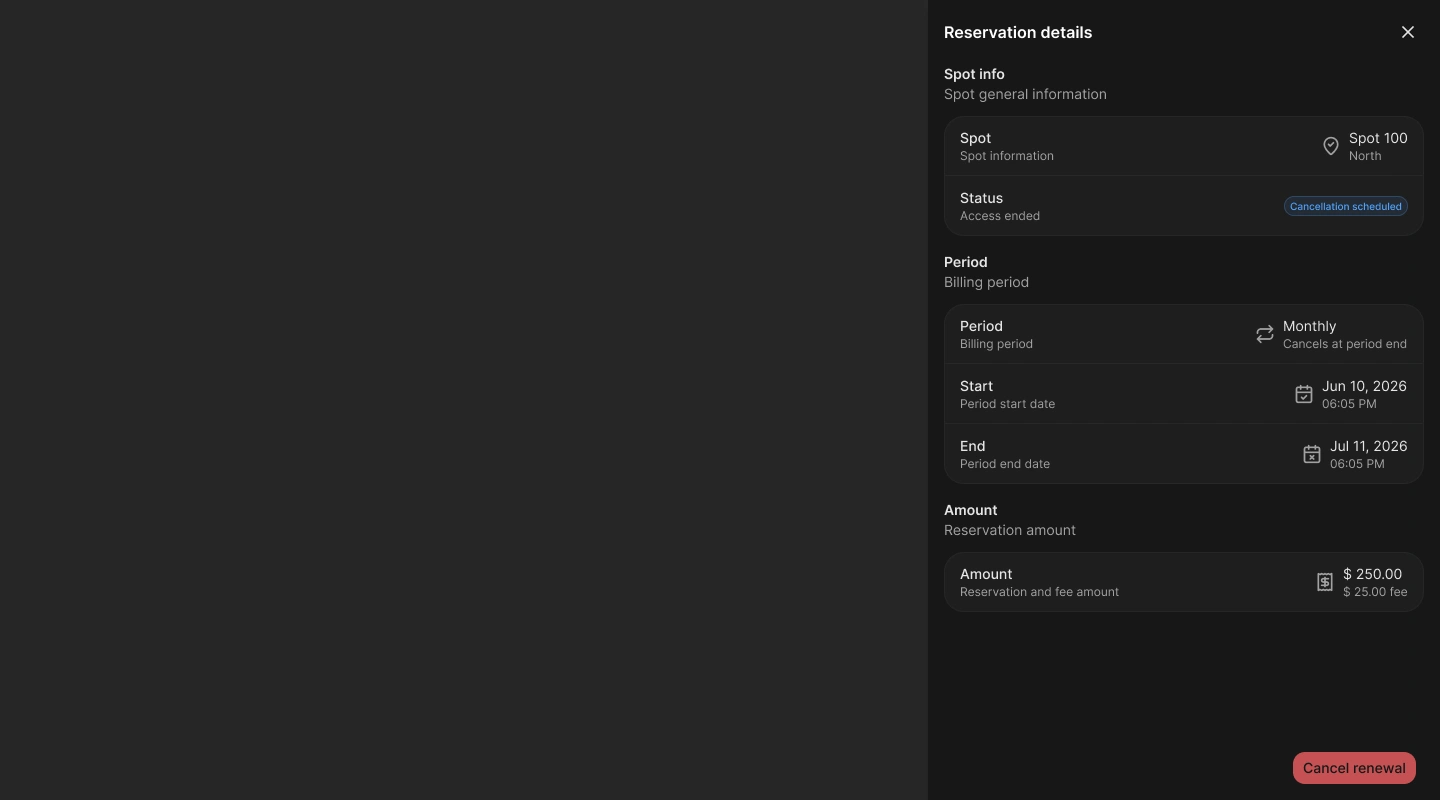
Cancellation scheduled reports that renewal will stop at period end. A subscription with scheduled cancellation shows Cancels at period end and cannot be canceled again here. Its reservation status can also show Cancellation scheduled; the date-window message remains separate. Scheduling cancellation preserves the existing paid access window.
A canceled one-time reservation can report Reservation canceled; refund pending, Reservation canceled; refund failed, or Reservation canceled; refunded. Pending and failed refunds require checking the related payment; cancellation alone does not confirm a completed refund.
Frequently asked questions (FAQ)
They summarize the site. Filters narrow the table without recalculating the cards from those rows.
No. Check reservation status, date window, payment status, and access separately. Review Payments for the charge or refund; an unexpired window alone does not establish enabled access.
Canceled, completed, or already scheduled cancellations are ineligible. A canceled booking may still show a disabled button in Details.
No. It stops the next renewal while existing paid access keeps its validity window. It does not restore suspended or expired access.
No. Cancellation is available for exactly one eligible selected reservation, or from its row menu or details drawer.
Related content
- Payments — Verify payment and refund status.
- Zones and spots — Review the inventory referenced by a reservation.
- Site info — Return to the selected site's information.