Account info
Use Account info when you need more than the account list provides or when you need to change an account's role or access state.
Overview
From Customers, Details opens the quick drawer and More opens Account info. Back returns to Customers; previous/next remain within that customer scope. Managers now offers only its drawer and no More. Older full account, activity, or reservation links scoped to Manager or Teams redirect to the corresponding directory. Customer and general account links remain available.
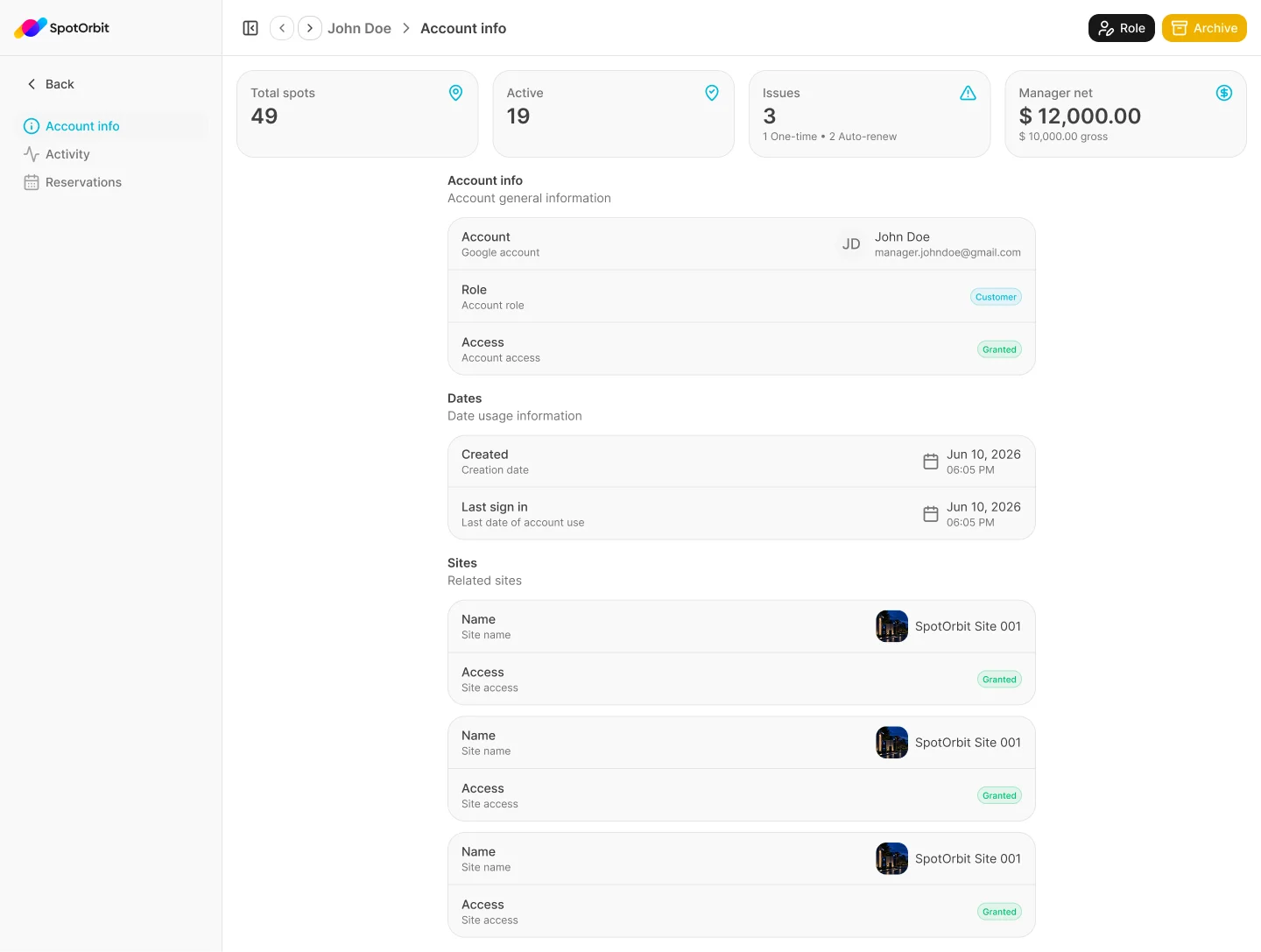
For a customer opened from Customers, the detail sidebar includes Account info, Activity, and Reservations. Customer metric cards show — when customer-specific totals are unavailable; these are not zero values or platform account counts.
Open account information
Find the account
Open Customers, then search or filter for the intended customer. Managers uses Details for its quick account drawer.
Choose a level of detail
Open the row's action menu and select Details for the quick drawer or More for the full page. You can also select one row and use the matching action button above the table.
Confirm the selected account
Check the displayed name and email or user identifier before making a role or lifecycle change.
Use the quick details drawer
Account details keeps the list visible and shows identity, role badges, Granted/Denied access, and available creation and last sign-in dates. For Customers, related sites cover the customer’s history across all sites, including archived sites, without requiring a team membership. Each card identifies the site, its Active/Archive status, and effective Granted/Denied access. The access tooltip separates site, global, and effective permission; a global denial overrides a local grant.
The customer drawer offers More, Role, and Denied/Granted. The Managers drawer has role and global access actions, with actual Owner/Manager badges and no More. Related sites can load separately; Retry sites recovers a partial failure. Missing dates and sites remain unavailable.
Manager-mode Customers has its own site-scoped drawer and actions; see Manager workspace.
Read the full Account info page
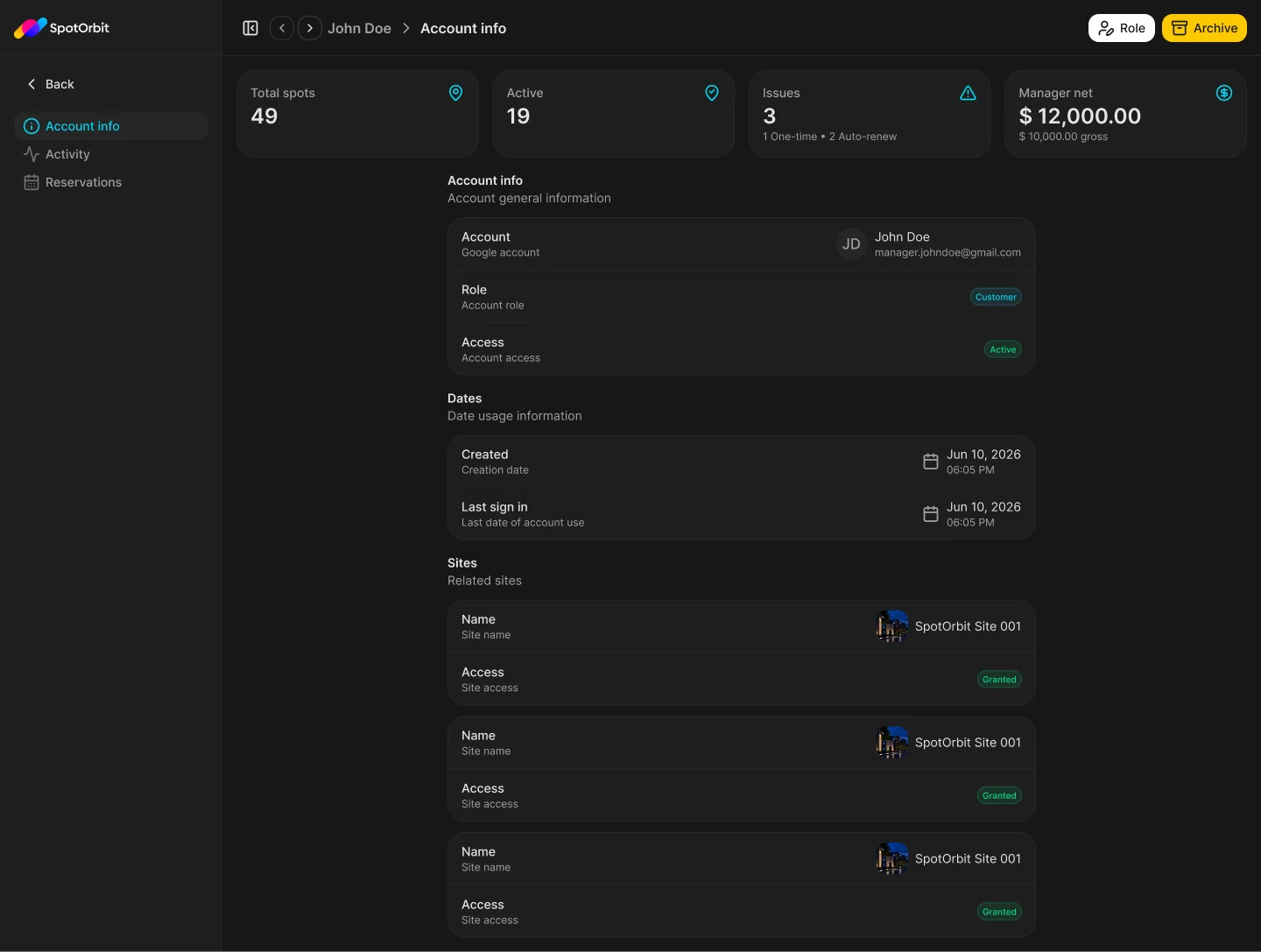
- Account: display name and email or identifier.
- Role: all assigned account roles, such as Admin, Manager, and Customer together.
- Access: Granted/Denied for a customer opened from Customers. A general account page can instead show its lifecycle Status.
- Created and Last sign in: recorded account dates, or a dash if unavailable.
- Sites: managed memberships for a Manager; related customer sites with lifecycle and effective access for a Customer. The selected sidebar site does not limit an administrator’s customer history.
The heading keeps the selected account and section visible. Previous and next move within the originating role list. Switching Account info, Activity, and the available Reservations section preserves the selected account.
Change account roles
Use Role to edit simultaneous Admin and Manager assignments. Customer is required and remains selected. Customer pages use the compact Role dialog with Add site → Search, multiple Manager sites, Reset, and Save. Follow the full rules in Managers and Customers.
A general account link uses Edit account roles, Select site → Site list, Cancel, and Save roles. Site list supports multiple active sites and filters names as you type, including short text. Apply returns the selection to the role draft; Cancel abandons the picker changes. This general view is not a More action in Managers.
Load and choose the assignments
Wait for current account roles to load; use Retry after a loading error. Check or clear Admin and Manager independently. You cannot clear your own Admin role or the required Customer role.
Review Manager sites and preserved memberships
Use the picker to add active sites and the site cards to remove existing Manager assignments. Manager needs at least one selected site unless an Owner or Admin membership already exists. Owner/Admin memberships remain preserved. Saving roles does not restore denied access.
Save the complete selection
Select Save or Save roles as displayed and wait for Account roles updated. Saving remains disabled without changes, during loading or submission, after a role-loading error, or with invalid required assignments. A save error leaves the draft available for review.
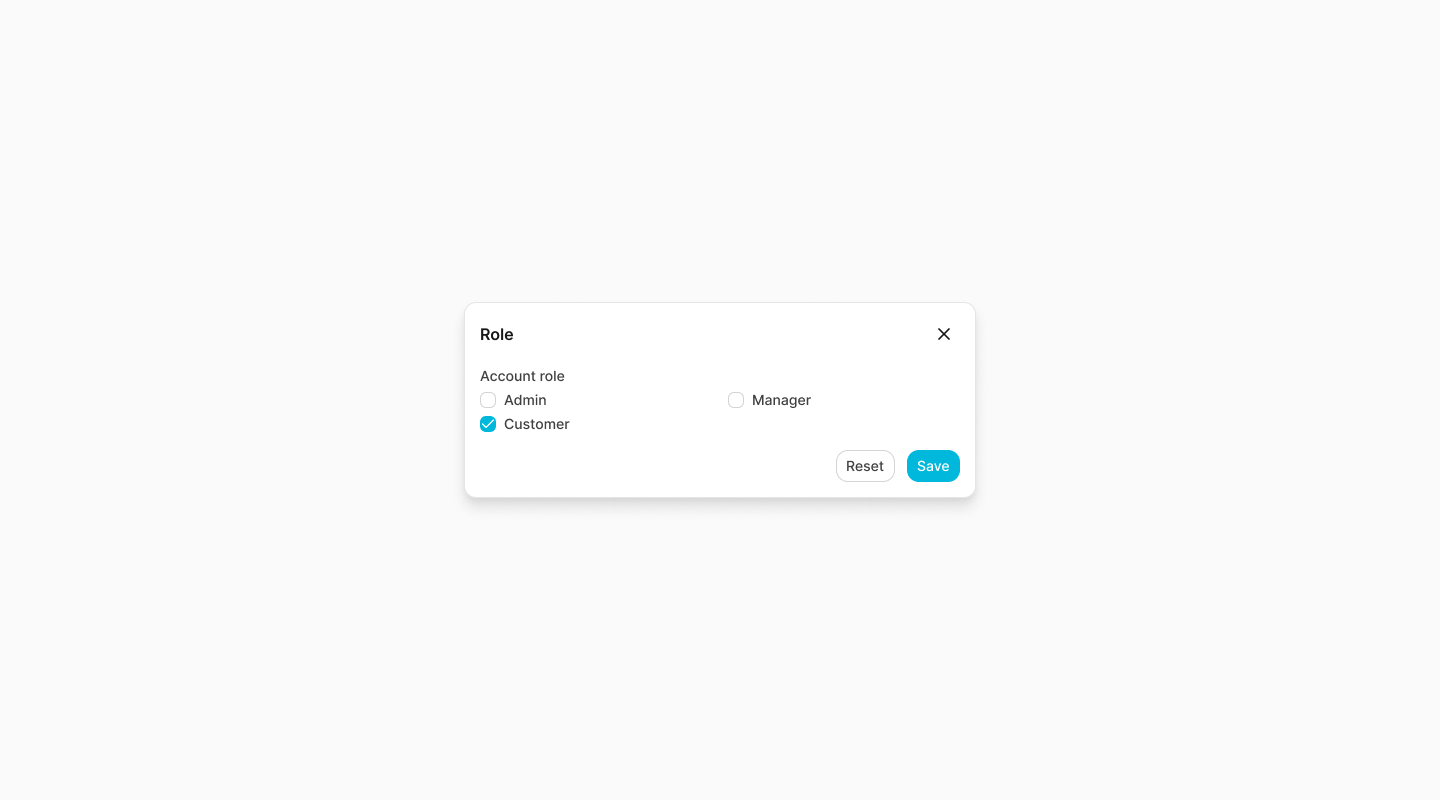
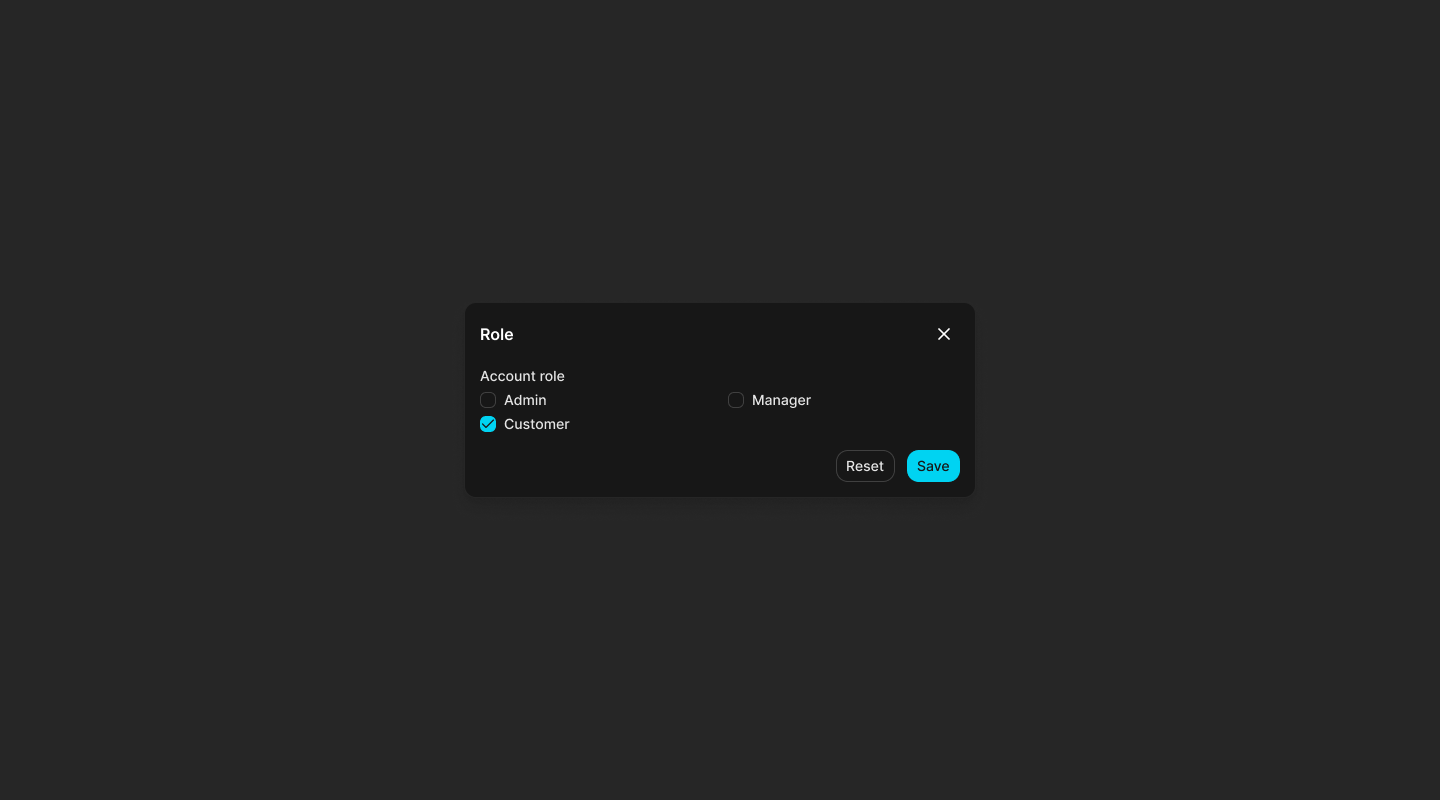
Manager-site controls appear when Manager is selected.
Change account access
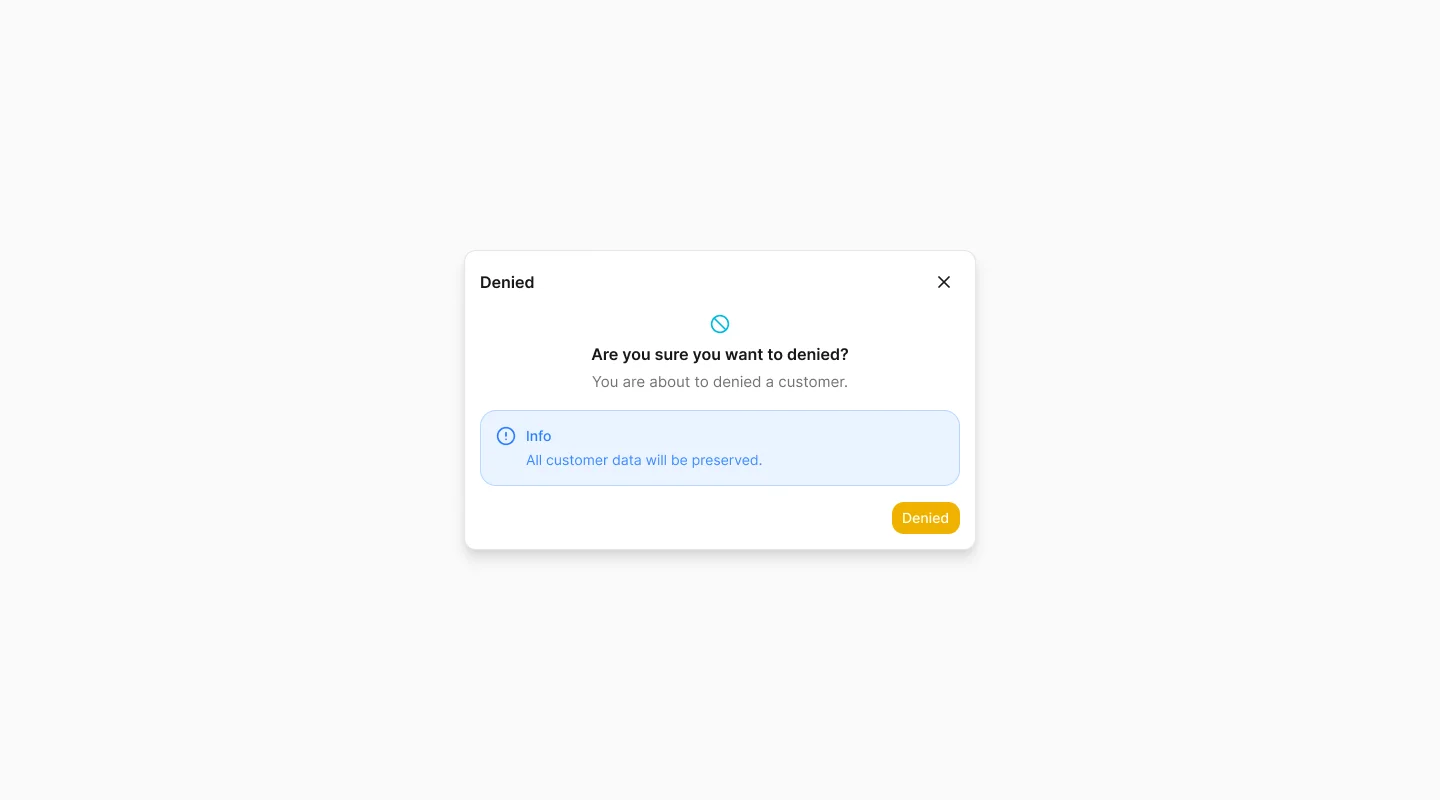
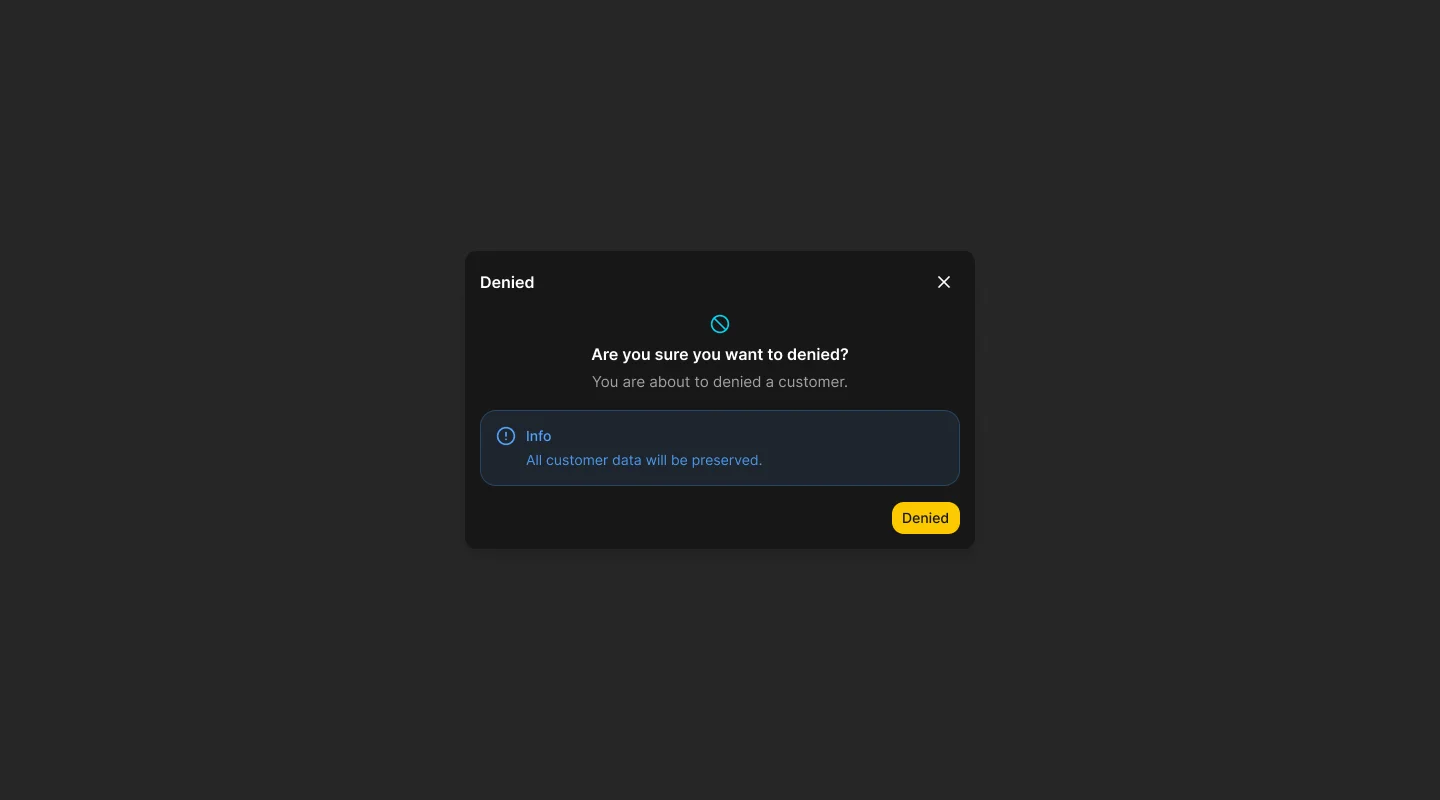
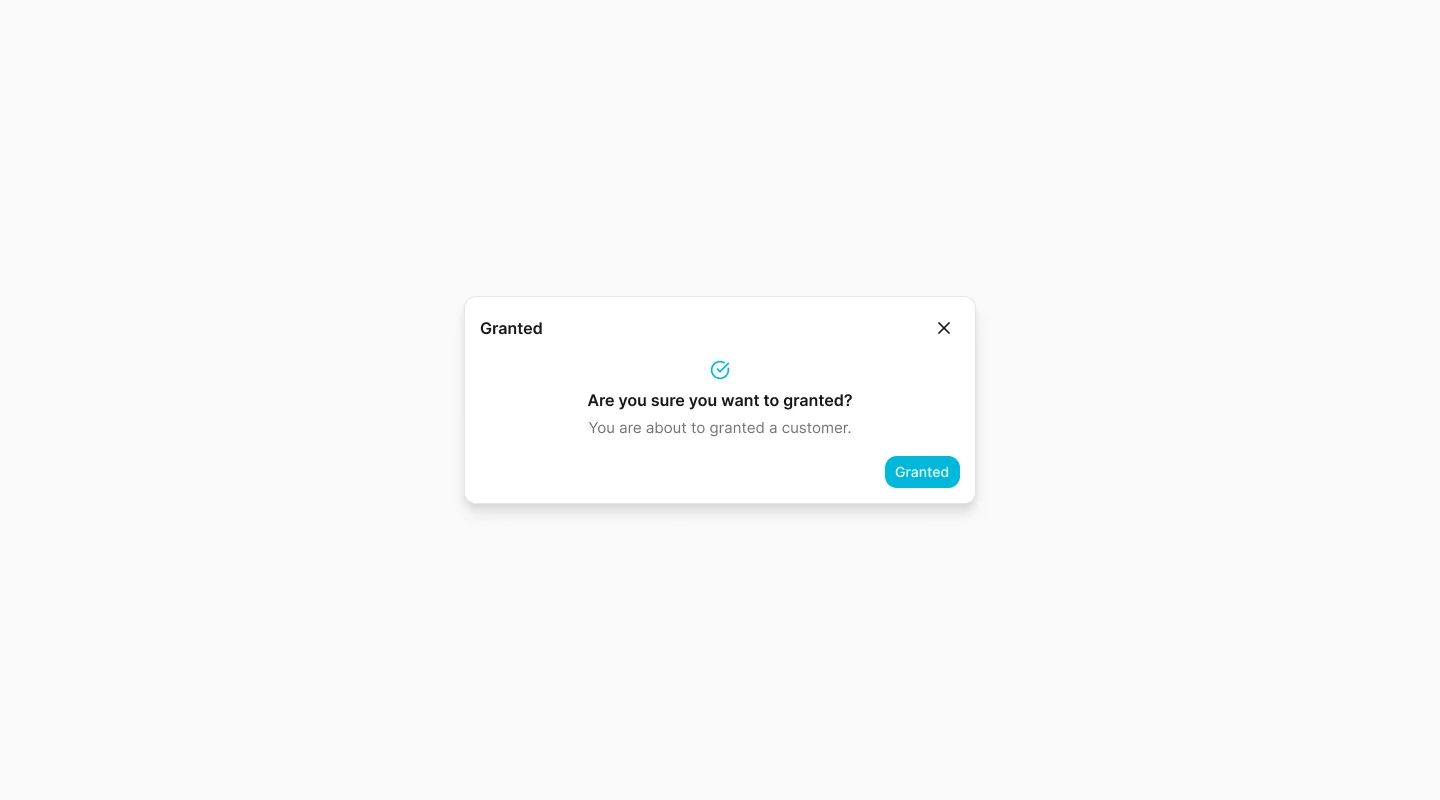
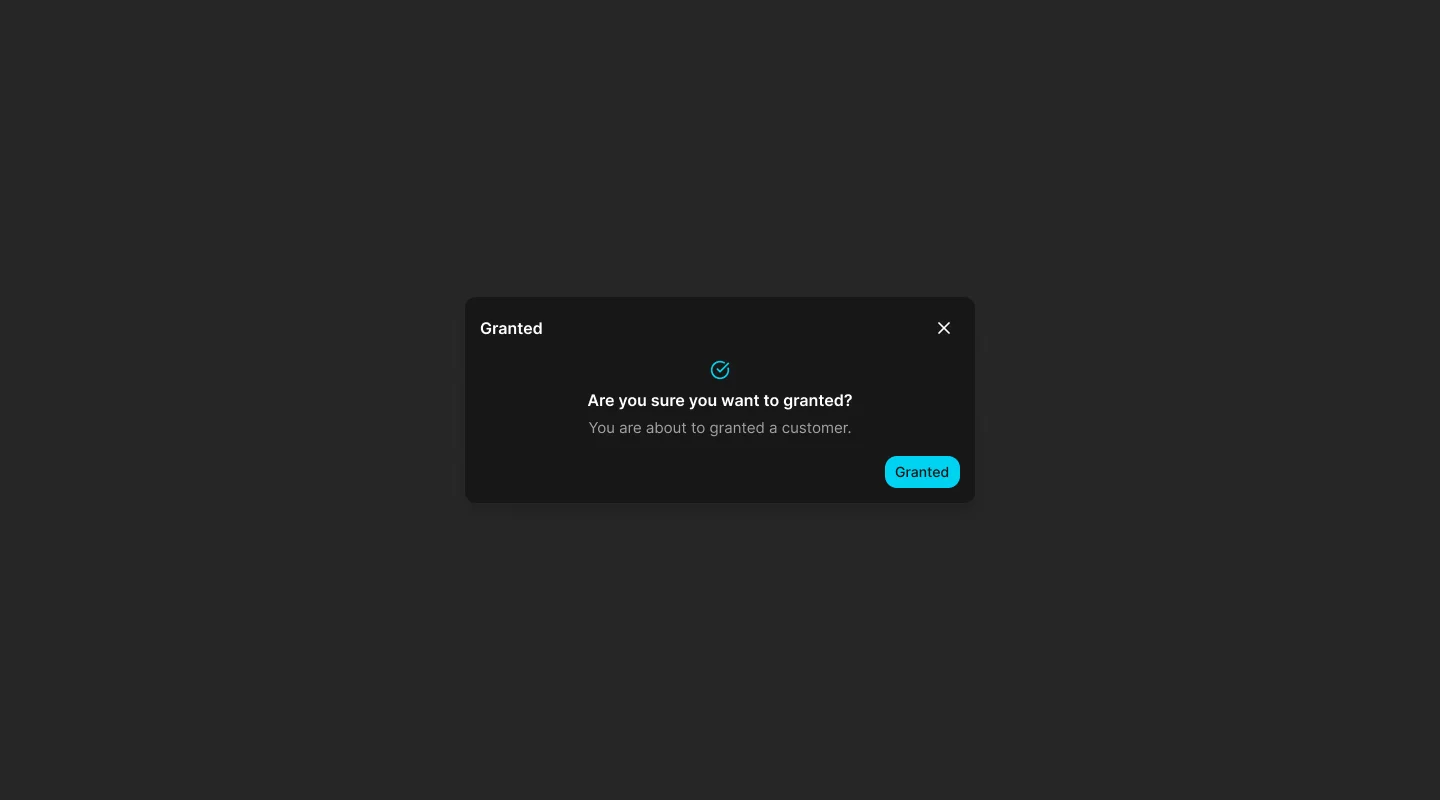
Customer lists, quick drawers, and full customer pages use Denied/Granted consistently. On an administrator customer page, the confirmation changes global access across all sites and uses a Denied or Granted title with generic customer text. The confirmation has no note field. A general account page can still use Archive/Restore lifecycle actions. Check which account scope you opened.
Open the access action
Check the account and choose the displayed action for its current access state.
Verify the scope
Read the confirmation before proceeding. Global account access affects every site; it is different from revoking one Teams membership.
Confirm the change
Confirm the named action and check the notification and updated access. If it fails, read the error before retrying.
Review a customer's reservations
From Customers, open More → Reservations. The administrator view covers the selected customer’s reservations across all sites, including archived sites and sites outside the current site selection. It does not depend on the related-site cards loading successfully and does not list other customers’ reservations. Rows are ordered by start time, newest first. In Manager mode, the section remains restricted to the authorized site of the customer page.
Refine the list
Search with at least three characters for reservation, spot, area, status, or pricing period. Search and Period evaluate the complete loaded history matching Date/Status, across all its pages; site names are not search terms. Filters offers Period (All, Daily, Monthly, Annual), Date, and Status. Save applies the draft; Reset clears it. Column controls and pagination are available, initially 25 rows.
Inspect a reservation
Select one row and Details, or use its menu. Review Site in both the table and Details, then the spot and area, booking dates, pricing period, status, and available payment information. An unavailable platform fee is omitted rather than displayed as zero. Manager mode omits Site because the page is already pinned to one site.
Cancel only when available
Use the reservation's available cancellation action, review its specific impact, and confirm or keep the reservation. A successful operation refreshes the reservations; it is separate from denying account access.
The administrator view includes Site. Unavailable customer totals appear as —.
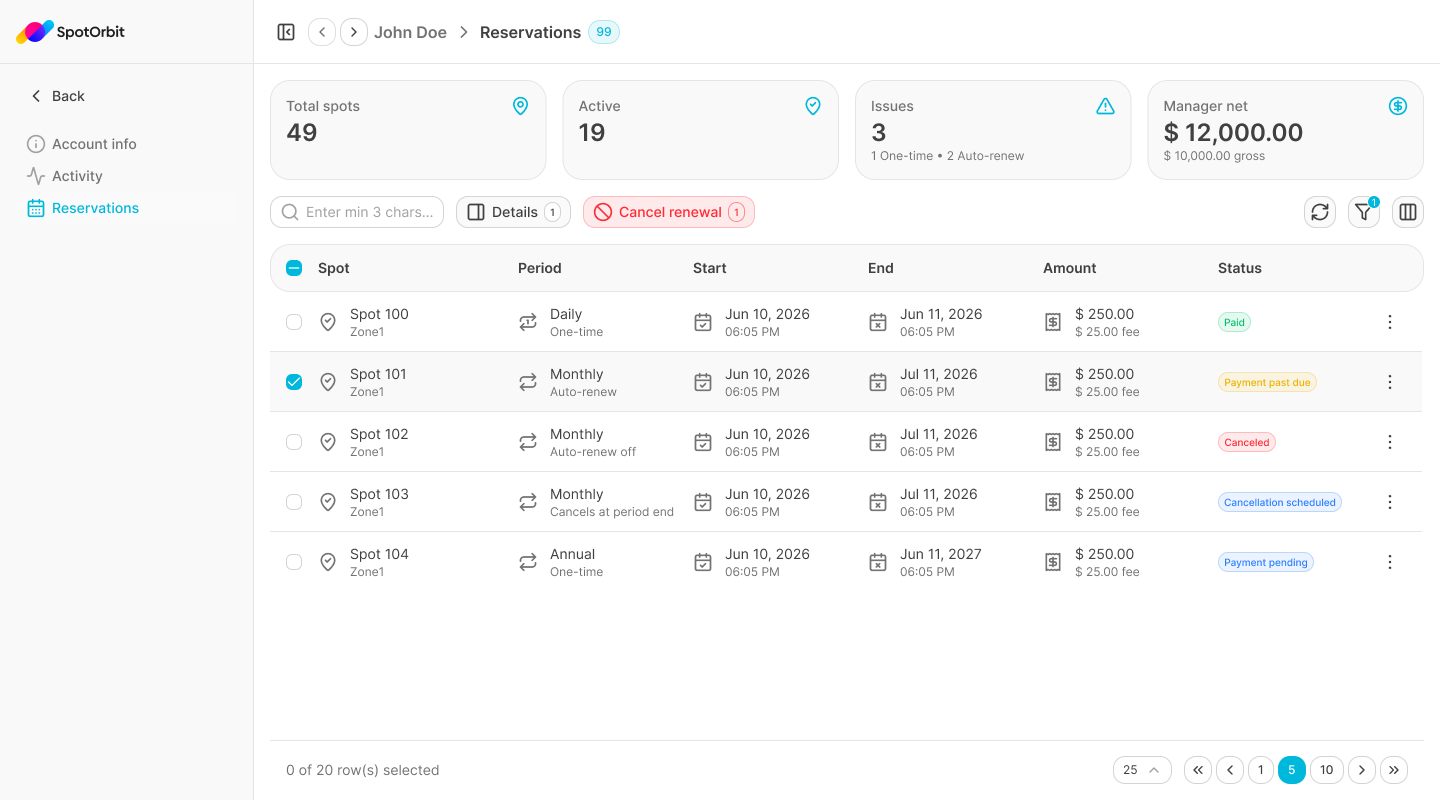
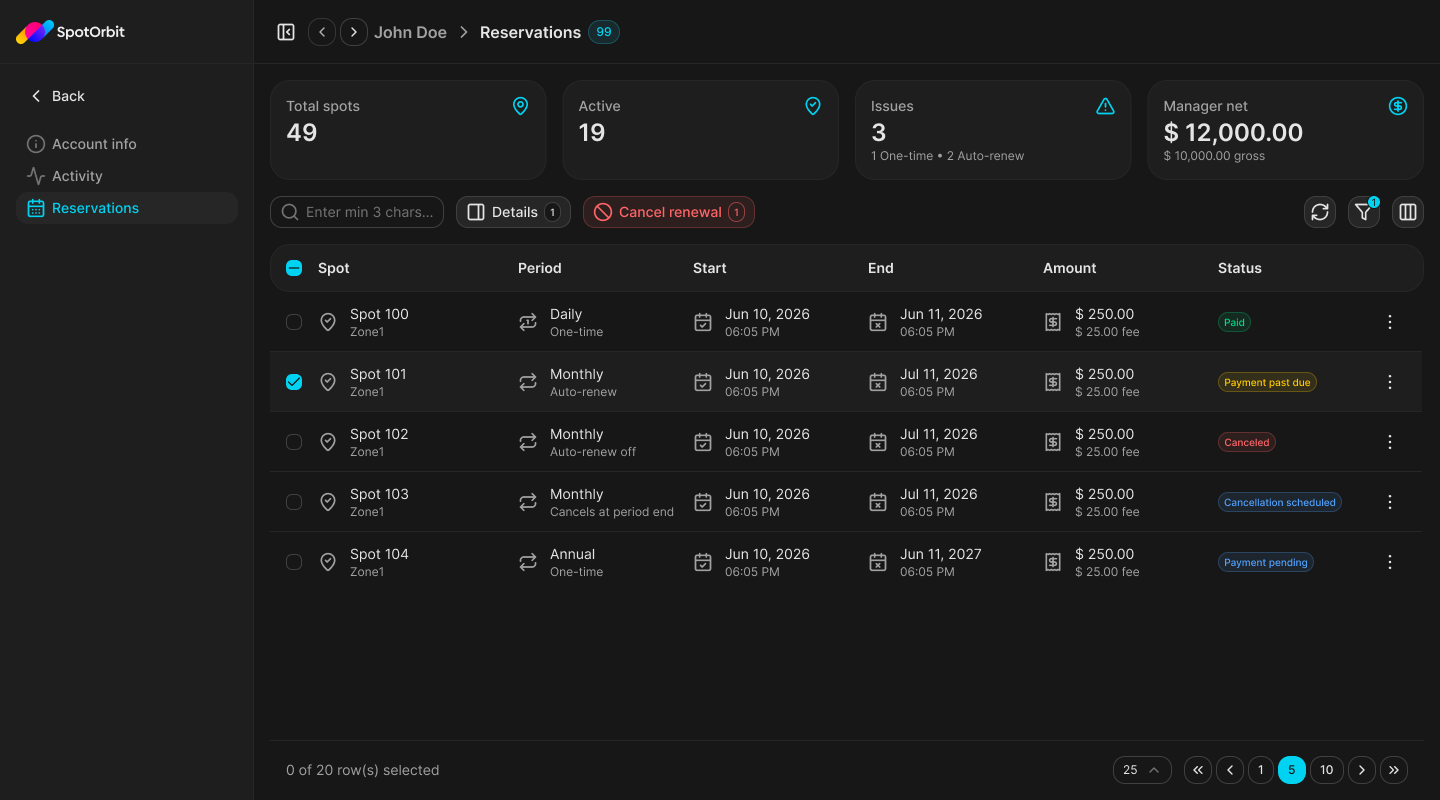
If the collection fails to load, the page shows Some customer reservations could not be loaded and Retry reservations. Treat the list as unavailable or potentially outdated, not as an empty history. Cancellation is disabled while loading or while that error remains. Refresh requests the reservation history again. Changing customer or losing authorized context clears the previous details and cancellation dialog.
Loading, missing, and error states
- The page displays loading content while account and list information are being retrieved.
- Account not found appears when the selected account is unavailable.
- If account data cannot load, select Retry to request both the list and selected account again.
Frequently asked questions (FAQ)
Details opens a quick drawer over the list. More opens the full Account info page with status, account-to-account navigation, Activity, and header actions.
Wait for current assignments to load and resolve any error first. Manager requires at least one selected site unless an Owner or Admin membership already exists. Save also stays disabled without role or site changes.
No. Your Admin checkbox is locked. You can manage other permitted assignments while keeping Admin and the required Customer role.
No. The profile, reservations, subscriptions, and history are preserved. Account policy changes immediately; physical access requires controller confirmation.
Restoring recovers eligible account credentials and existing memberships, but it does not restore archived sites.
Related content
- Managers and Customers — Find an account and open its available actions.
- Account activity — Review device activity associated with the selected account.
- Sites — Review the sites referenced by account memberships.
- Teams — Manage membership for the currently selected site.