Teams
Overview
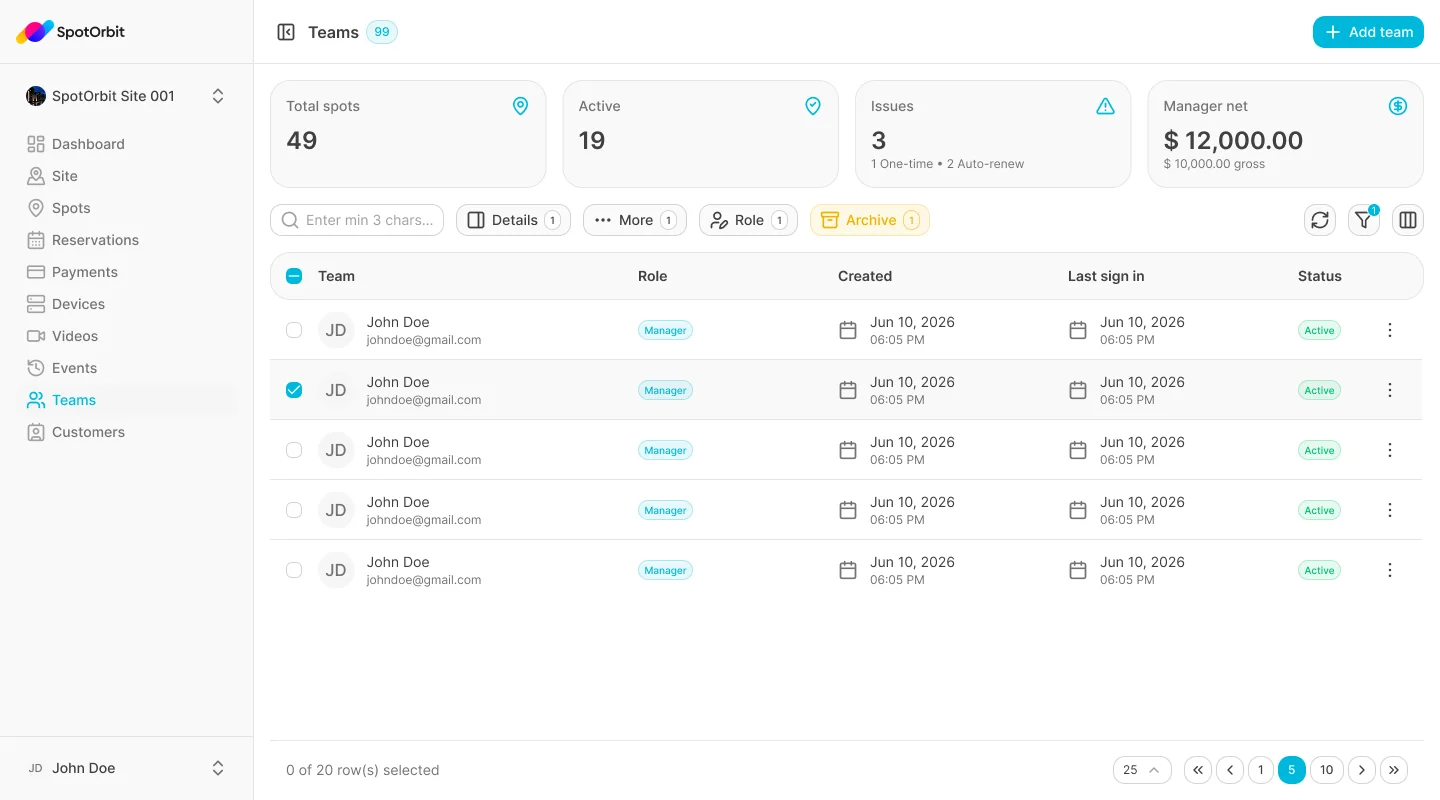
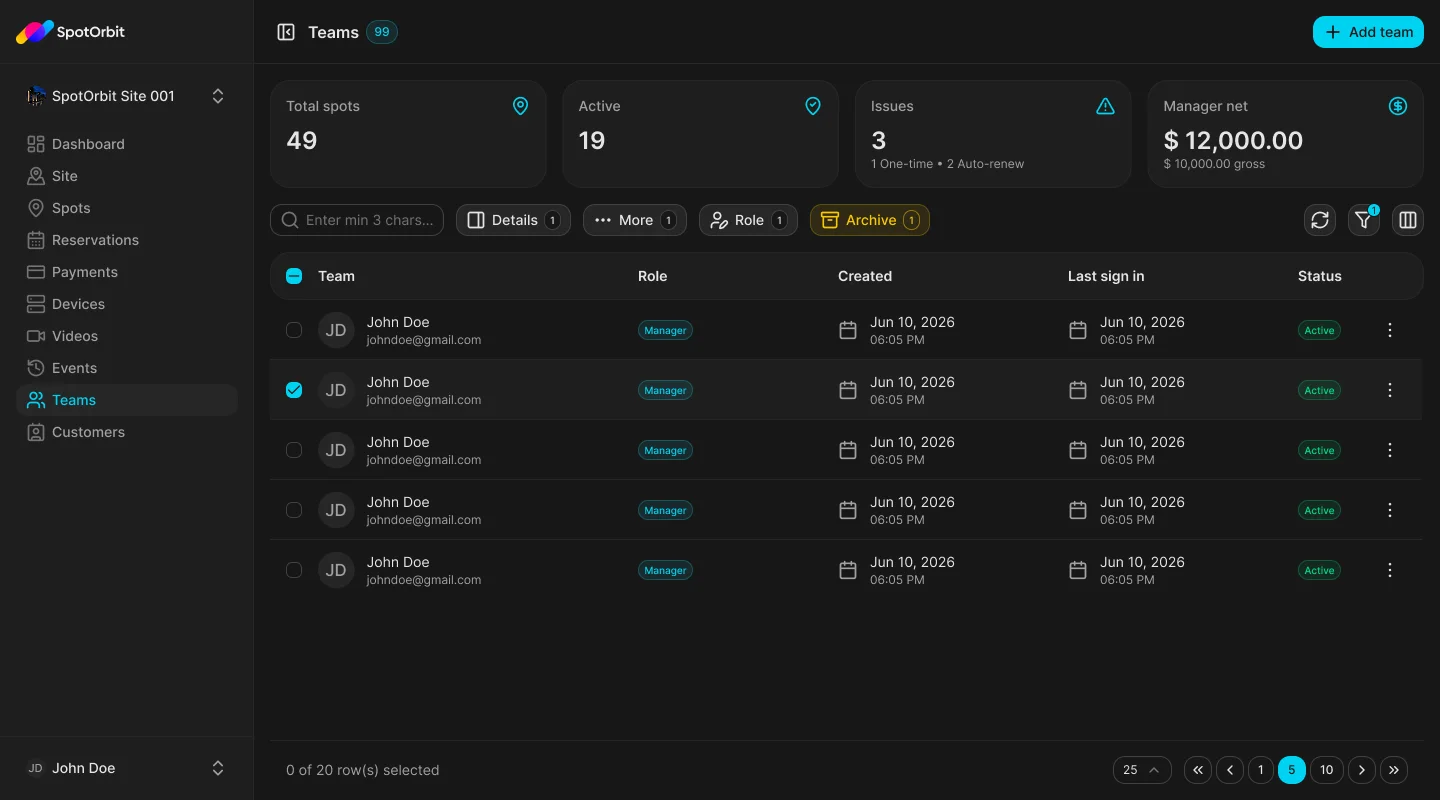
Open Teams after selecting an authorized site. Rows now represent only its Admin site memberships. Owner, Manager, Operator, and Viewer memberships are excluded, even when that person's primary account role differs. Role shows the actual site Admin assignment. Rows also show identity, account creation, last sign-in, and effective Access. There is no Site column: check the selector and Site in Details. Local or global denial makes effective Access Denied; unavailable permission is a dash.
The Total spots, Active, Issues, and Manager net cards describe the selected site's operational report, not membership or account counts. Missing report data stays unavailable. The number beside Teams counts matching membership rows. Teams does not create separate named teams or export data.
Find and review a member
Search and filter
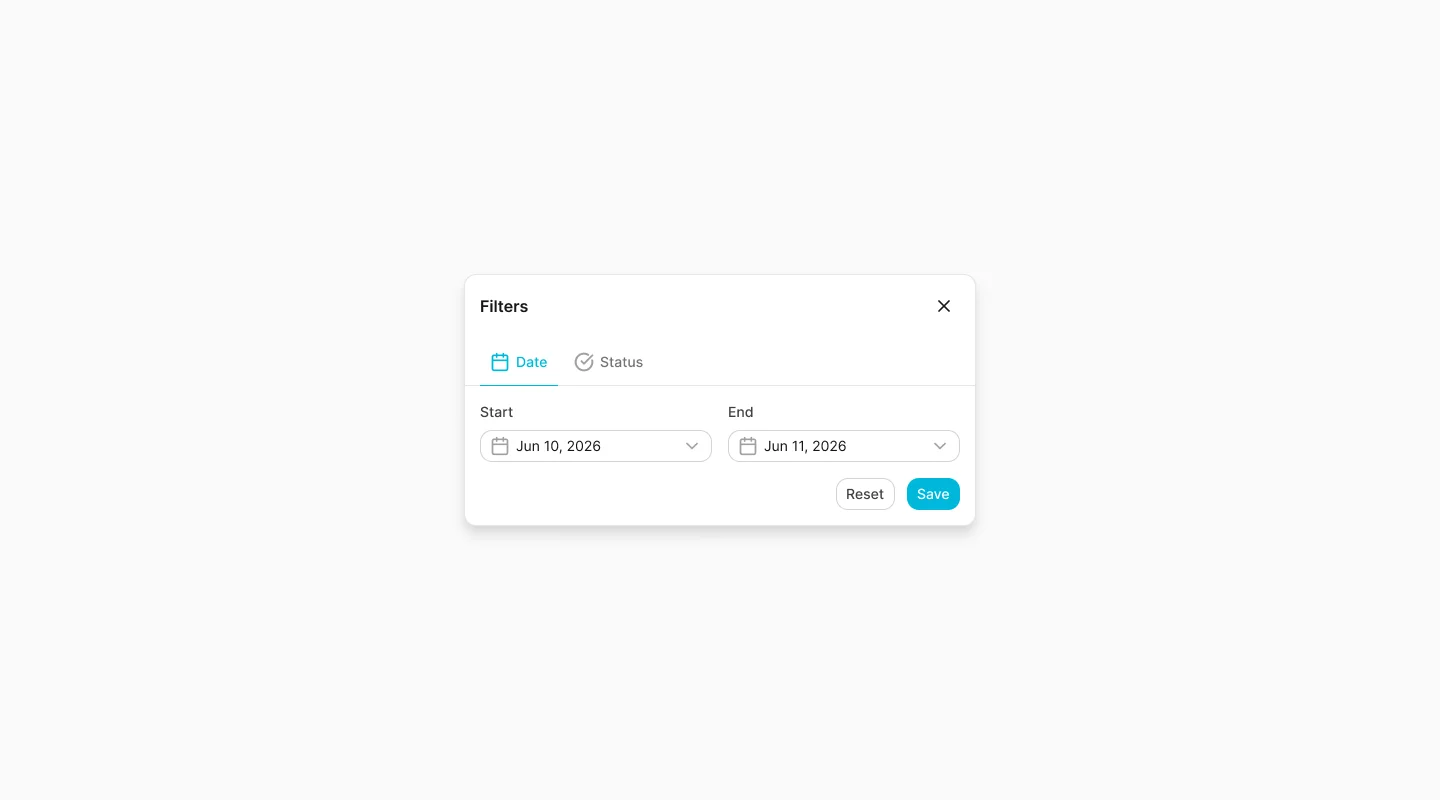
Enter at least three characters to match identity, role, or site name/code in loaded rows. Filters has Date and Status tabs. Date uses account creation, not last sign-in. Status offers All, Granted, and Denied for effective team access. A denied membership remains listed unless excluded by the active filters. Save applies; Reset clears.
Adjust the table
Column controls change visibility/order. Pagination starts at 25, with 10, 25, 50, and 100 available. Search or filter changes return to the first page and clear selection.
Open Details
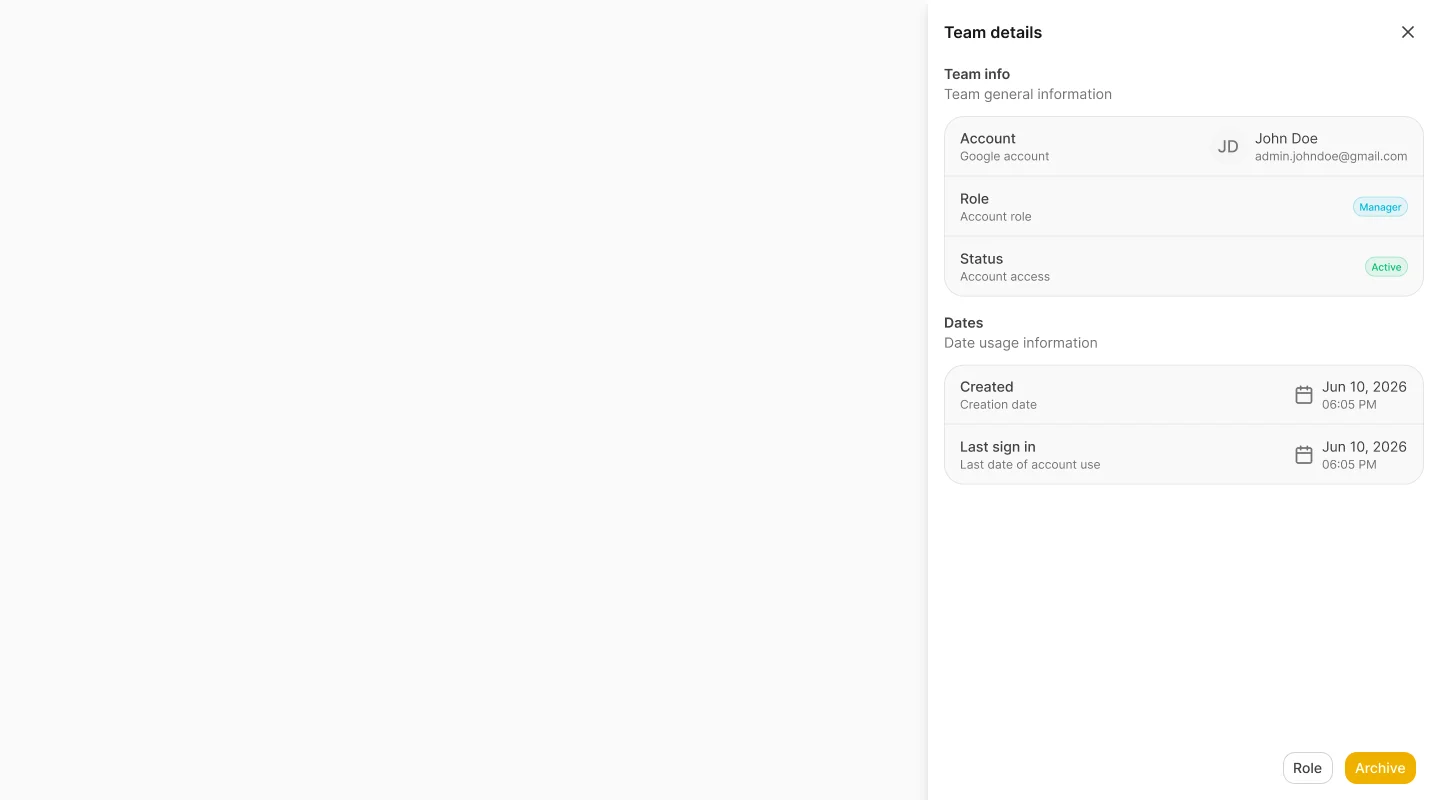
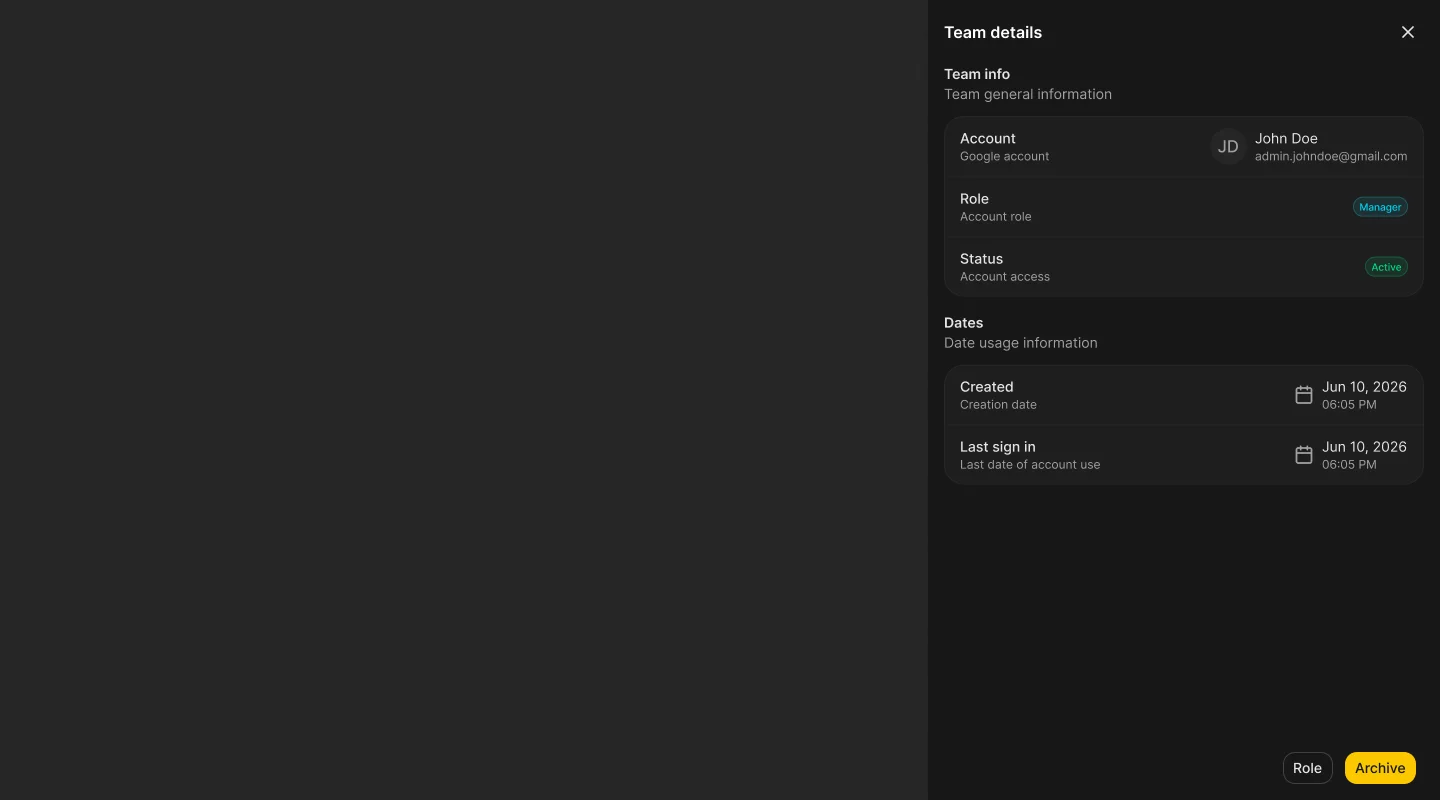
Details opens the site member drawer with identity, actual role, Site, Local team permission, effective access, dates, and Access history. Global access denied explains a global block. Teams has no More or full account page action; older Teams detail links return to the directory. Customer full pages remain separate.
Edit site roles
Role opens the compact dialog with Account role, manager, Customer, Reset, and Save. The heading does not make this a global role change: it changes only this site's membership. Manager grants the site's Manager role; Customer requests membership removal and opens a separate Revoke membership confirmation.
Site permissions in the row menu opens Edit team role with roles allowed to you. An Owner can grant Owner, Admin, Manager, Operator, or Viewer; an Admin can grant Admin, Manager, Operator, or Viewer; a Manager can grant Manager, Operator, or Viewer. Save role requires a different allowed role. Changing the row away from Admin removes it from this directory.
Your own membership cannot be edited or revoked in Manager mode. An Admin membership can be changed or revoked only by a site Owner, so these directory rows are read-only to site Admins and Managers. Local access also requires Owner permission for an Admin target and always prevents self-denial. Using Manager mode applies these site rules even to an account that also has platform access.
Invite a person
Open Add team
Check the site selector first. Add team opens an email field and pending or expired invitation links for that site.
Create an invitation
Enter a valid email and choose Invitation link. Manager mode automatically assigns the Manager invitation role. There is no role selector.
Manage the link
Each entry shows email, expiry, and Success, Failed, or Pending delivery. Copy link is disabled without a returned URL; use Resend in its menu to generate one. Available links can be copied even after failed delivery. Resend and Revoke run immediately, without a separate confirmation, including the available bulk actions. Save closes the drawer.
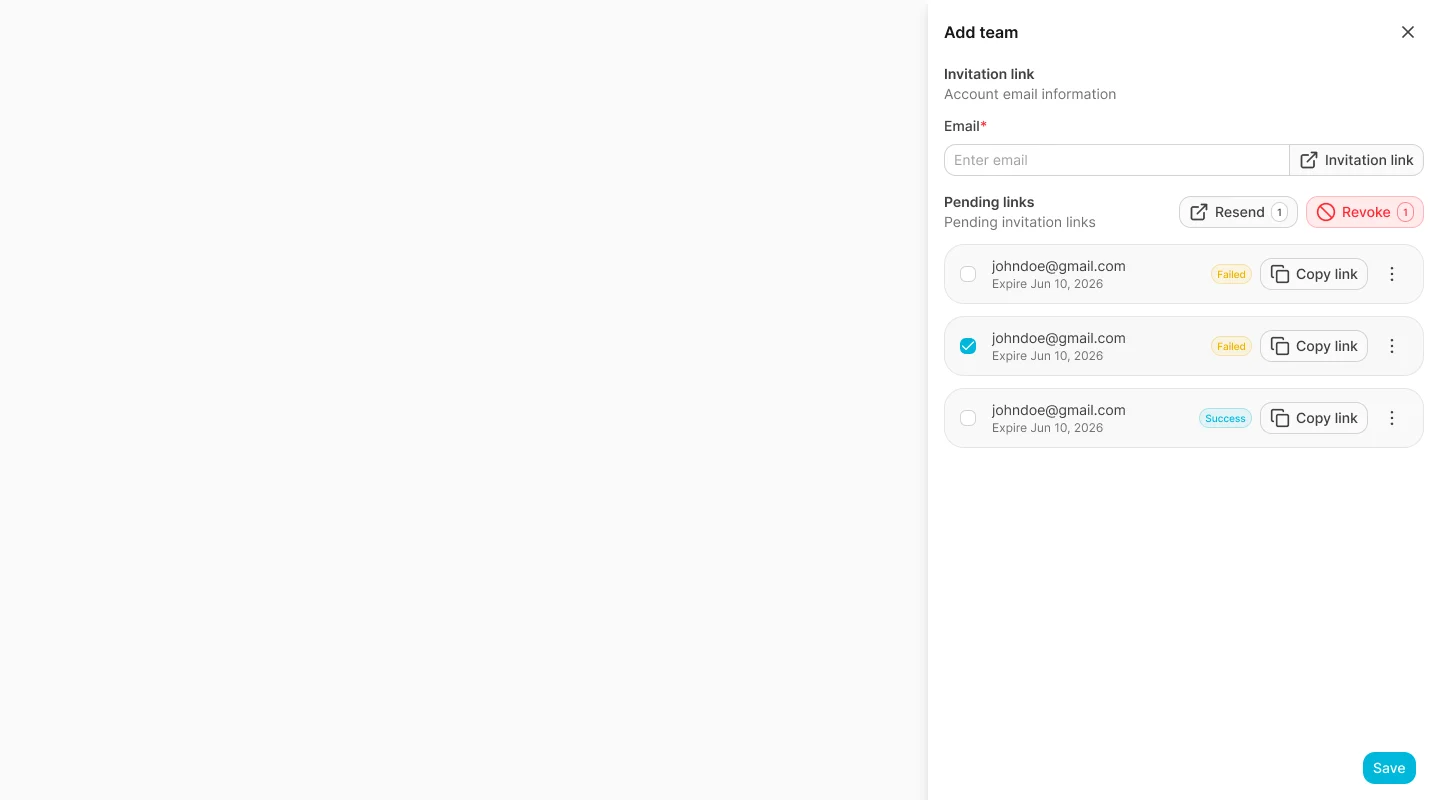

A delivery badge does not prove the invitation was accepted. Revoke makes that invitation unusable; invite again if the person still needs access. A partial bulk failure leaves failed invitations selected for retry.
Change local team permission
Select eligible memberships
Use Denied or Granted in the row or Details. The action follows local permission. For several memberships, all permissions must be known and equal: Granted offers Denied, Denied offers Granted. Mixed local permissions have no group action. Each selected person/site is a separate target.
Check the targets and confirm
Verify people and Site in Details first. The Denied or Granted confirmation describes a team generically and does not name every selected target. The confirmation has no note field. Confirm the matching action or cancel.
Review the outcome
Site team access updated refreshes the list and access. The membership remains. A partial failure reports successful/failed counts and retains only failed memberships for explicit retry; successful changes remain applied. A Status filter can hide a row after its effective access changes.
Review access history
Expand the selected membership's history
Open Details, verify Site, and select Access history. History loads only when expanded and belongs to this person at this site.
Read and page through the changes
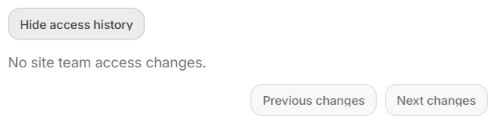
Each entry shows the previous and new Permission, Actor as a user identifier, Changed date and time, and Note, or a dash when absent. Pages contain up to 25 changes. Use Previous changes and Next changes when enabled.
Collapse or retry
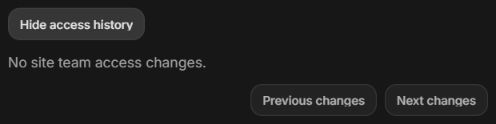
Use Hide access history to collapse it. An empty result says No site team access changes. A failure offers Retry access history. Closing the drawer or changing the membership resets the expanded view.
Remove a membership
Choose the removal action
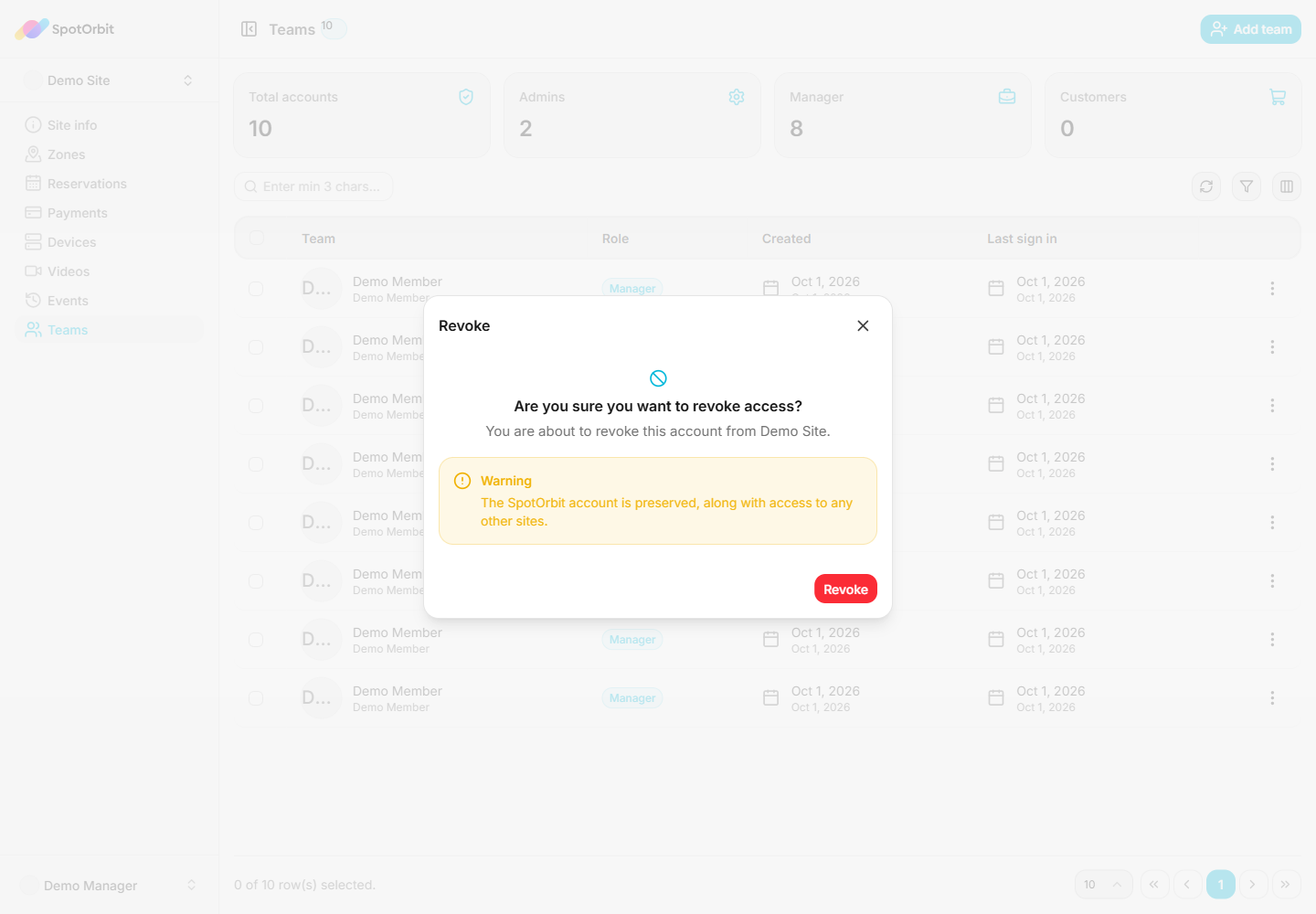
Verify the person and Site in Details, then choose Role → Customer → Save when permitted. There is no direct Revoke membership action in the row menu or toolbar.
Review and confirm
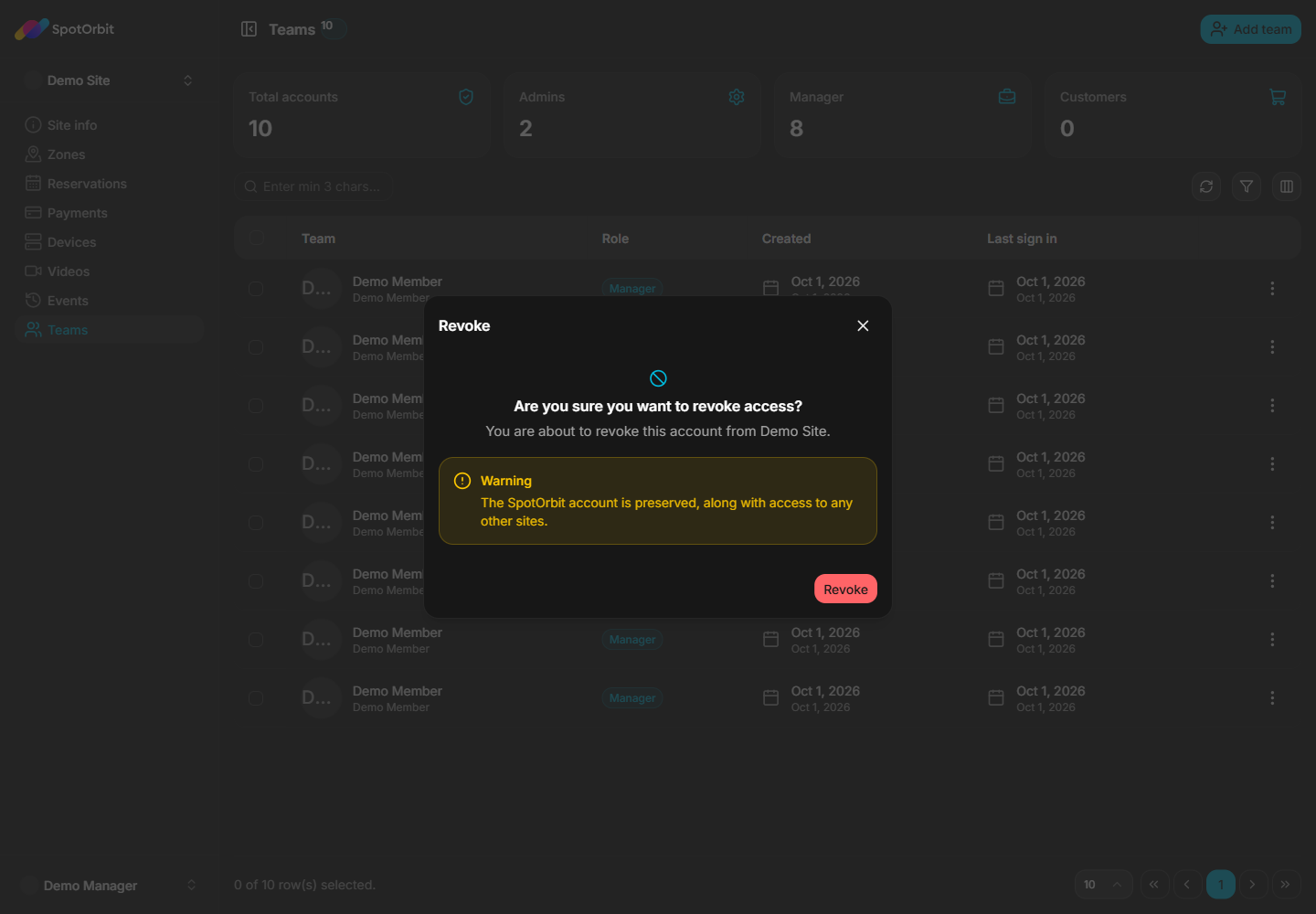
The Revoke membership confirmation describes how many memberships will be removed, without naming each person or site. Check the intended row and selected site first. Choose Revoke to remove the membership, or cancel to keep it. Global access, other sites, and history are preserved.
Check the result
Success refreshes the list and the membership's row disappears. If removal fails, read the error before retrying. This is separate from retaining a membership with Denied permission.
Loading, empty, and error states
Refresh requests the selected site's memberships again. No teams found can mean there are no included roles or none match search/filters; it is not a count of all customer accounts. A failed list offers Retry. Changing site, workspace, or permissions closes the previous editors and confirmations so they cannot act on another site's rows.
Could not load team access in the list or Could not refresh team access in Details offers Retry access. Refresh requests both memberships and access. Do not interpret unavailable permission as Granted.
If denial would leave the site without an active manager, grant access to another manager first as the error directs. Self-denial and insufficient permission are rejected. An expired session requires signing in again. For a missing membership or conflicting change, refresh and review the current state before retrying.
Frequently asked questions (FAQ)
Teams lists only Admin site memberships. Add team in Manager mode invites a Manager; accepting that invitation does not turn it into an Admin row.
These rows target Admin memberships. In Manager mode, changing their role, removing them, or changing local access requires site Owner permission. Your own membership also has protections.
No. Here it changes only local team permission and preserves membership and role. Granted cannot override a global denial.
Teams uses Details without a full account page. Authorized membership removal starts with Role → Customer → Save and a separate confirmation. Customer full pages remain available from Customers.
Related content
- Manager workspace — Review site selection and the separate customer access flows.
- Administrator teams — Compare membership scope and actions in the administrator workspace.