Member access
Overview
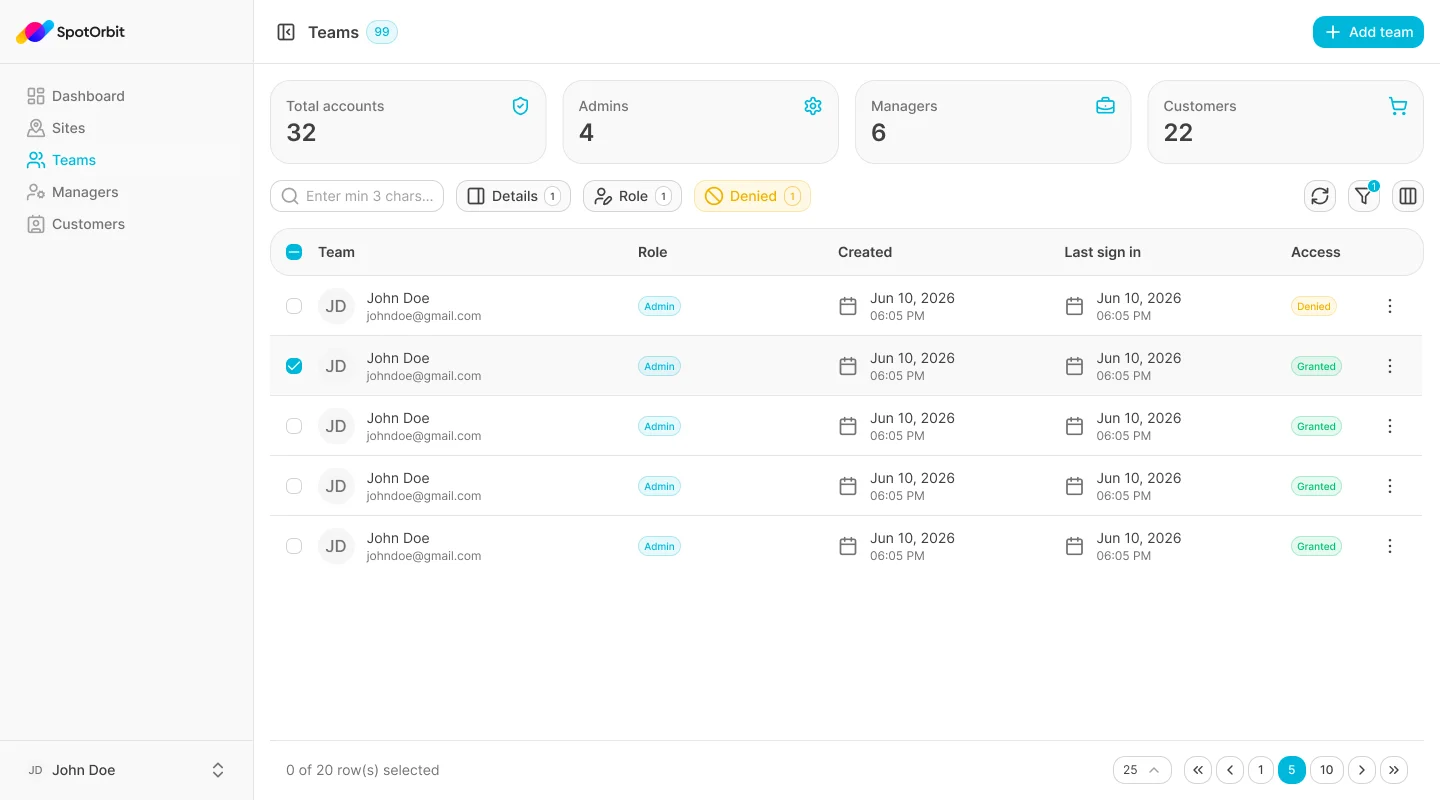
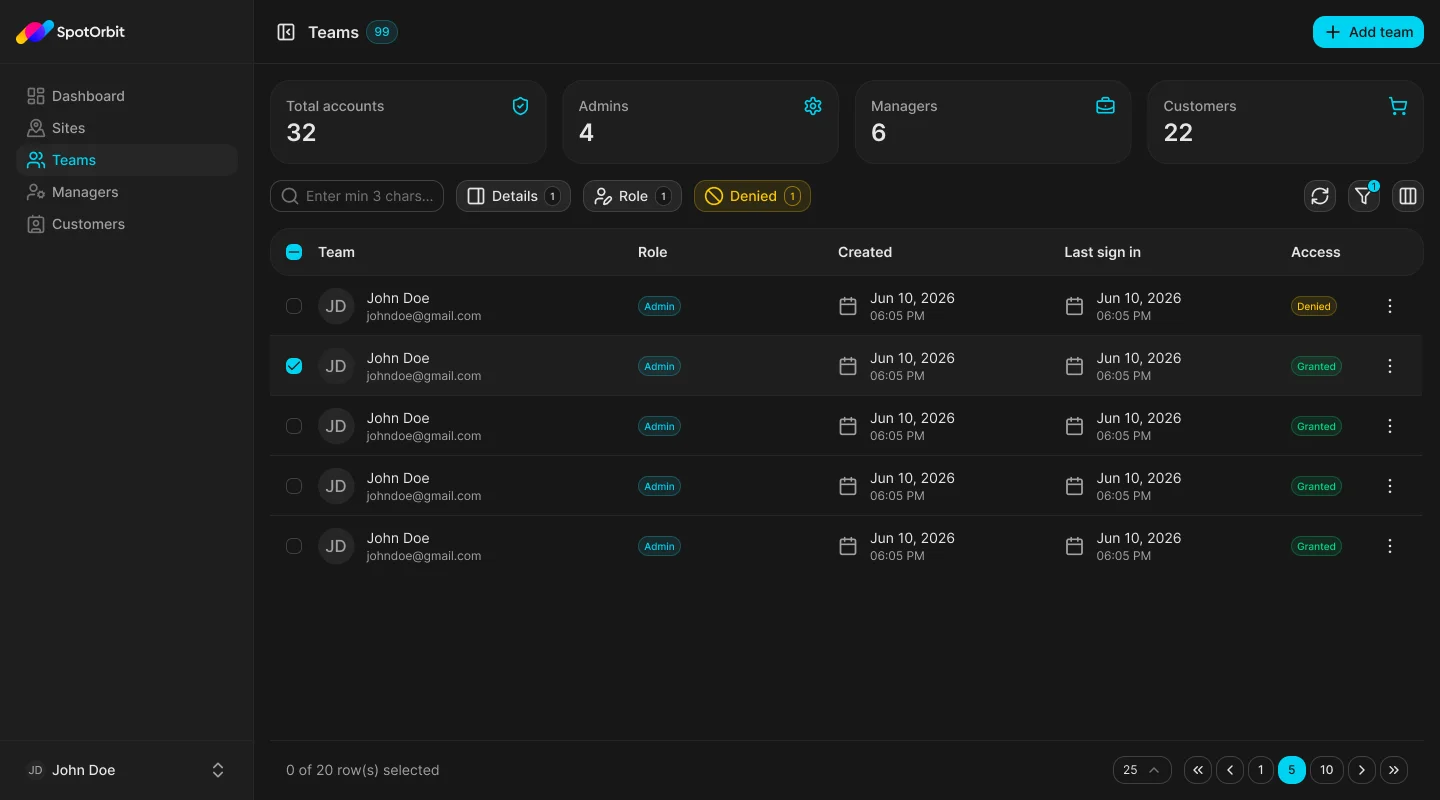
Open Teams to review Admin site memberships and Platform administrator access. Denied/Granted preserves the account and role but changes either local team permission for a membership row or global account access for a Platform-only row. Check the row's Role and Details before acting.
For a site membership, effective Access is Denied when local or global policy denies it. A local grant cannot override global denial. A Platform-only row's badge is global access. Unavailable permission is a dash.
Review member details
Find and open the row
Search with at least three characters or use Date/Status filters. Date evaluates account creation. Open Details from the row menu or with exactly one selected row.
Check access scope
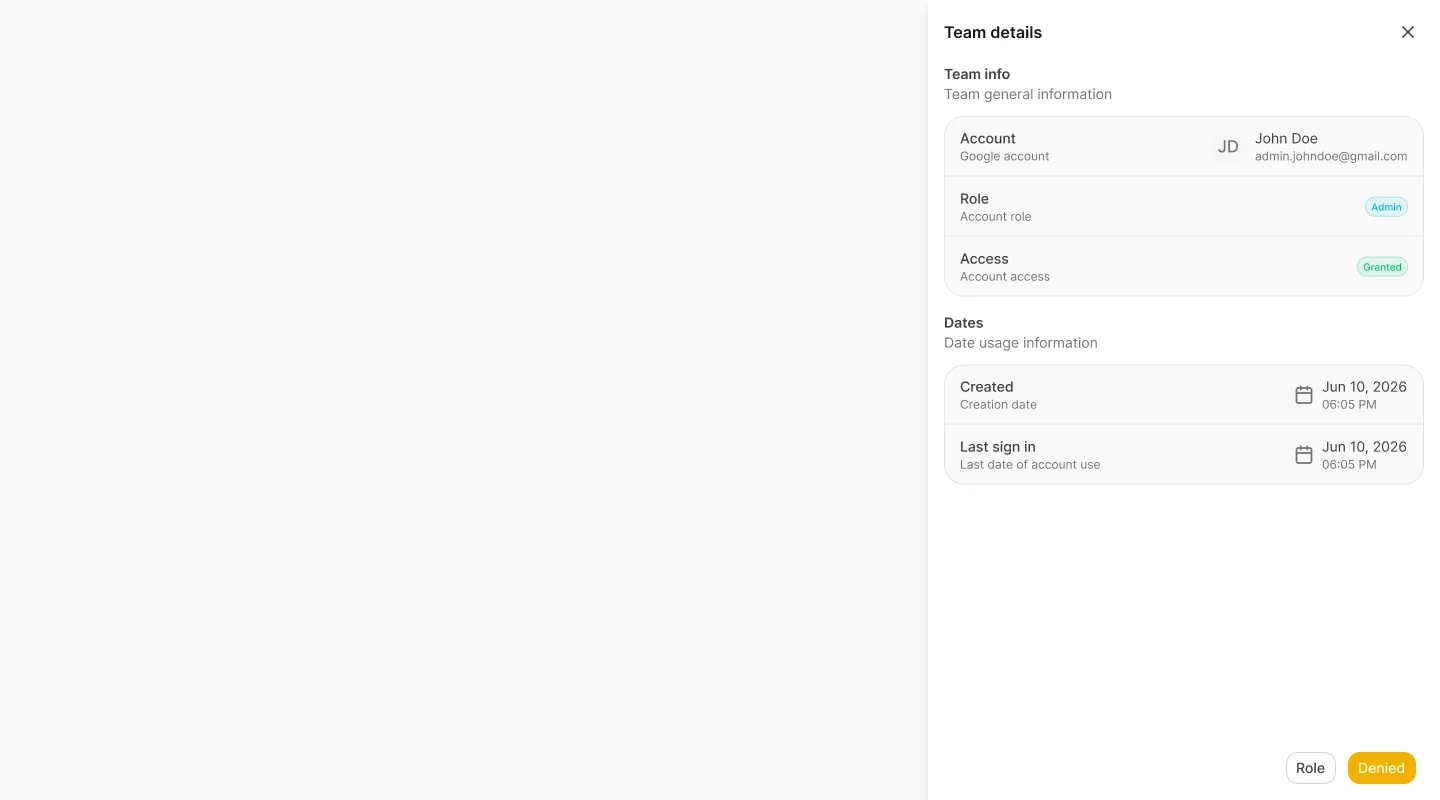
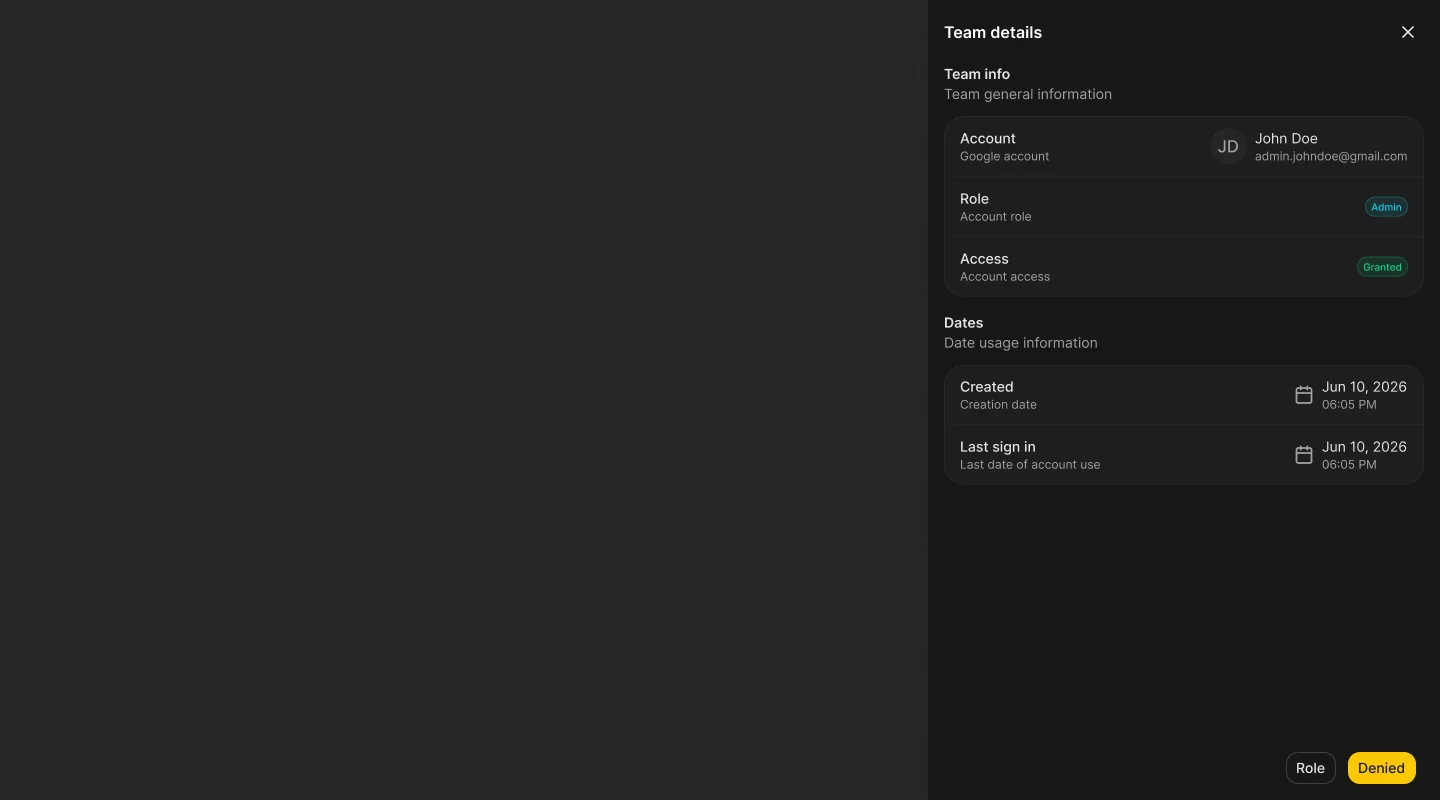
Review identity, actual Role badges, dates, and related sites. An Admin membership shows Site, Local team permission, effective access, and a Global access denied notice when applicable. A Platform-only row shows global account access across all sites without a Site or local access history.
Review role changes separately
Role opens the account-role editor with independent Admin and Manager checkboxes and required Customer. Add site → Search selects Manager sites; Search requires at least three characters and explicit submission, Select returns the choices to the draft, and Save applies the complete selection. Owner/Admin site memberships remain preserved. Follow the account role rules; Manager mode’s site-role controls remain a separate flow.
Change local team permission
Select eligible memberships
Use Denied or Granted in the row or Details. The action follows local permission. For several memberships, all permissions must be known and equal: Granted offers Denied, Denied offers Granted. Mixed local permissions have no group action. Do not combine membership rows with Platform-only rows. Each selected person/site is a separate target.
Check the targets and confirm
Verify people and Site in Details first. The Denied or Granted confirmation describes a team generically and does not name every selected target. The confirmation has no note field. Confirm the matching action or cancel.
Review the outcome
Site team access updated refreshes the list and access. The membership remains. A partial failure reports successful/failed counts and retains only failed memberships for explicit retry; successful changes remain applied. A Status filter can hide a row after its effective access changes.
Review access history
Expand Access history
Open Details for the membership, verify Site, and select Access history. History loads only when expanded and belongs to that person at that site.
Read the changes
Each entry shows Permission before and after the change, Actor as a user identifier, Changed date and time, and Note, or a dash when absent. Pages contain up to 25 changes; use Previous changes and Next changes when enabled.
Close or retry
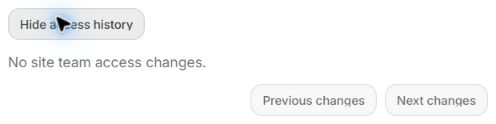
Use Hide access history to collapse it. An empty result says No site team access changes. If loading fails, select Retry access history. Closing the drawer or changing the membership resets the expanded view.
Change Platform-only access
A Platform-only row represents platform administrator access without an Admin site membership. The person may have other site roles that Teams does not list. Its Denied or Granted action changes global account access across all sites. Select only Platform-only rows with the same known permission for a group action. The confirmation uses generic team text, and Granted does not display the preservation notice. Check the selected rows and global scope before opening it; there is no note field. Self-denial is blocked.
Successful updates remain applied if another account fails. The confirmation retains failed accounts for an explicit retry. Reservations, subscriptions, and history are preserved; physical access still requires controller confirmation.
Teams has no direct Revoke membership action. Role changes account roles and managed sites; review that broader effect before saving. For site-scoped membership removal in Manager mode, use its authorized Role → Customer procedure described in Manager Teams.
Resolve unavailable access or rejected changes
Could not load team access in the list or Could not refresh team access in Details offers Retry access. Refresh requests both the membership list and access again. Missing permission remains a dash; do not interpret it as Granted.
If denial would leave the site without an active manager, the error asks you to grant access to another manager first. Other errors can report self-denial, insufficient permission, an expired session, a missing membership, or a conflicting change. Follow the message: sign in again for an expired session, or refresh and review the membership before retrying a missing or conflicting change.
Frequently asked questions (FAQ)
No. A membership row keeps its role and local membership. A Platform-only row changes global access instead.
Global denial overrides a local grant. Details separates local permission from effective access and shows the global-denial notice.
No group access action is offered for mixed local/global scope or mixed/unknown permission. Select compatible rows separately.
Open the membership's Details and expand Access history for permission, actor identifier, date, and optional note. Platform-only rows have no local history.
Related content
- Teams — Search, filter, and select memberships.
- Invitations — Invite a person or revoke an unused invitation link.
- Account info — Review account roles and global access controls.